
Remote software installation has become essential for modern IT teams managing distributed workforces and multiple devices across different locations. Software deployment allows administrators to install, update, and manage applications on endpoint devices without physical access, saving time and ensuring consistency across the organization.
This comprehensive guide walks you through the complete process of remote software deployment, from setting up a centralized repository to creating automated deployment policies that work seamlessly across Windows and macOS devices.
Software deployment is the process of making applications available and usable on devices, servers, or cloud systems after development and testing. It ensures the correct software version is installed, properly configured, and runs smoothly for end users.
Modern remote software installation includes:
Packaging applications for deployment
Installing software on target systems remotely
Applying updates and patches automatically
Monitoring performance and deployment success
Managing configurations across all endpoints
A well-managed software deployment process helps organizations release applications faster, maintain security standards, minimize downtime, and provide a reliable user experience, all without requiring IT staff to physically access each device.
Automating your remote software installation process delivers several key advantages:
Time Efficiency: Deploy to hundreds of devices simultaneously instead of one at a time
Consistency: Ensure identical configurations across all endpoints
Reduced Errors: Eliminate manual installation mistakes
Security: Quickly patch vulnerabilities across your entire network
Scalability: Easily manage growing device fleets
Cost Savings: Reduce IT labor costs and minimize downtime
Effective remote software installation follows a structured approach with four main components:
Repository: Centralized storage for software packages and installation scripts
Deployment Policies: Rules that control how and when software is installed
Target Devices: Endpoints organized into groups for efficient management
Monitoring: Real-time tracking of deployment status and success rates
Let's explore each component in detail.
The software repository serves as the centralized hub for all deployment resources. It stores application installers, scripts, and configuration files that can be reused across multiple deployments.
Navigate to the Repository section from your main management console. This centralized location allows administrators to:
Store and organize software packages
Manage installation scripts
Configure deployment resources
Maintain version control
Ensure security and consistency across endpoints
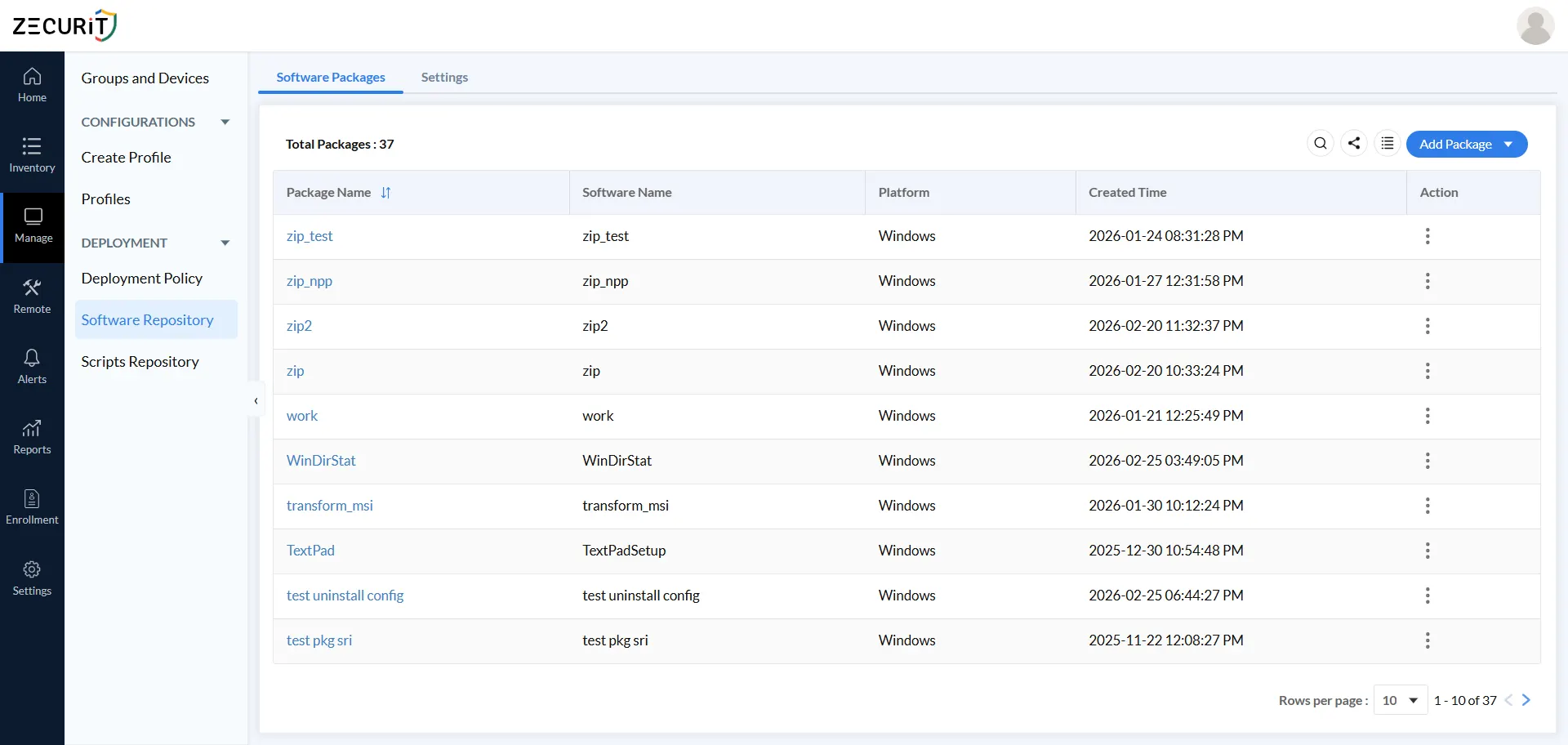
Go to Repository → Software Repository to view and manage all uploaded software packages. You'll see details including:
Package names and software titles
Supported platforms (Windows or macOS)
Version information
Creator details and creation timestamps
From this dashboard, you can add new software packages by:
Uploading installers directly
Linking to network shares
Connecting to hosted URLs
For enterprise-scale software deployment, network share configuration provides efficient access to installation files. This approach:
Defines shared network locations for MSI or EXE installers
Allows endpoint agents to securely access files using credentials
Reduces repeated uploads for large-scale deployments
Enables faster remote software installation across the network
Building a software package involves configuring how the application will be installed on target devices.
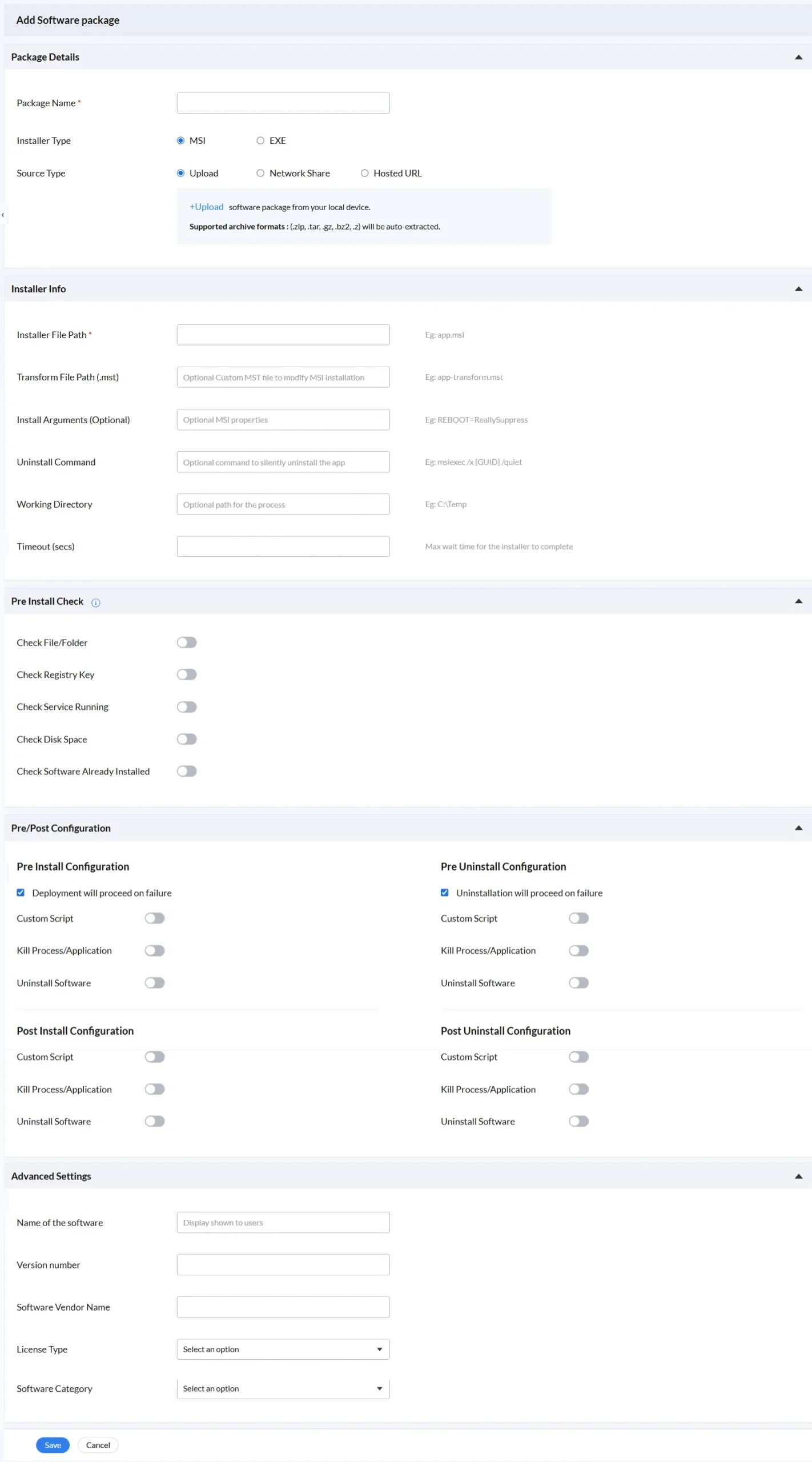
Click Add Software Package to create a new deployable entry. You'll specify:
Package Name: Descriptive identifier for internal use
Installer Type: MSI or EXE format
Source Type: Local upload, network share, or hosted URL
The installer information section defines critical deployment parameters:
Key Configuration Fields:
Installer File Path: Location of the main MSI or EXE file
Transform File (.mst): Optional MSI customization file
Install Arguments: Silent installation parameters for unattended deployment
Uninstall Command: Silent uninstall support for future removal
Working Directory: Execution location for the installer
Timeout: Maximum allowed installation time
These settings enable automated, silent remote software installation without user interaction, essential for deploying to remote endpoints.
Pre-install checks validate system readiness before beginning software deployment. The system can verify:
File or folder existence
Registry key validation
Service running status
Minimum disk space availability
Whether software is already installed
These checks prevent installation failures and avoid duplicate deployments, ensuring successful remote software installation.
Post-install automation ensures clean software deployment by executing tasks after installation completes:
Execute scripts from the script repository
Stop or terminate running applications
Uninstall older or conflicting software versions
This ensures system stability and smooth software transitions during remote software installation.
Store important metadata for tracking and compliance:
Software display name
Version number
Vendor name
License type (Commercial or Free)
Software category
This information improves asset tracking, reporting accuracy, license management, and audit readiness.
Deployment policies transform stored software packages into automated, controlled installations. They define the rules governing your remote software installation process.
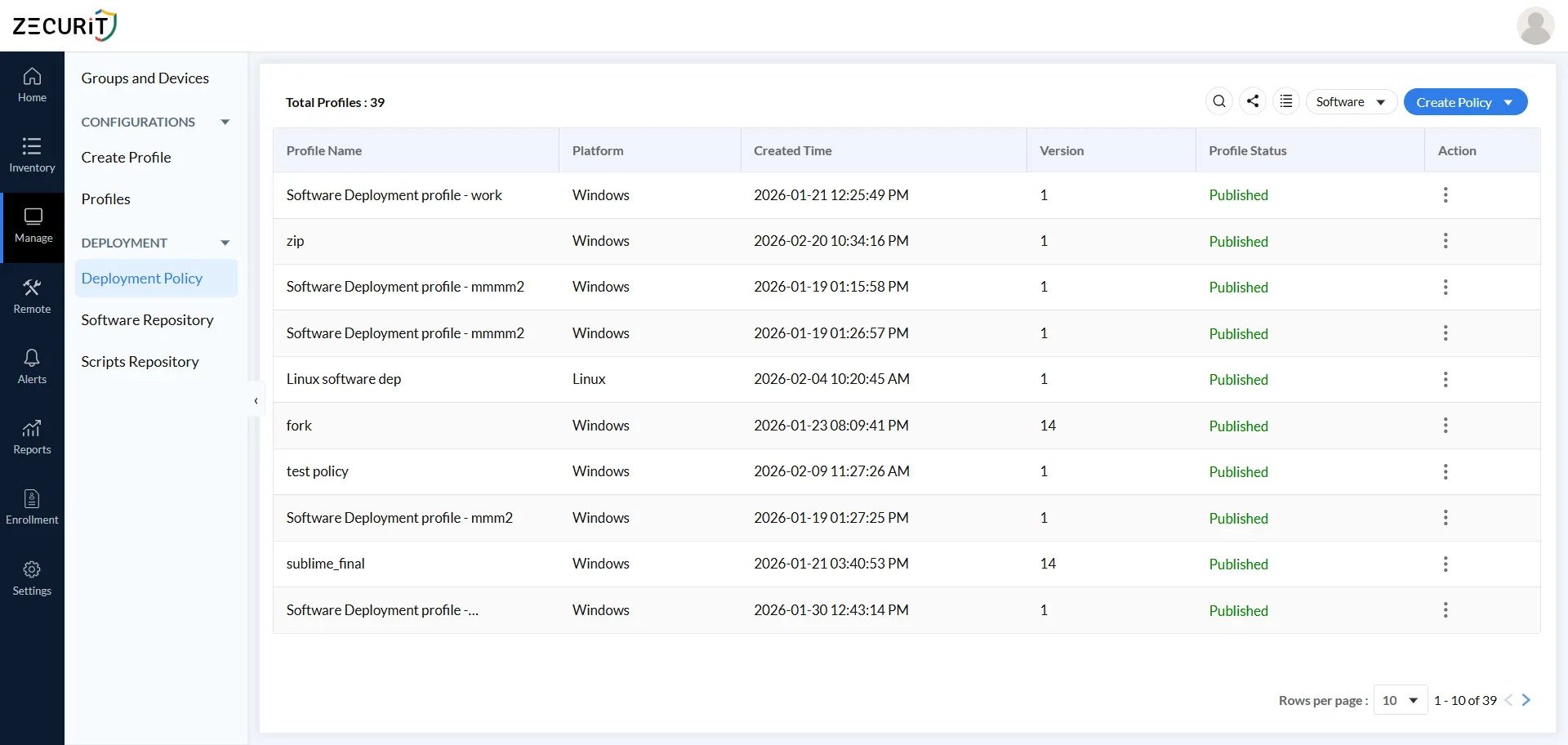
Deployment policies in a software repository are rule-based configurations that specify:
How software packages are installed, updated, or removed
Network usage conditions for deployment
Execution context and permissions
Scheduling and retry logic
Notification preferences
These policies bridge the gap between stored software packages and target devices, enabling scalable software deployment across your organization.
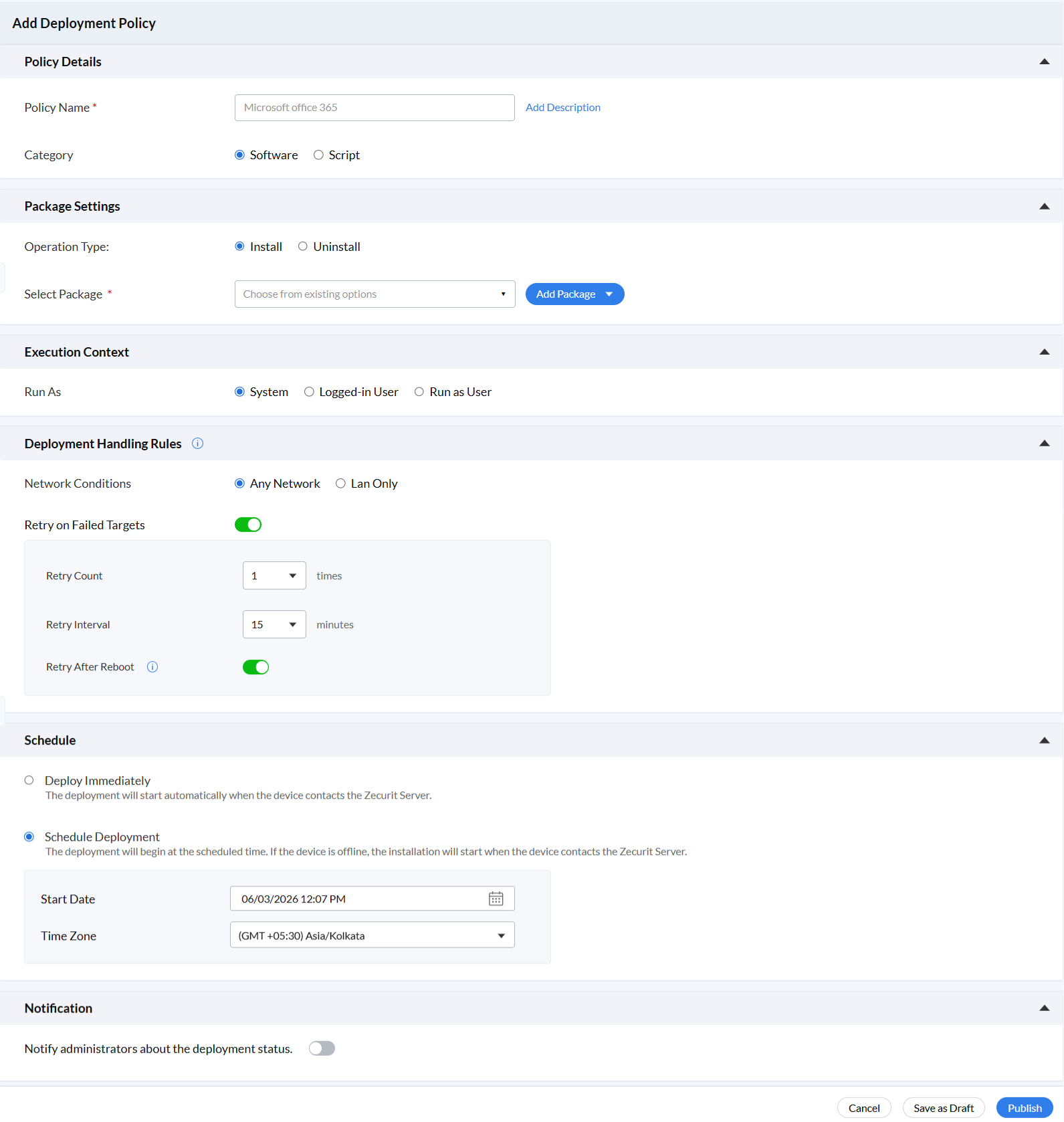
Navigate to Deployment → Deployment Policy to create a new policy.
Start by defining:
Proper naming and categorization make policies easier to manage, track, and reuse across your organization.
Specify the deployment action:
This ensures the correct software operation is applied consistently during remote software installation on all assigned devices.
Execution context determines the permission level for software deployment on endpoint devices. You have three options:
1. System User (Run as System)
Executes remote software installation using the system account with elevated privileges. Best for:
2. Logged-in User
Executes software deployment within the currently active user session. Ideal for:
3. Run as User
Allows remote software installation using a specified user account with stored credentials. Use when deployments require:
Selecting the correct execution context ensures successful software deployment while maintaining security and access control.
Deployment handling rules manage software installation under varying network and device conditions:
These rules ensure reliable and resilient software deployment, even when devices face connectivity issues or interruptions during remote software installation.
The deployment schedule determines when software packages are installed on target devices:
Immediate Deployment: Install software as soon as devices are available
Scheduled Deployment: Set specific date, time, and time zone
If a device is offline during the scheduled time, the software deployment automatically begins once it reconnects. This helps organizations plan remote software installation without disrupting business operations.
Enable notifications to receive updates about software deployment status:
This feature improves monitoring, reduces manual oversight, and helps teams quickly respond to issues during remote software installation.
Effective software deployment requires organized device management.
The Devices section provides a centralized view of all enrolled endpoints, displaying:
This view helps administrators monitor device readiness, identify configuration gaps, and ensure policies are correctly applied for successful remote software installation.
The Groups section allows devices to be organized into logical collections:
Groups simplify management by allowing you to apply deployment policies to multiple devices simultaneously, ensuring consistent configurations and controlled rollouts during software deployment.
Once your deployment policy is configured, publish it to apply software installation to selected devices or groups.
Review your configuration and click Publish to activate the deployment policy. The policy will then:
Track remote software installation progress in real-time from the dashboard:
This visibility ensures you can quickly address issues and verify successful software deployment across all endpoints.
Follow these best practices to optimize your software deployment process:
Always test software packages on a small group of devices before rolling out to your entire organization. This helps identify:
Implement comprehensive pre-install checks to prevent failed deployments:
Plan software deployment during off-peak hours to minimize disruption:
Configure retry logic to handle temporary failures:
Use groups strategically to manage software deployment:
Maintain visibility and records:
Maintain an organized software repository:
Even with careful planning, you may encounter challenges during remote software installation. Here are common issues and solutions:
Symptoms: Software doesn't install on target devices
Solutions:
Symptoms: Deployments fail due to network issues
Solutions:
Symptoms: Installation blocked by insufficient permissions
Solutions:
Symptoms: Some devices don't show deployment activity
Solutions:
Once you've mastered basic remote software installation, consider these advanced approaches:
Deploy software in stages to minimize risk:
Use pre-install checks creatively to create conditional software deployment:
Leverage software deployment for ongoing patch management:
Remote software installation through a centralized deployment system transforms how IT teams manage applications across distributed endpoints. By combining a structured software repository with flexible deployment policies, administrators gain complete control over how, when, and where software is installed.
The software deployment process outlined in this guide from repository setup through policy creation and monitoring, provides a scalable, automated approach that reduces manual effort, improves consistency, and ensures security across your entire device fleet.
Key capabilities that make remote software installation effective include:
Together, these features transform software deployment from a time-consuming manual task into an efficient, policy-driven process. Whether you're managing dozens or thousands of endpoints, automated remote software installation enables your IT team to maintain security, deploy updates quickly, and ensure users have the tools they need, all without leaving their desks.
Start implementing these software deployment practices today to improve efficiency, reduce errors, and gain better control over your endpoint management strategy.