
Zero touch software deployment is the process of automatically distributing, installing, updating, and removing software on managed endpoints with no manual intervention at the device level and no action required from end users. IT administrators configure a policy once inside their endpoint management platform, and the system handles everything else: identifying target devices, validating pre-conditions, running the silent installer, retrying failures, executing post-install tasks, and reporting results back to the dashboard, entirely autonomously.
This approach is fundamentally different from traditional software distribution, where IT staff physically visit machines, open remote desktop sessions one at a time, or ask users to follow installation instructions themselves. Zero touch deployment replaces all of those steps with a single, repeatable, policy-driven workflow that scales from 10 devices to 10,000 without adding a single hour of manual labor.
In this guide, you will learn exactly how zero touch software deployment works inside Zecurit Endpoint Manager, from adding a package to the Software Repository all the way through to silent deployment across your entire fleet.
Zecurit's zero touch deployment workflow follows a logical sequence of six steps. Each step maps directly to a screen inside the Zecurit console, giving IT administrators full visibility and control at every stage of the process.
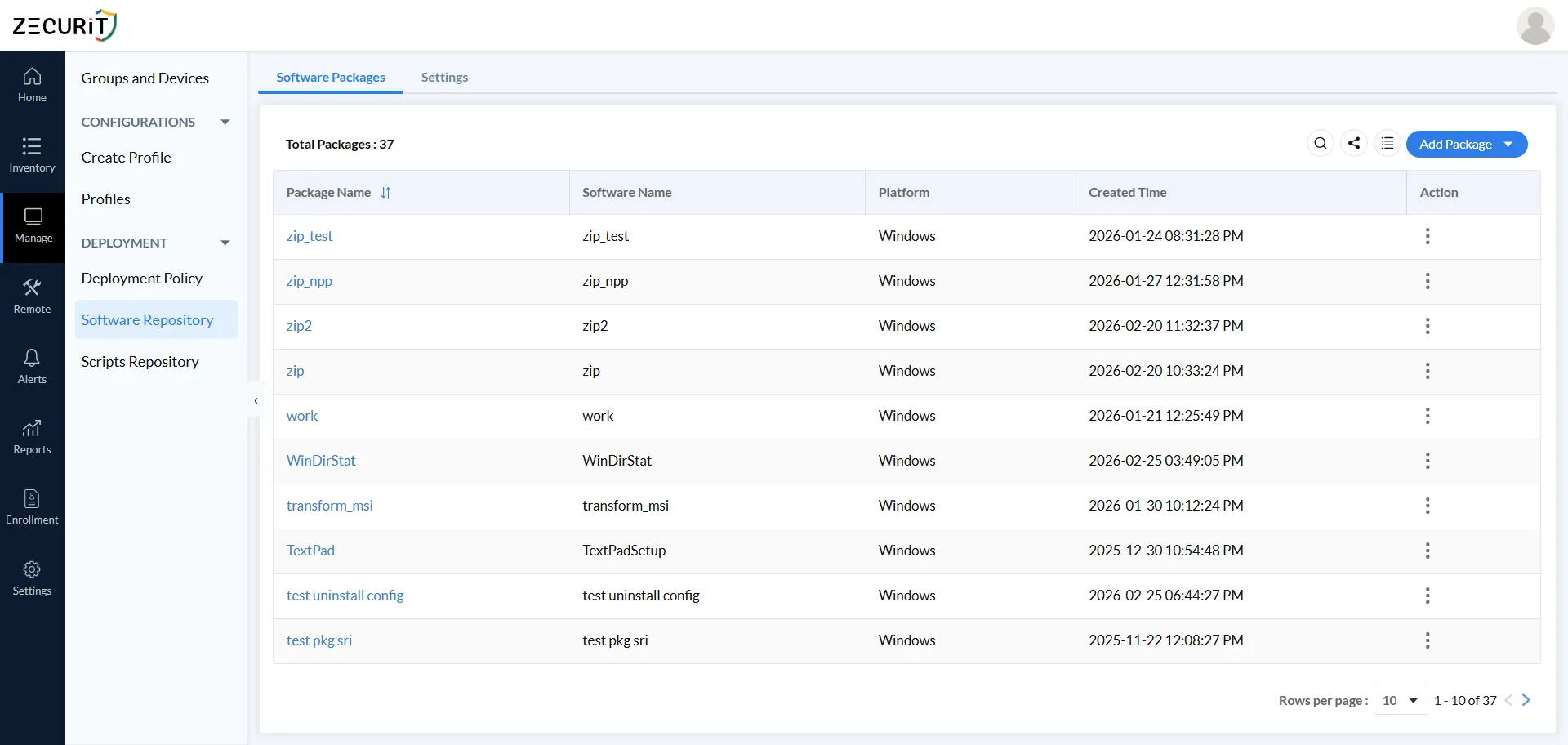
Every zero touch deployment starts in Zecurit's Software Repository. This is the centralized library where all application installers are stored, versioned, and made available for deployment across your fleet.
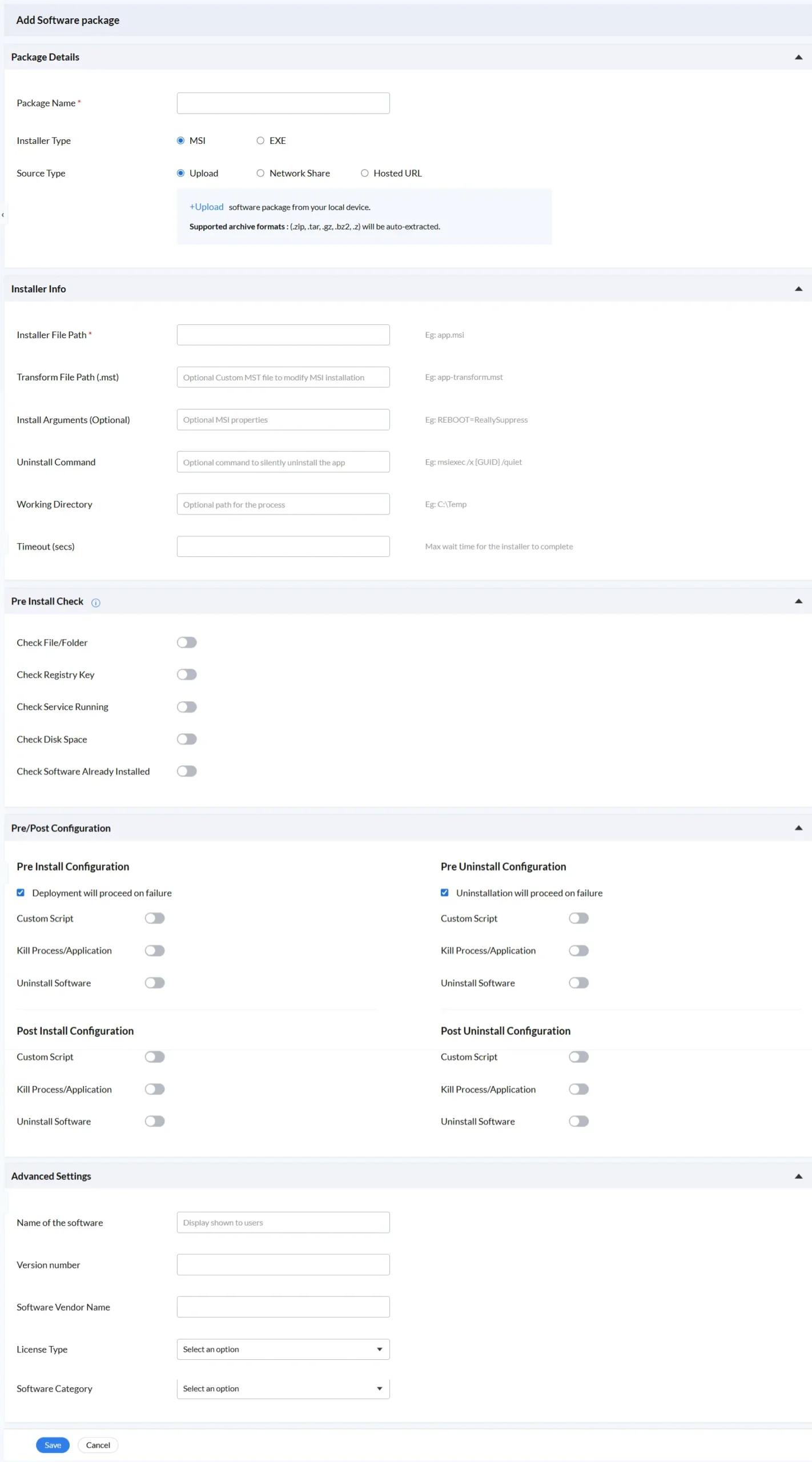
When creating a new package, you configure three core fields:
Once saved, the package is immediately available to reference in any deployment policy, no duplication, no re-uploading required.
See also: Package Creation - Step-by-step guide
The Installer Info section defines exactly how Zecurit runs the installer silently on each target device. This is what separates a true zero touch deployment from a basic software push.
| Field | Purpose |
|---|---|
| Installer File Path | Path to the main MSI or EXE file within the package |
| Transform File (.mst) | Optional customization file to modify MSI behavior |
| Install Arguments | Silent install flags (e.g., /quiet /norestart) |
| Uninstall Command | Command used when the policy runs an uninstall operation |
| Working Directory | Directory from which the installer executes |
| Timeout (secs) | Maximum time allowed for the install to complete |
Together, these six fields give IT administrators precise, repeatable control over every installation, ensuring consistent results across hundreds or thousands of endpoints without any manual involvement.
For organizations that store software packages on internal file servers, Zecurit supports network share configuration directly within the Software Repository Settings tab. Administrators specify the share path and optional credentials so that every enrolled device agent can silently retrieve and install the correct package from the local infrastructure, without requiring repeated uploads or consuming unnecessary WAN bandwidth.
This is particularly valuable for branch office deployments and large package rollouts where delivery speed and bandwidth efficiency are operational priorities.
Before any installation begins, Zecurit validates that each target device meets the conditions required for a successful deployment. These automated checks run silently on every device before the installer is triggered.
Available pre-install checks:
File / Folder Check : Confirms a required file or directory exists at the specified path
Registry Key Check : Validates the presence of a specific registry key or value
Service Running Check : Verifies that a named Windows service is active
Disk Space Check : Ensures the device has sufficient free space (e.g., minimum GB on %systemdrive%)
Software Already Installed : Detects existing installations to prevent duplicate deployments
If a check fails, you choose whether the deployment proceeds anyway or is skipped for that device, giving your team full control over deployment safety conditions without manual monitoring.
This step is where Zecurit's zero touch deployment model goes significantly beyond basic software pushers. The Pre/Post Configuration panel provides four independent automation phases, Pre-Install, Post-Install, Pre-Uninstall, and Post-Uninstall, each with three configurable action types:
Custom Script: Run a script from the Zecurit Scripts Repository to prepare the device, apply configuration changes, or perform any custom automation task
Kill Process / Application: Terminate a running process before the operation begins to prevent conflicts that would block the installer
Uninstall Software: Automatically remove a conflicting or outdated application as part of the same workflow
This four-phase model means Zecurit handles the complete software lifecycle, both install and uninstall directions with equal precision, making software migrations a single automated policy rather than a multi-step manual project.
The Advanced Settings section captures software metadata that powers inventory tracking, license compliance reporting, and audit readiness:
Name of the Software : Display name shown in the platform and reports
Version Number : For version tracking and compliance
Software Vendor Name : Publisher or manufacturer
License Type : Commercial or Free, for license management
Software Category : For classification and software reporting
Completing these fields ensures every deployment contributes accurate data to your software inventory, no manual asset updates required.
A Deployment Policy is the engine that drives zero touch installation. It connects a package from the Software Repository to a set of delivery rules, then pushes the installation to your target devices automatically.
Navigate to Manage → Deployment → Deployment Policy → Add Deployment Policy to get started.
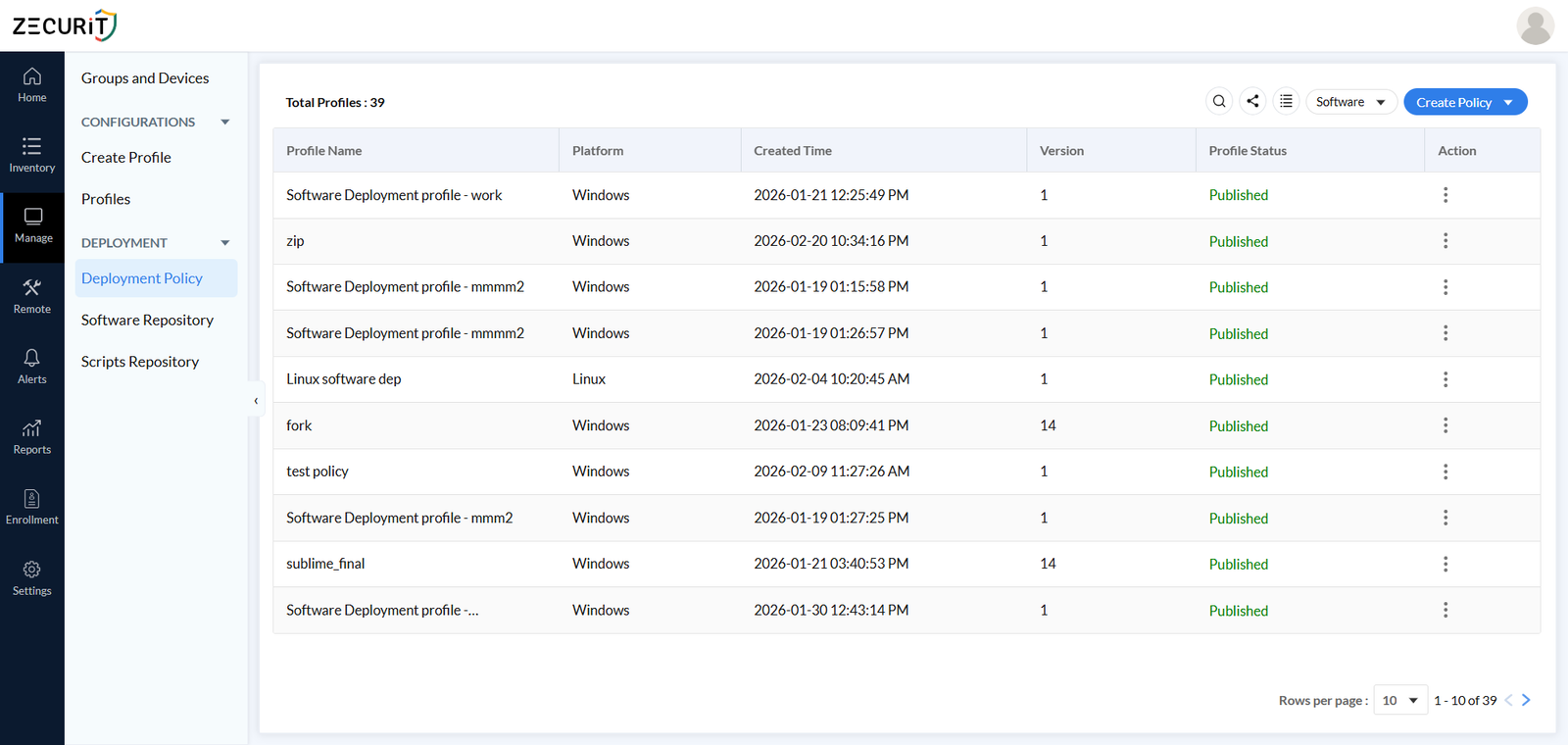
Full guide: How to Create a Deployment Policy
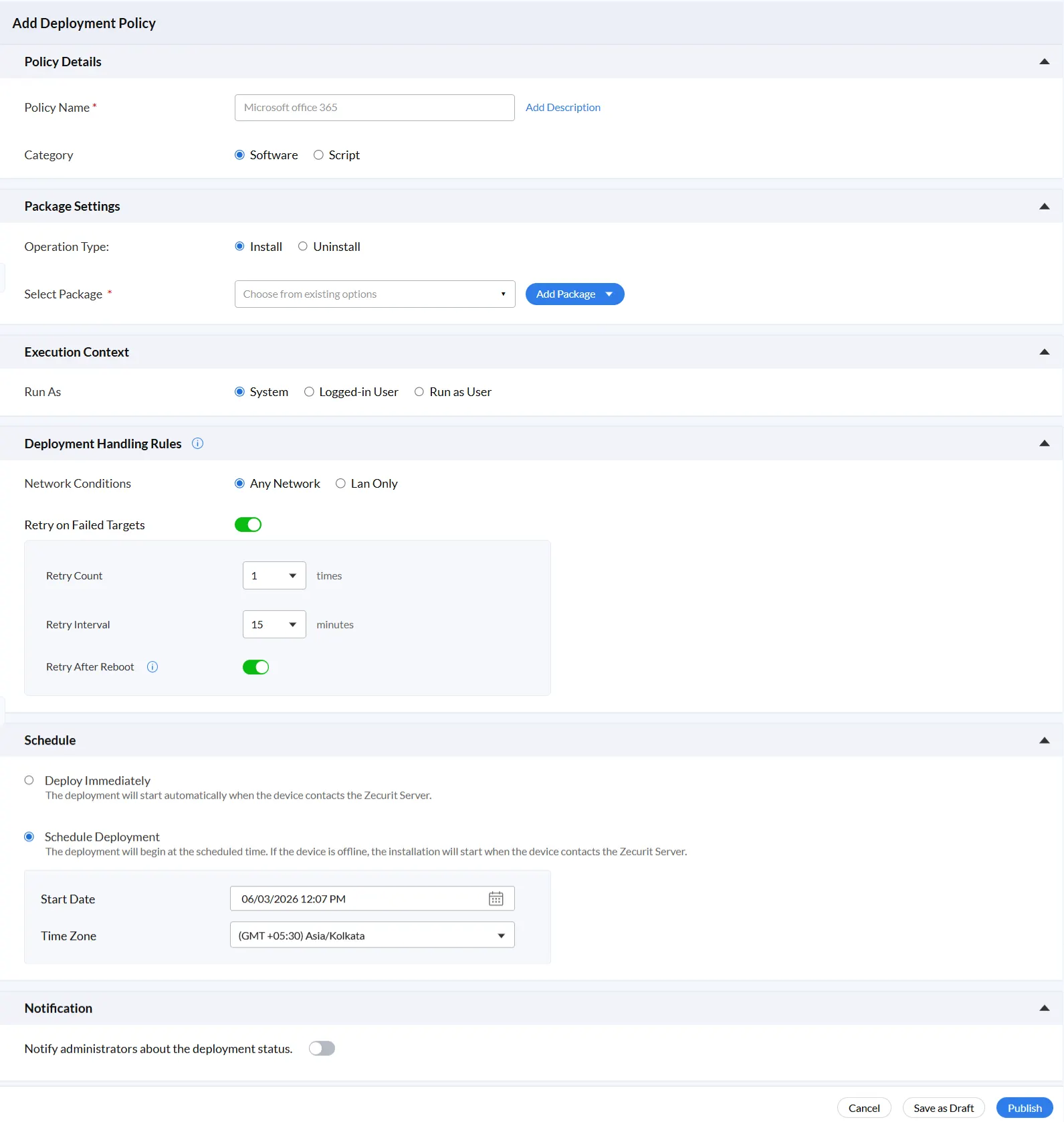
Give the policy a clear Policy Name and select a Category, either Software (to deploy an application package) or Script (to execute a script-based operation). An optional description field lets you document the purpose of the policy for your team.
Operation Type determines whether the policy installs or uninstalls the selected package. Both directions use the same package configuration and policy framework, keeping your deployment workflow consistent regardless of the operation.
Select Package connects the policy to a specific package from your Software Repository. If the required package doesn't exist yet, click Add Package to create it inline without losing your policy configuration progress.
Execution Context controls the privilege level under which the installer runs on each device. Three options are available:
System runs the installer with full administrative privileges on the local device. This is the standard choice for enterprise deployments because it executes regardless of whether a user is logged in, ideal for scheduled off-hours deployments and large-scale rollouts.
Logged-in User runs the installer under the active user's session. Use this for user-scoped applications that install into user profiles rather than system directories. Note that devices with no active session will not receive the deployment until a user logs in.
Run as User executes the installer using securely stored credentials, either Active Directory or Workgroup/Local Account. Use this when the installation requires access to domain resources, network shares, or protected directories. Credentials are stored once and reusable across multiple policies.
These rules determine how Zecurit manages the deployment under real-world conditions:
Network Conditions : Choose Any Network to reach devices over Wi-Fi, VPN, broadband, or cellular, ensuring remote and hybrid workers are covered. Choose LAN Only to restrict delivery to wired connections, ideal for large packages where bandwidth must be controlled.
Retry on Failed Targets : When enabled, Zecurit automatically reattempts failed installations based on your configured Retry Count (number of attempts) and Retry Interval (minutes between attempts). This eliminates manual follow-up for devices that were temporarily unavailable during the deployment window.
Retry After Reboot : Ensures that device reboots never permanently interrupt an installation. When enabled, the Zecurit agent automatically resumes the deployment the next time the device starts up, covering scenarios where a system restart occurred mid-installation or during the deployment window.
Deploy Immediately starts the installation as soon as each target device next contacts the Zecurit server. Use this for urgent deployments, security patches, critical updates, and mandatory compliance software.
Schedule Deployment sets a specific start date, time, and time zone for the deployment. If a device is offline at the scheduled time, the installation begins automatically on the next server contact, no manual re-triggering needed.
Enable the Notify administrators about the deployment status toggle to receive alerts when deployments complete or fail. This keeps your team informed without requiring manual log reviews or console monitoring.
Once configured, save the policy as a Draft for internal review, or click Publish to activate it. From that point, Zecurit deploys the software to all assigned devices automatically.
Every step from package configuration to post-install scripting is defined once and executed automatically across all assigned endpoints. Retry logic, offline queuing, and reboot-aware recovery handle edge cases without IT staff needing to monitor or intervene. Administrators who previously spent 20–30 minutes per device on software installations can now manage fleet-wide deployments in minutes.
Most deployment tools handle installation only. Zecurit's four-phase Pre/Post Configuration model manages the complete lifecycle, preparing the device before install, cleaning up after install, preparing before uninstall, and finalizing after removal. Software migrations that previously required separate workflows happen within a single automated policy.
Every installation runs entirely in the background. No setup wizards appear on screen, no users are prompted to approve or configure anything, and no help desk tickets are generated from confused employees. Combined with scheduled deployment timing, software reaches every endpoint during off-hours with zero productivity impact.
Because every device receives the exact same package version, installer arguments, transform file, and configuration settings, version drift is eliminated. Whether deploying to 10 devices or 10,000, every endpoint ends up in an identical, approved software state.
Zecurit supports zero touch software deployment across Windows, macOS, and Linux endpoints from a single management console, eliminating the need for separate tooling or separate workflows for different operating systems.
Zecurit records policy creator, version number, associated groups, associated devices, deployment status, and completion rates for every deployment. This audit trail directly supports compliance requirements and makes troubleshooting fast, without digging through logs on individual machines.
When users install software themselves, mistakes happen, wrong versions, unauthorized tools, and social engineering attacks targeting the installation process. Zecurit's IT-controlled silent deployment model keeps end users completely outside the installation process. Only packages approved by your IT team and stored in the Software Repository reach endpoints.
The Run as User execution context allows installers to run with specific pre-approved credentials without granting users permanent administrator rights. Credentials are stored securely in Zecurit and reusable across deployments, eliminating per-session manual credential entry.
By validating disk space, detecting duplicate installations, checking registry states, and confirming service status before installation begins, Zecurit prevents the partial and conflicting installs that leave endpoints in unstable and potentially exploitable, states.
The Uninstall operation type combined with Pre-Uninstall Configuration's Kill Process and Uninstall Software actions enables IT teams to silently remove known-vulnerable, unauthorized, or end-of-life applications from all assigned endpoints automatically, on schedule, without user involvement.
The time between vulnerability discovery and patch deployment directly determines your organization's exposure window. Zecurit's zero touch model reduces that window to minutes: update the package in the Software Repository, publish the policy, and the patched version deploys to all assigned devices automatically on their next server contact.
Add a new device to the appropriate department group in Zecurit. Every deployment policy associated with that group installs automatically, no IT action required at the device level. New employees arrive to a fully configured workstation on day one, without imaging queues or manual installation sessions.
Branch offices without dedicated on-site IT staff represent one of the most challenging software deployment scenarios. Zecurit solves it entirely from the central console. IT configures and publishes the policy, and devices at the remote location receive their software the next time they contact the Zecurit server. Network Share configuration allows packages to be served from a local file server for faster delivery without burdening WAN bandwidth.
Zecurit's Any Network condition ensures remote workers receive exactly the same software stack as office employees, regardless of connection type or location. The LAN Only option gives IT teams control over when large packages are deployed, restricting delivery to wired connections where bandwidth is reliable.
Migrating from one application to another across an entire fleet is typically a weeks-long project with manual deployment tools. With Zecurit, the Pre-Uninstall configuration removes the old application, the Install operation deploys the replacement, and Post-Install scripts finalize settings, all in a single published policy, running silently across every assigned device.
Zecurit's package versioning in the Software Repository and policy version tracking in the Deployment Policy dashboard make routine patch management straightforward. Update the package, revise the policy, publish. Zecurit deploys the updated version to all assigned devices on their next server contact, with retry logic ensuring no device is left behind.
Not all endpoint automation platforms deliver genuine zero touch capability. These are the features that separate enterprise-grade deployment tools from basic software pushers, all of which are available in Zecurit:
Multiple Package Source Types: Upload, Network Share, and Hosted URL support for package storage flexibility across different network architectures
Complete Installer Control: Installer file path, transform file, install arguments, uninstall command, working directory, and timeout for precise silent deployments
Comprehensive Pre-Install Checks: File/folder, registry key, service status, disk space, and duplicate installation detection
Four-Phase Pre/Post Configuration: Independent Pre-Install, Post-Install, Pre-Uninstall, and Post-Uninstall phases with Custom Script, Kill Process, and Uninstall Software actions
Flexible Execution Context: System, Logged-in User, and Run as User options with secure, reusable credential storage
Configurable Network Conditions: Any Network and LAN Only options for controlling delivery based on network environment
Retry Logic and Offline Queuing: Configurable retry count, retry interval, retry after reboot, and automatic queuing for offline devices
Flexible Scheduling: Deploy immediately or schedule for a specific date and time zone, with automatic catch-up for offline devices
Cross-Platform Support: Windows, macOS, and Linux endpoint coverage from a single console
Deployment Notifications: Administrator alerts on deployment status without requiring manual log monitoring