
Deploying scripts manually across dozens or hundreds of devices is one of the most time-consuming challenges IT administrators face today. Without a centralized system, teams end up duplicating scripts, losing track of versions, and spending hours troubleshooting failed executions on individual machines killing productivity and increasing the risk of configuration drift.
A centralized remote script execution platform eliminates this friction by giving IT teams a single, organized location to store, manage, and deploy automation scripts across all endpoint devices Windows, macOS, and Linux from one unified dashboard. Whether you're managing 10 devices or 10,000, the right solution lets you build a structured script library, create deployment policies, and automate script execution across your entire device fleet with full visibility and control.
In this guide, you'll learn how to set up your script repository, configure deployment policies, and streamline remote script execution so your team spends less time firefighting and more time on work that matters.
A script repository is a centralized section within the deployment module where administrators store, manage, and reuse automation scripts at scale. Rather than maintaining scripts on individual devices or shared drives, a script repository provides a governed, secure, and organized location to manage all your automation assets.
With a centralized script repository, IT teams can:
Script repository deployment is especially valuable for tasks like software configuration after installation, system health checks, security patch automation, disk cleanup across devices, and registry modifications all without physically accessing a single endpoint.
Before adopting a centralized approach, many IT teams struggle with scattered scripts saved on individual machines, inconsistent script versions causing unpredictable results, no audit trail for script executions, manual deployment requiring device by device access, and failed scripts going unnoticed for days or weeks.
A script repository eliminates these problems by transforming script management into a structured, policy driven process. The result is faster deployments, fewer errors, better security, and complete visibility into every script execution across your environment.
The Scripts Repository Dashboard serves as the centralized control panel for managing automation scripts across all endpoints. From a single, structured interface, administrators can create, organize, edit, and deploy scripts efficiently without navigating between multiple systems.
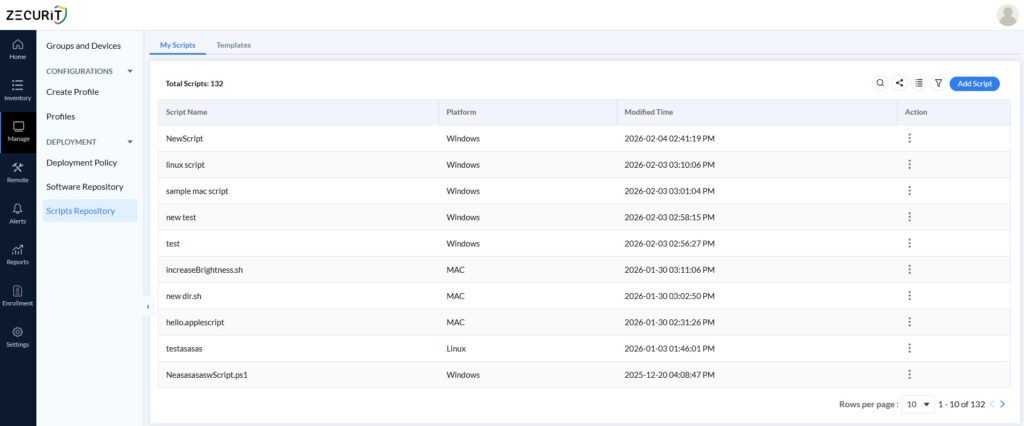
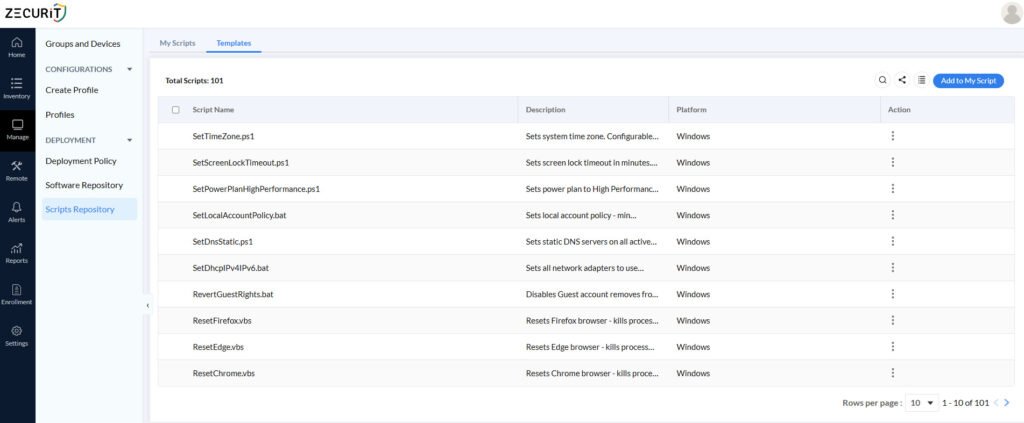
The Templates tab Scripts Repository provides IT administrators with a ready to use library 100 of pre built script templates, eliminating the need to author automation scripts from scratch. Each template entry displays the Script Name, Description, Platform, Arguments, Exit Code, and Status giving administrators a complete picture before adding any script to their active collection. All templates currently carry a status of Yet to add, indicating they are available in the library but not yet cloned into My Scripts.
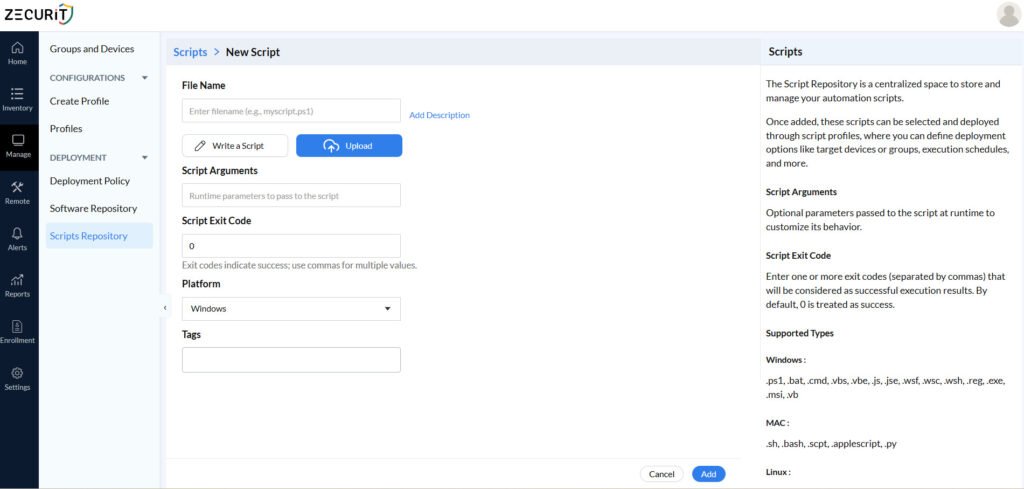
To begin automating tasks across endpoints, click Add Script from the Scripts Dashboard. This opens the script creation interface where you define every aspect of how the script will be stored and executed.
The script file name is more than just a label it defines the execution method based on the file extension. For example, .ps1 identifies a PowerShell script for Windows devices, while .sh identifies a shell script for macOS and Linux environments.
Adding a clear, descriptive name and an optional description is a best practice that pays dividends as your repository grows. Descriptions help team members quickly understand the script's purpose, reducing the risk of using the wrong script during deployments.
Script repository deployment platforms offer two flexible ways to add scripts:
Write directly in the platform: Use the built-in editor to create scripts without leaving the repository. This is ideal for quick automation tasks or when creating scripts specifically for your deployment workflows.
Upload from a local system: Import existing scripts from your local machine or network share. This allows teams to bring established, tested scripts into the centralized repository immediately without rewriting them.
Both options ensure your scripts are stored securely,version tracked, and immediately available for deployment across all managed endpoints.
Script arguments are what make your automation truly dynamic. Instead of creating separate scripts for every scenario, arguments allow you to pass runtime parameters during execution, enabling the same script to perform different tasks across different device groups or deployment contexts.
Exit codes are critical for accurate script deployment monitoring. By defining which exit codes indicate successful execution, the platform can automatically determine whether a script completed correctly and trigger appropriate follow up actions.
For instance, if your script should return exit code 0 for success and exit code 1 for failure, configuring these values ensures the deployment system responds correctly retrying on failure, sending notifications, or proceeding with post-install actions based on the actual execution result.
Platform selection ensures scripts only execute on compatible operating systems. This prevents errors that occur when Windows-specific PowerShell scripts are accidentally deployed to macOS devices, or vice versa.
Available platform options typically include Windows, macOS, and Linux, allowing you to precisely target the correct device types during script repository deployment.
As your script repository grows, tags become essential for maintaining organization and efficiency. Tags allow you to categorize scripts by function (configuration, maintenance, security), platform, department, or project.
Well tagged scripts can be quickly searched and filtered, saving time when building deployment policies and ensuring administrators can find the right automation asset for any task.
One of the most powerful benefits of a centralized script repository is the ability to reuse scripts across multiple deployment policies and workflows without duplication.
Once a script is stored and approved in the repository, it becomes available for use in any deployment policy, post-install automation action, or standalone execution task. This means a script written once for a single deployment can be repurposed across dozens of policies saving development time, ensuring consistency, and reducing the risk of version mismatches.
Script reuse also supports scalable automation: as your device fleet grows, existing scripts automatically scale with it through your deployment policies.
A deployment policy in the Scripts Repository is the rule based configuration that defines how, when, and under what conditions automation scripts execute on endpoint devices. Deployment policies are what transform stored scripts into active, automated workflows.
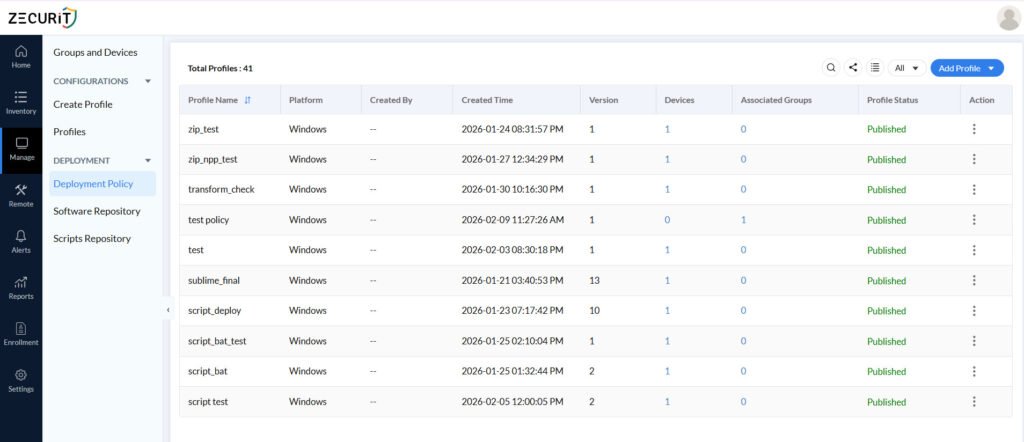
The Deployment Policy dashboard gives administrators a complete overview of all configured policies, showing platform type, version number, associated devices, device groups, and current policy status (published or draft).
This centralized view makes it easy to manage script execution at scale, identify which policies are active, and quickly make changes when automation workflows need updating.
Every deployment policy starts with a clear name and category selection. Selecting Script as the category distinguishes script-based automation from software installation policies, making it easier to manage and audit your deployment environment.
Clear, descriptive policy names are especially important in large environments where dozens of policies may be active simultaneously.

In the Package Settings section, you select the specific script from the Scripts Repository that the policy will execute. The policy links directly to the stored script, ensuring only approved, tested, and version-controlled scripts are deployed to your endpoints.
This direct connection between policies and the repository eliminates the risk of deploying outdated or unauthorized scripts and ensures consistent automation across all assigned devices.

Execution context is one of the most important configuration decisions in script repository deployment. It determines the permission level under which the script runs on each endpoint device.
Running scripts as the System account provides elevated privileges for tasks requiring administrative access. This is the right choice for scripts that modify system settings, install software dependencies, change registry keys, or perform operations that require administrator permissions. System-level execution works even when no user is logged in, making it ideal for scheduled maintenance tasks.

Executing scripts in the context of the currently logged in user applies the script within that user's session and permission scope. This is appropriate for user-specific configurations, personalization scripts, or tasks that should only affect individual user environments rather than the entire system.

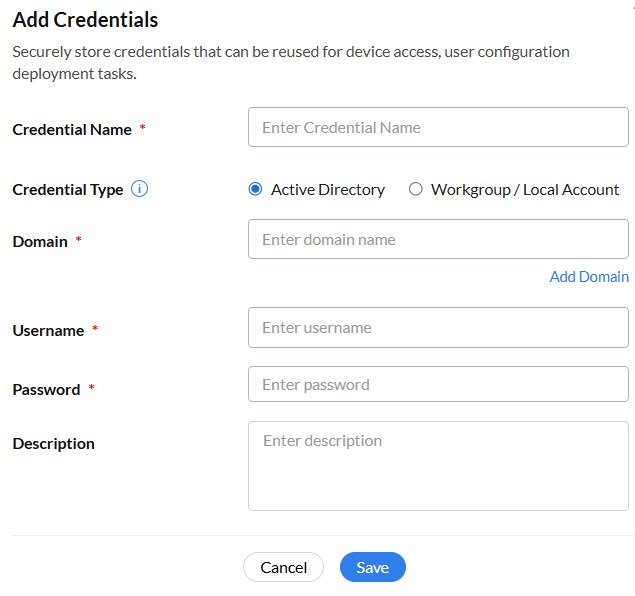
The Run as User option allows scripts to execute using a specified user account with stored credentials. This is particularly valuable when scripts need to access network shares, domain resources, or protected directories that require specific user authentication. Credentials are stored securely, enabling controlled and authenticated script execution without hardcoding sensitive information into the scripts themselves.

Logging is a foundational feature of effective script repository deployment. Every script execution generates detailed log records including start time, completion status, exit codes, and any error messages encountered during execution.
These logs serve multiple critical purposes. When a script fails on a specific device, logs allow administrators to quickly identify the root cause without physically accessing the endpoint. Logs also capture retry behavior, helping teams understand whether failures are transient connectivity issues or persistent configuration problems. From a compliance perspective, execution logs create a complete audit trail for every automation action performed across your device fleet.
In summary, logging transforms script deployment from a fire-and-forget process into a fully accountable, auditable workflow.

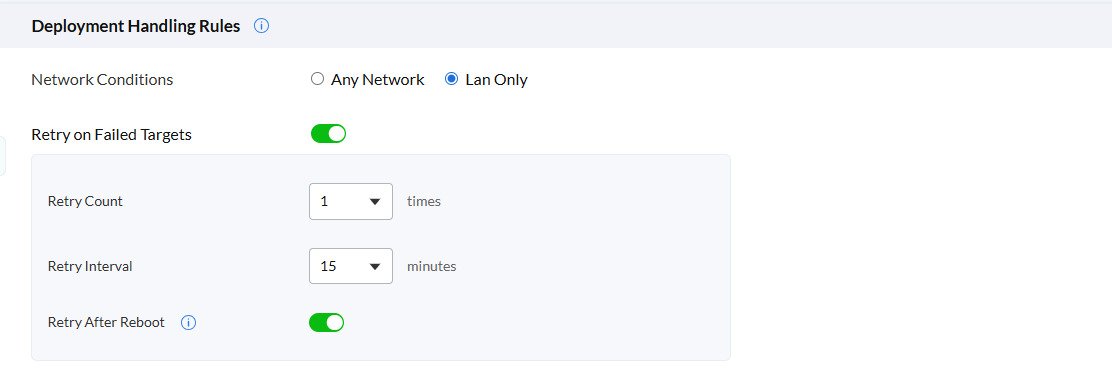
Network conditions and device availability are realities of managing distributed endpoints. Deployment handling rules ensure your script repository deployment remains reliable even when devices face connectivity issues or interruptions.
Network Usage Controls allow you to specify whether scripts deploy on any available network connection or restrict execution to lan only important for devices with limited mobile data plans.
Automatic Retry Logic enables the system to automatically reattempt failed script executions rather than marking them as permanently failed. This handles transient issues like temporary network outages or device resource constraints.
Retry Intervals let you define how long the system waits between retry attempts, giving devices time to resolve temporary issues before the next execution attempt.
Retry After Reboot ensures scripts resume execution automatically after a device restarts, preventing missed deployments due to scheduled reboots or unexpected shutdowns.
Together, these rules make script repository deployment resilient and self-healing, significantly reducing the manual intervention required to manage large device fleets.
The scheduling configuration determines exactly when your automation scripts execute on target devices. Flexible scheduling options ensure script deployments align with your operational requirements and minimize disruption to end users.
Immediate Execution triggers script deployment as soon as target devices connect to the management server ideal for urgent automation tasks or security responses.
Scheduled Deployment allows you to set a specific date, time, and time zone for script execution, enabling IT teams to plan automation during maintenance windows, off-peak hours, or coordinated rollouts across global teams.
Offline Device Handling is an important scheduling feature: if a device is offline when a scheduled deployment triggers, the script automatically executes once the device reconnects to the network. This ensures complete coverage across your device fleet without requiring manual follow-up for devices that were temporarily unavailable.
Deployment notification settings keep administrators informed about script execution status without requiring manual dashboard monitoring.
When enabled, the notification system sends automated alerts for both successful completions and failure events. This proactive approach to monitoring means IT teams can focus on other priorities while the system handles routine automation and get immediately notified when something requires attention.
Notifications are especially valuable in large environments where manually reviewing execution logs for hundreds of devices would be impractical.

To maximize the effectiveness of your script automation, follow these proven best practices:
Test scripts on a pilot group first. Before deploying to your entire device fleet, test new scripts on a small, representative group of devices. This identifies issues with arguments, permissions, or platform compatibility before they affect all endpoints.
Use descriptive naming conventions. Scripts named "cleanup_temp_files_windows_v2.ps1" are far easier to manage than "script_final_final.ps1". Consistent naming conventions reduce confusion and make repository management easier as your library grows.
Document every script with descriptions. Take a few extra minutes to add meaningful descriptions to each script. Future team members and your future self will appreciate the context when managing a large repository.
Set appropriate execution contexts. Always use the minimum required permissions. If a script can accomplish its task running as a logged-in user, don't run it as System. Principle of least privilege applies to script execution just as it does to user accounts.
Configure exit codes carefully. Accurate exit codes are essential for reliable deployment monitoring. Verify that your scripts return meaningful exit codes and configure them correctly in the repository.
Enable retry logic for all production scripts. Transient failures are common in distributed environments. Automatic retries eliminate the need for manual intervention for the majority of temporary execution failures.
Schedule deployments during off-peak hours. For scripts that could impact device performance, schedule execution during evenings, weekends, or defined maintenance windows to minimize disruption to end users.
Review execution logs regularly. Periodic log reviews help identify patterns in script failures, devices with persistent issues, and opportunities to improve automation reliability.
Understanding practical applications helps IT teams maximize the value of centralized script automation:
Software Configuration Automation: After deploying an application, scripts can automatically configure settings, apply organizational policies, or customize the installation for specific user groups all without manual IT involvement.
Security and Compliance Enforcement: Scripts can enforce security baselines, disable unauthorized services, apply registry configurations, or verify compliance settings across all endpoints on a scheduled basis.
System Maintenance and Optimization: Automated scripts handle routine maintenance tasks like clearing temporary files, defragmenting drives, renewing certificates, or updating local configurations on a scheduled basis.
Incident Response: When security incidents occur, scripts can be rapidly deployed to quarantine affected systems, collect forensic data, or apply emergency patches across the entire fleet in minutes.
Onboarding Automation: New device setup scripts can automatically configure user environments, map network drives, install required tools, and apply department-specific settings the moment a device is enrolled.