
At enterprise scale, managing Windows updates device by device is no longer viable. Fragmented patch states, uncontrolled reboots, delayed critical fixes, and zero audit visibility are inevitable when update management lacks central coordination, and research consistently links slow vulnerability remediation to significantly higher breach costs. Windows Update has no centralized approval workflow, no maintenance window controls across device groups, and no compliance reporting. WSUS and Group Policy close only part of the gap, adding infrastructure overhead and persistent blind spots in hybrid and remote environments. This guide covers the complete operational framework for managing Windows update policies across multiple computers, from architecture and step-by-step workflow to feature evaluation and best practices for building a repeatable, audit-ready patch program.
Centralized Windows update policy enforcement is the practice of managing patch deployment, approval, and scheduling for all Windows endpoints from a single administrative console rather than allowing each machine to self-update independently.
Instead of relying on Windows Update for Business Group Policy or Microsoft WSUS infrastructure that requires significant maintenance overhead, a centralized enforcement tool lets you:
Define update policies that apply to device groups, departments, or individual machines
Control which patches are deployed, based on severity, patch family, or specific KB IDs
Set maintenance windows so deployments never interrupt production hours
Enforce reboot schedules to prevent restart prompts from interrupting end users mid-work
Audit every deployment action with full reporting for compliance evidence
This is fundamentally different from simply enabling Windows Update on a schedule. Policy enforcement means your rules govern update behavior across every device, regardless of whether the endpoint is online, offline, on a corporate LAN, or connecting over a remote network.
A production-grade centralized patch management system for Windows has six core components. Understanding each one helps you evaluate tools and build a process that scales.
The system must continuously scan every managed endpoint to detect missing patches, installed patches, and available updates across OS, drivers, and third-party software. A strong patch inventory view shows:
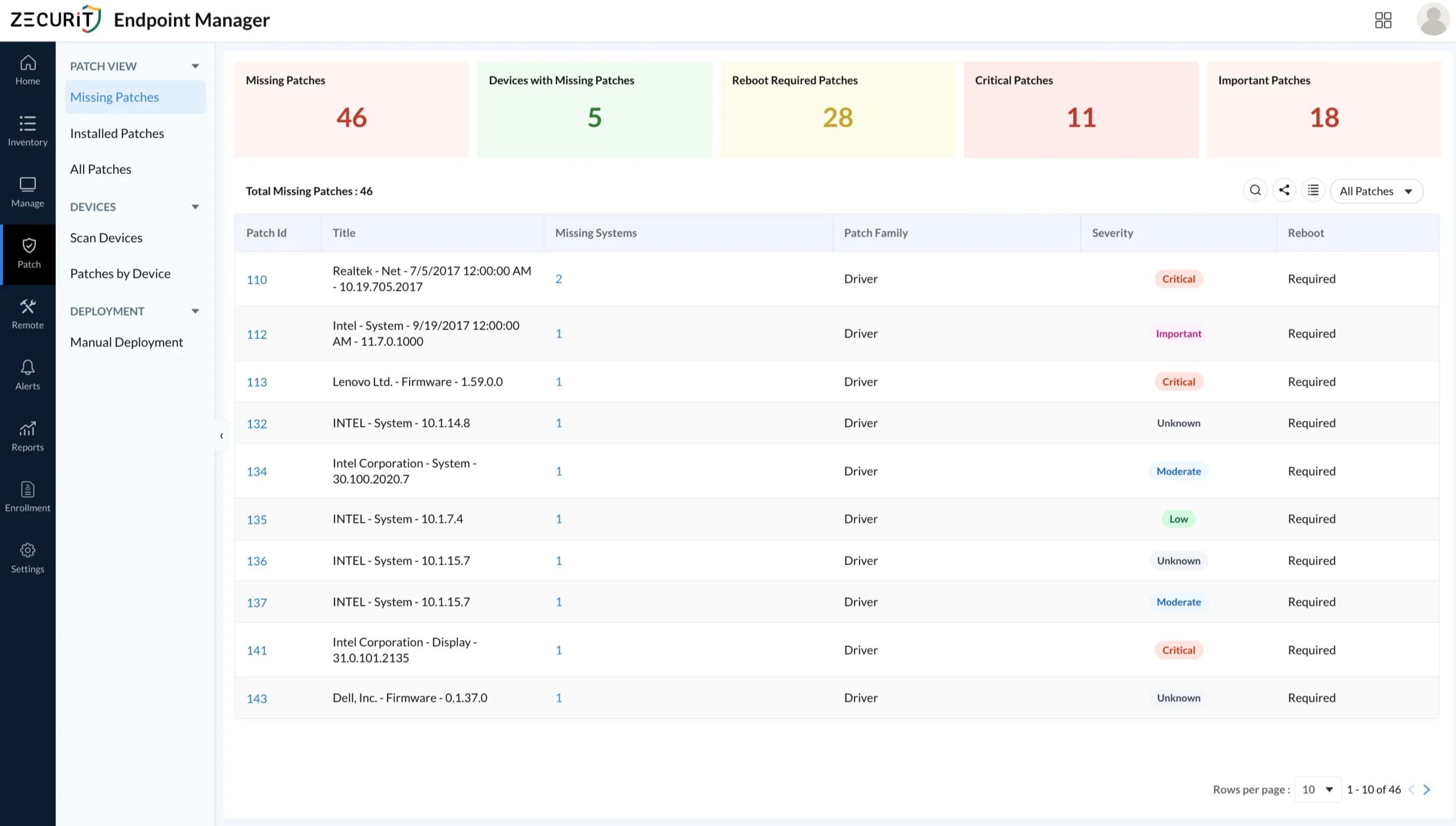
Total missing patches across the fleet (e.g., 46 missing patches across 5 devices with missing updates)
Breakdown by severity: Critical, Important, Moderate, Low, Unknown
Which devices are affected by each patch (missing systems count)
Patch family classification: OS updates, Driver updates, Software updates
Reboot requirement per patch: Required vs. Not Needed
Without continuous discovery, your patch state is always a guess.
Beyond just missing patches, a complete system maintains an All Patches view that tracks every patch in your environment, including both missing and installed instances. This cross-device patch database lets you:
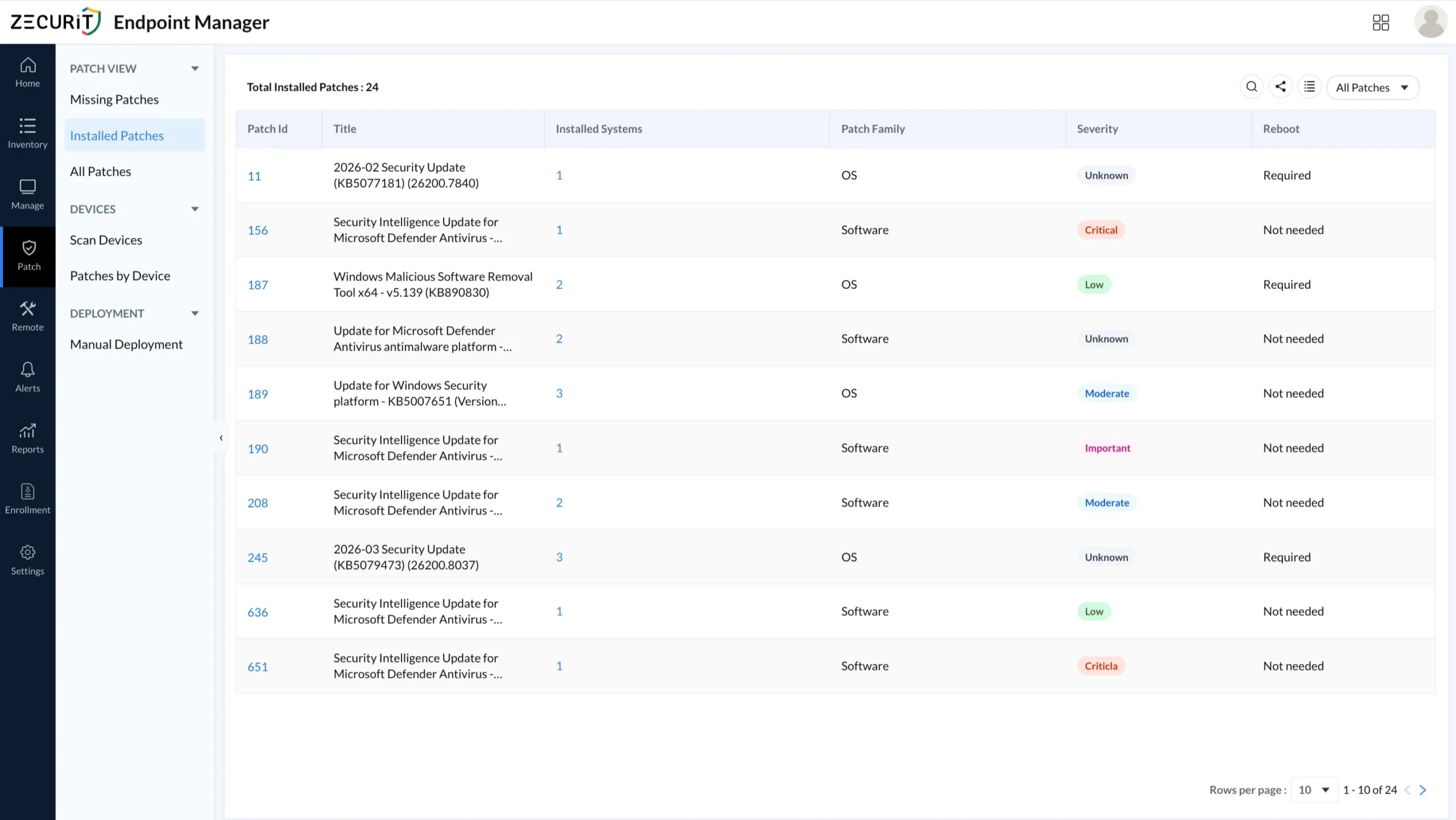
See total installed systems and missing systems per patch
Identify patches partially deployed across the fleet
Pinpoint which KB or patch ID is creating the most exposure
Compliance frameworks like SOC 2, ISO 27001, HIPAA, and CIS Controls require evidence of patching. Your system must log every installed patch with metadata including patch ID, title, patch family, severity, installed systems count, and reboot status. This audit log is your defense during any security review.
Before any patch can be intelligently deployed, each endpoint must be scanned. A Scan Devices module tracks every device in your fleet with:
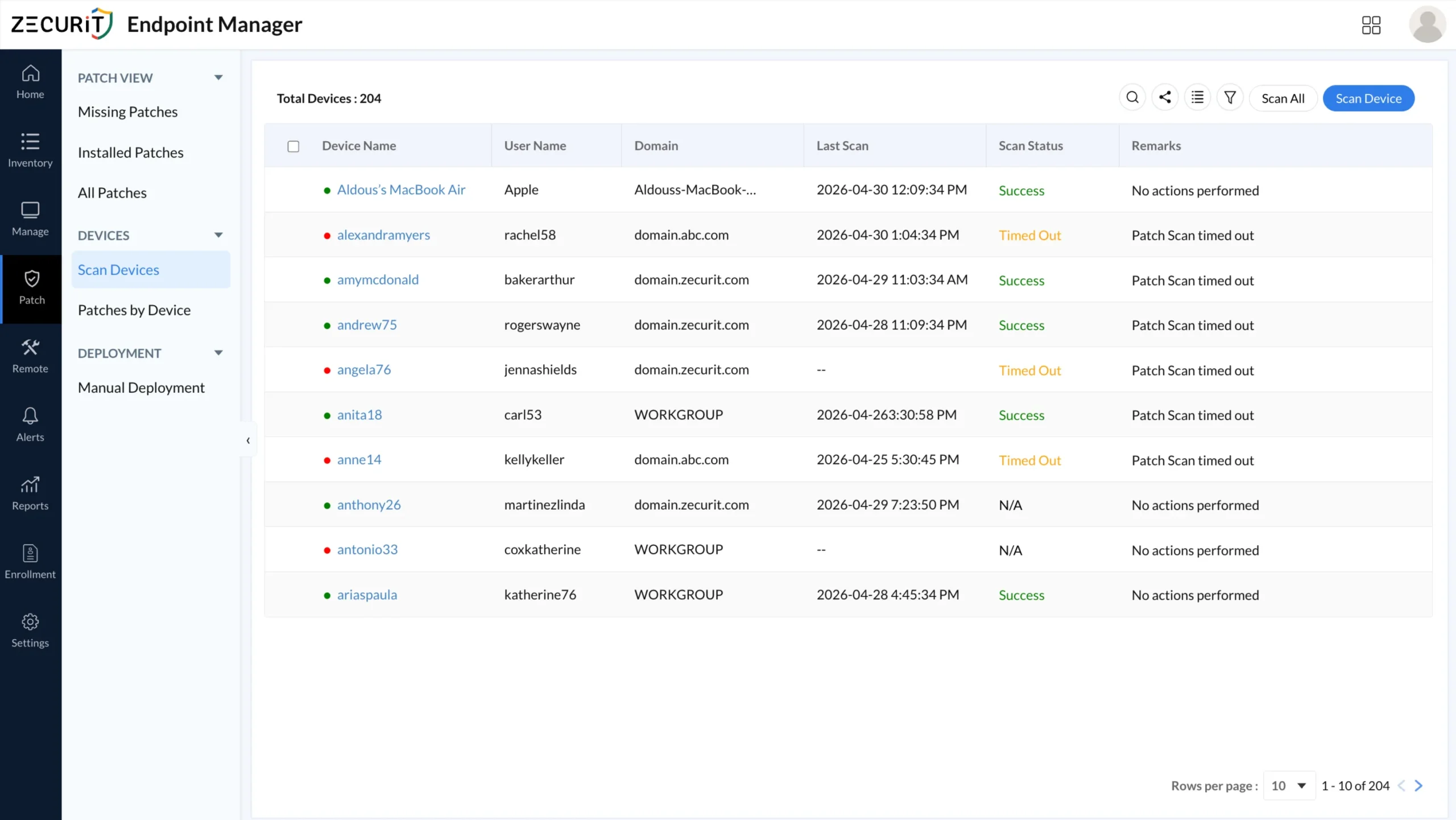
Device name and username
Domain membership
Last scan timestamp and scan status (Success, Timed Out, N/A)
Remarks indicating whether action was taken or a scan timed out
A fleet of 204 devices with mixed scan statuses (some timed out, some N/A) is a common real-world scenario. Your tool must surface these anomalies so you can investigate connectivity or agent issues before they become blind spots.
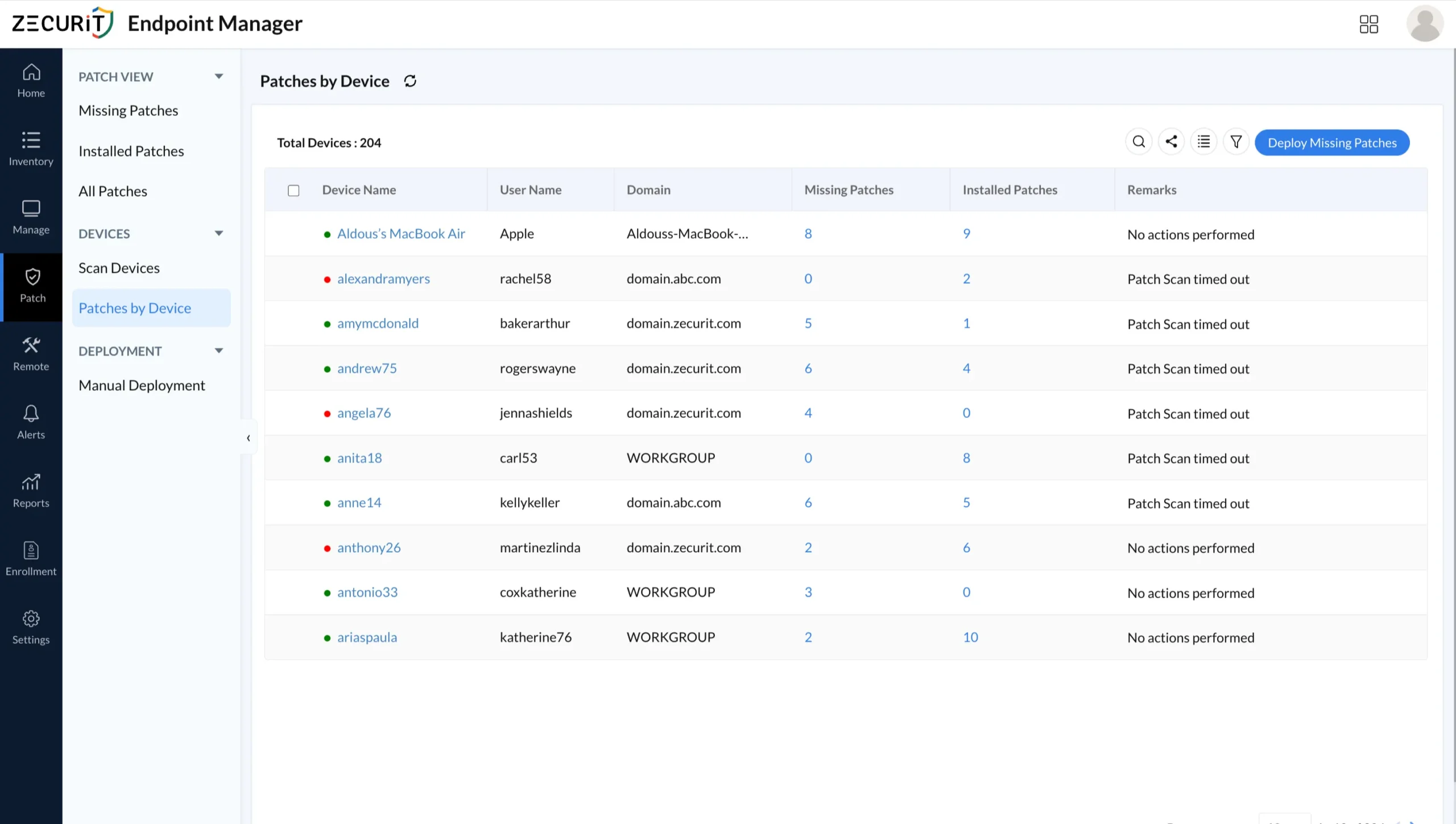
Rather than thinking only in terms of patches, you need a device-centric view that shows for each machine: how many patches are missing, how many are installed, and what the current remarks status is. This view drives targeted remediation. For example, if one device has 8 missing patches and another has 0, you prioritize accordingly.
The deployment engine is where policy enforcement actually happens. A Manual Deployment policy builder should expose every variable that controls how patches are delivered:
Policy Name and Operation Type (Install / Uninstall)
Patch Selection: Add specific missing patches for targeted deployment
Deployment Handling Rules: Network conditions (Any Network vs. LAN Only), Retry on Failed Targets (retry count and interval), Retry After Reboot
Schedule: Deploy Immediately vs. Schedule Deployment with Start Date/Time and Timezone
Scope of Target: Target by Groups, individual devices, or organizational units
Notification: Alert administrators about deployment status
This policy engine is the heart of maintenance window management software. It ensures patches deploy exactly when you want, to exactly the devices you choose, with automatic retry logic if anything fails.
Here is the operational workflow for managing Windows update policies at scale using a centralized platform like Zecurit Endpoint Manager.
Deploy the management agent to every Windows machine in your environment. Trigger an initial scan from the Scan Devices view. Review scan statuses and resolve any timed-out devices before proceeding.
Open the Missing Patches view. Note the headline numbers: total missing patches, devices with missing patches, reboot-required patches, critical patches, and important patches. Sort by severity to prioritize Critical and Important patches first.
Use the All Patches view to understand each patch's exposure across your fleet. A patch with 1 missing system requires less urgency than one affecting 14 systems. Cross-reference Patch Family (OS, Driver, Software) with your business criticality framework.
Review the Installed Patches view to confirm your current patch baseline. This confirms what is already protected and identifies any gaps from recent Patch Tuesday releases.
Use Patches by Device to identify the highest-risk machines: those with the most missing patches and a "Patch Scan timed out" remark (meaning the last scan may be stale). Prioritize these for manual scan refresh and expedited deployment.
Navigate to Manual Deployment and create a new policy:
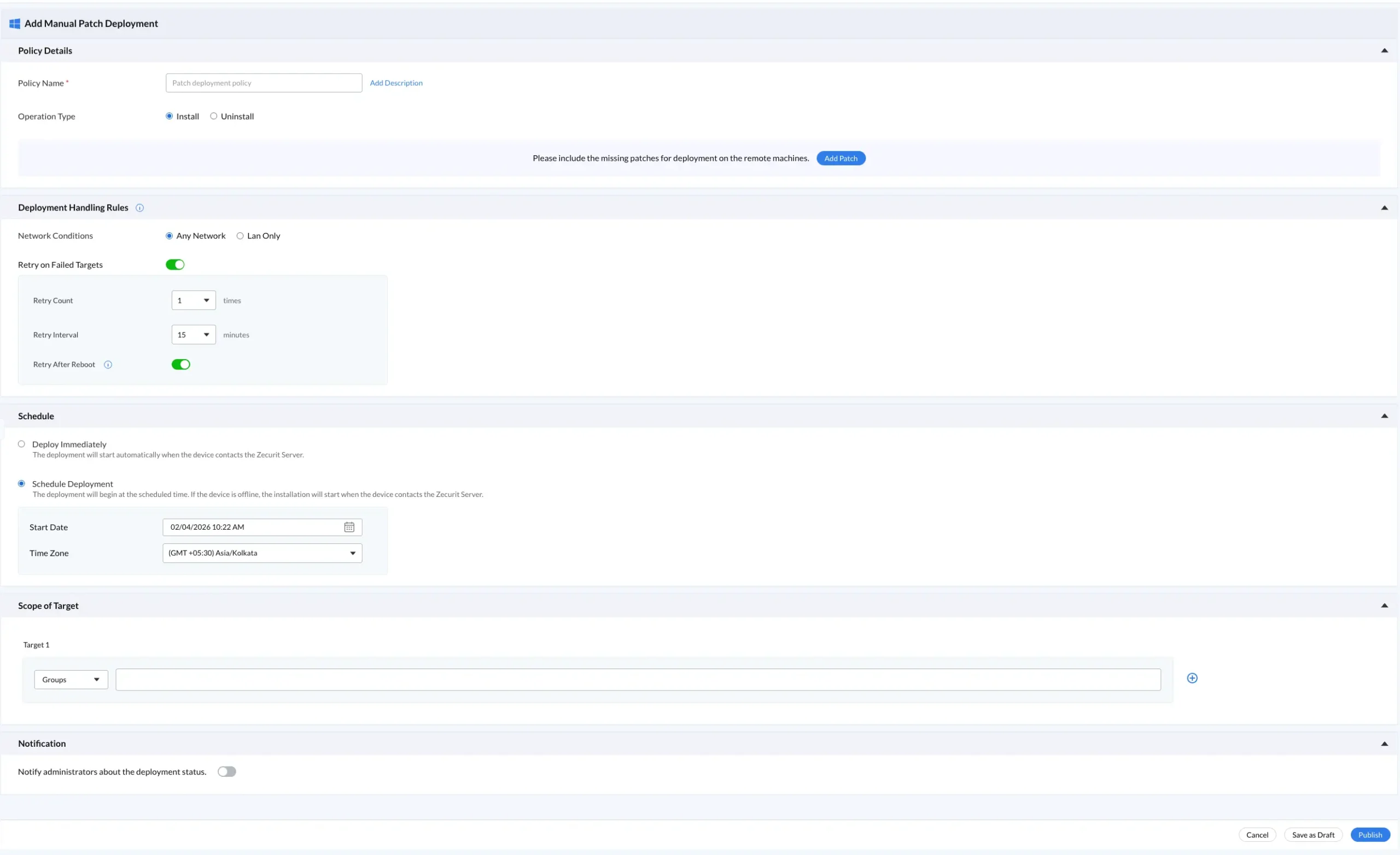
Name the policy clearly (e.g., "Critical Driver Patches - May 2026")
Set Operation Type to Install
Add the target patches using the Add Patch function
Configure Deployment Handling Rules: enable Retry on Failed Targets, set retry count and interval
Set your maintenance window: Schedule Deployment with a start date/time in the correct timezone
Define Scope of Target: apply to the relevant device group
Enable Notification to alert the admin team on completion
After deployment, re-run scans on all targeted devices. Validate the missing patch count has decreased. Export audit logs for compliance reporting.
When evaluating a Windows update maintenance window management software solution, use this checklist:
| Feature | Why It Matters |
|---|---|
| Agent-based scanning | Ensures coverage regardless of network topology or VPN status |
| Severity-based filtering | Lets you prioritize Critical/Important patches over Low/Unknown |
| Maintenance window scheduling | Prevents disruptive reboots during production hours |
| Retry on failed targets | Automatically retries failed deployments without manual intervention |
| LAN vs. Any Network targeting | Controls bandwidth impact by restricting large deployments to LAN |
| Device group targeting | Enables staged rollouts: test group first, then production |
| Timezone-aware scheduling | Critical for distributed organizations across multiple regions |
| Installed patch audit log | Provides compliance evidence for SOC 2, ISO 27001, HIPAA |
| Per-device patch state view | Enables risk-based prioritization at the machine level |
| Admin notifications | Eliminates the need to manually poll for deployment results |
A 500-seat enterprise running manual Windows Update processes typically sees:
Inconsistent patch states across departments, creating compliance gaps
Unplanned reboots disrupting end users in the middle of the workday
Weeks-long lag between Patch Tuesday and full fleet coverage
With centralized policy enforcement and maintenance window controls, the same team can achieve full fleet patch coverage within 48 to 72 hours of release, zero unplanned reboots, and a complete audit trail with no manual effort.
A managed service provider with 30 clients and 3,000 total endpoints faces a different challenge: each client has unique patch approval requirements, different maintenance windows, and different compliance obligations. A multi-tenant centralized enforcement tool lets MSPs define per-client policies, schedule deployments for each client's off-hours window, and generate per-client compliance reports automatically.
Healthcare organizations under HIPAA, financial firms under PCI-DSS, and government contractors under CMMC all require documented evidence of patch activity. A centralized system produces the installed patch audit log and deployment history needed to satisfy auditors without manual record-keeping.
| Capability | Native WSUS | Group Policy + WUfB | Zecurit Endpoint Manager |
|---|---|---|---|
| Agent-based enforcement | No | No | Yes |
| Third-party patch support | No | No | Yes |
| Maintenance window scheduling | Limited | Limited | Full (per policy, timezone-aware) |
| Retry on failed targets | No | No | Yes (configurable) |
| Per-device patch state view | No | No | Yes |
| MSP multi-tenant support | No | No | Yes |
| Compliance audit log | Partial | No | Yes |
| Cloud-hosted console | No | No | Yes |
| Scan status tracking | No | No | Yes |
WSUS and Group Policy are free but carry significant administrative overhead and architectural limitations. They require on-premises server infrastructure, lack granular per-device visibility, and cannot manage third-party application patches. For organizations that have moved past 100 endpoints or operate in a hybrid/cloud environment, a dedicated agent-based solution provides substantially better ROI.
Tier your patch policies by severity. Create separate deployment policies for Critical/Important vs. Moderate/Low patches. Deploy Critical patches within 72 hours. Schedule Moderate/Low patches for the next monthly maintenance window.
Use staged rollouts. Target a pilot group of 5 to 10 machines first. Validate no breakage over 24 to 48 hours, then expand to the full fleet. This protects against rare cases where a patch causes application compatibility issues.
Set maintenance windows that reflect actual usage patterns. A maintenance window set for Saturday 2:00 AM works for office workers but may conflict with a 24/7 operational environment. Query your environment for typical user activity hours before setting schedules.
Enable retry logic for every policy. Networks are imperfect. Laptops go offline. Always configure at least one retry attempt with a 15-minute retry interval to handle transient failures without creating a manual follow-up queue.
Monitor scan status before every deployment cycle. A "Timed Out" scan status means your patch data for that device is stale. Force a rescan before deploying to avoid deploying already-installed patches or missing newly discovered vulnerabilities.
Align deployment cycles to Patch Tuesday. Microsoft releases security updates on the second Tuesday of each month. Build your monthly patch review and deployment policy creation workflow around this cadence.
Document every exception. When a patch is intentionally deferred (e.g., due to a known compatibility issue), log the deferral with a business justification. Auditors expect to see evidence of deliberate decisions, not unexplained gaps.
Mistake 1: Treating all patches as equal priority. Deploying Unknown severity patches on the same schedule as Critical patches wastes maintenance window time and risks breaking stability for low-value security gain. Filter by severity and deploy in priority tiers.
Mistake 2: Ignoring timed-out scan results. A device showing "Timed Out" on its last scan has an unknown patch state. This is not the same as "patched." It means your visibility into that machine is broken. Investigate agent connectivity before assuming the device is compliant.
Mistake 3: Deploying without a rollback plan. Before deploying across a large fleet, confirm whether the patches in scope support uninstall. Some driver and firmware updates are not reversible. Document the pre-deployment state and test on a pilot group.
Mistake 4: Skipping the "Installed Patches" audit review. Many teams only monitor missing patches. But the installed patch record is equally important: it proves what was deployed and when, which is exactly what compliance auditors ask for.
Mistake 5: Allowing individual machines to self-update outside the policy window. If Windows Update is not fully controlled by your policy, end users can manually trigger updates or reboots at inconvenient times. Ensure your policy tool fully suppresses native Windows Update behavior on managed endpoints.
Mistake 6: Not accounting for timezone diversity. Scheduling a 2:00 AM maintenance window without specifying timezone can result in deployments hitting EST machines at 2:00 AM but PST machines at 11:00 PM the previous evening. Always configure timezone explicitly in your deployment policy.
Managing Windows update policies across multiple computers is not a problem you can solve with native tools alone once your environment grows past a few dozen endpoints. The gap between what Windows Update and WSUS provide and what enterprise patch management actually requires grows wider with every new device, remote worker, and compliance obligation added to your environment.
A dedicated centralized Windows update policy enforcement tool gives IT teams and MSPs the device visibility, maintenance window controls, severity-based prioritization, automated retry logic, and compliance audit trails needed to run a defensible, efficient patching operation at scale.