
Managing power states across hundreds or thousands of endpoints is one of the most overlooked operational challenges in enterprise IT. When devices are left powered on overnight, energy costs climb. When they are shut down without warning, in-progress tasks get interrupted. And when a remote machine needs to be woken for a patch window, support ticket, or scheduled maintenance task, a missing Wake on LAN configuration means wasted time and failed jobs.
For IT administrators, system engineers, and managed service providers (MSPs) responsible for large device fleets, the ability to automate Wake on LAN and shutdown schedules for endpoints is not a convenience. It is a fundamental operational requirement.
Computers left on around the clock typically consume between 60 and 250 watts continuously. Across a fleet of 500 endpoints, this creates a significant, largely preventable energy expense. Automation is the only practical path to enforcing power policies consistently at scale.
Modern endpoint management tools can solve power automation challenges
Key features to look for when evaluating these tools
How to build a reliable, policy-driven power automation workflow
Designed to scale from a single site to distributed enterprise environments
Wake on LAN (WoL) is a network standard that allows a powered-off or sleeping computer to be remotely switched on by sending a "magic packet" to its MAC address. The receiving machine must have WoL enabled in its BIOS or UEFI settings and the network adapter must remain powered in standby mode.
At scale, WoL introduces several practical challenges:
Subnet boundaries: Magic packets are broadcast-based and do not cross routers by default. Directed broadcasts or relay agents are needed for multi-subnet environments.
MAC address accuracy: If device MAC addresses are stale or incorrectly recorded, the packet reaches the wrong machine or nobody at all.
Broadcast address configuration: Some systems require an explicit broadcast address rather than a directed one. Tools that auto-detect the correct broadcast address save significant troubleshooting time.
Confirmation of wake status: Sending a packet does not guarantee the device woke up. Without follow-up polling and retry logic, failures go undetected.
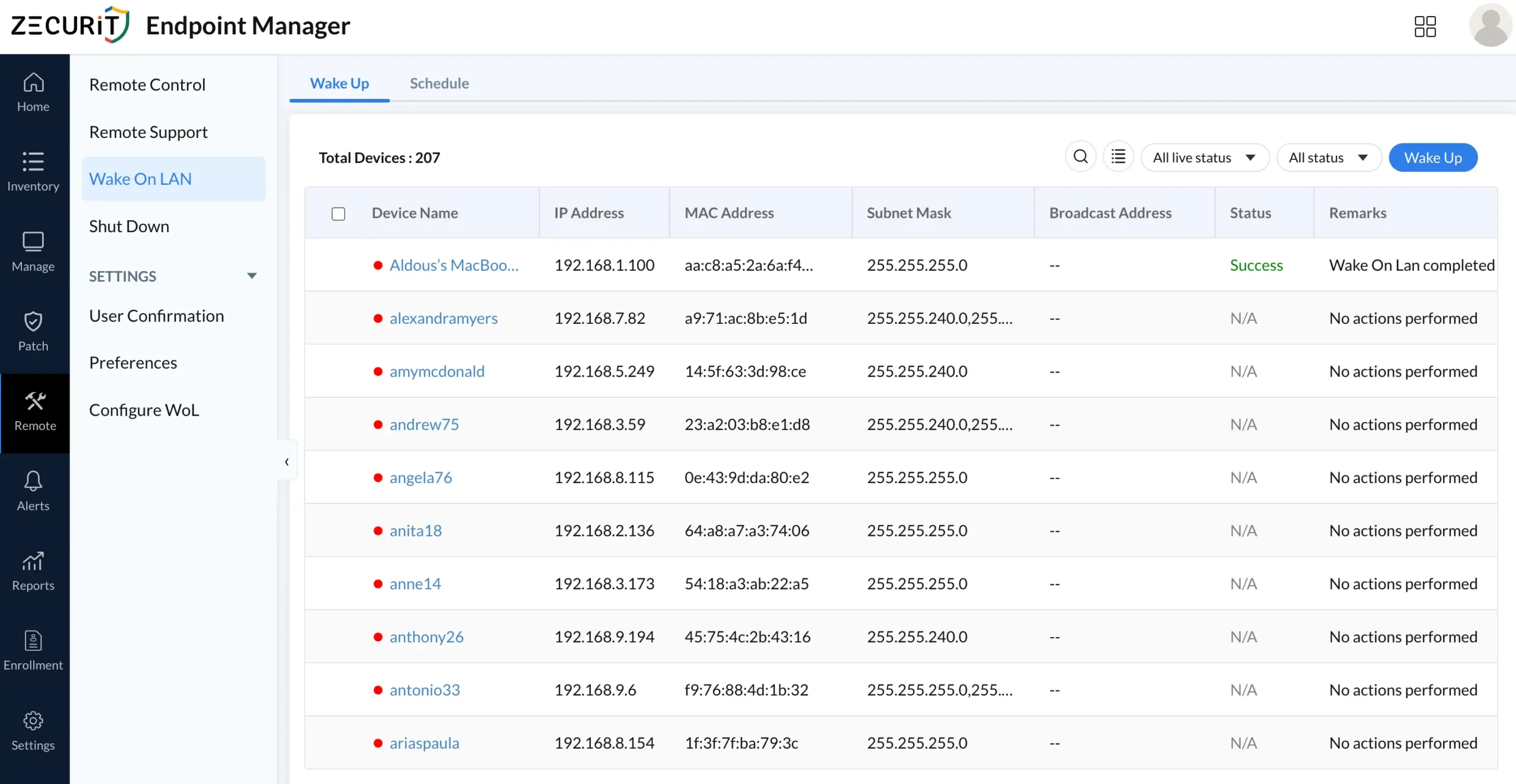
Zecurit-grade tools solve these problems by storing verified MAC addresses, managing subnet routing automatically, and building confirmation loops into the wake workflow. A well-designed Wake on LAN management console records each endpoint's MAC address, subnet mask, and broadcast address alongside live status and remarks, so administrators can confirm exactly what happened and why after every scheduled wake event.
Without automation, power management becomes an ad-hoc, error-prone process. Consider a typical scenario in a 200-device environment:
An admin manually sends shutdown commands to individual machines at the end of the business day.
Some devices time out because a logged-in user has unsaved work or a running process is blocking the shutdown.
The next morning, patch jobs or backup agents fail because target machines never woke up.
The IT team spends the first hour of every day chasing down offline devices.
This pattern is neither scalable nor sustainable. Even in a managed environment with defined power options, a significant portion of devices return "Timed Out" status when shutdown commands are sent without proper presence detection or sequenced retry logic. The result is the same every time: "Power Options timed out" repeats across the status board when automation is partial rather than complete.
When evaluating tools to schedule daily and weekly power cycles for remote computers, prioritize these capabilities:
Centralized Device Inventory with MAC Address Management The tool must maintain an up-to-date registry of every endpoint's MAC address, IP address, and subnet mask. Stale records are the primary cause of WoL failures at scale.
Scheduled Power Actions Look for flexible scheduling options including one-time, daily, and weekly recurrence. The ability to target individual devices or device groups is essential for policy segmentation by department, location, or device type.
Wake-on-LAN with Retry Logic A single magic packet is not reliable enough in production environments. The tool should send multiple wake attempts, poll for device response after each one, and flag failures for review rather than silently moving on.
User Presence Detection Shutting down a machine while a user is actively working causes data loss and generates unnecessary support tickets. User presence detection checks for active sessions before executing a power action and can defer the shutdown or notify the user first.
User Confirmation Prompts The best tools include a configurable notification that warns the logged-in user before shutdown, giving them time to save work. This is especially important in environments where employees work flexible hours across time zones.
Granular Power Plan Management Beyond on/off control, enterprise tools should allow administrators to push standardized power plans (Balanced, High Performance, Power Saver, or Custom) with precise control over display timeout, sleep intervals, hard disk spindown, processor states, and battery thresholds. See the Zecurit endpoint power management feature page for a detailed breakdown of configurable parameters.
Real-Time Status and Audit Logs Every power action should produce a timestamped log entry with the outcome (Success, Timed Out, N/A) and a human-readable remark. This supports compliance reporting and incident investigation. The reports and auditing module integrates directly with power management events for full fleet visibility
A well-structured shutdown workflow typically follows these steps:
Define device groups: Segment endpoints by role (workstations, labs, kiosks) or location. Different groups may require different shutdown windows.
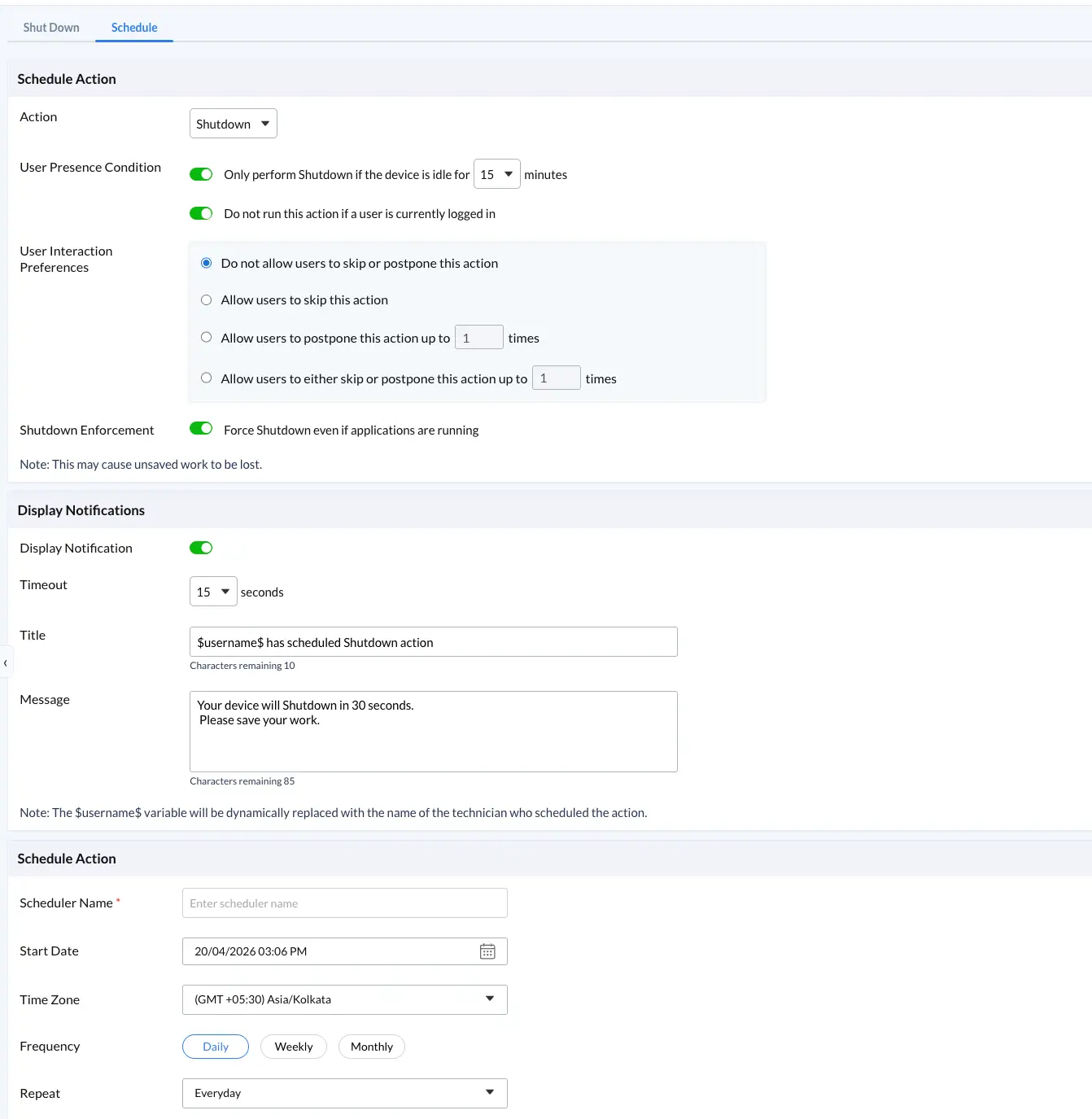
Configure user confirmation settings: Set a pre-shutdown notification window (typically 5 to 15 minutes) so users can save active work before the shutdown executes.
Set the shutdown schedule: Choose recurrence (daily at 10:00 PM, for example), apply it to the target group, and enable the policy.
Enable presence detection: Configure the tool to skip or defer shutdown if an active user session is detected after the notification period has elapsed.
Review the results dashboard: After each scheduled event, review the status column for Timed Out entries. Investigate recurring failures by cross-referencing the last boot time and user session logs.
A properly configured shutdown dashboard provides exactly this visibility. Administrators can filter by live status, power action type, and device status to drill into failures without navigating away from the main view.
Wake-on-LAN retry logic is one of the most critical and frequently underspecified features in endpoint power automation tools. Here is what a robust implementation looks like:
The tool sends the initial magic packet to the device's broadcast address.
After a configurable interval (typically 30 to 60 seconds), it pings the device to confirm it is online.
If no response is received, it retries the wake packet up to a defined maximum attempt count.
If the device still does not respond after all retries, the status is logged as failed and an alert can optionally be triggered.
This retry loop is what distinguishes enterprise-grade tools from basic WoL utilities. Without it, administrators have no reliable way of knowing whether a wake action succeeded until a downstream job fails an hour later.
User presence detection complements the shutdown side of the equation. Rather than blindly sending a shutdown command at a scheduled time, the tool checks whether a user is actively logged in. Depending on configuration, it can:
Skip the shutdown entirely and reschedule for the next cycle.
Send a user-facing notification and proceed after the grace period expires.
Force shutdown only if the session has been idle beyond a defined threshold.
For organizations running overnight patch jobs, scheduled backups, or compliance scans, power cycle scheduling is non-negotiable. A typical enterprise power cycle policy looks like this:
7:00 AM: Wake all workstations via WoL with 3 retry attempts and 60-second polling intervals
6:30 PM: Send pre-shutdown notification to all active user sessions
7:00 PM: Execute shutdown for all non-responding or idle devices
Friday 11:00 PM: Shutdown all non-critical endpoints
Saturday 2:00 AM: Wake lab machines for automated patch deployment
Saturday 6:00 AM: Shutdown lab machines after patch completion is confirmed
Sunday 6:00 PM: Wake all workstations ahead of Monday operations
A Schedule tab paired with both the Shutdown and Wake Up dashboards provides exactly this kind of calendar-based control. Administrators can define named schedules, attach them to device groups, and monitor execution outcomes without building any custom scripts or relying on external cron infrastructure.
The Wake On LAN dashboard stores each endpoint's MAC address, subnet mask, and broadcast address, enabling administrators to execute coordinated wake schedules across distributed sites and multiple subnets without manual broadcast configuration, making it a critical differentiator for enterprises.
Endpoint power management goes well beyond on/off scheduling. A comprehensive Power Management configuration panel exposes the full range of settings an enterprise tool must provide:
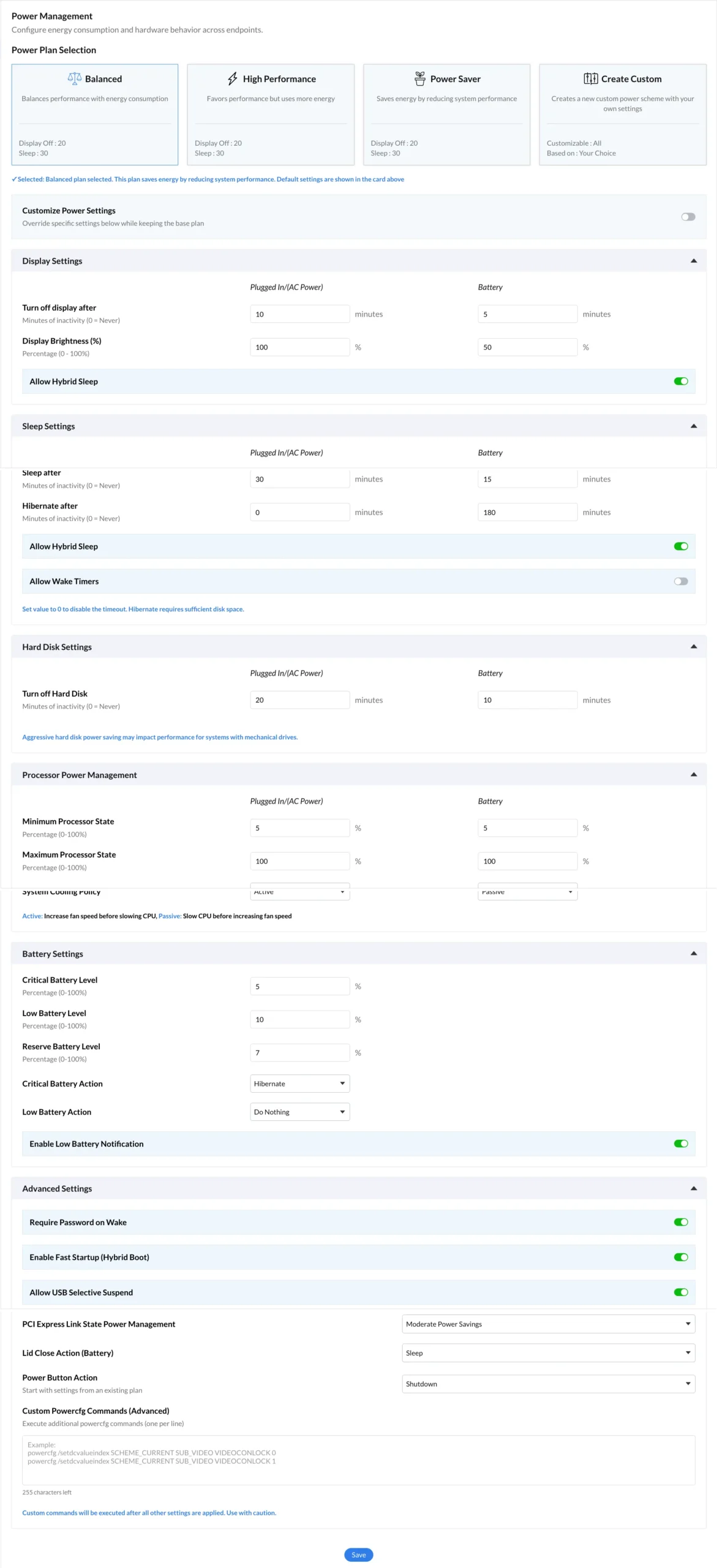
Balanced: Adapts processor and display performance to real-time workload demand. Best for general office endpoints.
High Performance: Maximizes CPU and GPU throughput at the cost of higher energy consumption. Appropriate for developer workstations and rendering machines.
Power Saver: Reduces system performance to minimize energy draw. Ideal for kiosks, shared terminals, and low-utilization endpoints.
Create Custom: Allows administrators to define exact values for every configurable parameter, stored as a named policy template and pushed to target device groups on demand.
Turn off display after N minutes of inactivity, with separate values for plugged-in (AC Power) and battery states
Display brightness percentage per power source
Allow Hybrid Sleep toggle
Sleep after N minutes of inactivity (separate plugged-in and battery values)
Hibernate after N minutes, with a note that sufficient disk space is required
Allow Wake Timers toggle this setting is critical. Without it enabled, scheduled WoL magic packets sent to sleeping devices will be silently ignored by the operating system
Turn off hard disk after N minutes of inactivity to reduce mechanical wear on spinning drives
Minimum and maximum processor state percentages (0 to 100%)
System cooling policy: Active increases fan speed before throttling CPU clock speed; Passive throttles CPU clock speed before increasing fan speed. Active is appropriate for performance-critical workstations; Passive extends battery life on mobile endpoints.
Critical battery level, low battery level, and reserve battery level percentage thresholds
Critical and low battery actions: Hibernate, Shutdown, or Do Nothing
Low battery notification toggle for end-user awareness
Require password on wake (enforces re-authentication after sleep or hibernate)
Enable Fast Startup (Hybrid Boot) for faster cold-start times
Allow USB Selective Suspend to reduce power draw from connected peripherals
PCI Express Link State Power Management for discrete GPU and NVMe controller power states
Lid close action: Sleep, Hibernate, or Shutdown (critical for laptop fleets)
Power button action configuration
Custom Powercfg commands for advanced scenarios beyond standard GUI controls
Pushing standardized power plans via the Power Management panel eliminates configuration drift, ensures WoL-compatible sleep states remain active, and guarantees scheduled wake events are never silently missed across the entire endpoint fleet.
Based on real-world deployment patterns across enterprise and MSP environments, the following practices consistently improve power automation reliability and reduce failure rates:
Audit MAC Addresses: Run a discovery scan and cross-reference records against DHCP logs before building wake schedules to prevent silent failures during critical maintenance windows.
Stage Power Plans: Push new configurations to a pilot group of 10–20 devices to validate sleep behavior, wake timer compatibility, and battery thresholds before scaling fleet-wide.
Enable "Allow Wake Timers": Ensure this setting is active in all power plan templates; otherwise, the OS will silently discard scheduled wake packets.
Use Conservative Grace Periods: In shared environments, use a 15-minute pre-shutdown notification window to minimize data loss and unnecessary support tickets.
Monitor Failed Events: Treat "Timed Out" statuses as diagnostic data to identify hardware issues, BIOS misconfigurations, or network problems. Our endpoint monitoring and alerts module can be configured to flag these repeat failures.
Group by Device Role: Apply distinct power policies to different device roles (e.g., labs vs. workstations) to maintain business continuity and prevent unintended shutdowns.
Integrate with Patching: Wake devices 15–30 minutes before patching, verify their status, and automate the subsequent reboot or shutdown.
Power management is a critical operational function for IT teams, not just a background task. It directly impacts patching, costs, and workflow reliability. Partial automation often fails, causing devices to stay offline or jobs to break. A unified system with scheduling, detection, and reporting ensures consistency and control. With the right setup, teams reduce overhead, save energy, and keep operations running smoothly.