
A user calls your helpdesk. Their machine is stuck mid-update because a pop-up installer appeared during a client presentation and they clicked the wrong button. Now the software is in a broken state, the presentation is delayed, and you have a ticket to fix both.
Multiply that by 200 endpoints. Add a branch office that has no on-site IT. Add three new hires who need a full software stack before Monday morning. Now add a critical vulnerability alert that needs patching across your entire fleet before end of day.
This is the reality of software deployment without silent installation. Every prompt is a risk. Every manual step is a delay. Every user who touches an installer is a potential support ticket.
Silent software installation eliminates every one of those problems. It runs installers invisibly, in the background, without any user interaction and when combined with a platform like Zecurit, it becomes a fully automated, policy-driven workflow that covers your entire endpoint fleet across Windows, MAC, and Linux simultaneously.
This guide covers exactly how silent installation works inside the Zecurit Software deployment module every field, every configuration option, every setting so IT administrators can understand not just what silent installation is, but how to deploy it at scale with precision and confidence.
Silent software installation also called a silent install, unattended install, or touchless software deployment is the process of installing software on a device without displaying any graphical interface, setup wizard, or user prompts.
In traditional installation, an MSI or EXE installer launches a visible setup window. The user clicks through licence agreements, chooses installation paths, and confirms settings. Silent installation bypasses every one of those steps. The installer executes in the background, applies preconfigured settings, and completes without the user ever knowing it happened.
At the technical level, silent installation is typically triggered by passing command-line flags to the installer:
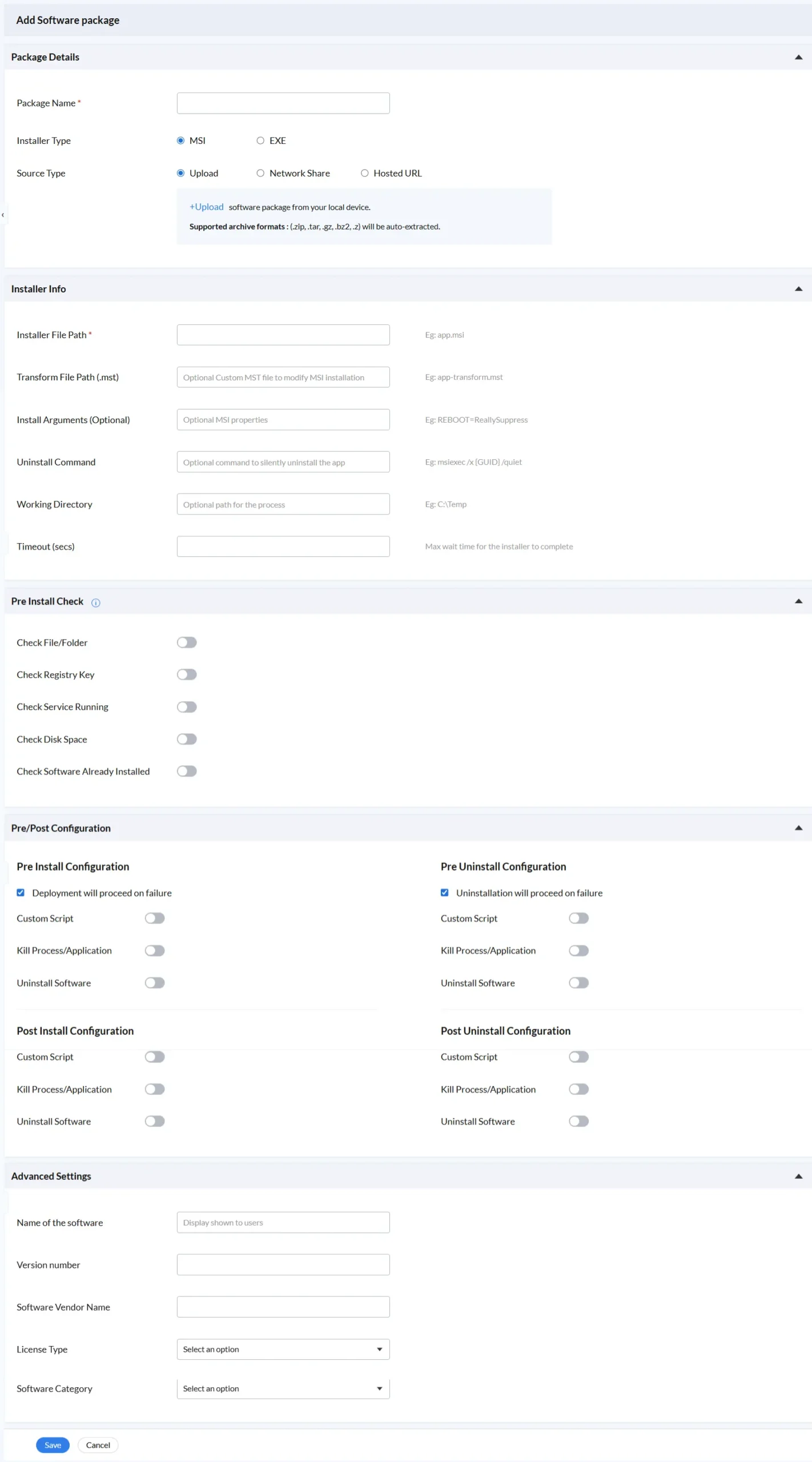
In Zecurit, these flags are configured directly in the Install Arguments and Uninstall Command fields of the Installer Info section giving your IT team precise control over silent behaviour for every package in your Software Repository.
The key distinction between silent installation and manual or user-prompted installation is control. Silent installation puts every decision in the hands of IT, not the end user. The right version, the right configuration, the right timing all defined by policy, all executed automatically.
Zecurit’s silent installation workflow is built across two modules: the Software Repository (where packages are configured) and the Deployment Policy (where silent execution rules are defined).
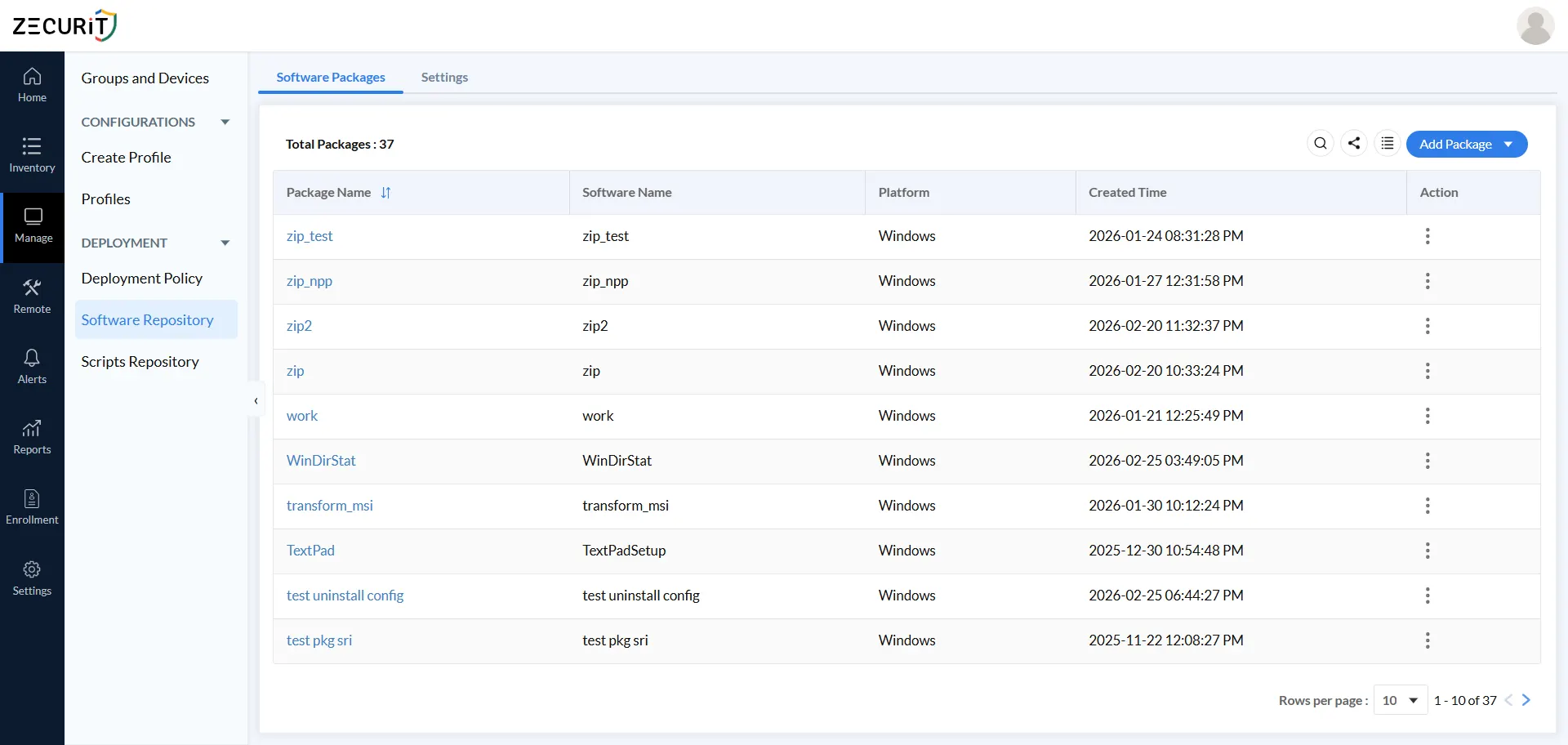
Navigate to Software Repository → Add Software Package. The Package Details section asks for three fields:
Both MSI and EXE installer types support silent installation in Zecurit. MSI packages use Windows Installer technology with standardised silent flags. EXE packages use installer-specific silent arguments configured in the Install Arguments field.
This is where silent installation is precisely configured. Zecurit’s Installer Info section provides six fields all confirmed in the live platform .
Silent installation is most reliable when the target device is in a known, safe state before the installer runs. Zecurit’s Pre Install Check section provides five independently toggleable validation checks:
Check File/Folder: Verifies a specific file or folder exists at a defined path (e.g., C:\Program Files\MyApp\app.exe) prevents installing over a partially removed application
Check Registry Key: Confirms a registry key is present to validate the prior state of the machine before silent installation begins
Check Service Running: Validates whether a named Windows service is running, using match conditions (e.g., Equal: Windows MSI) ensures dependent services are active
Check Disk Space: Ensures minimum free disk space is available prevents silent installs that would fail due to insufficient storage
Check Software Already Installed: Detects if the software is already present by name, preventing duplicate silent installations that could corrupt existing configurations
If any check fails, the admin’s configuration determines whether Zecurit aborts the silent installation or proceeds regardless. This makes Zecurit’s silent deployment significantly safer than a raw command-line push.
Zecurit provides four independent configuration phases that run around silent installation and silent uninstallation operations. All four are visible in a single Pre/Post Configuration panel:
Each phase’s three toggle actions work as follows in the context of silent installation:
Custom Script: Run a script from the Zecurit Scripts Repository before or after the silent operation. Use this to prepare registry settings, configure environment variables, or apply post-install configurations silently
Kill Process/Application: Silently terminate a running application before installation begins essential for updating software that cannot be replaced while it is actively running
Uninstall Software: Silently remove a conflicting or outdated application before the new silent install proceeds (requires Software Name, Software Version, Uninstall String, optional Silent Switch)
The “Deployment will proceed on failure” checkbox (Pre Install) and “Uninstallation will proceed on failure” checkbox (Pre Uninstall) give admins direct control over failure handling in the silent workflow.
The Advanced Settings section captures metadata that supports inventory and compliance tracking for silently deployed software:
Name of the software: Display name shown to users (even if installation was silent)
Version number: Version of the silently deployed package for inventory accuracy
Software Vendor Name: Publisher or manufacturer for licence tracking
License Type: Licence classification (dropdown selection)
Software Category: Category within your software repository (dropdown selection)
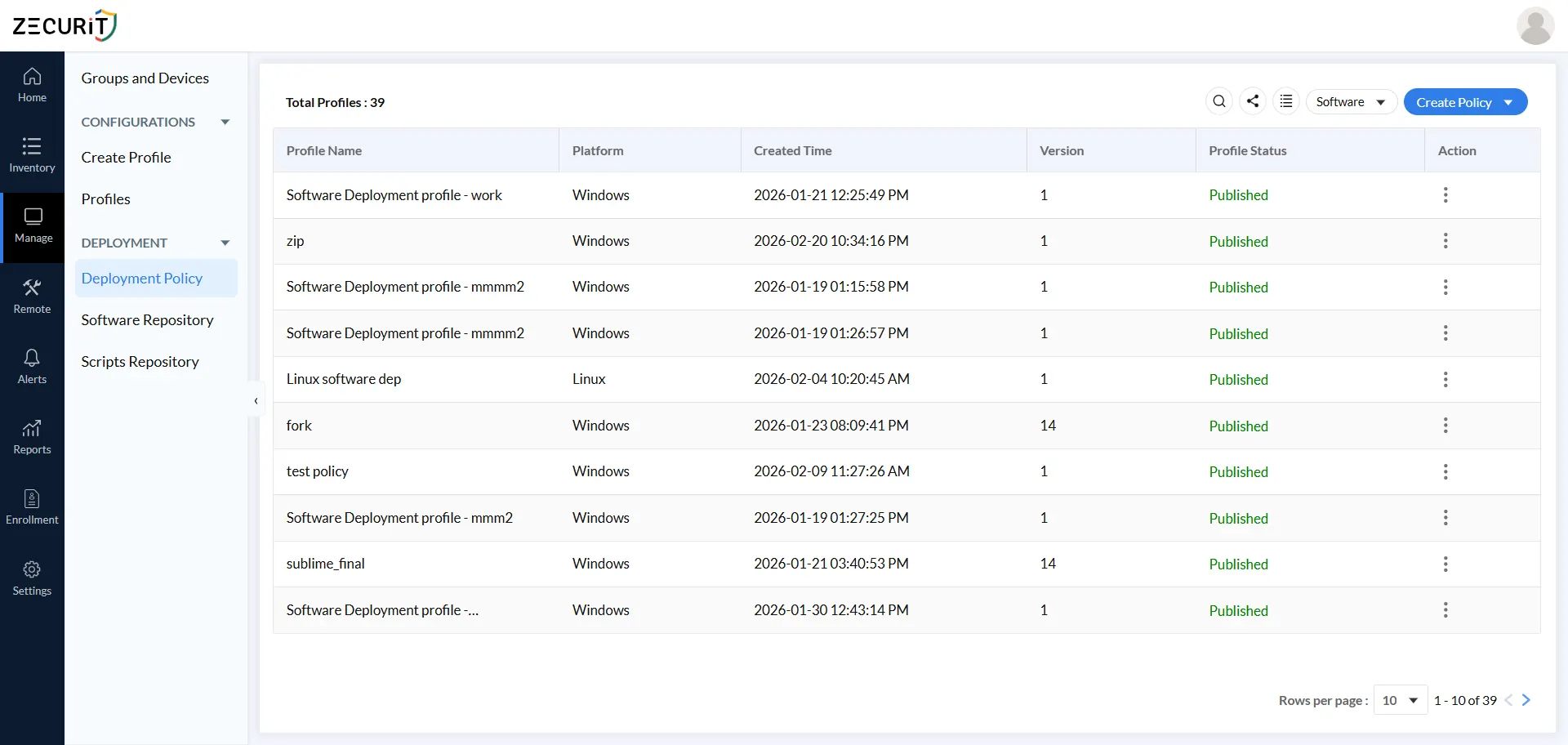
With your package configured for silent installation, navigate to Deployment Policy → Add Deployment Policy. The live Zecurit platform currently manages total profiles (as of 19-02-2026), confirmed across Windows, MAC, and Linux platforms including.
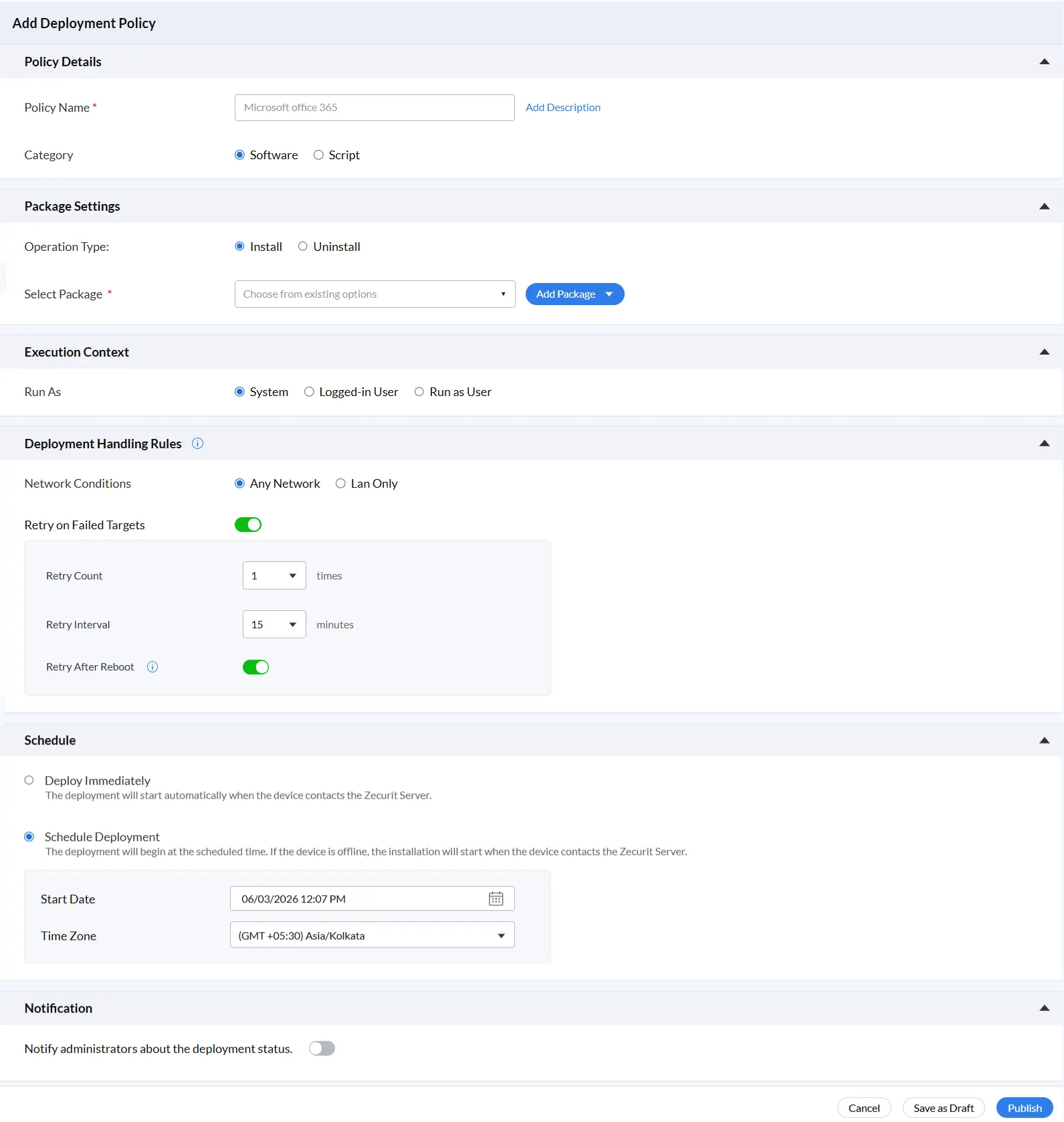
Step 1: Define Policy Details
Each policy has a Policy Name (required), an optional description via the Add Description link, and a Category field: Software or Script. The same policy framework handles both silent software deployment and script execution.
This setting determines the user privilege level under which the silent installer executes. Zecurit provides three options:
System: Runs the silent installer with full system privileges. The standard choice for enterprise-wide deployments. Allows admin level installation without granting any elevated rights to end users
Logged-in User: Runs the silent installer in the context of whoever is currently active on the device. Suitable for user-scoped silent installs
Run as User: Runs the silent installer using securely stored credentials (Active Directory or Workgroup/Local Account). The Credential Name, Domain, Username, and Password are stored in Zecurit and reused across any number of silent deployments without re-entry
These rules ensure your silent installation reaches every assigned endpoint, even under imperfect real-world conditions.
Scheduling silent installations for off-hours (evenings or weekends) is a best practice for large deployments the installer runs invisibly while devices are idle, completing before employees arrive the next morning.
The Notification section contains a single toggle: “Notify administrators about the deployment status.” When enabled, Zecurit sends administrators alerts about the silent deployment status success, failure, and retry events without requiring manual dashboard monitoring.
Click Publish to activate the policy. From this point, Zecurit executes the complete silent installation workflow autonomously across all assigned devices and groups.
Zecurit’s Deployment Policy provides a Deployment Mode setting with two options. Here is exactly when each is appropriate:
For the vast majority of enterprise IT scenarios managed devices, standardised software stacks, compliance deployments, and patch management Silent mode is the correct choice. User-Assisted Install is reserved for edge cases where user input during setup is genuinely required and cannot be pre-configured through Install Arguments or Transform Files.
When using Silent mode combined with Zecurit’s Schedule Deployment option, you achieve maximum deployment efficiency: software arrives on every device exactly when you want it, completely invisibly to the end user.
Every time a user touches a software installer, there is a security risk. Users can be manipulated into installing malicious packages disguised as legitimate software. They can click through licence agreements that grant unnecessary permissions. They can install wrong versions that introduce vulnerabilities. Silent installation in Zecurit eliminates all of those risks by design only packages stored in the Zecurit Software Repository, approved by IT, are ever silently deployed to endpoints.
Zecurit’s Execution Context options System, Logged-in User, and Run as User allow silent installers to run with exactly the right level of privilege for each deployment. System context handles admin-level installations without granting users permanent elevated rights. Run as User executes with specific stored credentials (Active Directory or Workgroup/Local Account) for environments where strict least-privilege policies apply. End users never need elevated rights to receive software.
A silent installation that fails midway is a security risk it can leave software in a broken, partially installed state that is neither protected by the old version nor functional with the new one. Zecurit’s five pre-install checks (File/Folder, Registry Key, Service Running, Disk Space, Software Already Installed) validate device state before the silent installer runs, preventing the conditions that cause broken installations.
The same silent workflow applies to uninstallation. Zecurit’s Uninstall operation type, combined with the Pre Uninstall Configuration’s Kill Process and Uninstall Software toggles, silently removes vulnerable, outdated, or unauthorised applications from every assigned endpoint at scale, on schedule, without user involvement. The Uninstall Command field (e.g., msiexec /x {GUID} /quiet) ensures the removal itself is silent.
A new device is enrolled in Zecurit and assigned to the new hire’s department group. Every Deployment Policy associated with that group Microsoft Office 365, security agents, communication platforms, department-specific tools installs silently before the employee’s first login. The employee receives a fully configured, production-ready workstation without IT touching the machine or the user seeing a single installer.
Central IT configures and publishes the silent deployment policy. Devices at the branch office receive their software the next time they connect to the Zecurit Server. The Lan Only network condition ensures large packages only download over local network connections, protecting branch bandwidth. No IT travel, no remote sessions, no coordination with local staff the silent installer handles everything.
With Any Network enabled, Zecurit silently deploys software to remote workers regardless of their connection type. Scheduled silent deployments run during off-hours. Retry After Reboot handles devices that restart mid-installation. Offline devices receive their silent install the next time they connect to the Zecurit Server. Remote fleet management becomes as reliable as local deployment.
Migrating from one application to another is handled end-to-end in a single Zecurit policy: Pre Uninstall Configuration silently removes the old application (Kill Process,Application terminates it first if running), the Install operation silently deploys the replacement, and Post Install Configuration scripts silently apply final settings across every assigned device, simultaneously.
Not all endpoint management platforms deliver true enterprise-grade silent installation. When evaluating tools, check for these capabilities all of which are present and confirmed in the live Zecurit platform:
MSI and EXE Silent Install Support: Both installer types with separate configuration fields for installer path, silent arguments, transform files, and uninstall commands
Install Arguments Field: The ability to pass custom MSI properties (e.g., REBOOT=ReallySuppress) to control silent install behaviour precisely
Transform File (.mst) Support: MST file support for enterprise MSI customisation without maintaining separate installer packages
Silent Uninstall Command: A dedicated Uninstall Command field (e.g., msiexec /x {GUID} /quiet) for silent removal in both migration and remediation scenarios
Pre-Install Validation Checks: File/folder, registry key, service status, disk space, and duplicate installation checks to prevent broken silent deployments
Four-Phase Pre/Post Configuration: Pre Install, Pre Uninstall, Post Install, and Post Uninstall phases each with Custom Script, Kill Process, and Uninstall Software for complete silent lifecycle control
Execution Context Control: System, Logged-in User, and Run as User with secure credential storage for least-privilege silent deployments
Silent vs User-Assisted Deployment Mode: Explicit control over whether each deployment runs silently or with user interaction
Retry Logic for Silent Failures: Configurable retry count, retry interval, and retry after reboot to handle the real-world conditions that cause silent install failures
Network Condition Controls: Any Network and Lan Only options for bandwidth-conscious silent deployment across diverse environments
Flexible Scheduling: Deploy Immediately or Schedule with Start Date and Time Zone, with offline device catch-up
Cross-Platform Support: Windows, MAC, and Linux silent deployment from a single console confirmed across 42 live deployment profiles in Zecurit
Deployment Notifications: Administrator alerts on silent deployment status without manual log monitoring
Zecurit Endpoint Manager's Software deployment tool built for IT teams that need silent software installation to be reliable, secure, and fully automated across Windows, MAC, and Linux endpoints.
From configuring the Installer File Path and Install Arguments in the Software Repository to publishing a Deployment Policy with System-level execution, pre-install checks, four-phase Pre/Post Configuration, Lan Only network conditions, retry logic, scheduled silent delivery, and administrator notifications every element of enterprise-grade silent installation is built into the Zecurit platform.
With Zecurit’s silent installation capabilities, your IT team can:
Install Microsoft Office 365 and any other package to 200+ endpoints without a single user prompt
Push critical security patches to your entire fleet the moment a vulnerability is disclosed
Silently remove vulnerable or unauthorised software from every assigned endpoint on schedule
Provision new hire workstations with a complete software stack before the employee’s first login
Deploy to branch offices and remote workers without remote sessions, travel, or local