
Managing hybrid workforce software deployment introduces a new layer of complexity that traditional, office-based IT practices were never built to handle. As organizations shift to flexible work models, employees now operate from home, co-working spaces, and multiple geographic locations, often across different time zones and network environments. This distributed setup makes it difficult for IT teams to rely on conventional methods such as manual installations, on-site troubleshooting, or VPN-dependent deployment tools. Instead, modern deployment strategies must ensure seamless software delivery over any network while maintaining strong security and compliance standards. Inconsistent updates, failed installations, or misconfigured systems can lead to serious risks, including security vulnerabilities, compliance gaps, and reduced productivity. To address these challenges, businesses must adopt automated, scalable, and VPN-independent deployment solutions that provide centralized control, real-time visibility, and reliable delivery across all endpoints, regardless of their location or connectivity.
Before exploring the solution, it’s important to understand where traditional deployment methods fall short. Most IT teams encounter the same four core issues when supporting a remote workforce.
Manual remote access requires coordination and consumes valuable IT time. Even a simple update across dozens of machines can take hours or days. When urgent patches must be deployed quickly across hundreds of devices, this approach becomes inefficient and impractical.
Relying on employees to install software themselves often results in errors. Users may download incorrect versions, skip steps, or misconfigure settings. Over time, these inconsistencies create additional support overhead and increase the risk of security gaps.
Many legacy tools require devices to be connected to a corporate VPN before receiving updates. However, remote employees may have unstable connections or may not be connected at all. This prevents deployments from reaching all endpoints and can even block the installation of the VPN client itself.
Devices that are powered off, disconnected, or in different time zones often miss scheduled deployments. Without an automatic retry or catch-up mechanism, these endpoints remain outdated, creating gaps in security and compliance.
Zecurit addresses these limitations through intelligent deployment handling, flexible network conditions, automated retries, and time-aware scheduling.
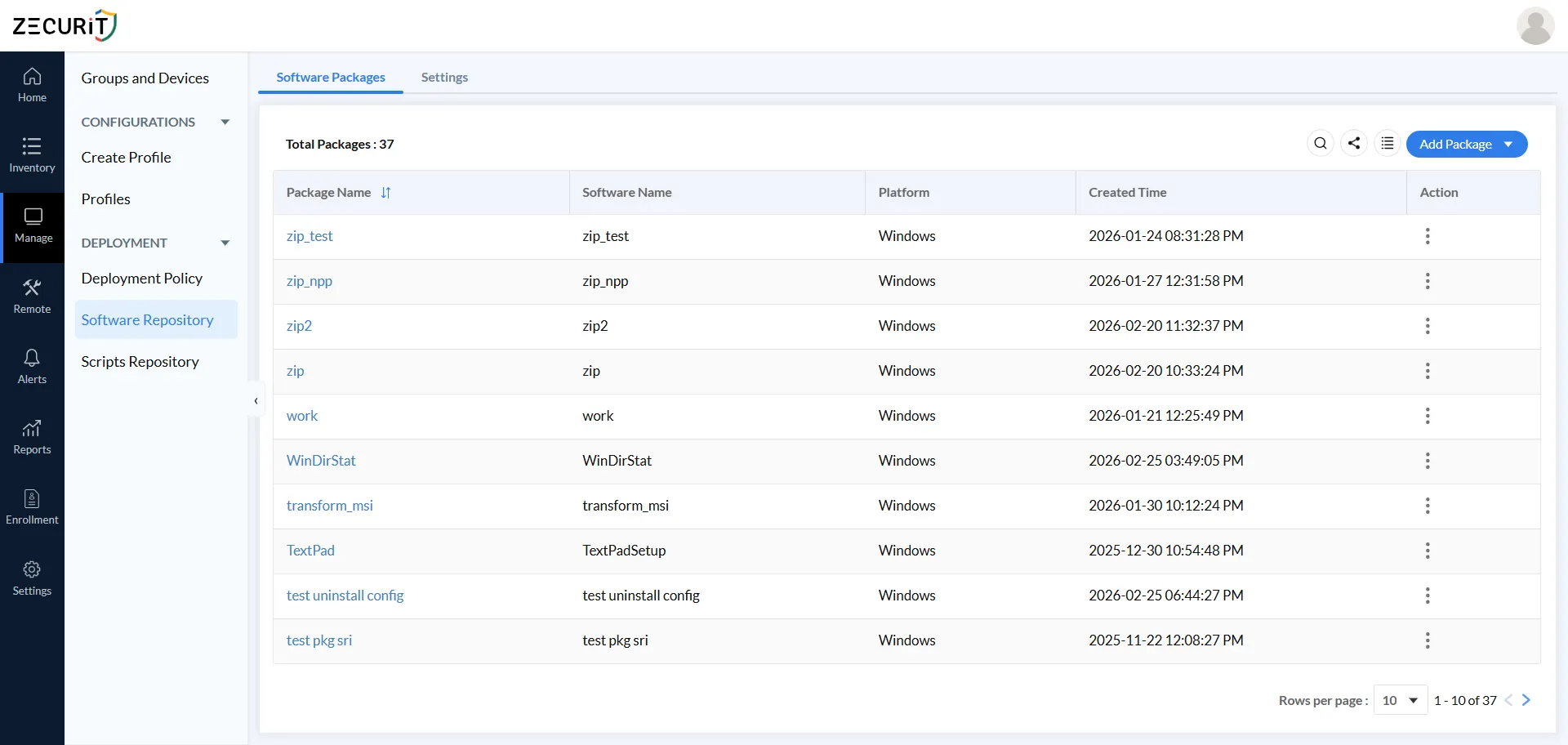
Go to Manage → Deployment → Software Repository → Add Software Package. This is where all applications are prepared before being deployed to remote devices.
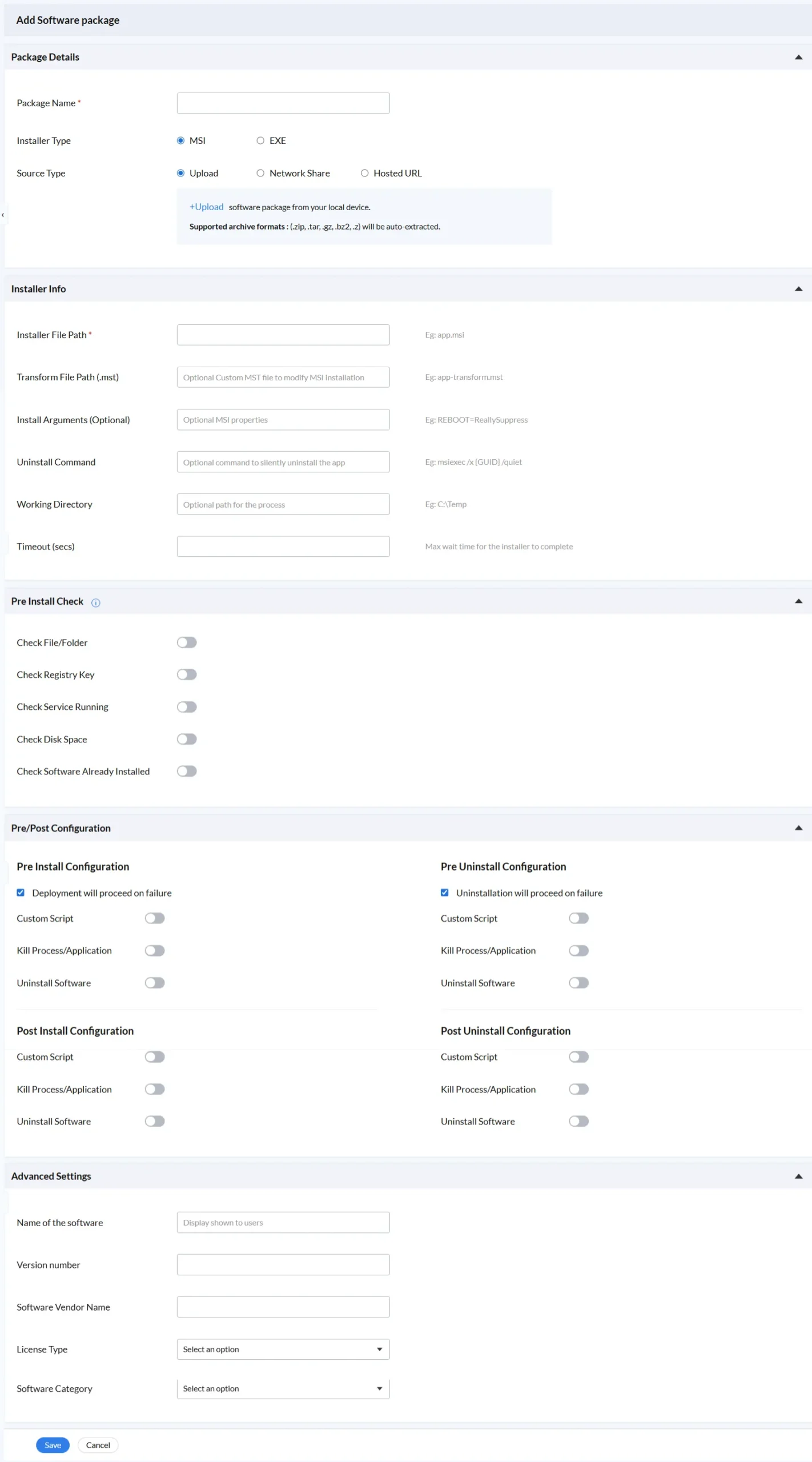
Package Name: Assign a clear and version-specific name. For example, “VPN Client v5.2” is more useful than a generic label.
Installer Type: Choose between MSI and EXE. MSI is preferred for Windows environments due to its support for silent installation and better integration with system tools.
Source Type: Select how the installer will be delivered.
Upload: Upload files directly; compressed archives are automatically extracted.
Network Share: Use internal servers for large applications to reduce bandwidth usage.
Hosted URL: Link to vendor-hosted installers for always up-to-date versions.
The Installer Info section controls how the software is executed on endpoint devices.
Installer File Path: Specify the exact location of the installer within the package. Incorrect paths are a common cause of failures.
Transform File (.mst): Customize MSI installations without altering the original file, useful for enterprise-level configurations.
Install Arguments: Add command-line options such as REBOOT=ReallySuppress to prevent forced restarts during deployment.
Uninstall Command: Store the silent uninstall command in advance for easy removal later.
Working Directory: Set the execution path required by certain installers.
Timeout (secs): Define how long the system waits before marking the deployment as failed. Increase this for slower networks or large installations.
Before initiating any installation on a remote device, Zecurit performs five configurable validation checks to assess the device’s readiness. These checks run quietly in the background and help avoid common installation failures on systems that IT teams cannot physically access.
File and Folder Check verifies that a required file or directory exists on the remote device before installation proceeds. For remote deployments, this prevents installing software on top of a partial installation left from a previous failed attempt.
Registry Key Check confirms that a required registry key is present, validating the prior state of the remote machine and ensuring prerequisites are in place before a dependent application installs.
Service Running Check validates whether a named Windows service is active on the remote device. This is critical for software that depends on a running infrastructure service to install correctly.
Disk Space Check ensures minimum free disk space is available before the remote installer runs. Remote devices that IT cannot physically inspect are common candidates for near-full drives that would cause silent installation failures. This single check prevents an entire category of hard-to-diagnose deployment failures.
Software Already Installed Check detects existing installations by software name on the remote endpoint. This prevents duplicate deployments that could corrupt a working installation on a remote worker's machine, and it saves bandwidth by skipping devices that are already compliant.
The Pre/Post Configuration section provides four independent automation phases: Pre-Install, Post-Install, Pre-Uninstall, and Post-Uninstall.Each stage includes three configurable action options that allow IT administrators to fine-tune how deployments are executed across remote devices, ensuring greater control and flexibility.
Custom Script runs a PowerShell script, batch file, or shell script at the specified point in the deployment lifecycle. Post-Install Custom Script is particularly valuable for remote deployments because it can apply remote-specific registry settings, configure VPN profiles, or set up environment variables after installation completes, all silently and automatically without IT connecting to the device.
Kill Process/Application terminates a running application before installation begins. For remote workers who have applications running continuously during work hours, this ensures the old version is fully closed before the replacement installs silently. Attempting to update a running application is one of the most frequent causes of failed installations across distributed fleets.
Uninstall Software silently removes a conflicting or outdated application before the new version deploys. For remote endpoints where IT cannot verify what software is currently installed, this provides automated cleanup as part of the same deployment workflow rather than requiring a separate removal policy.
The "Deployment will proceed on failure" option under Pre-Install Configuration determines whether Zecurit continues with the main deployment even if a pre-install action fails.For remote deployments across varying device conditions, enabling this option ensures that non-critical pre-install actions do not interrupt or delay the main installation process.
The Advanced Settings section captures metadata that supports inventory management, license compliance, and audit reporting across your remote fleet.
Name of the Software is the display name shown to users and in platform reports
Version Number is captured for inventory accuracy and version compliance tracking
Software Vendor Name is recorded for license tracking and vendor management
License Type is selected from a dropdown for license classification
Software Category organizes the package within your repository for reporting purposes
For remote and hybrid fleets, accurate software metadata is a compliance requirement, not an optional extra. When devices are geographically distributed and IT cannot physically inspect them, software inventory reports and license audits depend entirely on the accuracy of the metadata captured at deployment time.
Please check this help document for the details of software package creation.
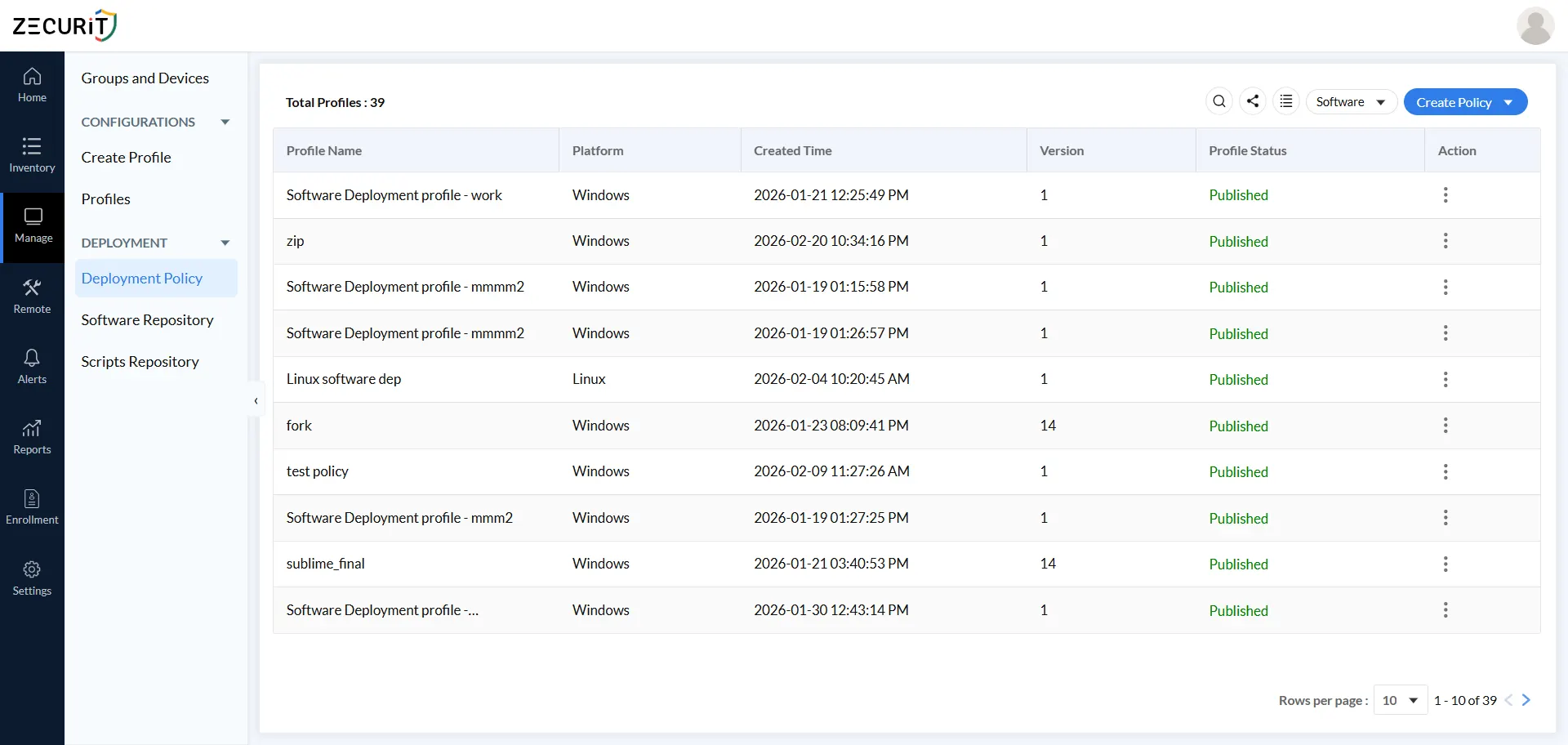
With packages configured, navigate to Manage -> Deployment -> Deployment Policy -> Add Deployment Policy.
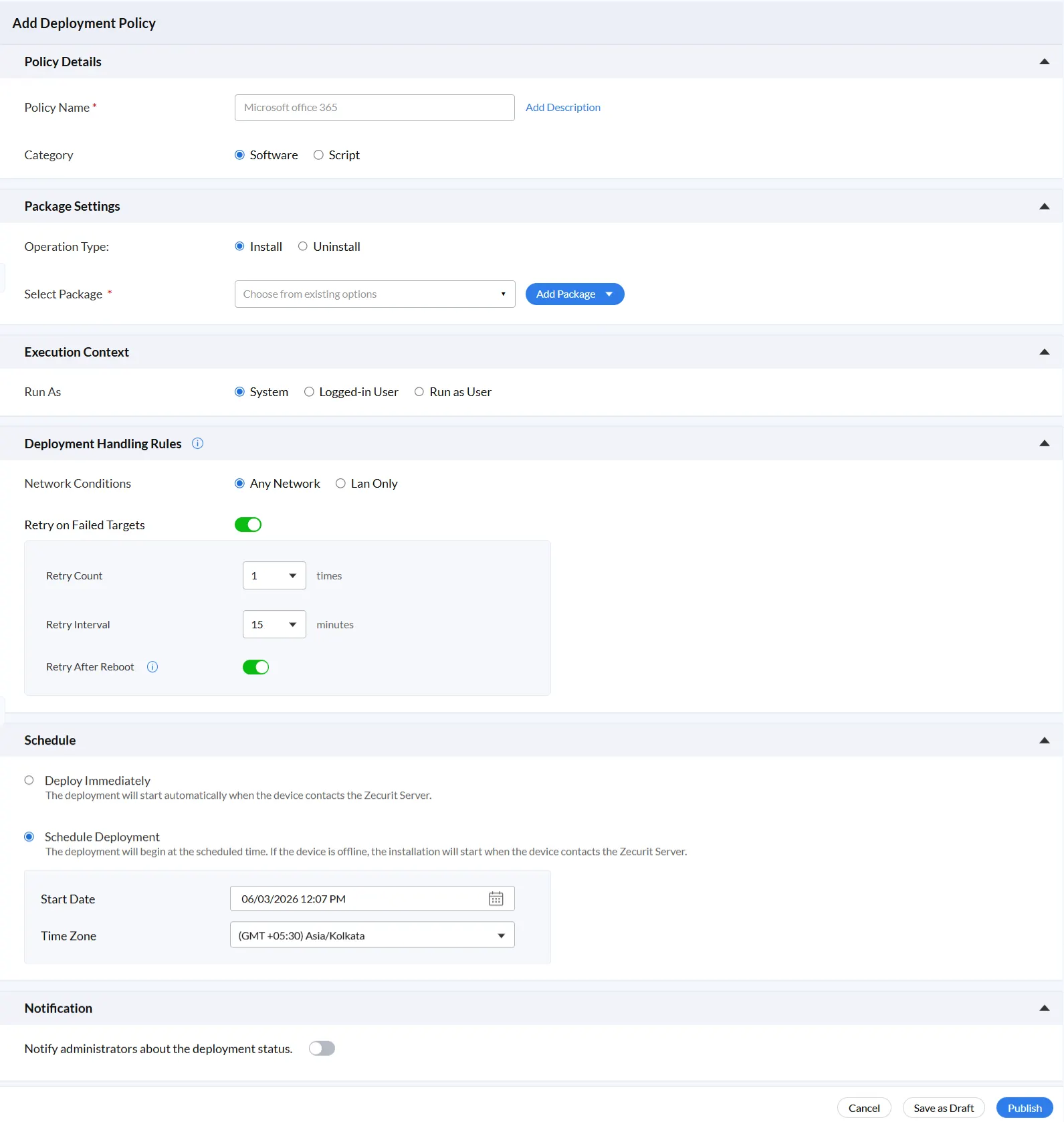
Policy Name is a required field. Use a naming convention that any member of your IT team can understand without opening the policy. A format that includes the software name, target team, and rollout date keeps your policy library organized as it grows.
The Add Description field is optional but valuable for remote fleet management. Use it to capture the business justification, the change ticket number, the approving manager, and any deployment restrictions specific to the remote workforce this policy targets.
Category toggles between Software and Script. Selecting Software activates the full deployment workflow including package selection, execution context, pre-install checks, handling rules, and scheduling.
Operation Type defines whether the policy is used to install or remove the selected package. By managing uninstallation within the same framework as deployment with identical retry rules, network conditions, and scheduling Zecurit ensures that software removal across remote devices remains consistent, controlled, and fully auditable, just like the initial rollout.
Select Package connects the policy to a specific package from your Software Repository via dropdown.If the required package is not already available, select Add Package to create it directly within the workflow, allowing you to continue configuring the policy without interruption.
Execution context defines the user account and privilege level under which the installer runs on each remote device. This is one of the most critical decisions for remote deployments because IT cannot be present to handle privilege escalation prompts or installation errors at the device level.
System runs the installer with full administrative privileges on the local device. This is the standard and recommended choice for remote workforce deployment. It executes regardless of whether a user is logged in, making it reliable for devices across all session states. Software installs silently with admin-level access without the remote worker seeing any prompt or being asked to approve anything.
Logged-in User runs the installer in the context of the currently active user on the remote device. Use this for user-scoped applications where the remote worker's profile is required during installation, such as browser extensions or per-user licensed applications. Keep in mind that this context will not execute on devices with no active session, which affects coverage across devices that are idle or at the login screen.
Run as User is the most powerful option for domain-joined remote environments. It executes the installer using securely stored credentials from the Zecurit credential vault. Use this when the deployment needs to authenticate to network resources, access domain shares, or when security policy requires installation under a specific non-privileged account rather than full system privileges.
Credentials stored in the vault are referenced by name and reused automatically across every Run as User deployment. Your IT team enters credentials once and Zecurit handles authentication for every subsequent deployment without re-entry or credential sharing over remote sessions.
This section is what sets Zecurit apart for remote and hybrid workforce environments. These rules define how deployments are handled under the real-world conditions in which remote devices typically operate.
Selecting Any Network is the setting that eliminates VPN dependency entirely. Remote workers on home broadband receive their software over that connection. Workers on mobile data receive it over that connection. Workers on public Wi-Fi at a co-working space receive it over that connection. Zecurit does not wait for a VPN tunnel and does not require corporate network access. It finds the device wherever it is and delivers the software over whatever connection the device is currently using.
Selecting LAN Only serves a different but equally important use case. When a large package needs to be deployed to branch office devices sharing a limited internet connection, restricting delivery to LAN connections protects the branch bandwidth during working hours while still ensuring full delivery after hours.
Retry on Failed Targets eliminates the need for manual follow-up when remote deployments fail due to transient issues. When enabled, the platform automatically reattempts failed installations based on two configurable settings. Retry Count defines the number of additional attempts after the initial failure. A range of 1 to 3 is recommended, as higher counts can mask persistent problems that need human attention. Retry Interval defines the wait time between attempts. The default of 15 minutes gives remote devices with intermittent connections time to stabilize before the next attempt.
Retry After Reboot ensures that device restarts never permanently interrupt a remote deployment. If a remote worker's device restarts due to a Windows update, a mid-installation reboot requirement, or the worker manually shutting down at the end of their workday, Zecurit automatically resumes the deployment the next time the device contacts the server. No IT action is required.
Deploy Immediately starts the installation as soon as the device checks in with the Zecurit server. As soon as the remote device connects on home Wi Fi, mobile data, or any available network, the deployment begins. This option is best suited for urgent updates such as critical security patches, zero day fixes, and compliance driven changes where speed is essential.
Schedule Deployment allows you to set a specific date, time, and time zone for the rollout. This is highly effective for managing remote and hybrid teams because Zecurit automatically handles delivery, queuing, and retry attempts for devices that are offline at the scheduled time.
If a device is not available during the scheduled window, the deployment is not missed. The installation starts automatically the next time the device connects to the Zecurit server, ensuring that all endpoints receive the update without manual intervention.
Time zone selection is important for globally distributed teams. Choosing the correct time zone ensures that deployments occur at the intended local time, helping avoid interruptions during active work hours and aligning with maintenance schedules.
For deployments across more than 1000 endpoints, it is recommended to use night or weekend windows. This reduces impact on user productivity, spreads network usage more efficiently, and allows IT teams to monitor results during normal business hours.
For most IT teams managing remote workforces, switching from VPN-dependent deployment to Any Network delivery is the single biggest operational improvement Zecurit enables.
Traditional endpoint management tools that require VPN connectivity create a fundamental problem. The devices that most need software updates are often the ones least reliably connected to VPN. New hires have not set up their VPN client yet. Workers in certain regions experience frequent VPN drops. Part-time hybrid employees connect to VPN intermittently. In every one of these cases, VPN-dependent deployment tools simply cannot reach the device.
Zecurit’s Any Network setting removes traditional connectivity limitations by allowing the server to communicate with remote devices over any available internet connection. Devices do not need to be connected to a VPN or corporate network. Wherever the endpoint is located, the platform delivers software using the active connection, whether it is home Wi Fi, mobile data, or another network.
The LAN Only option provides control over bandwidth usage in specific environments. For example, when deploying large packages to branch office systems with limited internet capacity, restricting downloads to the local network helps prevent bandwidth congestion during business hours. Choosing between Any Network and LAN Only is a policy level decision based on deployment needs rather than a system restriction.
Failures in remote deployments often occur due to external factors rather than issues with the software itself. Connectivity interruptions, device restarts, insufficient storage, or inactive services can all interrupt installations.
Without automated retry mechanisms, IT teams must manually track failed devices, investigate issues, and reinitiate deployments. At scale, this creates a continuous operational burden.
Zecurit addresses this with a multi layer retry system that automatically handles such scenarios.
Retry on Failed Targets is enabled by default. When a deployment fails on any device, the system automatically schedules a retry without requiring manual intervention or support tickets.
Retry Count and Retry Interval are configurable and default to one retry after fifteen minutes. This allows unstable connections to recover before another attempt is made, and can be adjusted based on deployment requirements.
Retry After Reboot ensures that if a device restarts during or after a failed attempt, the deployment resumes automatically when the device reconnects. These combined mechanisms eliminate the need for IT teams to manually follow up on failed installations.
Zecurit’s Deployment Policy interface enables administrators to control Windows macOS and Linux devices from a unified console. Core configurations such as network conditions retry behavior scheduling and offline recovery function consistently across all supported platforms.
For IT teams handling diverse remote environments including Windows systems for business users macOS devices for creative teams and Linux machines for development this provides a single streamlined deployment process and centralized reporting view. There is no need to manage separate tools workflows or dashboards for different operating systems.
A vulnerability is disclosed for a VPN client version running across all remote worker devices. IT updates the package in the Software Repository and publishes a new policy with Deploy Immediately selected and Any Network as the network condition. Zecurit begins pushing the patched version to every assigned remote device the moment it contacts the server, over home broadband, mobile data, or any available connection. Retry on Failed Targets with a 15-minute interval handles any transient connection failures automatically. No VPN is required and no remote sessions need to be scheduled.
IT needs to deploy a new collaboration platform to hybrid workers without disrupting active working hours. Schedule Deployment is configured for 11:00 PM in the worker's local time zone. System execution context installs the application silently while the device is idle overnight. Workers log in the next morning to a fully installed application with no installation prompts, no restart requests, and no disruption to their day. Devices that were powered off at 11:00 PM receive the installation the next time they connect to the server.
A branch office has a shared 50 Mbps internet connection for 30 staff. IT needs to deploy a 400 MB security agent package. LAN Only is selected as the network condition to ensure the package downloads over the local network rather than the branch's internet connection. Schedule Deployment is configured for after business hours. Retry After Reboot handles any devices that restart overnight. The full package reaches every branch device at LAN speeds without affecting internet bandwidth during working hours.
A department's security policy requires software to be installed using specific Active Directory credentials rather than System context. IT opens the Add Credentials panel, enters the credential name, selects Active Directory as the credential type, and enters the domain name, username, and password. These credentials are saved once in the Zecurit vault and reused automatically across every Run as User deployment for that department. No credential re-entry is needed, no credentials are shared over remote sessions, and no manual IT action is required per deployment.
IT manages hybrid workers across Asia (GMT +05:30), Europe, and North America. A single Schedule Deployment policy with Any Network selected covers all regions. Devices in each time zone receive the deployment when they first contact the Zecurit server after the scheduled time. Devices that were offline receive their deployment automatically on next connection. One policy, one publish action, and full global coverage.
Managing hybrid workforce software deployment demands more than traditional IT tools can offer. Zecurit addresses every challenge, from a centralized Software Repository with pre-install checks and execution controls, to VPN-free Any Network delivery that reaches every endpoint over any connection, intelligent retry logic that recovers from failures automatically, time-zone-aware scheduling that minimizes disruption, and real-time notifications that keep IT teams informed at every step. Across Windows, macOS, and Linux, from urgent security patches to scheduled off-hours rollouts, Zecurit gives IT teams one console, complete visibility, and the confidence that every endpoint gets the right software at the right time, without manual effort.