
Unpatched Windows endpoints remain one of the most common entry points for attackers, and when you're managing hundreds of devices spread across domains, workgroups, and remote locations, manually tracking missing patches simply isn't realistic. An automated missing patch scanner solves this challenge by continuously scanning every enrolled device, classifying missing patches by severity, and giving you the ability to deploy fixes from a single, centralized dashboard. This guide walks you through exactly how the process works, step by step, from initial scan to final remediation, helping you close security gaps before attackers can exploit them.
Windows Update and WSUS only cover Microsoft OS patches. They miss driver and firmware updates from vendors like Intel, AMD, Realtek, Lenovo, and Dell, all of which can carry Critical severity ratings.Without a dedicated endpoint missing patch detection tool, your team has no visibility into these gaps. That means unpatched devices, failed audits, and unnecessary risk. Frameworks like SOC 2, ISO 27001, HIPAA, and PCI-DSS all require documented patch management, and manual processes cannot meet that bar. Understanding how patch management best practices fit into your endpoint strategy is the first step toward closing those gaps systematically.
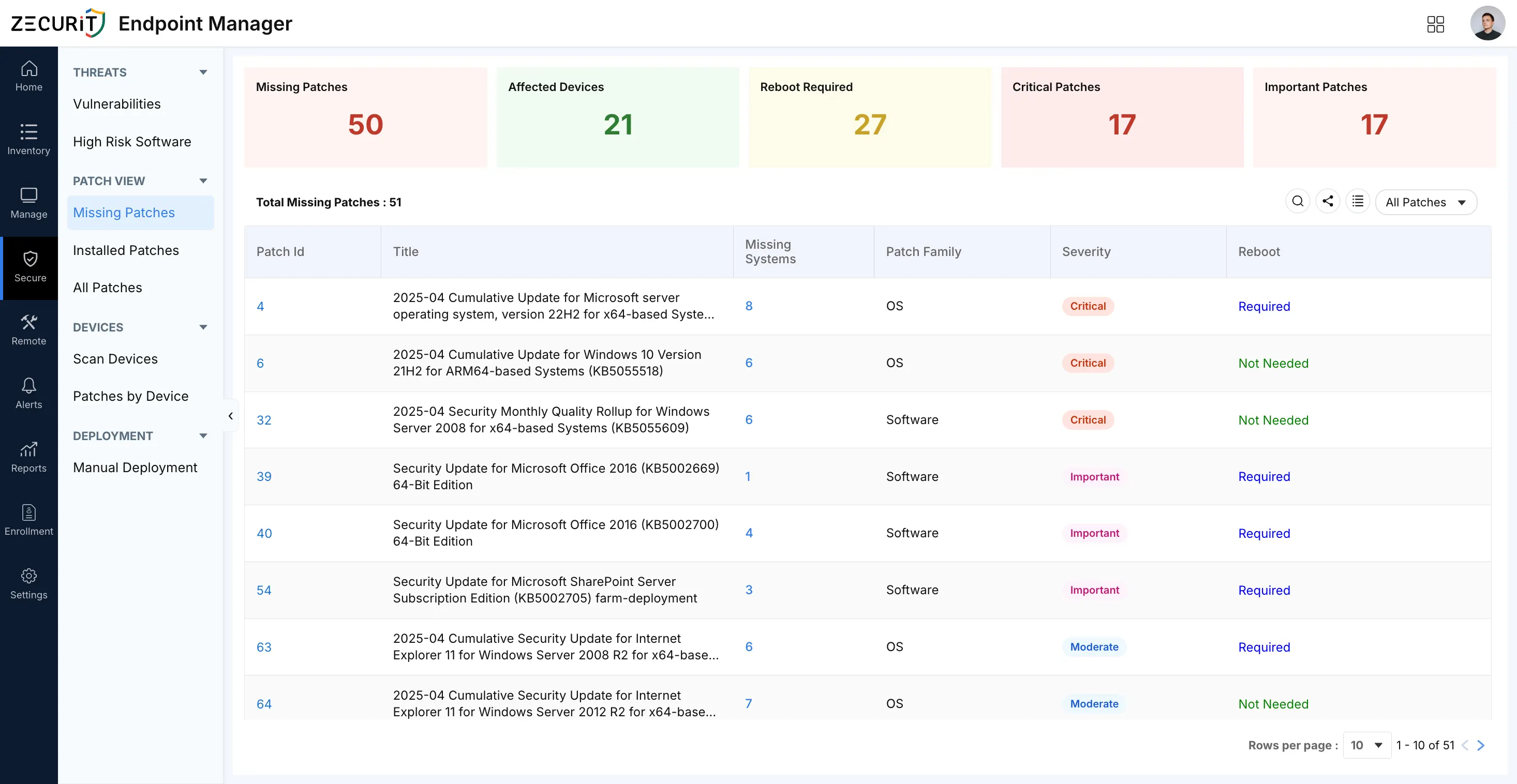
Zecurit endpoint Manager runs automated scans across all enrolled Windows endpoints and compares each device's installed patch state against a live catalog covering OS, Driver, and Software patch families.
Every missing patch is flagged with three pieces of information: its patch family (OS, Driver, or Software), its severity level (Critical, Important, Moderate, Low, or Unknown), and whether a reboot is required after installation. Results appear in a centralized dashboard so your team can triage, prioritize, and deploy without switching tools.
• Multi-Family Patch Coverage. Detects missing patches across OS, Driver, and third-party Software families. This closes the blind spot that WSUS leaves open for hardware vendor updates.
• Severity Classification. Every missing patch is tagged Critical, Important, Moderate, Low, or Unknown so you can prioritize remediation by actual risk rather than patch date.
• Reboot Requirement Tracking. The scanner flags which patches require a restart. This protects your deployment scheduling and ensures patches are fully active, not just installed.
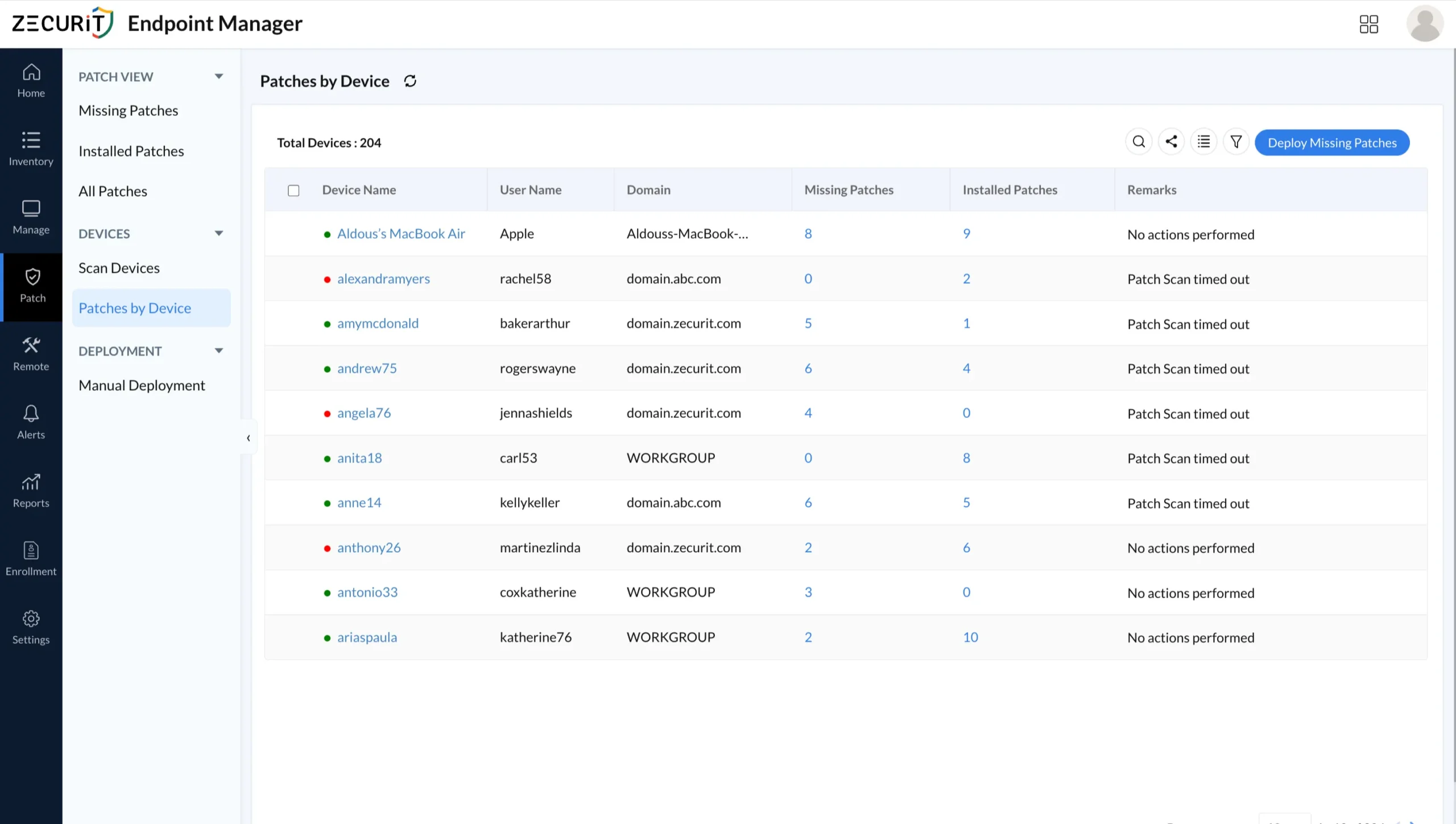
• Per-Device Drill-Down. A dedicated Patches by Device view shows missing and installed counts for every endpoint. You can answer "is this device patched?" in seconds.
• Scan Status Visibility. Devices that time out or go offline during a scan are flagged. An unscanned device is invisible to your compliance posture and must be investigated before any report is trusted.
• Integrated Deployment. From the same dashboard where you detect missing patches, you can configure and publish a deployment policy with scheduling, retry logic, and device group targeting. Teams already managing remote software deployment will recognize this as the unified workflow that eliminates the gap between detection and remediation.
• Audit-Ready Reporting. Exportable reports with patch counts, severity distribution, affected device lists, and deployment history satisfy SOC 2, ISO 27001, HIPAA, and PCI-DSS evidence requirements.
Open the Scan Devices view. Check that every managed device shows a recent, successful scan. Any device showing Timed Out or N/A has unknown patch posture and must be investigated before you rely on any report.
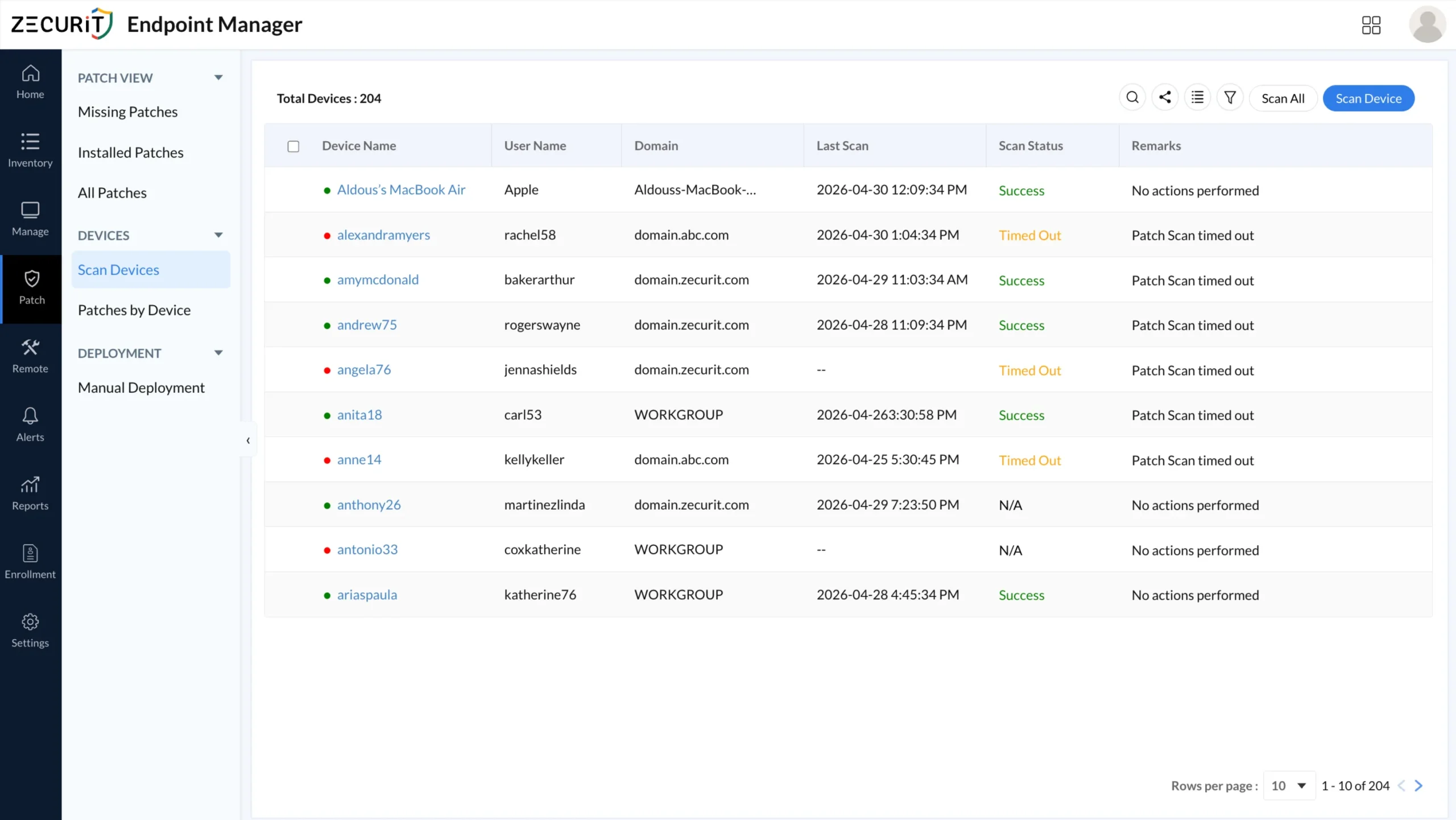
Use Scan All to push a scan job to every enrolled device, or select specific endpoints for a targeted scan. Resolve connectivity or agent issues before moving to analysis.
Open the Missing Patches view. The five summary cards at the top show you total missing patches, affected devices, reboot-required patches, Critical patch count, and Important patch count. These numbers give you the full triage picture before you open a single record.
Isolate Critical patches first, then sort by the Missing Systems column. A patch missing on six devices is a higher priority than a Critical patch missing on one, because the combined risk and deployment efficiency are both greater.
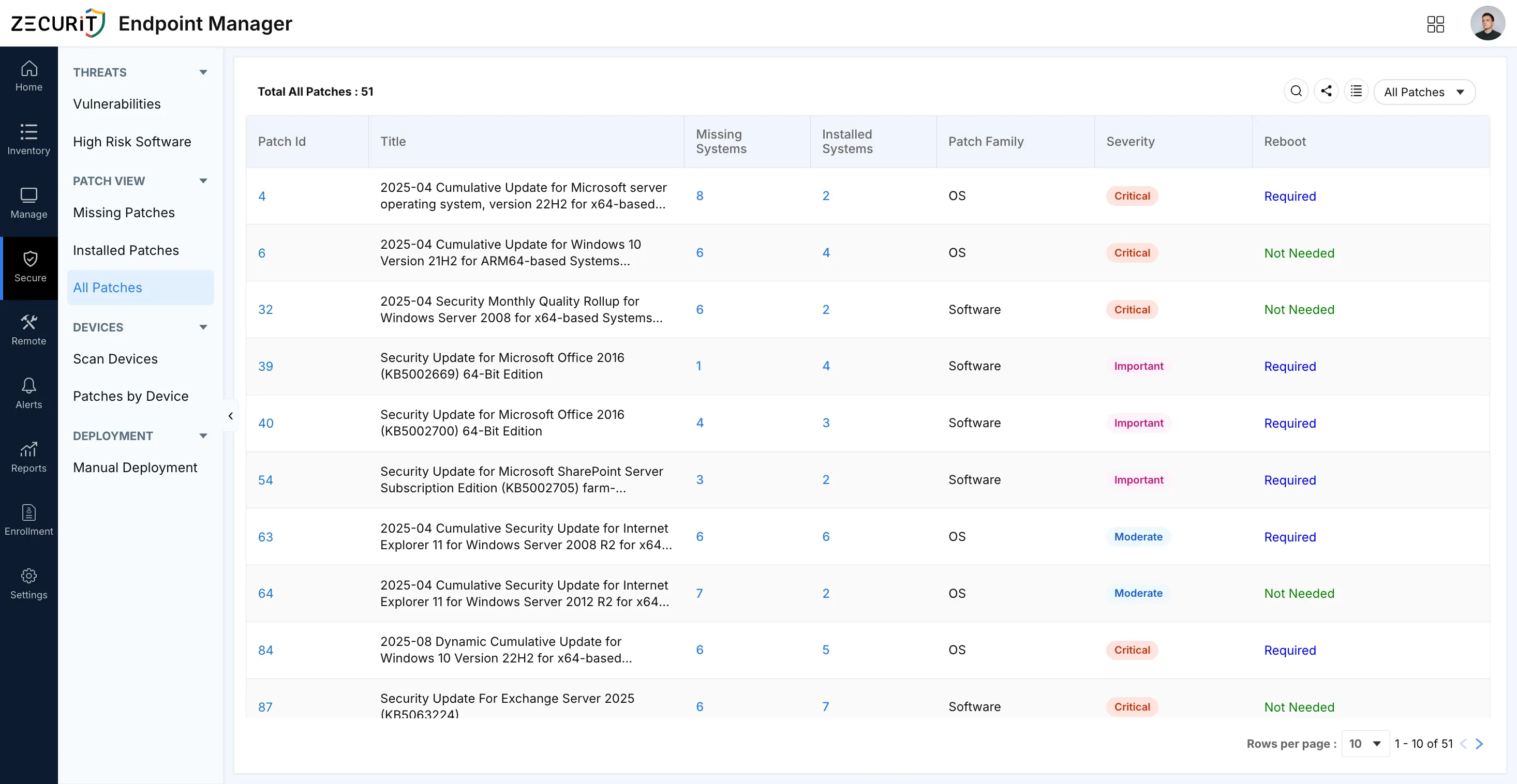
The All Patches view shows missing and installed counts side by side for every patch in the catalog. Use this to see the exposure ratio per patch and to catch any severity discrepancies between views. This is also the authoritative source for compliance reporting.
The Patches by Device view flips the lens to individual endpoints. Use it to identify devices with the highest missing patch counts or with zero installed patches, which signals either a scan failure or a device that has never been patched through the platform.
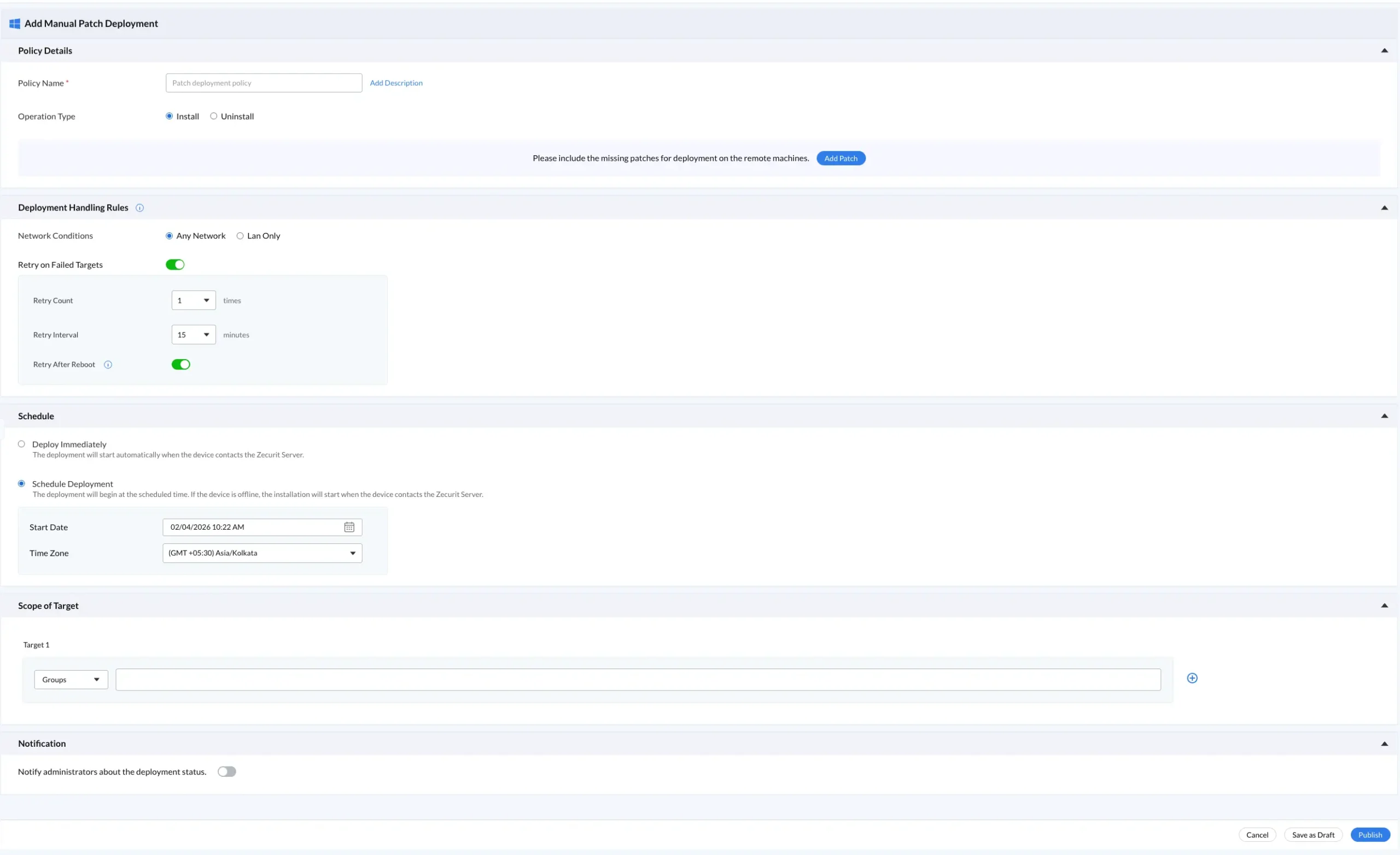
Operation type: Install or Uninstall
Patch selection from the missing patches catalog
Network conditions: Any Network or LAN Only
Retry logic: count, interval, and retry after reboot
Schedule: immediately or a future maintenance window with timezone
Scope: specific device groups for staged rollout
Notifications: administrator alerts on deployment status
Use this table to assign remediation timelines based on the severity labels shown in the scanner:
| Severity | Risk Level | Target SLA |
|---|---|---|
| Critical | Remote code execution without user interaction | 24-72 hours |
| Important | Exploitable with user interaction | 7 days |
| Moderate | Limited impact, mitigated by configuration | 30 days |
| Low | Minimal risk, defense-in-depth | Next maintenance window |
| Unknown | No vendor rating; treat as Moderate | 30 days or per policy |
• Set a Scan Cadence: Scan high-risk endpoints on a daily basis and standard endpoints on a weekly one. It's a good idea to trigger a full scan right after every Patch Tuesday, so you can get an immediate handle on any security gaps that may have appeared.
• Segment Devices by Risk: Not all endpoints in your organisation are created equal, so apply different priority lists - or SLAs - to servers, admin workstations, and the general user machines. Over time, you'll find that keeping an eye on all your endpoints becomes a whole lot easier this way - especially if you're coming from using spreadsheets to track patch updates.
• Treat Scan Failures as Security Gaps. Don't just gloss over that device which always seems to time out when you run a scan - that's just a big security hole waiting to happen. Use the next compliance report as an excuse to dig into that and sort it out once and for all.
• Schedule Reboots Intentionally. You can't really call a patch 'applied' until the device in question has had a good reboot - so make sure you've got a policy in place that allows you to retry any patches that needed a machine restart to come online.
•Use Device Groups for a Staged Rollout: Before you start pushing out those patches to the whole company, start by rolling them out to a small test group first. Check that everything is stable and working as expected, then gradually roll it out across the rest of your organisation. Never try to roll out patches to every machine at once.
Missing patch detection is not a quarterly checkbox. It is a continuous process that determines whether your Windows endpoints are defended or exposed.
This endpoint manager gives IT teams and MSPs a single platform to scan every enrolled device, surface missing patches by severity and patch family, and deploy remediation with scheduling, retry logic, and group targeting built in. Start with a scan. Know exactly what is missing across your entire endpoint fleet before the next Patch Tuesday, not after the next incident.