
Managing power states across hundreds or thousands of endpoints is no longer a peripheral IT task. It sits at the core of operational efficiency, energy governance, and security compliance. When a critical patch needs applying at 2 AM, an administrator cannot physically walk to every workstation to initiate a restart. When an unresponsive device needs force-shutting to halt a potential threat, waiting until morning is not an option.
One-click remote shutdown, wake, and restart for endpoints solves this. Combined with role-based remote power control and a full audit log, it gives IT administrators and MSPs the ability to execute force or gentle remote power actions for managed devices from a single, centralized console, without physical access, without scripting workarounds, and without accountability gaps. To understand how this capability fits within a broader endpoint management strategy, it helps to start with the core architecture.
This guide covers everything IT professionals need to evaluate and deploy a remote power control strategy: architecture, key features, real-world use cases, best practices, common mistakes, and an honest look at limitations. Whether you manage 50 endpoints or 5,000, the principles here apply.
Remote power control refers to the ability to initiate, modify, or terminate the power state of a network-connected device without local physical access. At its most practical, this means shutting down, restarting, locking, hibernating, or waking a managed endpoint from a centralized IT management console.
Three capabilities define a mature remote power control implementation:
Remote Shutdown and Restart: Triggering a shutdown or reboot on a single device or in bulk, immediately or on a defined schedule.
Wake-on-LAN (WoL): Sending a magic packet over the network to power on a device that is in a sleep or powered-off state.
Power Plan Enforcement: Pushing standardized power policies, including sleep timers, display timeouts, and battery thresholds, to ensure consistent behavior across all managed endpoints.
These three capabilities, when unified under one platform with a full audit log and role-based access, form the foundation of responsible endpoint power governance.
A well-designed endpoint power management solution presents all managed devices, their live status, last boot time, logged-on user, IP address, and MAC address in a single dashboard. IT administrators can filter by live status or power state, select individual devices or entire groups, and execute an action in one click. This level of visibility eliminates guesswork and reduces response time across large fleets.
A capable platform supports the following power options across managed endpoints:
Shutdown: Gracefully or forcefully powers off the device.
Restart/Reboot: Cycles the device through a full power-off and power-on sequence.
Lock: Secures the screen without ending the session, useful for compliance scenarios.
Sleep/Hibernate: Puts the device into a low-power state while preserving the session.
Wake-on-LAN: Broadcasts a magic packet to power on devices that are offline or asleep.
The Wake-on-LAN interface lists each device alongside its MAC address, IP address, subnet mask, and broadcast address. The platform automatically computes and populates subnet and broadcast information, removing the manual configuration burden that makes WoL difficult to scale. Admins can trigger a wake action individually or across an entire device group from a single button.
Beyond on-demand actions, a scheduling engine allows administrators to define recurring or one-time power cycles. This is essential for after-hours patch windows, weekend device reboots, and energy-saving programs. Platforms that support scheduled wake and shutdown automation eliminate the need for manual intervention during off-hours maintenance windows.
Remote shutdown is the ability to power off one or more managed endpoints from a central console without any physical interaction with the device. It is one of the most frequently used capabilities in endpoint power control, applied daily across tasks ranging from after-hours energy management to emergency security response. Understanding how remote shutdown works at a technical level, and the operational decisions surrounding it, is essential for any IT team managing a distributed fleet.
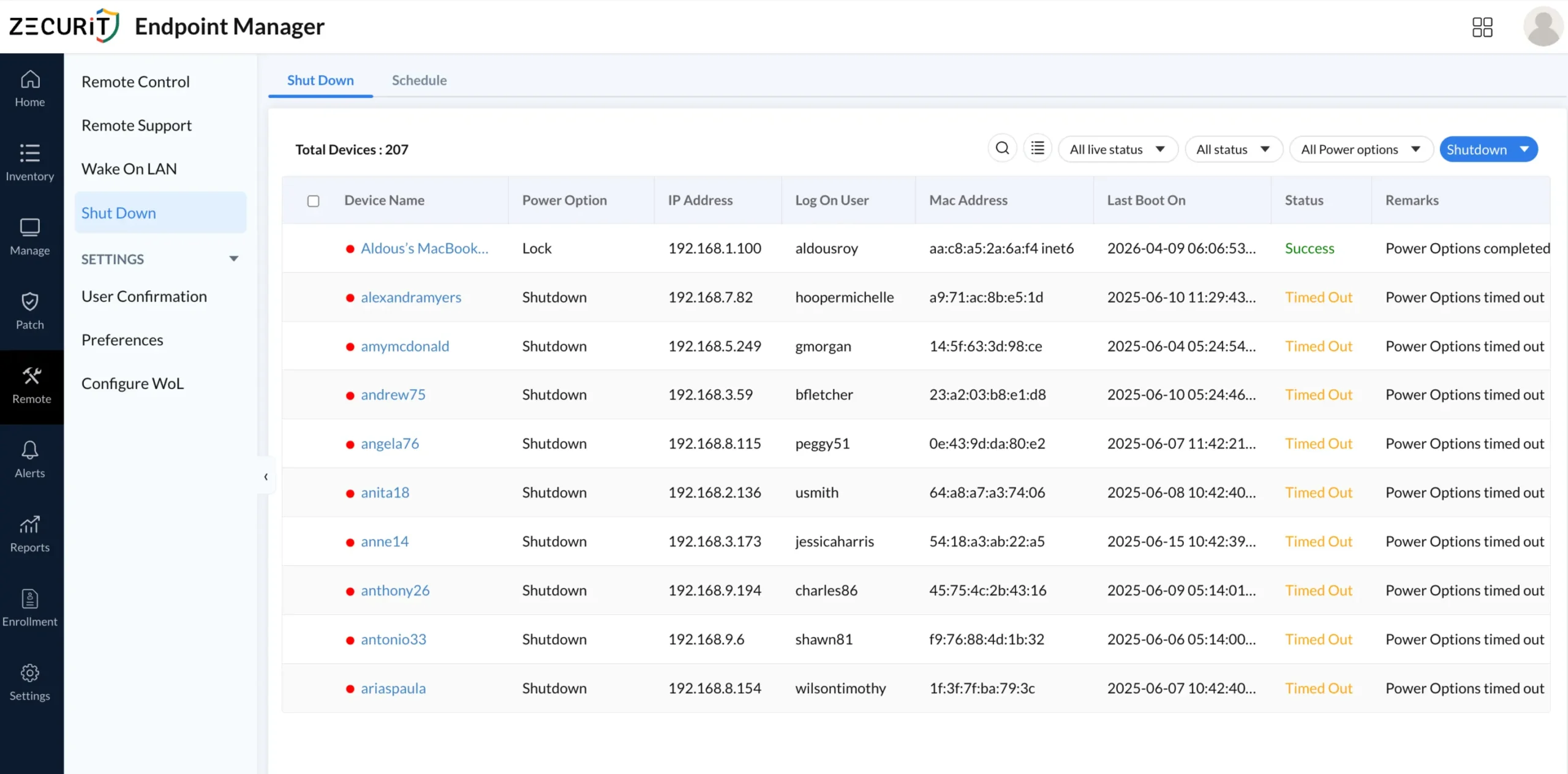
When an administrator initiates a remote shutdown from the management console, the platform sends a shutdown command to the endpoint agent installed on the target device. The agent receives the instruction and passes it to the operating system's native shutdown API. On Windows, this triggers the standard shutdown sequence: open applications are notified, the user session is closed, system services are stopped in order, and the OS powers off the hardware.
The key difference between remote shutdown and a local shutdown is that the command originates from outside the device.The endpoint agent acts as the bridge, receiving the remote instruction and executing it locally with the same OS-level authority as a local administrator.
Graceful (Gentle) Shutdown: The OS follows its standard shutdown sequence. Applications receive a close notification, the user is given a brief window to save work, and all processes are terminated cleanly before power is cut. This is the default mode for scheduled and routine shutdowns.
Force Shutdown: The OS is instructed to terminate immediately without waiting for applications to close. Open files are not saved, running processes are aborted, and the device powers off within seconds. This mode is reserved for unresponsive devices or active security incidents where speed outweighs data preservation concerns.
Shutdown with Restart: Powers the device off and immediately initiates a reboot sequence. Used after patch installations, configuration changes, or software deployments that require a full OS restart to take effect.
Scheduled Shutdown: A shutdown command queued for a specific date and time. The platform holds the instruction and delivers it to the agent at the defined moment, without requiring the administrator to be online. Essential for after-hours maintenance windows and fleet-wide power-off routines.
Remote shutdown can be executed against a single device or applied in bulk across a selected group. Bulk shutdown is the core capability that differentiates an enterprise power management platform from ad-hoc scripting. An administrator can select an entire department, site, or OS-based device group and issue one shutdown command that propagates to all targeted endpoints simultaneously.
The console records each device's result independently. A bulk shutdown of 200 devices produces 200 individual audit log entries, each with its own status: Success, Timed Out, or Failed. This granularity is what makes the audit log actionable rather than just decorative.
Once the shutdown command is dispatched, the platform begins polling for confirmation. The endpoint agent sends an acknowledgment when the shutdown sequence is initiated. If the agent confirms execution within the defined timeout window, the status is marked as Success. If no confirmation arrives within the window, the status is marked as Timed Out.
A Timed Out status does not always mean the shutdown failed. The device may have shut down successfully but lost network connectivity before the acknowledgment was sent. Administrators should verify device status through live inventory checks rather than relying solely on the Timed Out log entry to determine outcome.
For environments where users may be actively working outside of scheduled hours, some platforms support a user confirmation step before executing a shutdown. The endpoint displays a notification, typically with a countdown timer of 5 to 10 minutes, giving the user a chance to save work and acknowledge the pending shutdown. This setting is configurable per policy and is particularly important for remote workers whose activity patterns do not follow standard office hours.
One of the most operationally significant distinctions in remote endpoint power control is the choice between a force action and a gentle (graceful) action. Understanding when to use each prevents data loss and supports compliance.
| Power Action Type | Behavior | Best Used When | Risk Level |
|---|---|---|---|
| Gentle Shutdown | Sends shutdown signal; OS closes apps and saves state | Users may have open work; patch windows during business hours | Low |
| Force Shutdown | Immediately cuts power state without waiting for app closure | Device is unresponsive; security incident requires immediate isolation | Medium |
| Gentle Restart | Closes apps gracefully before reboot | Post-update reboots, scheduled maintenance | Low |
| Force Restart | Immediately reboots without app save cycle | Hung processes, crash recovery, remote unresponsiveness | Medium |
| Lock | Secures screen; session remains active | Unattended device compliance, temporary absence | None |
| Wake-on-LAN | Powers on from sleep or off state via magic packet | Pre-patch window wake-up, inventory scans on powered-off devices | None |
Forced shutdowns without proper NTFS journaling can risk file system integrity on older spinning-disk drives. Always prefer gentle actions during business hours and reserve force actions for security or recovery scenarios.
Granting every IT staff member the ability to force-shut down any device is a significant operational and security risk. Role-based remote power control solves this by assigning specific power capabilities to defined roles, ensuring that only authorized personnel can execute high-impact actions.
A Level 1 helpdesk technician may need to lock or restart a user's device but should not be able to force-shut down a server.
An MSP client administrator should be able to schedule shutdowns for their own devices but not access another tenant's endpoints.
A security operations analyst may need emergency force-shutdown rights but only after an elevated approval step.
| Role | Permitted Actions | Restricted From |
|---|---|---|
| Helpdesk Technician | Lock, Gentle Restart, WoL | Force Shutdown, Force Restart, Bulk Actions |
| IT Administrator | All gentle + force actions, single device | Bulk force shutdown across all devices |
| Senior IT / Manager | All actions including bulk, scheduling | None (full access) |
| MSP Client Admin | Gentle actions on assigned tenant devices only | Cross-tenant access, force actions |
| Read-Only Auditor | View status and audit log only | All power execution actions |
Pairing RBAC with a full audit log creates a clear chain of custody for every power action executed across the fleet. Teams that also manage security alerts and endpoint monitoring benefit from having both systems reflect the same event timeline.
A remote power action without a corresponding log entry is an accountability gap. Regulations including SOC 2, ISO 27001, and HIPAA require organizations to demonstrate that administrative actions on managed systems are tracked and attributable. The reports and auditing capability in a mature endpoint management platform provides this coverage end to end.
Who: The user account that initiated the action, tied to their RBAC role.
What: The specific power action taken, whether shutdown, restart, WoL, lock, or hibernate.
When: Timestamp of both the action request and the execution or failure.
Which device: Device name, IP address, MAC address, and last logged-on user.
Result: Success, Timed Out, or Failed, with a corresponding remark.
Success: The power command was received and executed by the endpoint agent within the expected timeout window.
Timed Out: The command was sent but the device did not confirm execution. Common causes include the device being offline, the agent being unresponsive, or network latency. This does not guarantee the action failed.
N/A: No action has been performed on this device for the current session or job.
Timed Out statuses are among the most misunderstood entries in endpoint power logs. They appear frequently in large fleet deployments where devices span multiple subnets or are in sleep states during scheduled jobs. Section 9 covers how to reduce timeout rates.
Beyond on-demand power actions theres also a comprehensive platform, which lets administrators define and push power plans across the entire fleet under their care. This settings layer does a good job of bringing a structure to how power is governed, and that spans both AC and battery-powered devices.
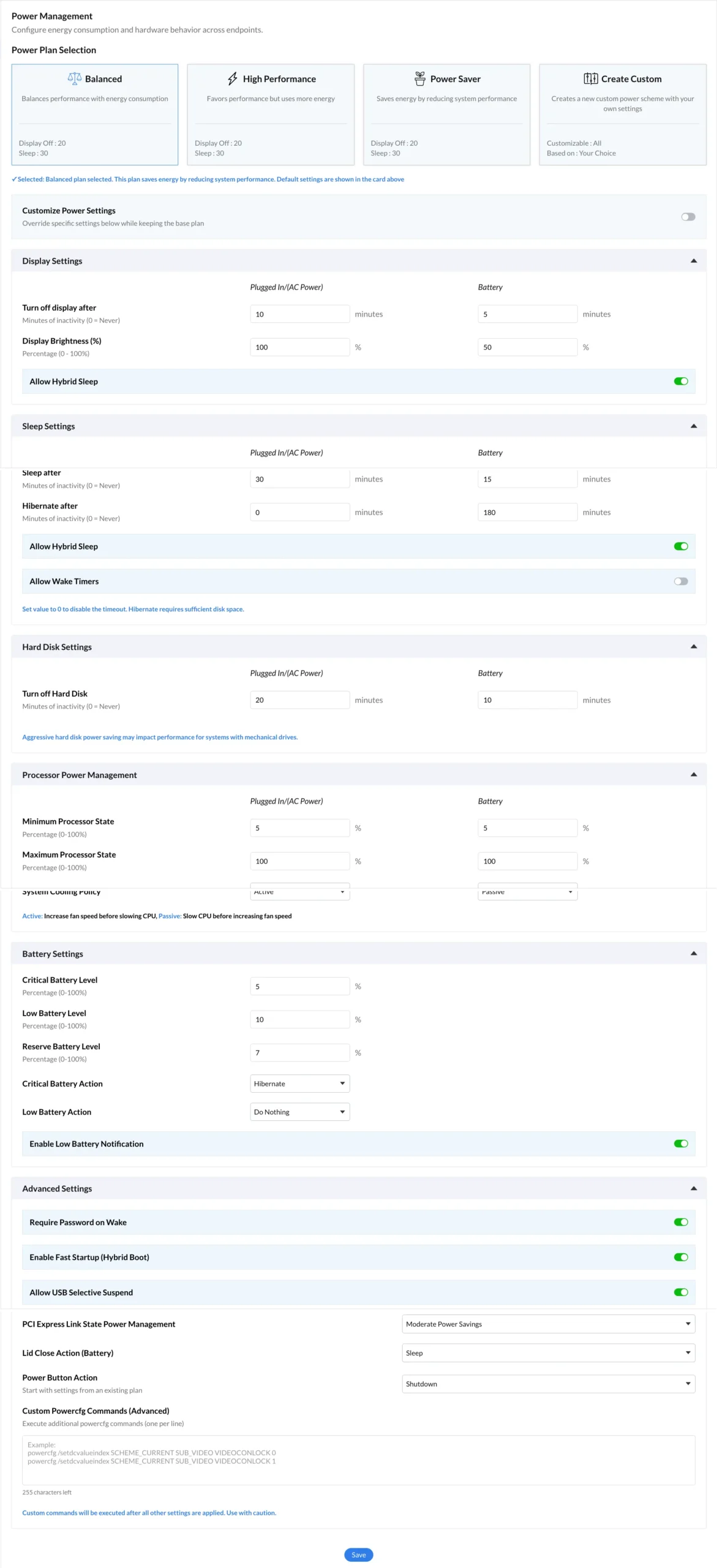
Balanced: A Good Middle Ground - a winning balance between performance and energy use. Display goes dark after 20 minutes, then the laptop goes to sleep after 30 minutes. You'd use this a lot for standard office workloads.
High Performance: All-or-Nothing - pushing processor speed to the limit, at the expense of energy use. Not bad for workstations that are putting in some heavy lifting, like running compute-intensive tasks.
Power Saver: For the Conservationistas - reins in system performance to conserve battery. Good option if you're in a meeting-heavy environment or somewhere you need to get a little extra mileage out of your laptop.
Custom: For the Really Special Cases - you can put together a special power plan with settings tailored to a specific hardware or compliance requirement.
Plugged in or running on battery, it matters - and if you're managing laptops in a hybrid setup, you'll want to pay attention to how that distinction plays out. Here are some handy defaults to get you started:
Turn the screen off after: 10 minutes when plugged in, 5 minutes on battery
Fall into a deeper sleep after: 30 minutes when plugged in, 15 minutes on battery
Hibernate after: 0 minutes (disabled when you have a steady power supply), 180 minutes on battery
Critical Battery Level: When All Else Fails - when the battery gets down to 5%, we trigger hibernation to prevent data loss in case things get desperate.
Low Battery Level: Time to Worry - 10% battery left? We hit you with a user notification to make sure you dont forget its running low.
Reserve Battery Level: Safety Net - 7% battery left? Thats enough to let it hibernate safely, no worries.
Require Password on Wake: Another Safety Feature - after a sleep or hibernate, we make sure you have to re-authenticate so no unauthorized access in.
Enable Fast Startup (Hybrid Boot): Save those precious seconds - saves time by saving the kernel state to disk and getting you up and running faster.
PCI Express Link State Power Management: Plug And Play - controls power to those pesky PCIe devices for extra energy savings.
Lid Close Action: All Options On The Table - sleep, hibernate, shut down, or just do nothing - you get to choose what happens when you shut the lid.
Power Button Action: What You Do Really Matters - define what happens when you press that physical power button.
Remote power control, when implemented with role-based access, force vs. gentle action selection, Wake-on-LAN, scheduling, and a complete audit log, transforms what was once a physical, manual task into a scalable, auditable, and secure IT operation.
For IT administrators managing hundreds of endpoints, the operational ROI is direct: lower energy costs, faster patch compliance, reduced helpdesk response time, and airtight accountability for every power action taken across the fleet. For MSPs, the RBAC and multi-tenant control model is the difference between responsible fleet management and a compliance liability.
The common thread across every best practice in this guide is intentionality. Know which action type you are issuing, know who authorized it, and know the audit trail will reflect it accurately.