Session Confirmation Settings allow organizations to control how remote access requests are approved before a technician can connect to a device. This feature helps improve security, protect user privacy, and ensure compliance with organizational policies by requiring end-user consent before a remote session begins.
Session Confirmation is particularly useful in environments where users handle sensitive information or where regulatory requirements mandate explicit approval before remote access is granted.
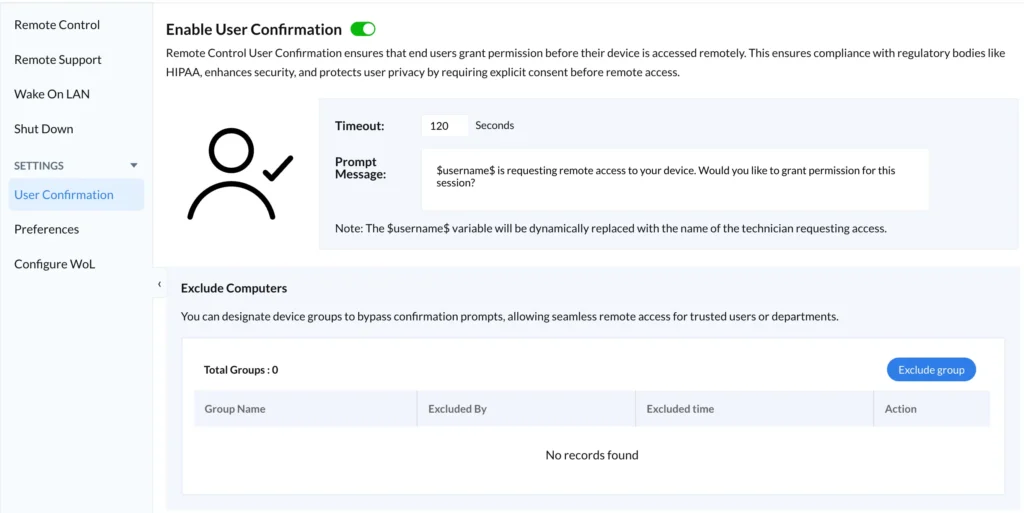
Overview
By default, unattended remote access allows authorized technicians to connect directly to managed devices. However, some organizations may prefer to notify users and request permission before a session starts.
When Session Confirmation is enabled:
- A notification is displayed on the remote device.
- The user is informed that a technician is requesting access.
- The user can approve or deny the request.
- The remote session begins only after approval.
This provides transparency and helps users understand when their devices are being accessed remotely.
Benefits of Session Confirmation
Session Confirmation provides several advantages:
Enhanced Security
Users are notified whenever a remote connection is requested, helping prevent unauthorized access.
Improved Privacy
Employees maintain visibility and control over remote access sessions.
Regulatory Compliance
Many organizations use Session Confirmation to support compliance initiatives and internal security policies.
Increased User Trust
Users are more comfortable with remote support when they know access requires their approval.
Reduced Support Disputes
Approval records provide visibility into when remote sessions were requested and accepted.
Accessing Session Confirmation Settings
To configure Session Confirmation:
- Navigate to Remote Tab.
- Click User Confirmation.
- Configure the required settings.
- Click Save Changes.
All changes apply to future remote access requests.
Enable User Confirmation
The Enable User Confirmation option controls whether users must approve remote access requests.
Enabled
When enabled:
- Users receive a confirmation prompt.
- The technician must wait for approval.
- Remote access begins only after consent is granted.
Disabled
When disabled:
- Approved technicians can connect immediately.
- No confirmation prompt is displayed.
- Devices operate in unattended access mode.
This option is commonly used for servers, kiosks, and other managed systems that require continuous administrative access.
Confirmation Timeout
The Timeout setting specifies how long the confirmation request remains active before it expires.
Example
If the timeout value is set to:
120 Seconds
The user has 120 seconds to respond.
If no action is taken:
- The request expires automatically.
- The connection attempt is cancelled.
- The technician must initiate a new request.
Customizing the Prompt Message
Administrators can customize the message displayed to users when a remote connection is requested.
Example Prompt
$username$ is requesting remote access to your device.
Would you like to grant permission for this session?
The prompt should clearly explain:
- Who is requesting access
- Why access is needed
- What action the user should take
Dynamic Variables
Session Confirmation supports dynamic variables that are automatically replaced when the message is displayed.
$username$
Displays the name of the technician requesting access.
Example:
John Smith is requesting remote access to your device.
Would you like to grant permission for this session?
This provides users with clear information about who is attempting to connect.
Writing Effective Prompt Messages
Use clear and professional language.
Example:
$username$ from the IT Support team is requesting remote access to your device to assist with troubleshooting. Do you want to allow this session?
This helps users make informed decisions and improves approval rates.
Excluding Devices and Device Groups
Some devices may require continuous unattended access and should not require user confirmation.
The Exclude Computers section allows administrators to exempt selected device groups from Session Confirmation requirements.
Common Exclusion Scenarios
Organizations often exclude:
- Servers
- Kiosks
- Shared Devices
- Conference Room Systems
- Test Environments
- Digital Signage Devices
- IT Administration Workstations
Excluding a Device Group
To exclude a group:
- Open User Confirmation Settings.
- Navigate to Exclude Computers.
- Click Exclude Group.
- Select the desired device group.
- Save the configuration.
Devices within the selected group will bypass confirmation prompts.
Exclusion List Information
The exclusion table displays:
| Field | Description |
|---|---|
| Group Name | Name of the excluded device group |
| Excluded By | Administrator who created the exclusion |
| Excluded Time | Date and time of exclusion |
| Action | Available management actions |
Administrators can review and modify exclusions at any time.
When to Use Session Confirmation
Session Confirmation is recommended in the following environments:
Corporate Employee Devices
Employees should be aware when support staff access their systems.
Remote Workforce
Provides visibility and transparency for remote employees.
Privacy-Sensitive Environments
Useful when devices contain personal or confidential information.
Regulated Industries
Often required to support organizational security policies and audit requirements.
When to Use Unattended Access Instead
Session Confirmation may not be appropriate for:
Servers
Servers typically require immediate administrative access.
Data Center Systems
Infrastructure devices often need continuous remote management.
Kiosks
Interactive kiosks usually operate without active users.
Shared Devices
Confirmation prompts may not be practical when multiple users share the same endpoint.
For these scenarios, consider using device group exclusions.
Best Practices
To maximize security and user experience:
Enable Confirmation for User Devices
Require approval on employee workstations whenever possible.
Use Clear Prompt Messages
Ensure users understand who is requesting access and why.
Configure Appropriate Timeouts
Avoid excessively long approval windows.
Review Excluded Groups Regularly
Periodically verify that exclusions remain necessary.
Limit Administrative Access
Use role-based access controls to ensure only authorized technicians can initiate remote sessions.
Maintain Audit Records
Review remote access logs and approval activity regularly.
As recommended by the National Institute of Standards and Technology (NIST), organizations should implement access controls, user consent mechanisms, and activity monitoring to help secure remote access environments.
Frequently Asked Questions
What happens if the user does not respond?
The request expires when the configured timeout period is reached.
Can users deny access?
Yes. Users can decline the request, preventing the session from starting.
Can administrators bypass confirmation?
Yes. Devices or device groups can be excluded from Session Confirmation requirements.
Does Session Confirmation affect unattended access?
Only devices that are not excluded will require approval. Excluded devices continue to support unattended remote access.
Are approval requests logged?
Yes. Approval activity can be audited through remote access logs and reporting features.
Related Articles
- Unattended Remote Access Overview
- Managing Devices
- Remote Connections
- Session Features
- Preferences
- Security and Permissions
- Remote Support Overview