Effective device management is essential for successful unattended remote access. The Zecurit Remote Control console provides a centralized view of all enrolled devices, allowing administrators and support technicians to monitor device availability, organize endpoints, and quickly initiate remote sessions.
This page explains how to view managed devices, understand device status indicators, and organize devices for efficient remote management.
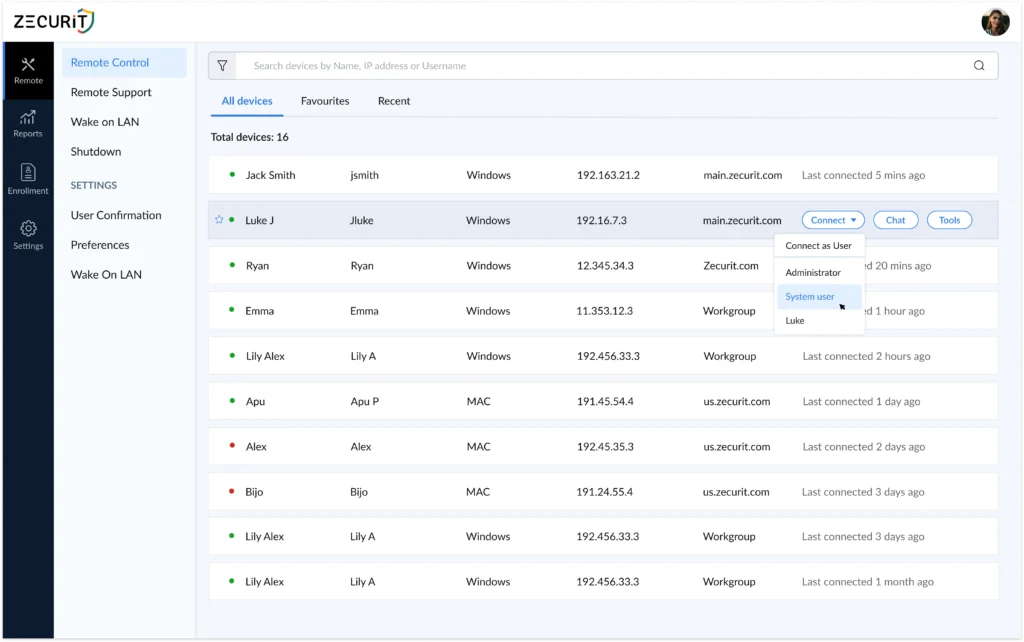
Viewing Managed Devices
The Remote Control page displays all devices that have been enrolled and are available for remote access.
Administrators can use this page to:
- View all managed devices
- Check device availability
- Search for specific devices
- Access recent and favorite devices
- Start remote control sessions
- Launch remote support sessions
- Access remote management tools
Accessing the Device List
To view managed devices:
- Navigate to Remote Control from the left navigation menu.
- Select the All Devices tab.
- Review the list of enrolled devices.
The device list displays important information about each endpoint, including:
| Field | Description |
|---|---|
| Device Name | The hostname or computer name of the device |
| Username | The currently logged-in user |
| Operating System | Windows, macOS, or Linux |
| IP Address | The device’s current IP address |
| Domain / Workgroup | Associated domain or workgroup |
| Last Connected | Last communication time with the Zecurit |
| Status Indicator | Current device availability |
Searching for Devices
Use the search bar at the top of the page to quickly locate devices.
You can search using:
- Device Name
- Username
- IP Address
This is particularly useful in environments with hundreds or thousands of managed devices.
Device Categories
The Remote Control console provides multiple device views to simplify navigation.
All Devices
Displays all enrolled devices available within your organization.
Use this view when you need a complete inventory of managed endpoints.
Favorites
Frequently accessed devices can be marked as favorites for faster access.
Favorites help administrators quickly locate:
- Critical servers
- Executive workstations
- Frequently supported devices
- Test systems
Recent
Displays devices that were recently accessed.
This view helps technicians quickly reconnect to devices that were recently managed or supported.
Understanding Device Status
Device status indicators provide real-time visibility into endpoint availability.
Zecurit continuously monitors communication between managed devices and the platform to determine current status.
Online Devices
A green status indicator indicates that the device is currently online and available for remote access.
Online devices:
- Can accept remote control sessions
- Support remote management actions
- Can receive commands immediately
Administrators can connect directly to online devices without additional steps.
Offline Devices
A red status indicator indicates that the device is currently offline or unavailable.
Common reasons include:
- Device powered off
- Network connectivity issues
- Agent service stopped
- Device disconnected from the internet
Remote sessions cannot be initiated until the device reconnects.
Last Connected Information
The Last Connected column displays the most recent communication timestamp between the device and the Zecurit platform.
Examples include:
- Last connected 5 minutes ago
- Last connected 1 hour ago
- Last connected 1 day ago
This information helps administrators determine whether a device is actively communicating with the platform.
Starting Actions from the Device List
Administrators can perform several actions directly from the device list.
Remote Control
Select Connect to establish an unattended remote access session.
Depending on your permissions and device configuration, you may be able to connect as:
- Logged-in User
- Administrator
- System User
The available connection options are displayed within the Connect menu.
Remote Support
Select Chat to initiate communication with the remote user before or during a support session.
This capability is useful when troubleshooting user-reported issues.
Remote Tools
Select Tools to access available remote management functions.
Available tools may include:
- Wake-on-LAN
- Remote Shutdown
- Remote Restart
- Additional remote diagnostics tools such as
- Remote Command Prompt
- Remote Task Manager
- Service Manager
- File Manager
- Remote Registry and
- Remote Event Viewer
Organizing Devices
As the number of managed endpoints grows, proper organization becomes increasingly important.
Device organization helps administrators:
- Simplify device management
- Improve technician productivity
- Apply permissions consistently
- Locate devices faster
- Reduce operational overhead
Using Device Groups
Device groups allow administrators to organize endpoints based on business requirements.
Common grouping strategies include:
Department-Based Groups
Examples:
- Finance
- Human Resources
- Engineering
- Sales
- Customer Support
Location-Based Groups
Examples:
- Headquarters
- New York Office
- London Office
- Singapore Office
Device-Type Groups
Examples:
- Workstations
- Laptops
- Servers
- Kiosks
- Test Devices
Support Groups
Examples:
- VIP Users
- Executive Devices
- Shared Devices
- Remote Employees
Benefits of Device Groups
Organizing devices into groups provides several advantages:
- Faster device discovery
- Easier administration
- Improved access control
- Simplified reporting
- Streamlined remote support operations
Groups become especially valuable in larger environments where hundreds or thousands of endpoints are managed through a single console.
Related Articles
- Starting an Unattended Remote Session
- Connecting to Windows Devices
- Connecting to macOS Devices
- Wake-on-LAN
- Remote Shutdown
- Security and Permissions