Monitor Performance and Manage Processes on Remote Windows Devices
Zecurit Remote Task Manager provides administrators and support technicians with real-time visibility into the performance and resource utilization of managed Windows devices. Without starting a full remote control session, technicians can remotely view running processes, monitor CPU and memory consumption, analyze disk and network activity, and terminate problematic applications.
Remote Task Manager helps IT teams quickly diagnose performance issues, identify resource bottlenecks, investigate application crashes, and resolve endpoint problems from a centralized management console.
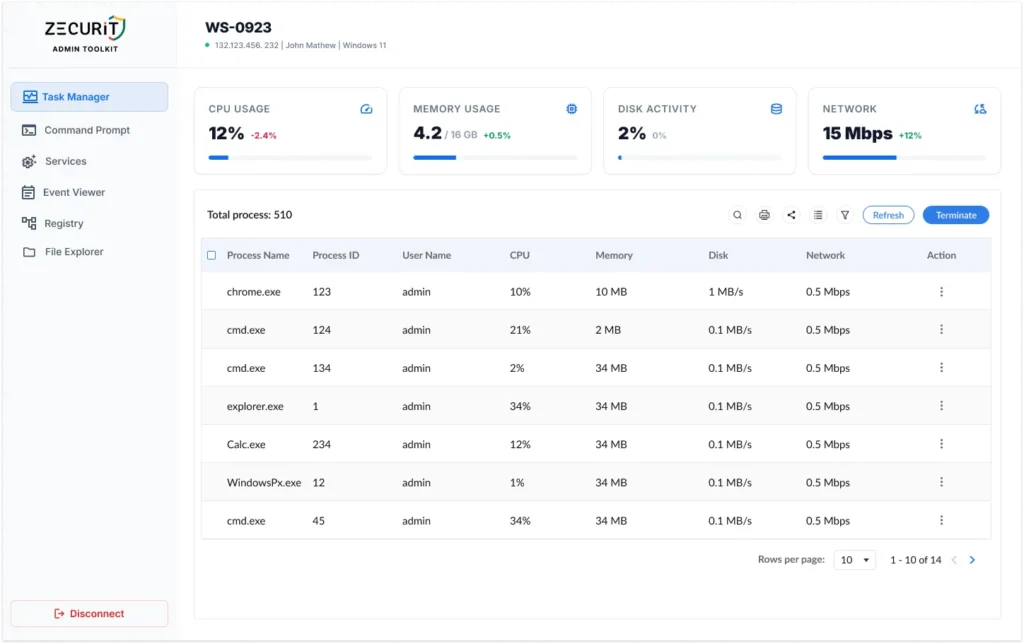
Overview
When users report slow computers, application freezes, excessive CPU usage, or system instability, one of the first places administrators investigate is Task Manager.
Zecurit Remote Task Manager brings this functionality directly into the remote troubleshooting console, allowing administrators to remotely monitor and manage endpoints without interrupting users.
Using Remote Task Manager, administrators can:
- View active processes
- Monitor CPU utilization
- Analyze memory usage
- Review disk activity
- Monitor network consumption
- Identify resource-intensive applications
- Detect abnormal behavior
- Terminate problematic processes
- Investigate system performance issues
This significantly reduces troubleshooting time while improving support efficiency.
Accessing Remote Task Manager
To launch Remote Task Manager:
- Open the Zecurit Console.
- Navigate to Remote Access.
- Select Remote Troubleshooting Tools.
- Choose a managed device.
- Click Task Manager.
The Remote Task Manager dashboard opens and displays live performance metrics and active processes.
Understanding the Dashboard
The Remote Task Manager interface is divided into two primary sections:
Performance Overview
Displays live system resource usage.
Process List
Displays currently running processes and applications.
This layout provides both high-level system health visibility and detailed process-level analysis.
Device Information
At the top of the page, Zecurit displays device information including:
- Device Name
- IP Address
- Logged-in User
- Operating System
This information confirms that administrators are connected to the correct endpoint.
Monitoring System Performance
The Performance Overview section displays real-time resource utilization across four critical system components.
CPU Usage
The CPU Usage widget displays current processor utilization.
Administrators can quickly identify:
- High CPU consumption
- CPU spikes
- Processor bottlenecks
- Resource-intensive applications
Common CPU Issues
High CPU utilization may indicate:
- Runaway processes
- Software bugs
- Malware activity
- Excessive background tasks
- Update operations
Recommended Thresholds
| CPU Usage | Status |
|---|---|
| 0% – 50% | Normal |
| 50% – 80% | Moderate Load |
| 80% – 100% | High Utilization |
Sustained CPU utilization above 80% should be investigated.
Memory Usage
The Memory Usage widget displays RAM consumption.
Administrators can view:
- Total memory available
- Current memory usage
- Memory utilization trends
Common Memory Issues
High memory utilization may result from:
- Memory leaks
- Browser tab overload
- Large applications
- Virtual machines
- Database software
Recommended Thresholds
| Memory Usage | Status |
|---|---|
| Below 70% | Healthy |
| 70% – 85% | Monitor |
| Above 85% | Investigate |
Systems consistently operating above 85% memory usage may experience performance degradation.
Disk Activity
The Disk Activity widget displays storage subsystem utilization.
Administrators can identify:
- Heavy disk operations
- Storage bottlenecks
- Excessive read/write activity
- Disk-intensive applications
Common Causes
High disk activity may be caused by:
- Antivirus scans
- Windows Updates
- Backup software
- Database operations
- File synchronization services
Network Usage
The Network Usage widget displays real-time network throughput.
Administrators can monitor:
- Upload traffic
- Download traffic
- Network-intensive applications
- Bandwidth consumption
Common Causes of High Network Usage
Examples include:
- Cloud synchronization
- Software downloads
- Video conferencing
- Backup operations
- Malware communications
Understanding the Process List
The Process List displays all active processes running on the endpoint.
Each process includes detailed resource information.
Available Columns
| Column | Description |
|---|---|
| Process Name | Executable name |
| Process ID (PID) | Unique process identifier |
| User Name | Process owner |
| CPU | Current processor usage |
| Memory | RAM consumption |
| Disk | Disk activity |
| Network | Network usage |
| Action | Available management actions |
The process list provides detailed visibility into system behavior.
Searching for Processes
Administrators can quickly locate specific processes using the Search function.
Example Searches
chrome.exeoutlook.exeteams.exeSearching is useful when troubleshooting application-specific issues.
Sorting Processes
Processes can be sorted by:
- Process Name
- CPU Usage
- Memory Usage
- Disk Activity
- Network Usage
Sorting helps identify the applications consuming the most system resources.
Example
Sort by CPU usage to identify:
- Excessive processor utilization
- Hung applications
- Resource-intensive software
Sort by Memory usage to identify:
- Memory leaks
- Browser resource consumption
- Large applications
Refreshing Process Information
The process list is refreshed automatically, but administrators can manually update information at any time.
To refresh:
- Click Refresh.
- Updated process information is retrieved from the endpoint.
Refreshing ensures administrators are working with the latest performance data.
Terminating Processes
Remote Task Manager allows authorized administrators to stop problematic applications.
To Terminate a Process
- Locate the process.
- Open the Actions menu.
- Select Terminate Process.
- Confirm the action.
The selected process is immediately stopped.
Common Use Cases for Process Termination
Administrators commonly terminate processes when:
Applications Become Unresponsive
Programs may stop responding and consume excessive resources.
High CPU Usage
A process continuously consumes CPU resources.
Memory Leaks
Applications gradually consume increasing amounts of memory.
Software Crashes
Applications enter an unstable state and require restarting.
Security Investigations
Suspicious or unauthorized processes may need to be stopped immediately.
Important Considerations
Terminating critical system processes may:
- Cause application crashes
- Result in unsaved data loss
- Require system restarts
- Impact system stability
Always verify process information before terminating processes.
Identifying Performance Problems
Remote Task Manager is particularly useful when investigating user complaints.
Slow Computer
Check:
- CPU utilization
- Memory consumption
- Disk activity
Look for:
- High resource usage
- Multiple browser instances
- Background update processes
Application Freezes
Review:
- Application CPU usage
- Memory consumption
- Process responsiveness
Terminate and restart applications if necessary.
Excessive Fan Noise
Often caused by:
- High CPU utilization
- Background processing
- Software updates
Sort processes by CPU usage to identify the source.
High Memory Usage
Sort processes by memory consumption.
Investigate:
- Browser processes
- Virtual machines
- Large applications
- Memory leaks
Network Slowdowns
Review network utilization.
Look for:
- Large downloads
- Synchronization tools
- Backup software
- Unauthorized applications
Exporting Process Information
Administrators may export process information for:
- Troubleshooting documentation
- Incident investigations
- Performance analysis
- Compliance reporting
Exported data can be attached to support tickets and audit records.
Security and Permissions
Remote Task Manager provides administrative visibility into managed endpoints.
Access should be restricted to authorized personnel.
Organizations can control:
- Process visibility
- Process termination rights
- Export permissions
- Troubleshooting access
All administrative actions should be audited and logged.
Best Practices
Investigate Before Terminating
Review process behavior before ending tasks.
Monitor Trends
Analyze recurring performance issues across devices.
Document Findings
Record observations in support tickets.
Verify Process Ownership
Confirm the process owner before taking action.
Review Resource Consumption
Focus on processes consuming abnormal CPU, memory, disk, or network resources.
Use Alongside Other Diagnostic Tools
Combine Remote Task Manager with:
- Remote Command Prompt
- Remote Event Viewer
- Remote Services
- Remote Registry
- Remote File Manager
for comprehensive troubleshooting.
Common Use Cases
Remote Task Manager is commonly used for:
Performance Troubleshooting
Investigate slow systems and performance bottlenecks.
Application Diagnostics
Identify unstable or resource-intensive applications.
Resource Monitoring
Monitor CPU, memory, disk, and network usage.
Incident Response
Investigate suspicious processes and system activity.
Remote Administration
Manage running applications without user interruption.
Endpoint Health Analysis
Evaluate overall device performance and stability.
Frequently Asked Questions
Does Remote Task Manager require remote control access?
No. Administrators can monitor and manage processes without starting a remote control session.
Can I terminate processes remotely?
Yes. Authorized administrators can terminate selected processes.
Is process information updated in real time?
Yes. Performance data and process information are refreshed regularly.
Can I identify which user owns a process?
Yes. The User Name column displays the account associated with each process.
Is Remote Task Manager available for all managed devices?
Remote Task Manager is available for supported enrolled Windows devices with an active Zecurit agent.
Related Articles
- Remote Troubleshooting Tools Overview
- Remote Command Prompt
- Remote Service Manager
- Remote Event Viewer
- Remote Registry
- Remote File Manager
- Remote Support Overview