Monitor, Control, and Troubleshoot Windows Services on Remote Devices
Zecurit Remote Service Manager enables administrators and support technicians to remotely view, manage, and troubleshoot Windows services without requiring a remote desktop session. The tool provides centralized visibility into service status, startup configuration, and operational health, helping IT teams quickly resolve issues related to applications, operating system components, security software, and business-critical services.
Whether you need to restart a failed service, investigate application issues, verify service startup settings, or troubleshoot Windows Update problems, Remote Service Manager provides a secure and efficient way to manage services across distributed endpoints.
Overview
Windows Services are background processes that support operating system functions, applications, security tools, networking components, and enterprise software.
When a service fails to start or unexpectedly stops, users may experience:
- Application failures
- Printing issues
- Network connectivity problems
- Update failures
- Authentication errors
- Security software malfunctions
- Performance degradation
Zecurit Remote Service Manager allows administrators to investigate and resolve these issues remotely.
Using Remote Service Manager, administrators can:
- View installed services
- Monitor service status
- Search and filter services
- Start services
- Stop services
- Restart services
- Pause services
- Resume services
- Modify startup types
- Troubleshoot service-related problems
Accessing Remote Service Manager
To launch Remote Service Manager:
- Open the Zecurit Console.
- Navigate to Remote Access.
- Open Remote Troubleshooting Tools.
- Select a managed device.
- Click Services.
The Remote Service Manager interface opens and loads available Windows services from the selected endpoint.
Understanding the Interface
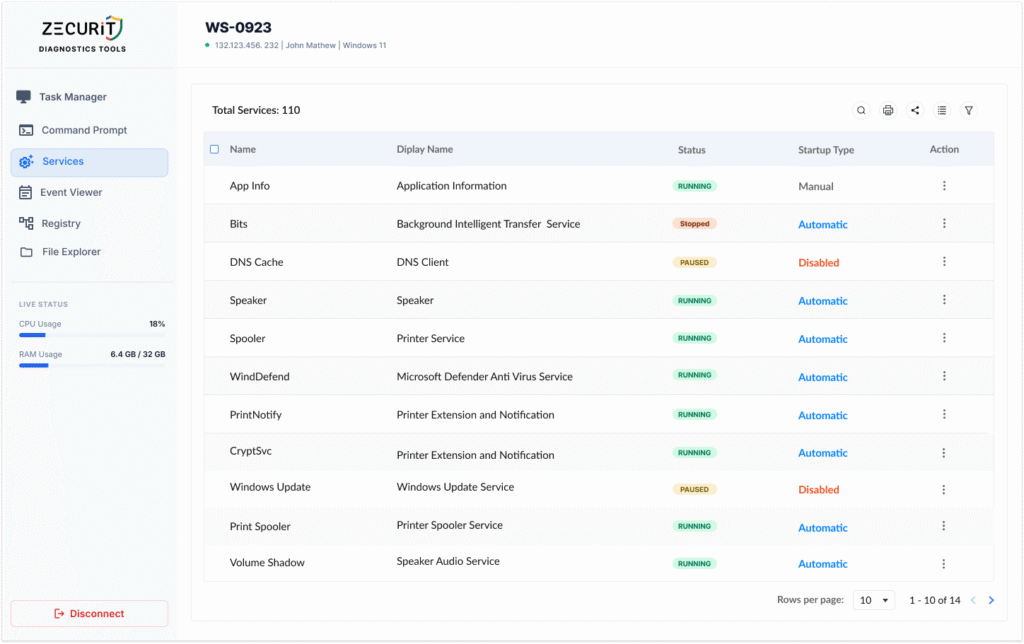
The Service Manager dashboard provides a complete overview of service health and configuration.
Device Information
The header displays:
- Device Name
- IP Address
- Logged-in User
- Operating System
Example:
WS-0923
132.123.456.232
John Mathew
Windows 11
This helps confirm that administrators are managing the correct device.
Service Summary
At the top of the page, Zecurit displays:
Total Services: 110The total count helps administrators understand the number of services currently installed on the device.
Service List
The main grid displays detailed service information.
Available columns include:
| Column | Description |
|---|---|
| Name | Internal service name |
| Display Name | Friendly service name |
| Status | Current service state |
| Startup Type | Startup configuration |
| Action | Available management actions |
This layout allows administrators to quickly identify service-related issues.
Understanding Service Status
Each service displays its current operational status.
Running
A Running service is currently active and functioning normally.
Example:
Windows Defender Antivirus Service
Running
Running services are available and processing requests.
Stopped
A Stopped service is not currently active.
Example:
Background Intelligent Transfer Service (BITS)
Stopped
Some services may stop automatically when not required.
Others may indicate a problem requiring investigation.
Paused
A Paused service is temporarily suspended.
Example:
DNS Client
Paused
Paused services may not perform their intended functions until resumed.
Starting
The service is currently initializing.
Stopping
The service is currently shutting down.
Understanding Startup Types
Startup Type determines when Windows starts a service.
Automatic
The service starts automatically during system startup.
Examples:
Windows Defender
Print Spooler
DNS Client
Automatic services are typically required for normal system operation.
Manual
The service starts only when requested.
Examples:
Application Information
Remote Registry
Manual services help reduce resource consumption.
Disabled
The service cannot start until re-enabled.
Example:
Windows Update Service
Disabled
Administrators should carefully review disabled services, especially if users are experiencing issues.
Searching for Services
Remote Service Manager includes a search feature for locating services quickly.
To Search
- Click the Search icon.
- Enter a service name.
- Review matching results.
Common Search Examples
Windows Update
Windows UpdatePrint Services
Print SpoolerDefender Services
DefenderSQL Services
SQLRemote Access Services
RemoteSearching significantly reduces troubleshooting time.
Filtering Services
Administrators can filter services based on:
- Status
- Startup Type
- Service Name
- Service Category
Filtering helps isolate problematic services quickly.
Starting a Service
If a required service is stopped, administrators can start it remotely.
To Start a Service
- Locate the service.
- Open the Actions menu.
- Select Start Service.
- Confirm the action.
The service immediately begins startup.
Common Use Cases
Start services that have:
- Failed unexpectedly
- Been stopped manually
- Not started after reboot
- Been disabled by software updates
Stopping a Service
Administrators can stop services when troubleshooting issues or performing maintenance.
To Stop a Service
- Select the service.
- Open Actions.
- Click Stop Service.
- Confirm the operation.
The service shuts down gracefully.
Common Use Cases
Stopping services may be required for:
- Software maintenance
- Troubleshooting
- Patch installation
- Application upgrades
Restarting a Service
Restarting is one of the most common troubleshooting actions.
To Restart a Service
- Select the service.
- Open Actions.
- Choose Restart Service.
The service is stopped and started automatically.
When to Restart a Service
Restarting services can resolve:
Printing Issues
Restart:
Print SpoolerWindows Update Problems
Restart:
Windows Update
BITS
Network Issues
Restart:
DNS Client
DHCP Client
Security Software Problems
Restart:
Windows Defender ServicesPausing a Service
Some Windows services support pause and resume operations.
To Pause a Service
- Select the service.
- Choose Pause Service.
The service remains loaded but temporarily stops processing requests.
Resuming a Service
To resume a paused service:
- Select the service.
- Choose Resume Service.
Normal operation resumes immediately.
Modifying Startup Type
Administrators can configure how services start.
Available Startup Options
Automatic
Starts during Windows boot.
Manual
Starts when needed.
Disabled
Prevents startup.
Common Configuration Examples
Critical Services
Recommended:
AutomaticExamples:
- Windows Defender
- DNS Client
- Print Spooler
Optional Services
Recommended:
ManualExamples:
- Remote Registry
- Secondary Logon
Unused Services
May be:
DisabledBased on organizational requirements.
Common Troubleshooting Scenarios
Windows Update Failures
Review:
Windows Update Service
BITS
Cryptographic Services
Verify:
- Running status
- Automatic startup
Printing Problems
Review:
Print SpoolerRestart if users cannot print.
Antivirus Issues
Review:
Microsoft Defender Antivirus ServiceVerify:
- Running
- Automatic startup
Slow Login Times
Review services stuck in:
Startingor
Stoppingstates.
Network Connectivity Problems
Verify:
DNS Client
DHCP Client
Network Location Awareness
Service Dependencies
Many Windows services rely on other services.
Example:
BITSdepends on:
RPC Services
COM+ Services
Before stopping a service, verify dependency requirements.
Stopping a dependent service may impact multiple applications.
Exporting Service Information
Administrators can export service data for:
- Compliance audits
- Incident investigations
- Troubleshooting documentation
- System reviews
Exported reports provide visibility into:
- Service configurations
- Startup settings
- Current operational status
Security and Compliance Benefits
Remote Service Manager helps organizations:
- Verify security services are active
- Monitor endpoint health
- Validate system configurations
- Support compliance audits
- Reduce troubleshooting time
Many security frameworks require critical security services to remain operational and monitored.
Best Practices
Review Before Stopping Services
Stopping essential services may affect users and applications.
Restart Before Reinstalling
Many service-related problems can be resolved with a restart.
Keep Security Services Enabled
Do not disable:
- Antivirus services
- Endpoint protection services
- Monitoring agents
without proper authorization.
Verify Startup Types
Ensure critical services are configured correctly.
Document Changes
Record service modifications for auditing and change management.
Use with Other Troubleshooting Tools
Combine Remote Service Manager with:
- Remote Event Viewer
- Remote Task Manager
- Remote Command Prompt
- Remote Registry Editor
- Remote File Manager
for comprehensive endpoint troubleshooting.
Common Administrative Use Cases
Remote Service Manager is commonly used for:
Windows Service Troubleshooting
Diagnose startup and operational failures.
Application Support
Verify application-related services.
Endpoint Health Monitoring
Monitor critical service availability.
Security Validation
Confirm security tools are operational.
Patch Management
Verify update-related services.
Incident Response
Investigate service disruptions.
Frequently Asked Questions
Does Remote Service Manager require Remote Desktop access?
No. Administrators can manage services directly from the Zecurit console.
Can I restart services remotely?
Yes. Authorized administrators can start, stop, pause, resume, and restart services.
Can I change service startup settings?
Yes. Startup types can be modified based on permissions.
Is service activity logged?
Yes. Administrative actions can be audited and tracked.
Can service changes impact users?
Yes. Stopping critical services may affect applications, networking, printing, and security functions.
Related Articles
- Remote Troubleshooting Tools Overview
- Remote Event Viewer
- Remote Task Manager
- Remote Command Prompt
- Remote Registry Editor
- Remote File Manager
- Remote Support Overview