View and Manage Windows Registry Settings on Remote Devices
Zecurit Remote Registry Editor enables administrators and support technicians to securely browse, search, export, and manage Windows Registry settings on remote devices without requiring a Remote Desktop or Remote Control session. This tool helps IT teams diagnose configuration issues, verify system settings, troubleshoot software problems, and perform advanced administrative tasks directly from the Zecurit console.
Remote Registry access is particularly valuable when troubleshooting application behavior, startup issues, operating system configurations, Windows services, software deployment settings, and security policies across distributed endpoints.
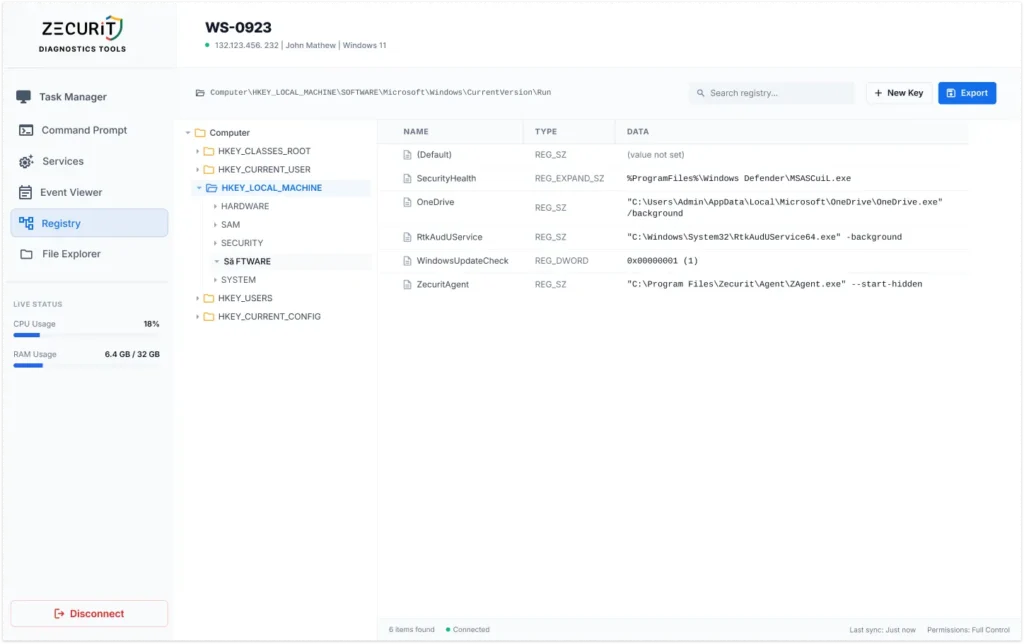
Overview
The Windows Registry is a centralized hierarchical database that stores operating system settings, hardware configurations, application preferences, user profiles, startup entries, and security policies.
Zecurit Remote Registry Editor provides secure access to these settings from a centralized interface, allowing administrators to investigate and manage registry information without interrupting end users.
Using Remote Registry Editor, administrators can:
- Browse registry hives
- Navigate registry keys and values
- Search registry entries
- Review configuration settings
- Export registry data
- Create new registry keys
- Troubleshoot application settings
- Verify startup entries
- Investigate security configurations
- Diagnose software installation issues
Accessing Remote Registry Editor
To open Remote Registry Editor:
- Open the Zecurit Console.
- Navigate to Remote Access.
- Select Remote Troubleshooting Tools.
- Choose a managed device.
- Click Registry.
The Remote Registry Editor opens and establishes a secure connection to the selected endpoint.
Understanding the Interface
The Remote Registry interface is divided into several sections.
Device Information
The header displays:
- Device Name
- IP Address
- Logged-in User
- Operating System
Example:
WS-0923
132.123.456.232
John Mathew
Windows 11
This information confirms the administrator is connected to the correct endpoint.
Registry Navigation Tree
The left pane displays the registry hierarchy.
Common registry hives include:
HKEY_CLASSES_ROOT (HKCR)
Contains:
- File associations
- COM object registrations
- Application integration settings
HKEY_CURRENT_USER (HKCU)
Contains:
- User-specific settings
- Desktop preferences
- Application configurations
- User environment settings
HKEY_LOCAL_MACHINE (HKLM)
Contains:
- System-wide settings
- Installed software information
- Hardware configurations
- Security settings
This is one of the most frequently used hives for troubleshooting.
HKEY_USERS (HKU)
Contains:
- Settings for all user profiles
HKEY_CURRENT_CONFIG (HKCC)
Contains:
- Hardware profile information
- Current system configuration data
Registry Path Navigation
The current registry location is displayed at the top of the window.
Example:
Computer\HKEY_LOCAL_MACHINE\SOFTWARE\Microsoft\Windows\CurrentVersion\RunThis allows administrators to quickly identify the active registry path.
Viewing Registry Values
When a registry key is selected, associated values appear in the right pane.
Information displayed includes:
| Column | Description |
|---|---|
| Name | Registry value name |
| Type | Registry data type |
| Data | Stored value |
Common Registry Types
REG_SZ
Standard text string.
Example:
SecurityHealthREG_DWORD
32-bit numeric value.
Example:
0x00000001 (1)Used extensively for Windows settings and policies.
REG_EXPAND_SZ
Expandable string containing environment variables.
Example:
%ProgramFiles%\Windows Defender\MSASCuiL.exeREG_MULTI_SZ
Multiple text strings stored in a single registry value.
REG_BINARY
Binary data used by applications and device drivers.
Searching the Registry
Remote Registry Editor includes a search function for locating specific keys and values.
To Search
- Enter a keyword in the Search box.
- Press Enter.
- Matching registry entries are displayed.
Common Search Examples
Search for Application Settings
ChromeSearch for Security Software
DefenderSearch for Startup Programs
RunSearch for Company Applications
ZecuritSearching significantly reduces the time required to locate configuration settings.
Creating Registry Keys
Administrators can create new registry keys remotely.
To Create a New Key
- Navigate to the desired parent location.
- Click New Key.
- Enter the key name.
- Save the new key.
Example:
Software\CompanySettingsNew keys can be used for application deployment and configuration management.
Exporting Registry Information
Registry data can be exported for documentation, auditing, or troubleshooting purposes.
To Export Registry Data
- Select a registry key.
- Click Export.
- Save the exported registry file.
Exported files can be:
- Shared with support teams
- Included in incident reports
- Archived for compliance
- Used for troubleshooting analysis
Common Registry Locations
Startup Programs
Path:
HKEY_LOCAL_MACHINE\SOFTWARE\Microsoft\Windows\CurrentVersion\RunPurpose:
Displays applications configured to launch during system startup.
Example entries:
OneDrive
SecurityHealth
ZecuritAgent
Administrators frequently review this location when troubleshooting slow startup times.
Installed Software
Path:
HKEY_LOCAL_MACHINE\SOFTWARE\Microsoft\Windows\CurrentVersion\UninstallPurpose:
Stores information about installed applications.
Useful for:
- Software audits
- License verification
- Application troubleshooting
Windows Services
Path:
HKEY_LOCAL_MACHINE\SYSTEM\CurrentControlSet\ServicesPurpose:
Contains configuration data for Windows services.
Useful when investigating service startup issues.
User Login Settings
Path:
HKEY_CURRENT_USER\Software\Microsoft\Windows\CurrentVersion\RunPurpose:
Lists applications configured to start when the user signs in.
Network Configuration
Path:
HKEY_LOCAL_MACHINE\SYSTEM\CurrentControlSet\Services\TcpipPurpose:
Stores networking configuration information.
Troubleshooting Use Cases
Application Launch Issues
Administrators can verify:
- Startup entries
- Application configuration settings
- Missing registry values
Slow System Startup
Review:
CurrentVersion\Runto identify unnecessary startup programs.
Software Installation Problems
Verify:
- Application registration
- Installation paths
- Product configuration settings
Security Investigations
Review registry entries related to:
- Security software
- Startup persistence
- Unauthorized applications
Group Policy Troubleshooting
Verify policy-related registry settings to ensure configurations have been applied correctly.
Registry Permissions
Access to registry data depends on:
- Technician permissions
- Endpoint security settings
- Administrative privileges
Some registry areas require elevated privileges.
Security and Compliance Considerations
The Windows Registry contains critical operating system settings.
Improper changes may result in:
- Application failures
- Service interruptions
- Operating system instability
- Security vulnerabilities
Only authorized administrators should be granted registry access.
Best Practices
Export Before Making Changes
Always export registry settings before modifications.
This provides a recovery point if issues occur.
Follow Change Management Procedures
Document registry changes according to organizational policies.
Limit Access
Provide registry editing permissions only to qualified personnel.
Verify Registry Paths
Double-check paths before creating or modifying keys.
Use Registry Changes Sparingly
Modify registry settings only when necessary and supported by vendor documentation.
Audit Administrative Activity
Monitor registry-related actions for compliance and security investigations.
Common Administrative Tasks
Remote Registry Editor is commonly used for:
Software Troubleshooting
Verify application settings and configuration values.
Security Investigations
Identify unauthorized startup entries.
System Configuration Validation
Confirm operating system settings.
Deployment Verification
Validate software deployment configurations.
Endpoint Auditing
Review installed applications and startup settings.
Compliance Assessments
Inspect security and policy-related registry settings.
Frequently Asked Questions
Does Remote Registry Editor require Remote Control access?
No. Registry information can be viewed and managed without starting a remote desktop session.
Can I export registry keys?
Yes. Registry keys can be exported for backup and troubleshooting purposes.
Can I search the registry remotely?
Yes. The built-in search function allows administrators to quickly locate keys and values.
Is registry activity audited?
Yes. Organizations can maintain logs of registry-related administrative activities.
Can registry modifications impact device stability?
Yes. Incorrect registry changes may affect applications, services, or operating system functionality. Changes should be performed only by authorized administrators.
Related Articles
- Remote Troubleshooting Tools Overview
- Remote Task Manager
- Remote Command Prompt
- Remote Service Manager
- Remote Event Viewer
- Remote File Manager
- Remote Support Overview
- Remote Access Security