Browse, Transfer, and Manage Files on Remote Devices Without Remote Control
Zecurit Remote File Manager enables administrators and support technicians to securely browse, upload, download, and manage files on remote Windows devices directly from the Zecurit console. Unlike traditional remote desktop tools, Remote File Manager allows technicians to access files and folders without taking control of the user’s screen, making it ideal for troubleshooting, software deployment, log collection, and file management tasks.
Whether you need to retrieve diagnostic logs, deploy scripts, collect reports, or manage files across distributed endpoints, Remote File Manager provides a secure and efficient solution.
Overview
Remote File Manager provides direct access to the file system of a managed endpoint, allowing administrators to perform common file operations remotely.
Using Remote File Manager, administrators can:
- Browse files and folders
- Navigate drives and directories
- Upload files to remote devices
- Download files from endpoints
- Create new folders
- View file details
- Manage troubleshooting files
- Collect diagnostic logs
- Deploy scripts and configuration files
These capabilities help reduce support resolution times and eliminate the need for full remote control sessions when only file access is required.
Understanding the Interface
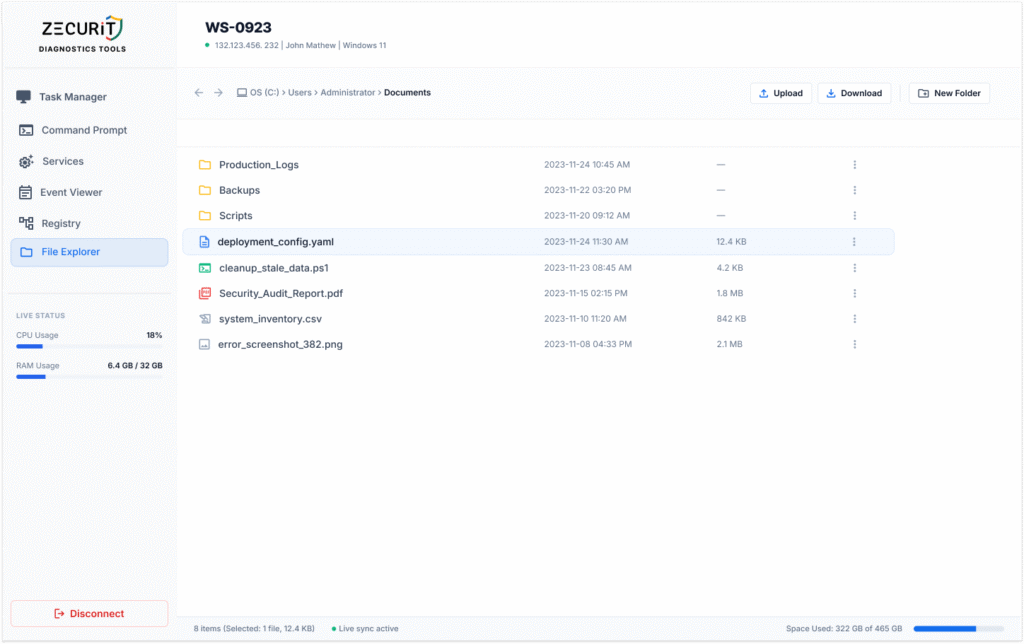
The Remote File Manager interface is designed to provide familiar file browsing functionality similar to Windows File Explorer.
The interface includes:
Navigation Bar
Displays the current folder location.
Example:
OS (C:) > Users > Administrator > DocumentsThis breadcrumb path helps administrators quickly understand their location within the remote file system.
File and Folder List
Displays the contents of the current directory.
Information shown includes:
- File Name
- File Type
- Last Modified Date
- File Size
- Available Actions
Folders and files are displayed separately for easier navigation.
Action Toolbar
The toolbar provides quick access to common file operations:
- Upload
- Download
- New Folder
These actions can be performed without interrupting the remote user.
Navigating Files and Folders
Remote File Manager allows administrators to browse the remote device’s file system.
Opening a Folder
To open a folder:
- Click the folder name.
- The directory contents are displayed.
- Continue navigating as needed.
Moving Between Directories
Use the breadcrumb navigation to move back to parent folders.
Example:
OS (C:) > Users > Administrator > DocumentsSelecting Users returns to the Users directory.
Selecting OS (C:) returns to the root drive.
Browsing Multiple Drives
Administrators can browse available drives including:
C:
D:
E:
Network Drives
External Drives
Drive availability depends on the endpoint configuration.
Uploading Files to Remote Devices
One of the most common troubleshooting tasks is deploying files to a remote system.
Remote File Manager allows administrators to securely upload files directly to the endpoint.
To Upload a File
- Navigate to the target folder.
- Click Upload.
- Select one or more files.
- Confirm the upload.
The files are transferred securely to the selected location.
Downloading Files from Remote Devices
Administrators can retrieve files from endpoints for analysis and troubleshooting.
To Download a File
- Select the desired file.
- Click Download.
- Choose a destination location.
- Save the file locally.
The file is transferred securely to the technician’s workstation.
Creating New Folders
Administrators can organize files by creating new directories.
To Create a Folder
- Navigate to the desired location.
- Click New Folder.
- Enter a folder name.
- Save the folder.
Security and Permissions
Remote File Manager provides access to potentially sensitive information.
Organizations should implement appropriate controls.
Administrators can restrict:
- Upload permissions
- Download permissions
- Folder creation
- File access
- Administrative actions
All file operations should be monitored and logged according to organizational security policies.
Secure File Transfer Best Practices
Transfer Only Required Files
Avoid transferring unnecessary data.
Verify File Sources
Before executing downloaded files:
- Verify authenticity
- Validate file integrity
- Scan for malware
Protect Sensitive Information
Handle files containing:
- Customer data
- Financial information
- Healthcare records
- Internal documents
according to organizational security policies.
Use Role-Based Access Controls
Limit file management access to authorized personnel.
Maintain Audit Records
Track uploads and downloads for compliance and security investigations.
As recommended by the National Institute of Standards and Technology (NIST), organizations should implement access controls, auditing, and monitoring for remote file management activities.
Frequently Asked Questions
Does Remote File Manager require a remote control session?
No. Files can be accessed and transferred without launching a remote desktop session.
Can I upload multiple files at once?
Yes. Multiple files can be uploaded depending on configured policies and file size limits.
Can I download files from any folder?
Access depends on technician permissions and endpoint security policies.
Are file transfers secure?
Yes. File transfers are encrypted and transmitted securely between the endpoint and the Zecurit platform.
Can I create folders remotely?
Yes. Administrators can create folders directly from the File Manager interface.
Is file activity logged?
Yes. Organizations can maintain audit logs for uploads, downloads, and file management operations.
Related Articles
- Remote Troubleshooting Tools Overview
- Remote Command Prompt
- Remote Task Manager
- Remote Service Manager
- Remote Event Viewer
- Remote Registry
- Remote Support Overview