
Bulk script deployment is not optional at enterprise scale. When a critical vulnerability needs patching across 1,400 Windows endpoints before end of business, manual remediation takes two full working days. By then, the damage is done.
Modern IT teams face this challenge constantly, whether enforcing a new security baseline, pushing DNS changes after a network migration, or fixing a fleet-wide browser issue. Running scripts on multiple endpoints simultaneously is a daily operational reality, not an edge case.
Bulk script deployment solves this by pushing, executing, and monitoring automation scripts across your entire managed fleet from a single console, turning a two-day task into five minutes. But only when the platform includes retry logic, output logging, scheduling controls, and full execution visibility. Without those, missed devices silently fall outside your configuration baseline.
This guide covers everything IT administrators need to know, including a complete walkthrough of bulk script deployment using Zecurit Endpoint Manager, from the Script Repository and Templates through Deployment Policies, Execution Context, Scheduling, and Notifications.
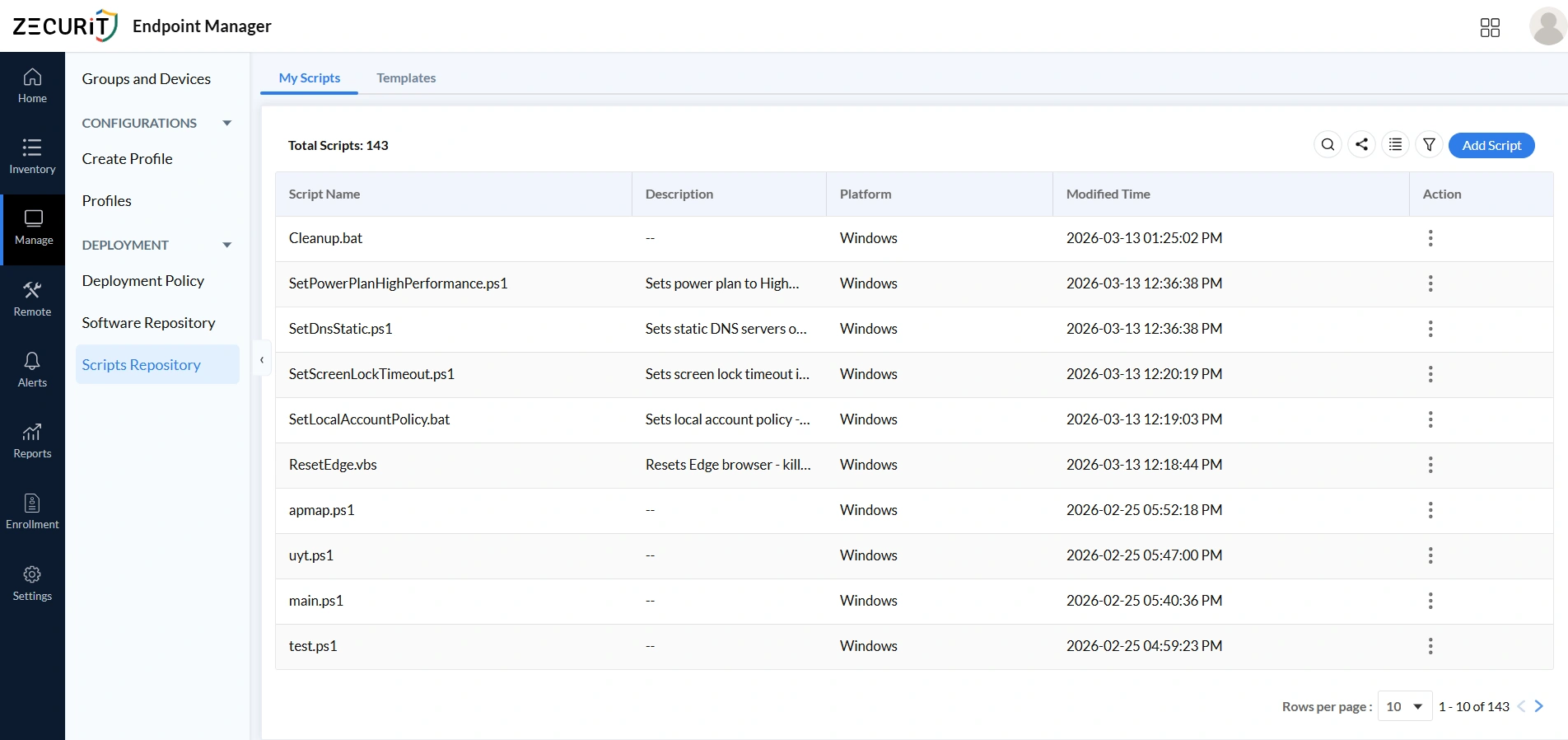
Before you can deploy at scale, you need a well-organized and complete script library. Navigate to Manage > Deployment > Scripts Repository to access the centralized Script Repository. The My Scripts tab is your operational script library, the source of truth for every automation script available for bulk deployment across your organization.
The My Scripts dashboard shows your Total Scripts count alongside a table listing every script with its Name, Description, and Modified Time. Use Modified Time to identify scripts that may need updating before a new bulk deployment. The Search and Filter controls let you locate scripts quickly by name, platform, tag, or modification date. The three-dot Action menu on each row gives you edit, duplicate, and delete options, while the Share icon in the toolbar handles export for backup or team distribution. Click Add Script in the top-right to create a new custom script.
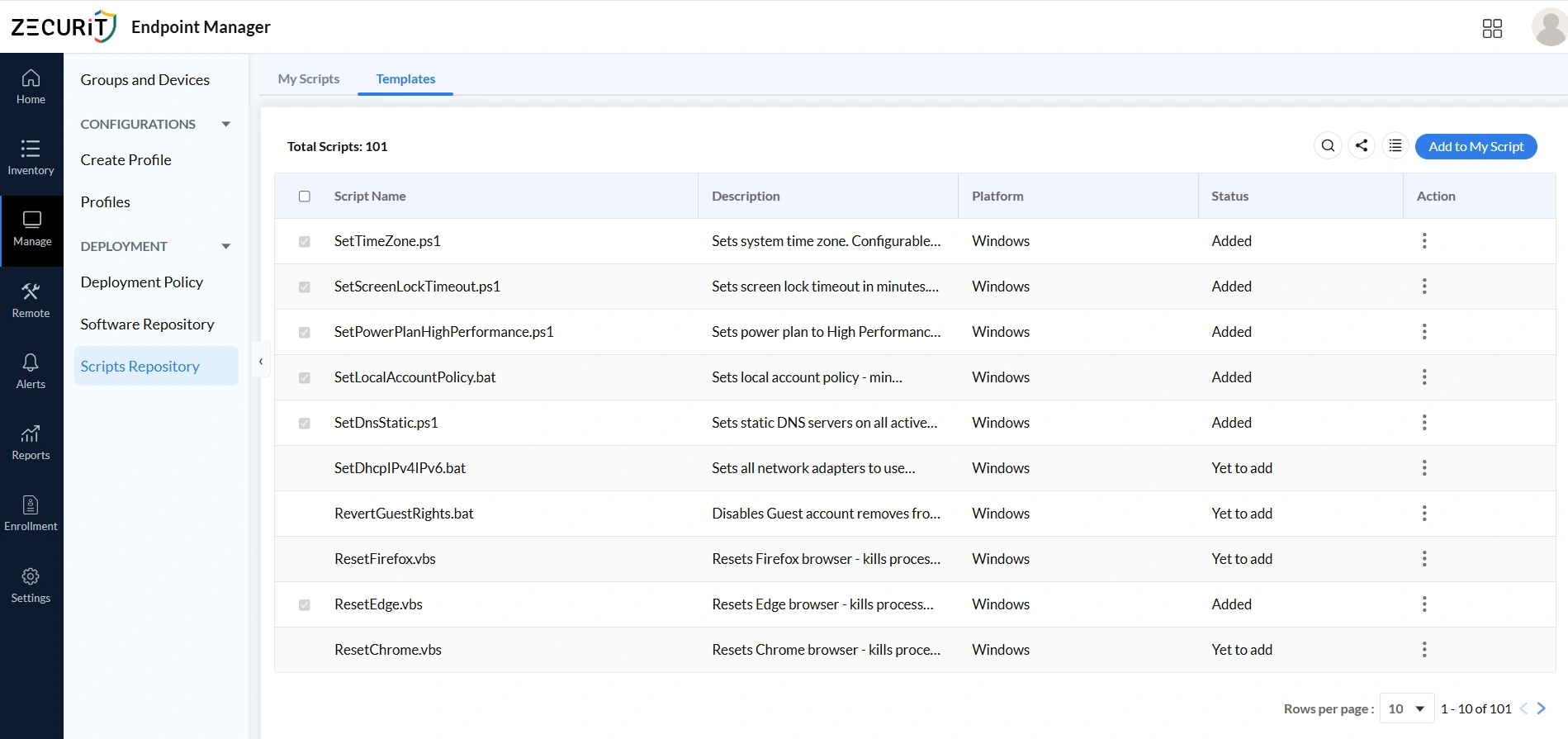
Before writing scripts from scratch, check the Templates tab first. Zecurit's library includes 100 pre-built, production-ready scripts across Windows, macOS, and Linux. Select the checkboxes next to the scripts you need, click Add to My Script, and they are immediately copied into your My Scripts repository ready to customize. For a new automation program, bulk-adding an entire category in one session, such as all security hardening scripts, saves significant setup time. You can also explore ready-made scripts in Zecurit's Script Hub, covering tasks like Windows firewall configuration, enabling BitLocker encryption, disk space cleanup, application deployment, and hardware inventory collection.
For scripts not available in the Templates library, click Add Script to open the New Script form (Scripts > New Script). Configure every field carefully. The quality of your script setup directly affects the reliability of your bulk deployments.
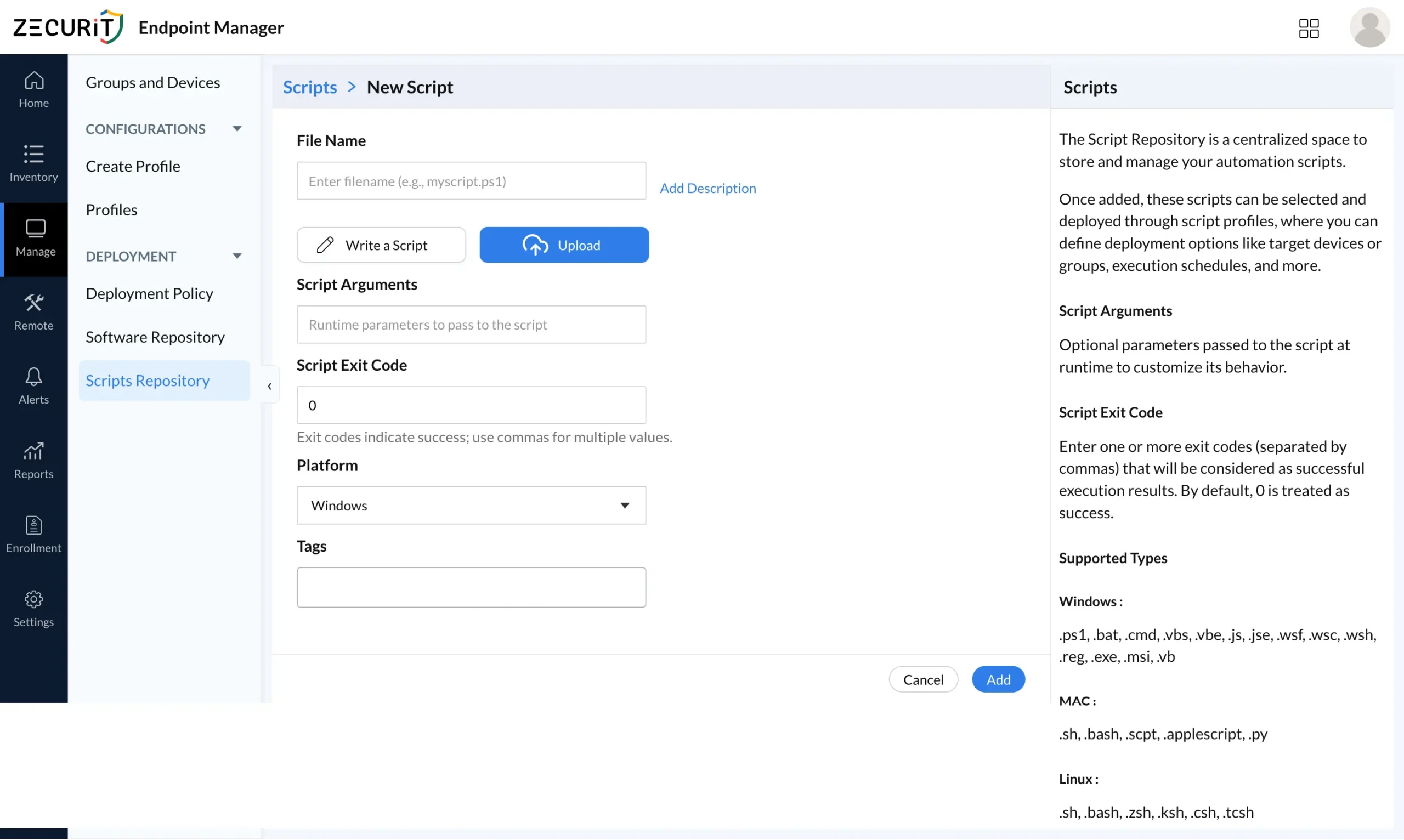
Name your script clearly and descriptively, for example HardenFirewall.ps1 or ConfigureProxy.sh. Always include the correct file extension since the platform uses it to determine the execution engine on each target device. Avoid vague names like script1.ps1 or test.sh, which become difficult to manage at scale and slow down bulk deployment approvals.
Use the built-in editor to write scripts directly within the platform, or click Upload to import pre-existing scripts from your local machine. Both options support teams at every stage, whether building new automation on the fly or migrating a tested script library into centralized version control.
Document exactly what the script does, what arguments it accepts, any dependencies it requires, and what systems it modifies. In bulk deployment contexts where a single script can affect thousands of devices, clear descriptions help team members assess impact before authorizing fleet-wide execution and reduce onboarding time for new administrators.
Runtime arguments make scripts flexible and reusable across different environments without creating separate versions for each use case. For example, the same SetDnsStatic.ps1 can serve multiple office regions by passing different DNS server addresses as arguments. Document each argument, its expected format, and its default value so other administrators can use the script correctly.
Exit code 0 indicates success by default, but scripts with multi-stage logic or conditional workflows may intentionally return non-zero codes to signal successful completion of specific stages. Define all valid success codes here, separated by commas, to keep deployment reports accurate and prevent false failure alerts from cluttering your monitoring dashboard.
Select Windows, macOS, or Linux based on what the script is designed to run on. This ensures the platform only routes the script to compatible devices. For cross-platform tasks, create separate platform-specific versions for maximum reliability. Windows-focused teams can refer to Zecurit's Windows endpoint management resources for additional context.
Assign labels such as security, network, compliance, or maintenance to each script so administrators can quickly filter and locate the right scripts when building deployment policies or conducting audits. Consistent tagging conventions across your team improve collaboration, support governance workflows, and keep large repositories manageable as your automation library grows.
A script stored in your repository is inert until a Deployment Policy connects it to target devices. Navigate to Manage > Deployment > Deployment Policy and click Add Deployment Policy to open the bulk deployment configuration form.
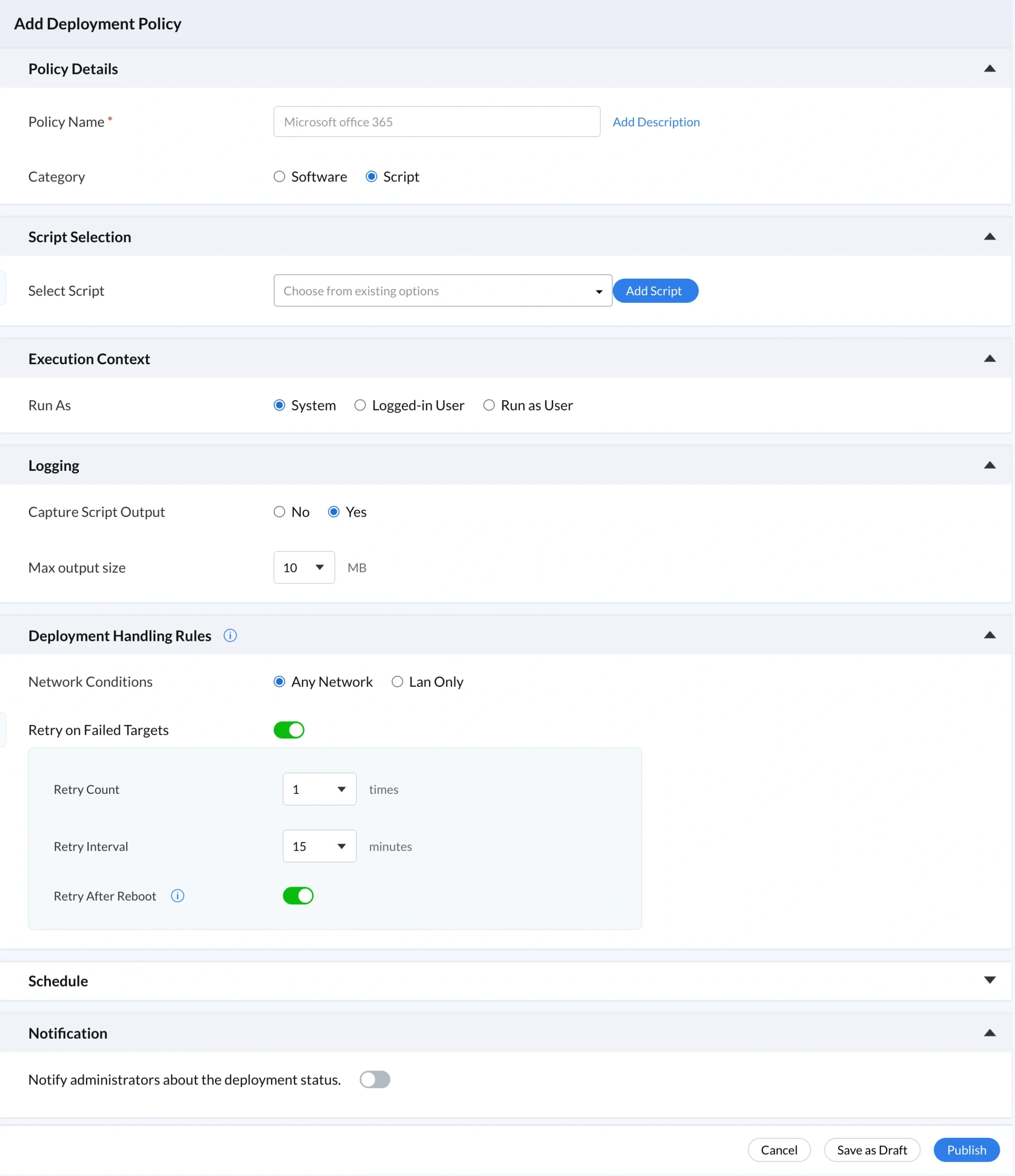
In the Policy Name field, enter a name that clearly identifies the deployment's purpose and scope, for example "Security Hardening Windows Fleet Q1 2026." Use Add Description to include change ticket references, expected outcomes, and rollback notes. Set Category to Script to configure a script-based bulk deployment policy.
Select the script you want to deploy from the Select Script dropdown, which lists everything in your My Scripts repository. If the script does not exist yet, click Add Script to create it without losing your policy configuration progress.
Execution Context determines the privilege level under which your script runs on every target device. Incorrect context is one of the most common causes of silent bulk deployment failures.
System runs under the local SYSTEM account with full administrative privileges and no active user session required. Use this for time zone configuration, DNS settings, firewall rules, registry modifications, and software installation. It covers the vast majority of bulk deployment scenarios.
Logged-in User runs in the context of the user currently active on the device. Use this for browser profile resets, user preference configuration, and anything interacting with a specific user's session. Scripts will only execute on devices where a user is actively logged in.
Run as User executes under a named service or domain account. Use this when scripts require specific domain credentials, network resource access, or when your security policy requires explicit service account attribution.
For bulk deployments across hundreds or thousands of endpoints, capturing script output is essential. Set Capture Script Output to Yes so the agent on each device collects all stdout and stderr output and sends it back to the platform. This gives you a per-device execution log showing exactly what the script did and what exit code it returned. Increase the Max Output Size beyond the default 10 MB for diagnostic scripts that generate verbose output, as truncated logs are nearly as unhelpful as no logs during a post-deployment investigation.
Deployment Handling Rules determine how the platform responds when devices are unavailable at the time of deployment, preventing silent gaps in your configuration baseline.
Network Conditions defaults to Any Network, which delivers scripts to devices on corporate Wi-Fi, home broadband, cellular, or VPN. Use LAN Only only when script payloads are large enough to cause network congestion over remote connections or when your security policy prohibits delivery over non-corporate networks.
Retry on Failed Targets automatically reattempts delivery to any device that missed the initial execution due to being offline, having insufficient disk space, or hitting a transient error. In a fleet of 1,000 devices where 12 percent are offline at any given moment, disabling retry means 120 devices permanently miss the deployment. Enabling retry brings them into compliance automatically on their next connection.
Retry Count defines how many additional attempts the platform makes after an initial failure. For critical security deployments, set this to 3 or more. Retry Interval sets the wait time between attempts in minutes, defaulting to 15. Three retries at 15-minute intervals means four total attempts over 45 minutes before a device is marked as permanently failed.
Retry After Reboot reattempts execution after a device restarts, handling failure scenarios where a locked process or held resource only releases after a reboot. Combined with Retry on Failed Targets, this provides comprehensive coverage for virtually every transient failure scenario in real-world bulk deployments.
Deploy Immediately begins script execution on each target device as soon as it checks in with the Zecurit Server after the policy is saved. Use this for active incident response, critical vulnerability remediation, and any scenario where delay carries operational or security risk.
Schedule Deployment lets you define an exact start date, time, and time zone so execution aligns with your local maintenance window. If a device is offline at the scheduled time, the platform queues delivery and executes on the next server contact. Use this for all planned changes, off-hours maintenance, and change-controlled configuration updates.
Execute at Every Startup runs the script automatically each time a device boots. This transforms a one-time configuration push into continuous compliance enforcement, re-applying hardening baselines, DNS settings, power plans, and screen lock timeouts on every restart. This pairs naturally with Zecurit's configuration management capabilities for organizations building a continuous compliance program.
Enable the Notification toggle so the platform automatically alerts designated administrators about deployment outcomes across your entire target fleet. Notifications cover deployment initiation, successful completion, partial success with a list of failed devices, and complete failure with diagnostic context. Enable notifications for any deployment that is security-critical or compliance-relevant. Knowing immediately that a mass execution across 800 devices failed on 47 of them allows your team to respond within minutes rather than discovering the gap during a weekly review. Pair this with Zecurit's endpoint monitoring and alerts for a fully integrated operations workflow.
Script errors scale with your fleet a bug on 1 device hits 5,000 at once. Keep bulk deployments safe, auditable, and operationally sound.
Test in a staging group first. Mirror fleet diversity in hardware, OS, and user types. Review output fully before pushing to production.
Never hardcode IPs, usernames, or DNS values. Use runtime arguments for all configurable data to keep scripts portable and reusable.
Always log production deployments. Enable Capture Script Output: Yes and set Max Output Size. Logs are your audit trail and debug resource.
Use System context only when required. Run user-scoped changes as Logged-in User to limit error impact and meet HIPAA and GDPR standards.
Enable retry logic for critical scripts. Retry on Failed Targets + Retry After Reboot ensures full fleet coverage without manual follow-up.
Name policies clearly and add descriptions. Auditors and future admins must grasp purpose and scope without ever reading the script code.
Use Zecurit templates before building custom scripts. Pre-validated scripts save dev time customize arguments and exit codes, then deploy.
Pair Schedule Deployment with Execute at Every Startup. One-time runs won't hold config state after user changes or OS updates occur.
Bulk script deployment is what separates scalable IT teams from those stuck in manual configuration work. With intelligent retry logic, granular scheduling, centralized output logging, and real-time notifications, platforms like Zecurit put the full workflow into a unified dashboard any administrator can operate without specialized infrastructure expertise. Explore the full endpoint management features to see how bulk script deployment integrates with patch management, BitLocker encryption, remote access, and IT asset management in a single platform. Store your scripts centrally, configure your deployment policy carefully, enable retry logic and output logging, set your schedule, and let the platform handle execution at scale.