
BitLocker recovery key management is the most overlooked gap in enterprise endpoint security. Effective BitLocker recovery key management means ensuring that every 48-digit recovery key generated when BitLocker encrypts a drive is securely stored, centrally accessible, and rotated on schedule. Without a reliable BitLocker recovery key management process, organizations risk permanent data loss, failed audits, and unrecoverable devices. According to Microsoft's official BitLocker documentation, BitLocker provides maximum protection when paired with a TPM and a centralized key management process. Yet most organizations still rely on manual or incomplete backup methods that fail in the real world.
Zecurit Endpoint Manager solves this with automated BitLocker recovery key management that covers backup to Active Directory, scheduled rotation, and compliance reporting across every enrolled device. This guide explains what enterprise BitLocker recovery key management requires, how Zecurit automates the full workflow, and how to choose the right approach for your organization size.
BitLocker recovery key management is the process of ensuring that recovery keys are securely stored, centrally accessible, and rotated on a defined schedule across every managed endpoint. Without a centralized BitLocker recovery key management process, organizations face three compounding risks.
First, recovery keys stored only on the device are lost when the device is lost or its storage fails. Second, keys not backed up to a central location cannot be retrieved when a user is locked out without IT involvement. Third, keys that are never rotated remain valid indefinitely, creating a long-term exposure window if a key is ever compromised or shared without authorization.
Compliance frameworks including ISO 27001, HIPAA, SOC 2, and CIS Controls v8 all require organizations to implement and document controls for encryption key management. Key backup and rotation are core components of satisfying those controls.
Most organizations use Group Policy to back up BitLocker recovery keys to Active Directory. While this works for domain-joined devices, it often fails in modern IT environments.
Remote and hybrid devices may miss Group Policy updates, Azure AD/Entra ID devices may not use Group Policy, and devices encrypted before the policy was applied may never back up their keys. OS upgrades can also rotate recovery keys without updating the stored backup.
As a result, organizations often end up with missing, outdated, or incorrect recovery keys. If a device enters BitLocker recovery mode without a valid key, users can lose access to critical data while IT struggles to recover the device.With Microsoft retiring MBAM, organizations need a modern solution that automates BitLocker recovery key backup, verification, and retrieval across all managed endpoints.
BitLocker recovery key management in Zecurit begins by creating a configuration profile. The IT administrator opens the Configurations section under Profiles and clicks New Profile. They then enter a profile name and an optional description before clicking Continue to enter the full configuration editor.
A profile defines the complete set of BitLocker recovery key management policies applied to associated devices. Once published, the profile pushes to enrolled endpoints at the next agent check-in. Therefore, a single profile can enforce identical BitLocker recovery key management policies across thousands of devices without device-by-device configuration. For foundational context on how profile-based endpoint management works, see the configuration management guide from Zecurit.
The BitLocker Encryption Configuration screen provides granular control over every encryption and key management setting. It is organized into five sections that together define a complete BitLocker recovery key management policy.
Drive Encryption: The Drive Encryption toggle enables BitLocker for all devices associated with the profile. Devices not yet encrypted are brought into compliance when the profile is applied. Devices where BitLocker was suspended or disabled are detected and flagged for remediation through the endpoint monitoring and alerts system.
Authentication Type: This section configures startup authentication separately for TPM and non-TPM machines. For TPM machines, administrators choose between TPM only, TPM plus PIN, or TPM plus Enhanced PIN. For non-TPM machines, Passphrase or No Encryption options are available. As a result, a single profile handles diverse hardware without requiring separate configurations. The Microsoft BitLocker CSP documentation covers the underlying policy nodes that Zecurit configures through its agent-based delivery model.
Password Settings: This section controls enforcement timing for PIN and passphrase requirements. Administrators choose between a grace period for managed rollouts or immediate enforcement.
Encryption Options: This section defines what is encrypted on each device. Options include OS drive only, used space only for faster initial encryption, and the encryption algorithm applied.
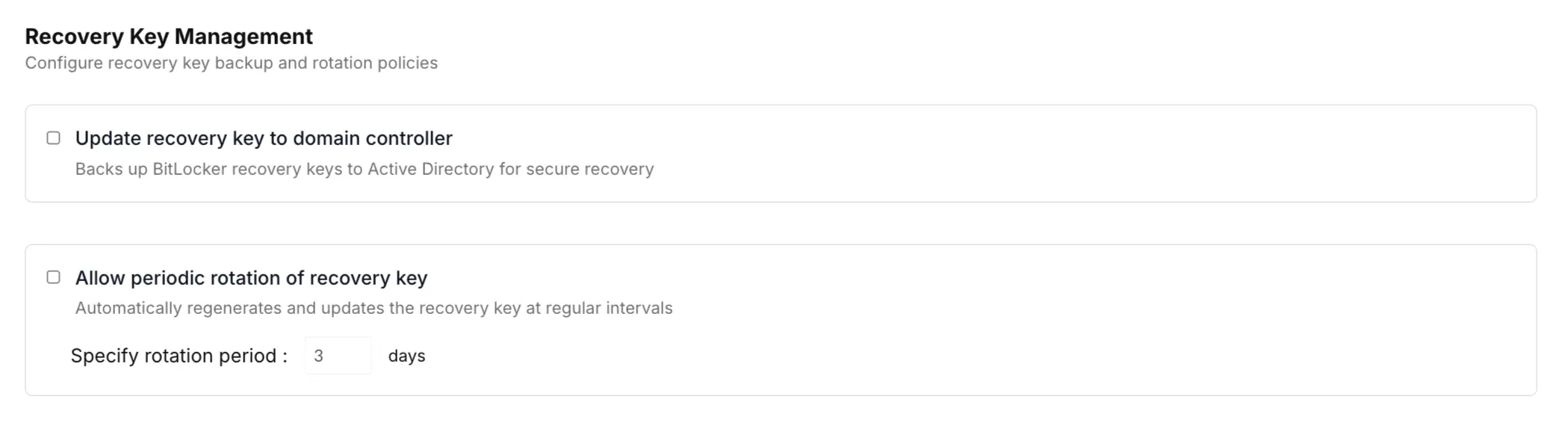
The Recovery Key Management section automates BitLocker recovery key backup and rotation with two key settings:
Update Recovery Key to Domain Controller: Automatically backs up each device's BitLocker recovery key to Active Directory at every agent check-in, ensuring recovery keys remain current even after OS upgrades or previous backup failures.
Allow Periodic Rotation of Recovery Key: Automatically rotates recovery keys at a defined interval (typically 30–90 days). During rotation, a new key is generated, backed up to Active Directory, and verified before the old key is removed, ensuring continuous access to a valid recovery key.
Together, these settings provide reliable, automated BitLocker recovery key management across all managed endpoints.
Once a BitLocker recovery key management profile is assigned to a device group, the agent applies it at the next check-in over any internet connection no VPN or domain connectivity required. This ensures remote and hybrid devices back up their recovery keys automatically.
The management console tracks backup status for every device, showing successful, pending, and failed backups. This centralized visibility helps IT teams verify that recovery keys are securely backed up and quickly identify devices that need attention.
Lost BitLocker recovery keys are usually caused by process gaps not security incidents. Common reasons include devices being encrypted before backup policies were applied, backups targeting outdated locations, recovery keys rotating after OS upgrades, or remote devices never reconnecting to the domain.
Zecurit's agent-based approach eliminates these issues by applying BitLocker recovery key policies over any internet connection, without requiring VPN or domain connectivity.
For previously encrypted devices, the agent verifies whether the current recovery key is backed up. If the key is missing, it backs it up automatically. If the key has exceeded the configured rotation period, the agent generates a new key, securely backs it up, and reports the successful rotation to the management console helping organizations close long-standing recovery key gaps across their endpoint fleet.
BitLocker recovery key rotation replaces existing recovery keys with new ones on a scheduled basis. Without rotation, the same key may remain valid for the life of a device, increasing security risks.
Static recovery keys can be exposed through former administrators, support sessions, or compromised backup stores. If never rotated, these keys continue to provide access to encrypted devices.
Automated rotation eliminates this risk. When a key reaches its configured age, the agent generates a new recovery key, backs it up to Active Directory, verifies the backup, and invalidates the old key all without manual IT intervention.
The management console records every rotation event, providing an auditable history that helps organizations meet compliance and cybersecurity insurance requirements.
IT teams need verifiable proof that devices are encrypted, recovery keys are backed up, and key rotation is enforced. Automated BitLocker recovery key management provides the evidence required for major compliance frameworks.
ISO 27001 (A.8.24): Demonstrates secure cryptographic key management through automated backup and rotation.
SOC 2 Type II (CC6.7): Provides audit-ready records of encryption, key backups, and rotation.
HIPAA: Supports encryption key management with per-device backup status and rotation history.
CIS Controls v8 (3.11): Helps meet requirements for encryption at rest and secure key management.
NIST CSF (PR.DS-1 & PR.DS-5): Verifies protection of data at rest through automated recovery key backup and rotation.
With centralized reporting and audit logs, organizations can quickly demonstrate encryption compliance across their entire endpoint fleet.
With Microsoft retiring MBAM, many organizations now rely on Group Policy, manual Active Directory checks, or spreadsheets to manage BitLocker recovery keys. These methods lack centralized visibility, automated key rotation, and audit-ready reporting, making them unsuitable for modern compliance requirements.
Traditional BitLocker key backup depends on domain connectivity, which doesn't work well for remote and hybrid workforces. An agent-based approach enables automatic recovery key backup and rotation over any internet connection, ensuring consistent protection across on-premises, hybrid, and cloud-managed devices.
Organizations must continuously prove that devices are encrypted and recovery keys are securely backed up. Real-time monitoring, automated key backup, and rotation records provide the evidence needed for compliance audits and cybersecurity insurance assessments.
Zero Trust security relies on device compliance. Automated recovery key backup and rotation help ensure devices remain compliant, reducing the risk of access disruptions caused by missing or outdated BitLocker recovery keys.
Manual BitLocker recovery key management doesn't scale. Missing recovery key backups, unrotated keys, and remote devices that depend on domain connectivity can lead to data recovery issues, security risks, and compliance failures.
As organizations grow, recovery key management must evolve. Small businesses need reliable automated backups, mid-sized organizations require policy-based key rotation and remote device support, and enterprises need centralized reporting, staged deployments, SIEM integration, and support for on-premises, hybrid, and cloud-managed devices.
A modern endpoint management platform automates recovery key backup, rotation, and compliance reporting from a single console, helping organizations maintain security, simplify audits, and protect encrypted devices at scale.