Remote Connections allow administrators and support technicians to securely access and manage remote devices from anywhere. Using Zecurit Remote Access, you can establish unattended remote sessions with Windows and macOS devices, reconnect to previous sessions, and safely disconnect when your work is complete.
This guide explains how to start remote sessions, connect to supported devices, reconnect to previously accessed endpoints, and properly end remote connections.
Before You Begin
Before initiating a remote connection, ensure the following requirements are met:
- The device is enrolled in Zecurit Remote Access.
- The Zecurit agent is installed and running.
- The device is online and connected to the internet.
- You have permission to access the device.
- Required firewall and network settings allow communication with the Zecurit platform.
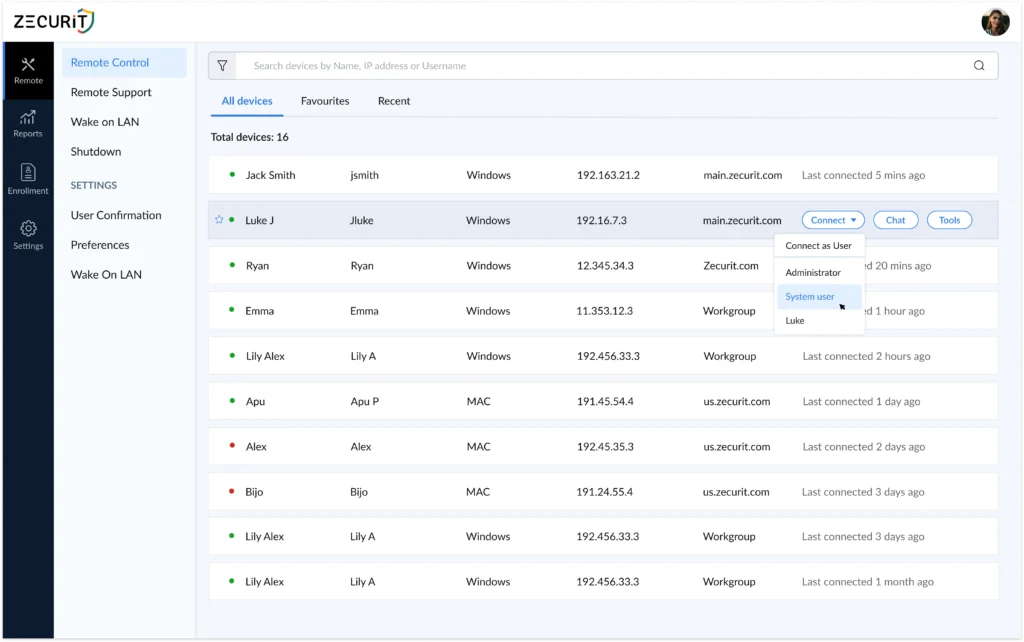
To verify device availability, navigate to the Remote Control page and review the device status indicators.
A green status indicator indicates that the device is currently online and available for remote access.
Starting an Unattended Remote Session
An unattended remote session allows you to connect to a device without requiring a user to approve the connection.
To Start a Remote Session
- Navigate to Remote Control.
- Locate the target device from the device list.
- Verify that the device is online.
- Click Connect.
- Select the desired connection mode.
- Wait for the remote session to establish.
Once connected, the remote desktop of the target device will be displayed, allowing you to interact with the system as if you were physically present.
Depending on device configuration and permissions, you may be able to connect using different user contexts.
Available Connection Options
Connect as Logged-in User
Connect using the currently active user session.
This option is useful when:
- Assisting an employee
- Troubleshooting user-specific issues
- Accessing user applications and settings
Connect as Administrator
Connect using administrative privileges.
This option is commonly used for:
- Software installation
- System configuration
- Device maintenance
- Administrative troubleshooting
Connect as System User
Connect using the local system account.
This option may be required for:
- Advanced troubleshooting
- Service management
- System-level maintenance tasks
The available connection methods depend on operating system capabilities and administrator permissions.
Connecting to Windows Devices
Zecurit Remote Access supports secure unattended access to Windows desktops, laptops, and servers.
Supported Scenarios
You can remotely access:
- Windows 11
- Windows 10
- Windows Server
- Virtual Machines
- Domain-joined devices
- Workgroup devices
Common Windows Administration Tasks
During a remote session, administrators can:
- Troubleshoot user issues
- Install or remove software
- Configure system settings
- Manage services
- Access files and folders
- Apply updates
- Perform maintenance activities
Windows Session Features
Depending on your configuration, remote sessions may support:
- Multi-monitor viewing
- Clipboard synchronization
- File transfer
- Administrative access
- Session auditing
Connecting to macOS Devices
Zecurit Remote Access also supports unattended access to managed macOS devices.
Supported Scenarios
You can remotely access:
- Apple Mac desktops
- MacBook devices
- Corporate macOS endpoints
- Remote employee devices
Common macOS Administration Tasks
Administrators can:
- Troubleshoot application issues
- Access files and folders
- Support remote employees
- Install software updates
- Modify device settings
- Perform maintenance activities
macOS Permissions
To enable unattended remote access on macOS, additional operating system permissions may be required.
Depending on the macOS version, administrators may need to grant:
- Screen Recording permission
- Accessibility permission
- Full Disk Access permission
These permissions allow the remote access agent to securely interact with the operating system.
Session Controls
Once connected, administrators can interact with the remote device using standard keyboard and mouse controls.
Typical session actions include:
- Viewing the remote desktop
- Controlling the mouse and keyboard
- Launching applications
- Accessing files
- Performing troubleshooting tasks
- Managing system settings
All remote activities may be logged for auditing and compliance purposes.
Reconnecting to Previous Sessions
Administrators often need to reconnect to devices they recently accessed.
Zecurit provides several methods for quickly locating and reconnecting to previously managed devices.
Using the Recent Tab
- Navigate to Remote Control.
- Select Recent.
- Locate the desired device.
- Click Connect.
The Recent view displays devices that were previously accessed through remote sessions.
Using Favorites
Frequently accessed devices can be added to your Favorites list.
Examples include:
- Critical servers
- Executive workstations
- Shared systems
- Test devices
To reconnect:
- Navigate to Favorites.
- Select the desired device.
- Click Connect.
Using Search
You can search by:
- Device Name
- Username
- IP Address
Search provides a quick way to locate devices regardless of their location within the console.
Disconnecting a Session
Once your work is complete, you should properly disconnect from the remote session.
Disconnecting closes the active connection while leaving the remote device operational.
To Disconnect a Session
- Complete all required administrative tasks.
- Save any configuration changes.
- Close applications if necessary.
- Select Disconnect from the remote session toolbar.
- Confirm the action if prompted.
The session will immediately terminate and control of the device will return to the local user..
Security Best Practices
When using unattended remote access, follow these recommendations:
Verify Device Identity
Always confirm you are connecting to the intended device before performing administrative actions.
Use Least-Privilege Access
Connect using the minimum permissions required for the task.
Protect Administrative Accounts
Use strong passwords and multi-factor authentication.
Review Session Activity
Regularly review audit logs and connection history.
Disconnect When Finished
End remote sessions immediately after completing your work.
As recommended by the National Institute of Standards and Technology (NIST), organizations should implement strong authentication, encryption, access controls, and audit logging to help secure remote access environments.
Troubleshooting Connection Issues
If a remote session cannot be established:
Verify Device Status
Ensure the device shows an Online status.
Confirm Internet Connectivity
Verify that the endpoint has network access.
Verify Agent Health
Ensure the Zecurit agent is running correctly.
Check User Permissions
Confirm that your account has access to the device.
Review Firewall Configuration
Ensure required outbound connections are not blocked.
Related Articles
- Managing Devices
- Remote Access Overview
- Security and Permissions
- Wake-on-LAN
- Remote Shutdown