Execute Commands and Troubleshoot Windows Devices Remotely
Zecurit Remote Command Prompt allows administrators and support technicians to securely execute command-line operations on remote Windows devices without initiating a full remote control session. This capability enables IT teams to perform diagnostics, gather system information, troubleshoot issues, and execute administrative commands directly from the Zecurit console.
Remote Command Prompt is particularly useful when troubleshooting system problems, investigating performance issues, collecting diagnostic information, or performing maintenance tasks on devices located across different offices, remote locations, or home networks.
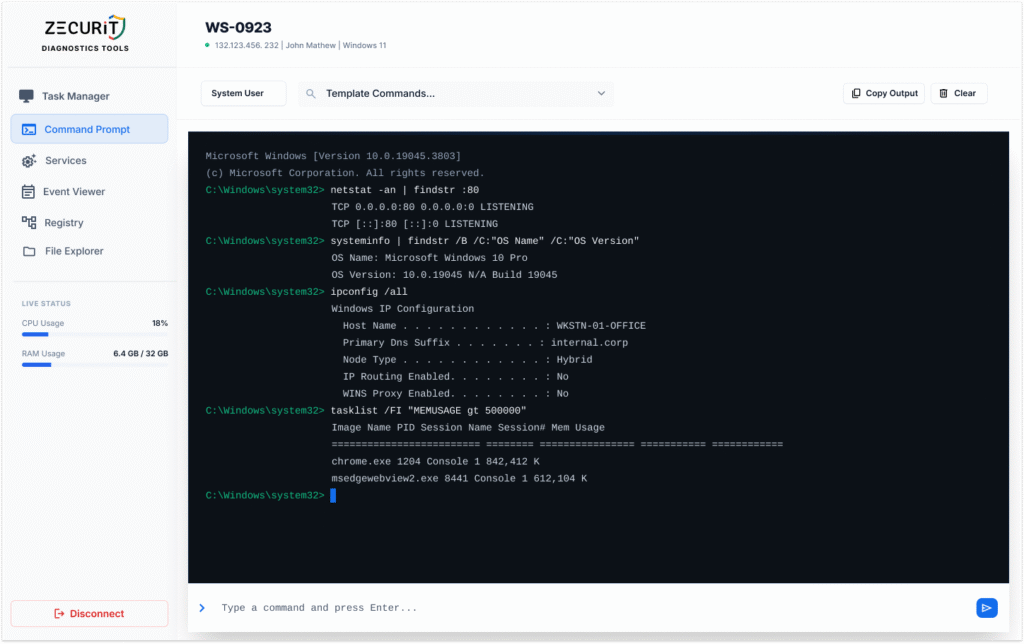
Overview
The Remote Command Prompt tool provides secure command-line access to managed endpoints. Instead of requiring a technician to connect through Remote Desktop or Remote Control, commands can be executed remotely using the device’s local command interpreter.
Administrators can:
- Run CMD commands remotely
- Execute diagnostic commands
- Retrieve system information
- Analyze hardware and software configurations
- Investigate performance issues
- Verify network connectivity
- Run maintenance operations
- Troubleshoot Windows operating system issues
This approach reduces troubleshooting time and minimizes disruption to end users.
Accessing Remote Command Prompt
To launch Remote Command Prompt:
- Open the Zecurit Console.
- Navigate to Remote Access.
- Open Remote Troubleshooting Tools.
- Select a managed device.
- Click Command Prompt.
The Remote Command Prompt window opens and establishes a secure connection to the selected endpoint.
Understanding the Interface
The Remote Command Prompt interface contains several key components.
Device Information
The header displays device information including:
- Device Name
- IP Address
- Logged-in User
- Operating System
This information helps technicians verify they are connected to the correct endpoint.
User Context Selection
Commands can be executed under different security contexts.
System User
Executes commands using the Local System account.
Use this option when:
- Running administrative commands
- Performing maintenance tasks
- Accessing protected system resources
- Troubleshooting Windows services
The System User context provides elevated privileges.
Command Templates
The Template Commands menu provides pre-configured troubleshooting commands.
Templates simplify common administrative tasks and eliminate the need to remember lengthy command syntax.
Examples include:
System File Check (SFC Scan)
sfc /scannowScans protected Windows system files and repairs corrupted files.
DISM Restore Health
DISM /Online /Cleanup-Image /RestoreHealthRepairs Windows image corruption and operating system issues.
Check Disk (Fix Errors)
chkdsk /fIdentifies and repairs file system errors.
Check Disk Health Status
wmic diskdrive get statusDisplays hard drive health information.
View System Information
systeminfoDisplays operating system, hardware, and configuration details.
Operating System Version
verReturns the Windows version installed on the endpoint.
Disk Cleanup
Launches Windows disk cleanup utilities and maintenance operations.
List Drives
wmic logicaldisk get captionDisplays available drives on the device.
Executing Commands
To execute a command:
- Enter the command in the command input box.
- Press Enter or click Send.
- Wait for the command to execute.
- Review the output in the console window.
Results are returned directly from the remote device.
Example
Retrieve network configuration:
ipconfig /allThis command returns:
- IP address
- DNS servers
- Gateway information
- DHCP settings
- Network adapter details
Viewing Command Output
All command results are displayed in the command output window.
Output can include:
- Diagnostic information
- Error messages
- Configuration details
- System status
- Hardware information
- Network information
Technicians can review results in real time.
Copying Command Output
To copy command results:
- Execute the desired command.
- Click Copy Output.
- Paste the information into:
- Support tickets
- Documentation
- Email messages
- Incident reports
This simplifies documentation and troubleshooting workflows.
Clearing the Console
To remove previous command output:
- Click Clear.
- The command window is reset.
Clearing the console helps maintain visibility during complex troubleshooting sessions.
Frequently Asked Questions
Does Remote Command Prompt require a remote control session?
No. Commands can be executed directly from the Zecurit console without launching Remote Control.
Are commands executed in real time?
Yes. Commands are sent immediately to the remote device and results are returned to the console.
Can commands run with administrative privileges?
Yes. Commands can be executed under the System User context when appropriate permissions are available.
Is command activity logged?
Yes. Organizations can maintain audit records of administrative actions and troubleshooting activities.
Can command output be exported?
Command output can be copied and included in support tickets, reports, and troubleshooting documentation.
Related Articles
- Remote Troubleshooting Tools Overview
- Remote Task Manager
- Remote Service Manager
- Remote Event Viewer
- Remote Registry
- Remote File Manager
- Remote Support Overview