Monitor and Analyze Windows Event Logs on Remote Devices
Zecurit Remote Event Viewer enables administrators and support technicians to remotely access, search, filter, and analyze Windows Event Logs without requiring a remote desktop session. The tool provides centralized visibility into system events, application errors, security activities, service failures, Windows updates, and audit logs, helping IT teams diagnose issues faster and maintain system health across managed endpoints.
Remote Event Viewer is one of the most valuable troubleshooting tools for identifying the root cause of operating system issues, application crashes, login failures, service interruptions, and security incidents.
Overview
Windows continuously records important operating system activities in Event Logs. These logs provide detailed information about:
- System errors
- Application crashes
- Windows updates
- Service failures
- User logins
- Security events
- Hardware issues
- Driver problems
- Policy changes
- Audit activities
Instead of connecting to a user’s desktop and opening Event Viewer manually, administrators can use Zecurit Remote Event Viewer to access these logs directly from the management console.
Using Remote Event Viewer, administrators can:
- View Windows event logs remotely
- Filter events by severity
- Search event sources
- Analyze event details
- Review security audit records
- Investigate application failures
- Export event logs
- Monitor system health
- Troubleshoot Windows services
- Diagnose update failures
Accessing Remote Event Viewer
To launch Remote Event Viewer:
- Open the Zecurit Console.
- Navigate to Remote Access.
- Open Remote Troubleshooting Tools.
- Select a managed device.
- Click Event Viewer.
The Remote Event Viewer interface opens and loads recent Windows event logs from the selected device.
Understanding the Interface
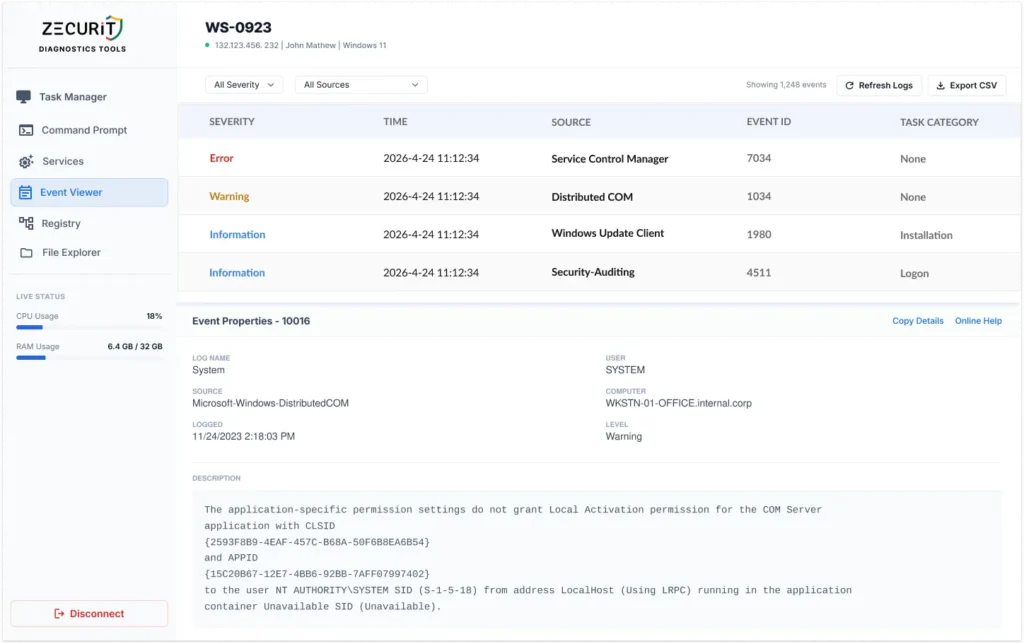
The Remote Event Viewer interface contains several key components.
Device Information
At the top of the page, Zecurit displays:
- Device Name
- IP Address
- Logged-in User
- Operating System
Example:
WS-0923
132.123.456.232
John Mathew
Windows 11
This information confirms the administrator is viewing logs from the correct endpoint.
Event Log List
The upper section displays a list of recorded events.
Each event includes:
| Field | Description |
|---|---|
| Severity | Event importance level |
| Time | Date and time of occurrence |
| Source | Component generating the event |
| Event ID | Unique event identifier |
| Task Category | Functional classification |
This provides a quick overview of recent system activity.
Event Severity Levels
Windows categorizes events into several severity levels.
Error
Errors indicate significant problems that require attention.
Examples:
- Application crashes
- Service failures
- Hardware errors
- Operating system failures
Example:
Service Control Manager
Event ID: 7034
Errors should typically be investigated immediately.
Warning
Warnings indicate potential issues that may require monitoring.
Examples:
- Configuration issues
- Service startup delays
- Resource limitations
- Communication failures
Example:
DistributedCOM
Event ID: 10016
Warnings do not always indicate immediate problems but may signal developing issues.
Information
Informational events record normal system activity.
Examples:
- Successful logins
- Windows updates
- Service starts
- Configuration changes
Example:
Windows Update Client
Event ID: 1980
Informational events are useful for auditing and troubleshooting timelines.
Filtering Events
The Event Viewer provides filtering capabilities to simplify analysis.
Filter by Severity
Administrators can filter events based on severity:
- Error
- Warning
- Information
This helps isolate critical events during troubleshooting.
Filter by Source
Administrators can narrow results to specific Windows components.
Common sources include:
Service Control Manager
Windows Update Client
Security-Auditing
DistributedCOM
Application Error
Microsoft Defender
DNS Client
Filtering by source significantly reduces investigation time.
Understanding Event Details
When an event is selected, detailed information appears in the lower panel.
The event details section includes:
- Log Name
- Source
- Date and Time
- User Account
- Computer Name
- Event Level
- Full Event Description
Example Event Details
Log Name
SystemSource
Microsoft-Windows-DistributedCOMUser
SYSTEMLevel
WarningEvent Description
Displays the complete event message generated by Windows.
The description often contains the root cause of the issue and provides valuable troubleshooting information.
Searching for Events
Administrators can search event logs to locate specific issues.
Common searches include:
Service Names
Windows UpdateApplication Names
ChromeSecurity Events
AuditError Codes
0x80070005Event IDs
7034
10016
4625
Searching accelerates root cause analysis.
Common Event Sources
Service Control Manager
Tracks service startup and shutdown activity.
Common Event IDs:
| Event ID | Description |
|---|---|
| 7034 | Service unexpectedly terminated |
| 7000 | Service failed to start |
| 7009 | Service timeout |
Useful for troubleshooting Windows services.
Windows Update Client
Records Windows update activity.
Useful for:
- Failed updates
- Successful updates
- Patch installation tracking
Common Event IDs:
19
20
31
43
Security-Auditing
Tracks security-related activities.
Examples:
- User logins
- Account lockouts
- Group changes
- Policy modifications
Common Event IDs:
| Event ID | Description |
|---|---|
| 4624 | Successful login |
| 4625 | Failed login |
| 4634 | User logoff |
| 4720 | User account created |
DistributedCOM
Records COM and application permission issues.
Common Event ID:
10016Frequently encountered in Windows environments.
Application Error
Tracks application crashes and failures.
Useful for:
- Application troubleshooting
- Software stability analysis
- Crash investigations
Refreshing Event Logs
To retrieve the latest events:
- Click Refresh Logs.
- New events are loaded from the endpoint.
Refreshing is useful during active troubleshooting sessions.
Exporting Event Logs
Administrators can export event data for:
- Incident investigations
- Support tickets
- Compliance audits
- Security reviews
- Root cause analysis
To export:
- Click Export CSV.
- Save the file locally.
- Review the exported log information.
Exported data can be shared with security teams, vendors, and support personnel.
Common Troubleshooting Scenarios
Windows Service Failures
Symptoms:
- Services stop unexpectedly
- Applications fail to launch
Review:
Service Control ManagerEvents for service-related errors.
Application Crashes
Symptoms:
- Software closes unexpectedly
- User reports instability
Review:
Application Errorand related error logs.
Windows Update Issues
Symptoms:
- Missing updates
- Failed installations
Review:
Windows Update Clientevents for detailed failure information.
User Login Problems
Symptoms:
- Login failures
- Account lockouts
Review:
Security-Auditingevents.
Look for:
Event ID 4625Performance Problems
Review logs for:
- Hardware warnings
- Service failures
- Driver issues
- Resource exhaustion events
Security Investigations
Remote Event Viewer is extremely useful for:
- Unauthorized access investigations
- Failed login reviews
- Privilege escalation analysis
- Audit compliance reviews
Security and Compliance Benefits
Remote Event Viewer helps organizations:
- Maintain audit trails
- Meet compliance requirements
- Monitor security events
- Investigate incidents
- Track configuration changes
Many compliance frameworks require log monitoring and auditing, including:
- ISO 27001
- SOC 2
- HIPAA
- PCI DSS
- NIST Cybersecurity Framework
Best Practices
Review Errors First
Start with Error events before reviewing warnings and informational logs.
Use Event IDs
Event IDs provide the fastest path to identifying recurring issues.
Correlate Events
Review related events occurring around the same time.
Export Logs for Analysis
Use CSV exports when investigating complex incidents.
Monitor Security Events Regularly
Review login and audit events to identify suspicious activity.
Combine with Other Tools
Use Remote Event Viewer together with:
- Remote Task Manager
- Remote Command Prompt
- Remote Services Manager
- Remote Registry Editor
- Remote File Manager
for comprehensive troubleshooting.
Common Administrative Use Cases
Remote Event Viewer is commonly used for:
Windows Troubleshooting
Diagnose operating system issues.
Security Auditing
Review authentication and security events.
Application Support
Investigate application failures.
Compliance Reporting
Generate audit evidence.
Service Monitoring
Track service startup and failure events.
Patch Management
Verify update installation status.
Frequently Asked Questions
Does Remote Event Viewer require Remote Desktop access?
No. Administrators can review Windows event logs directly from the Zecurit console.
Can I export event logs?
Yes. Event logs can be exported in CSV format for analysis and reporting.
Can I filter events?
Yes. Events can be filtered by severity and source.
Are security logs available?
Yes. Security-Auditing events can be viewed for supported devices.
Is Event Viewer useful for troubleshooting?
Yes. Event logs often provide the most detailed information about the root cause of operating system, application, and security issues.
Related Articles
- Remote Troubleshooting Tools Overview
- Remote Task Manager
- Remote Command Prompt
- Remote Services Manager
- Remote Registry Editor
- Remote File Manager
- Remote Support Overview