
Every sysadmin knows the feeling. The same tasks repeat every week. Disk space fills up, user accounts pile up, security baselines drift, and patch cycles never seem to end. Doing all of this manually across dozens or hundreds of endpoints is simply not sustainable.
IT automation scripts are the answer. A well-built script library lets you execute critical tasks across your entire device fleet in minutes, eliminate human error, and free up your team for higher-value work. Whether you manage 50 endpoints or 5,000, these scripts are the foundation of a productive and scalable IT operation.
This guide covers the top 10 IT automation scripts every sysadmin should have in their toolkit, along with how to store, manage, and deploy them at scale using a centralized script repository.
Manual IT tasks create three unavoidable problems: they take too long, they introduce inconsistency, and they leave no audit trail. When a task is performed manually on 200 machines by different team members, the results vary. Scripts eliminate that variation entirely.
A structured script library stored in a centralized script repository gives your team a single governed source of tested, approved automation. Every script is version-controlled, organized with tags, and ready to deploy through a deployment policy at any time. This is the difference between reactive IT support and proactive infrastructure management.
What it does: Automatically clears temporary files, browser caches, old log files, and Windows Update leftovers across endpoint devices.
Why you need it: Storage issues are one of the most common and repetitive tickets IT teams handle. A scheduled cleanup script prevents disk capacity problems before they impact users, eliminates the need for manual intervention, and keeps devices running efficiently without anyone needing to log in.
Platform: Windows (PowerShell)
Use case: Schedule this script to run weekly across all workstations during off-peak hours. It recovers gigabytes of wasted space automatically and keeps endpoint performance consistent across your entire fleet.
Explore the ready-to-use Disk Space Cleanup PowerShell Script in the Zecurit Script Hub and add it directly to your script repository.
What it does: Silently installs software packages across endpoint devices without requiring user interaction or manual IT involvement.
Why you need it: Deploying applications manually is one of the most time-consuming IT tasks, especially during onboarding or organization-wide rollouts. An application deployment script standardizes the installation process, applies the correct configuration settings automatically, and scales from one device to thousands without additional effort.
Platform: Windows (PowerShell)
Use case: Use this script as part of your new device onboarding workflow. When a device is enrolled, the script automatically installs all required tools, applies license configurations, and confirms successful installation through exit code reporting.
Explore the ready-to-use Application Deployment PowerShell Script in the Zecurit Script Hub.
What it does: Collects detailed hardware specifications and installed software lists from endpoint devices and reports them back to a central management console.
Why you need it: Accurate asset data is the foundation of IT asset management. Without it, procurement decisions are guesswork, license compliance is impossible to verify, and lifecycle planning has no basis. This script automates inventory collection so your asset database stays current without requiring manual audits.
Platform: Windows (PowerShell)
Use case: Schedule this script to run monthly across all managed endpoints. The collected data feeds directly into your hardware inventory and software inventory records, keeping asset information accurate for reporting and compliance.
Explore the ready-to-use PowerShell Hardware and Software Inventory Script in the Zecurit Script Hub.
What it does: Automates bulk user account creation, updates, group assignments, and offboarding tasks in Active Directory.
Why you need it: User provisioning and deprovisioning are high-frequency IT tasks with significant security implications. Delays in disabling departed employee accounts create access risk. Manual account creation during onboarding slows down new hire productivity. This script eliminates both problems by automating the entire user lifecycle.
Platform: Windows (PowerShell)
Use case: Trigger this script as part of your onboarding and offboarding workflows. New accounts are created with the correct group memberships and permissions automatically. Departing employee accounts are disabled and archived on schedule without requiring manual HR-to-IT handoffs.
Explore the ready-to-use Active Directory User Management Script in the Zecurit Script Hub.
What it does: Configures Windows Firewall rules across endpoint devices, enabling required traffic, blocking unauthorized connections, and enforcing organizational security policies.
Why you need it: Firewall configuration is a critical part of endpoint security and compliance. Manual firewall management across a large fleet is error-prone and impossible to audit reliably. This script ensures every device has consistent, policy-approved firewall rules applied automatically.
Platform: Windows (PowerShell)
Use case: Deploy this script as part of your security baseline enforcement workflow. Run it after new device enrollment and schedule periodic re-enforcement checks to catch and correct any configuration drift that occurs over time.
Explore the ready-to-use Windows Firewall Configuration Script in the Zecurit Script Hub.
What it does: Enables BitLocker drive encryption on Windows endpoints, stores recovery keys, and confirms encryption status through exit code reporting.
Why you need it: Drive encryption is a baseline security requirement for most compliance frameworks including SOC 2, HIPAA, and PCI-DSS. Manually enabling BitLocker on each device is time-consuming and easy to miss during onboarding. This script automates encryption enablement at scale, ensuring every managed device meets your security requirements without exception.
Platform: Windows (PowerShell)
Use case: Pair this script with your BitLocker management policy. Deploy it automatically to newly enrolled devices and use scheduled re-checks to verify encryption status across your entire fleet.
Explore the ready-to-use Enable BitLocker Encryption Script in the Zecurit Script Hub.
What it does: Schedules and executes controlled system reboots across endpoint devices, with options for user notifications, grace periods, and post-reboot verification.
Why you need it: Patch management and software installations frequently require device reboots to complete successfully. Without a controlled reboot process, patches remain in a pending state, installations fail to finalize, and compliance reporting shows incomplete results. This script ensures reboots happen on schedule, with proper user communication and post-reboot confirmation.
Platform: Windows (PowerShell)
Use case: Integrate this script into your patch deployment workflow. After pushing updates through your patch management policy, trigger this script to handle the reboot cycle during approved maintenance windows.
Explore the ready-to-use Automated System Reboot Script in the Zecurit Script Hub.
What it does: Automates file and directory backups to local or network destinations, with restore functionality for disaster recovery scenarios.
Why you need it: Data loss events happen through hardware failures, ransomware attacks, accidental deletions, and software bugs. A scheduled backup script ensures critical data is copied to a safe location on a consistent schedule without relying on users to remember manual backups. Paired with a restore script, recovery time drops from hours to minutes.
Platform: Windows (PowerShell)
Use case: Deploy this script across workstations and servers that store business-critical files. Schedule daily incremental backups to a network share or cloud destination and test the restore script quarterly to confirm recovery readiness.
Explore the ready-to-use PowerShell Backup and Restore Script in the Zecurit Script Hub.
What it does: Queries Windows Security Event Logs to extract user login and logout activity, failed login attempts, and session durations across endpoint devices.
Why you need it: Login history data is essential for security investigations, compliance audits, and insider threat detection. When a security incident occurs, knowing exactly who logged in, from where, and when is critical for rapid response. This script automates the collection of that data across your entire fleet without requiring manual log reviews on individual machines.
Platform: Windows (PowerShell)
Use case: Run this script as part of your monthly security audit workflow. Flag anomalies such as logins outside business hours, failed authentication spikes, or access from unexpected locations for immediate investigation.
Explore the ready-to-use PowerShell User Login History Script in the Zecurit Script Hub.
What it does: Automates the creation of Windows Task Scheduler entries that trigger PowerShell scripts on defined schedules, ensuring scripts run consistently without manual initiation.
Why you need it: Many of the scripts in this list deliver their full value only when they run on a reliable schedule. Disk cleanups, inventory collections, backup jobs, and compliance checks all need to run automatically and regularly. This script removes the dependency on manual execution by registering the scheduled tasks directly on target devices.
Platform: Windows (PowerShell)
Use case: Use this script during initial device configuration to register all scheduled automation tasks at once. Pair it with your remote script execution platform to deploy and register tasks across your entire fleet in a single operation.
Explore the ready-to-use Schedule PowerShell Scripts with Task Scheduler guide in the Zecurit Script Hub.
Having the right scripts is only half the equation. The other half is deploying them reliably across hundreds or thousands of endpoints without managing each device individually.
Zecurit Endpoint Manager's Script Repository gives sysadmins a centralized location to store all 10 of these scripts in one organized, governed library. Each script can be uploaded or written directly in the console, tagged by function (security, maintenance, compliance), and associated with specific devices or groups through deployment policies.
Once a deployment policy is configured, scripts execute automatically according to the defined schedule, with retry logic for failed endpoints, execution logging for full audit visibility, and notifications when something requires attention. There is no need to log into individual machines, no manual tracking, and no version confusion across the team.
For Windows endpoint management, the platform supports PowerShell, Batch, VBScript, and other native scripting languages, ensuring full compatibility with every script in this list.
Having great scripts is only half the battle. The real challenge and the real opportunity is managing, organizing, and deploying them reliably across your entire device fleet. Below is a complete walkthrough of how a platform like Zecurit Endpoint Management handles every step of the process, from the initial Script Dashboard all the way through to Notifications.
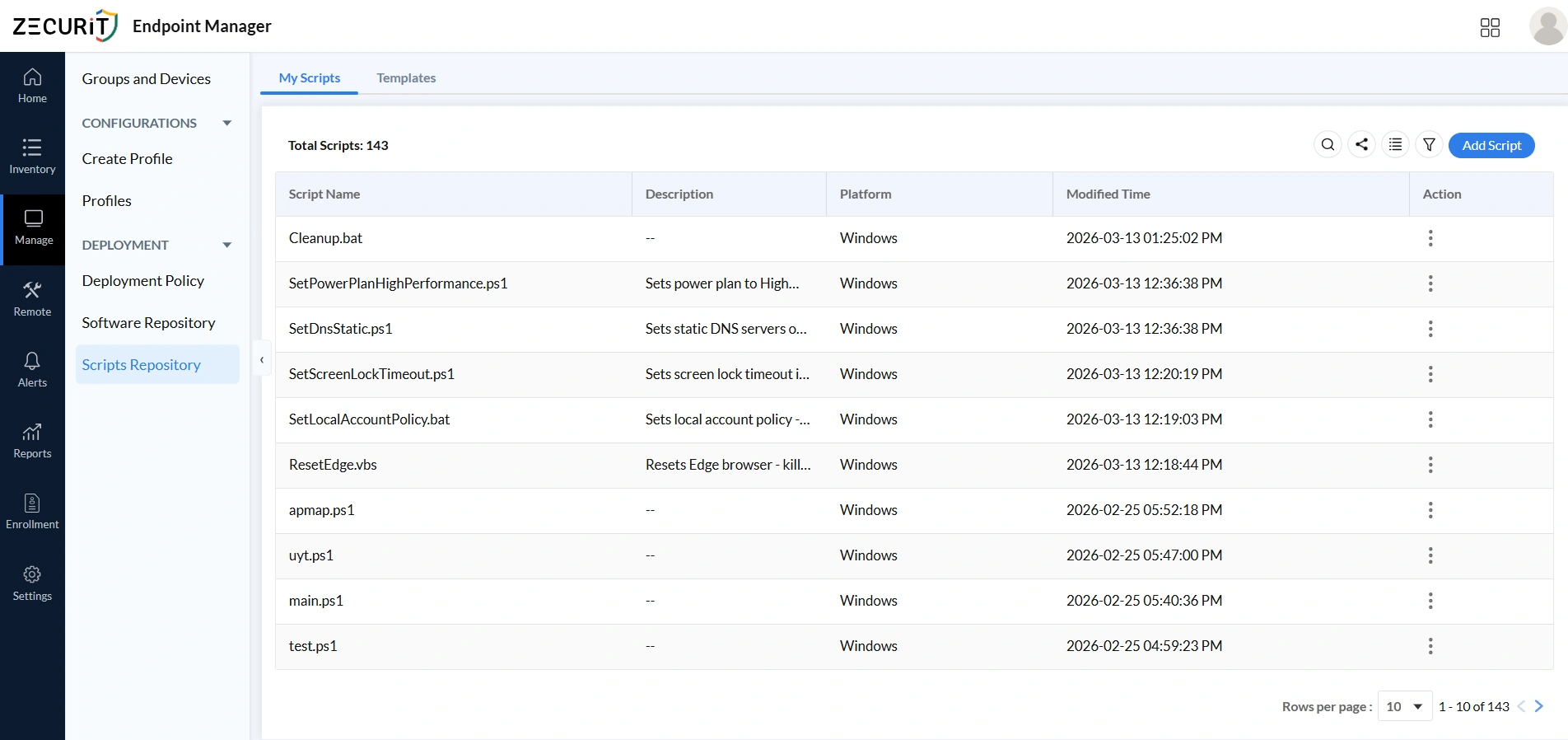
The Script Dashboard is your central command center for all IT automation scripts in your organization. Navigating to Manage > Deployment > Scripts Repository opens the My Scripts view, which gives you an at-a-glance overview of your entire script library.
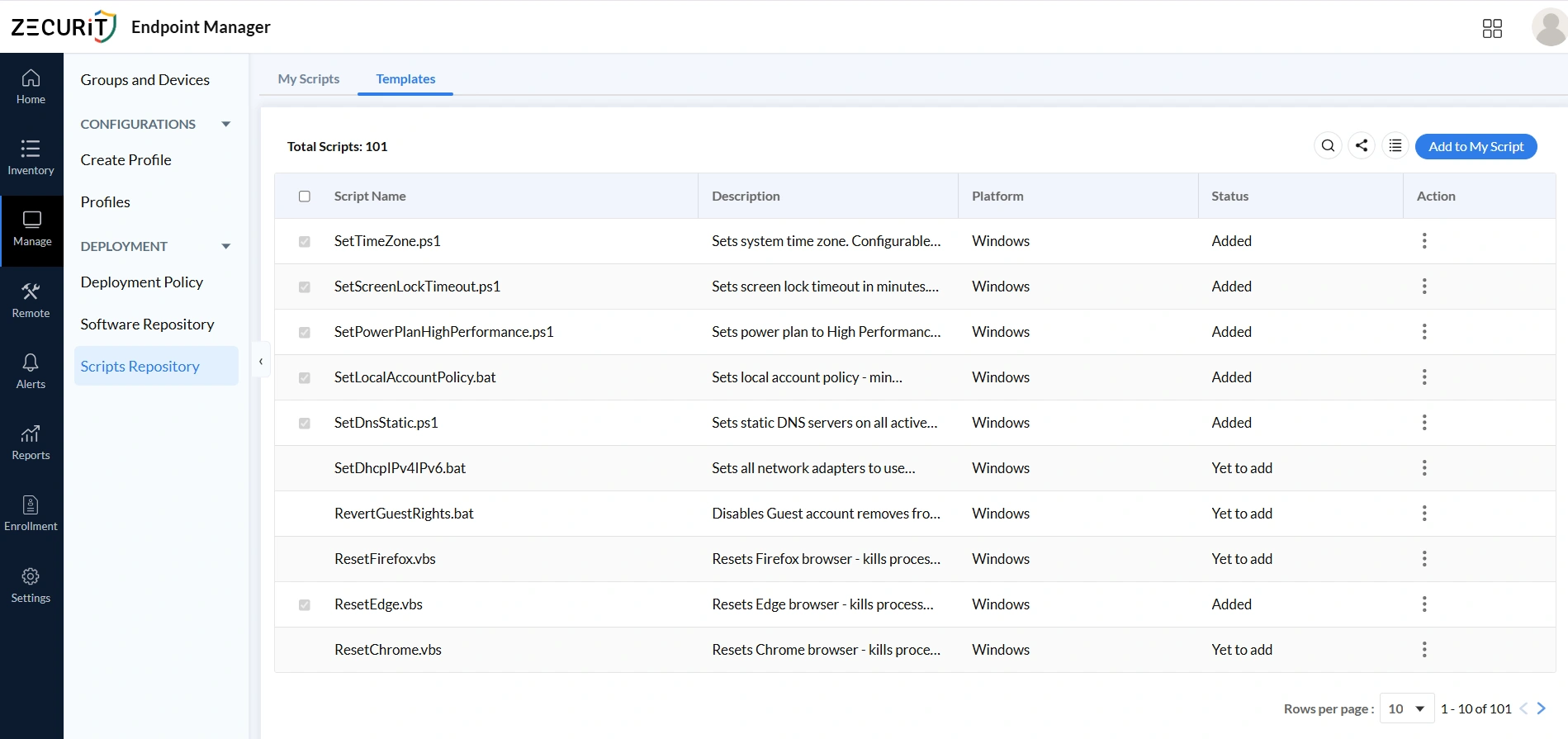
Building every IT automation script from scratch is unnecessary. The Templates tab in the Scripts Repository provides access to a curated library of 100-plus pre-built, production ready sysadmin automation scripts maintained by the platform covering Windows, macOS, and Linux environments. You can also browse the Zecurit Script Hub for ready-to-use scripts like the application deployment PowerShell script, disk space cleanup script, and Windows firewall configuration script.
When the Templates library does not have exactly what you need, the Add Script workflow allows you to create fully custom automation. Clicking the Add Script button opens the New Script form with all the configuration fields you need to define your script correctly before deployment.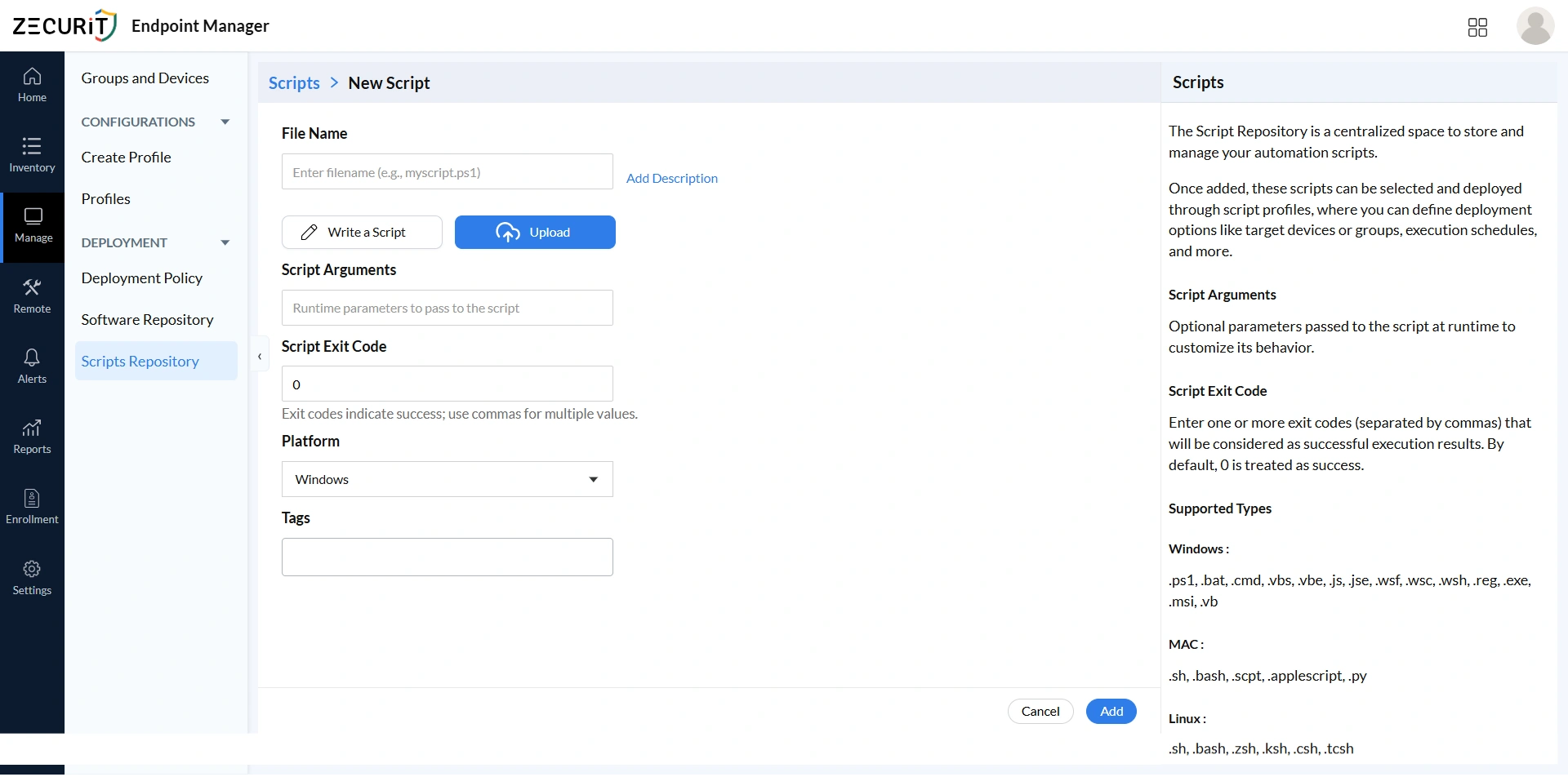
Key fields in the Add Script form:
Enter a descriptive filename that includes the appropriate extension for your script's language, for example: myscript.ps1, configure.sh, or setup.bat. The extension determines how the platform executes the script on target devices.
Choose between writing your script directly in the platform's built-in editor using the Write a Script option, or uploading an existing script file from your local machine using the Upload button. This is ideal for migrating scripts from other management tools.
Use the Add Description link to document what the script does, what arguments it requires, and any important notes for other administrators. Good descriptions are critical for maintainability in large script repositories.
Enter any optional runtime parameters your script accepts. These arguments are passed to the script at execution time, allowing a single script to serve multiple use cases with different parameter values.
Define one or more exit codes (separated by commas) that the platform should treat as successful execution results. Exit code 0 is treated as success by default. Custom exit codes are useful for scripts with complex multi-stage logic. For a deeper reference, see the guide on PowerShell exit codes and return codes and how to return exit codes in batch files.
Select the target operating system from the dropdown: Windows, macOS, or Linux. The platform selection determines which supported file types are valid and which devices the script can be deployed to.
Add organizational tags to make the script easier to find, filter, and categorize in large repositories. Tags like 'security', 'networking', or 'maintenance' keep your library well organized.
A script sitting in your repository does nothing on its own. Deployment Policies are the mechanism that connects your automation scripts to the devices and groups that should receive them. Navigate to Manage > Deployment > Deployment Policy to view and manage all existing policies across your organization.
Deployment Policies are the backbone of scalable IT automation script delivery. Instead of manually running scripts on individual machines, a Deployment Policy defines once how a script should be delivered to which devices, under what conditions, and on what schedule, and then handles execution automatically across your entire fleet. This is central to how remote software deployment works at scale.
From the Deployment Policy dashboard you can:
View all existing deployment policies with their name, associated script, target scope, and current status.
See which policies are active, pending, completed, or failed at a glance.
Edit existing policies to update their target devices, schedule, or configuration settings.
Create new deployment policies using the Add Deployment Policy button.
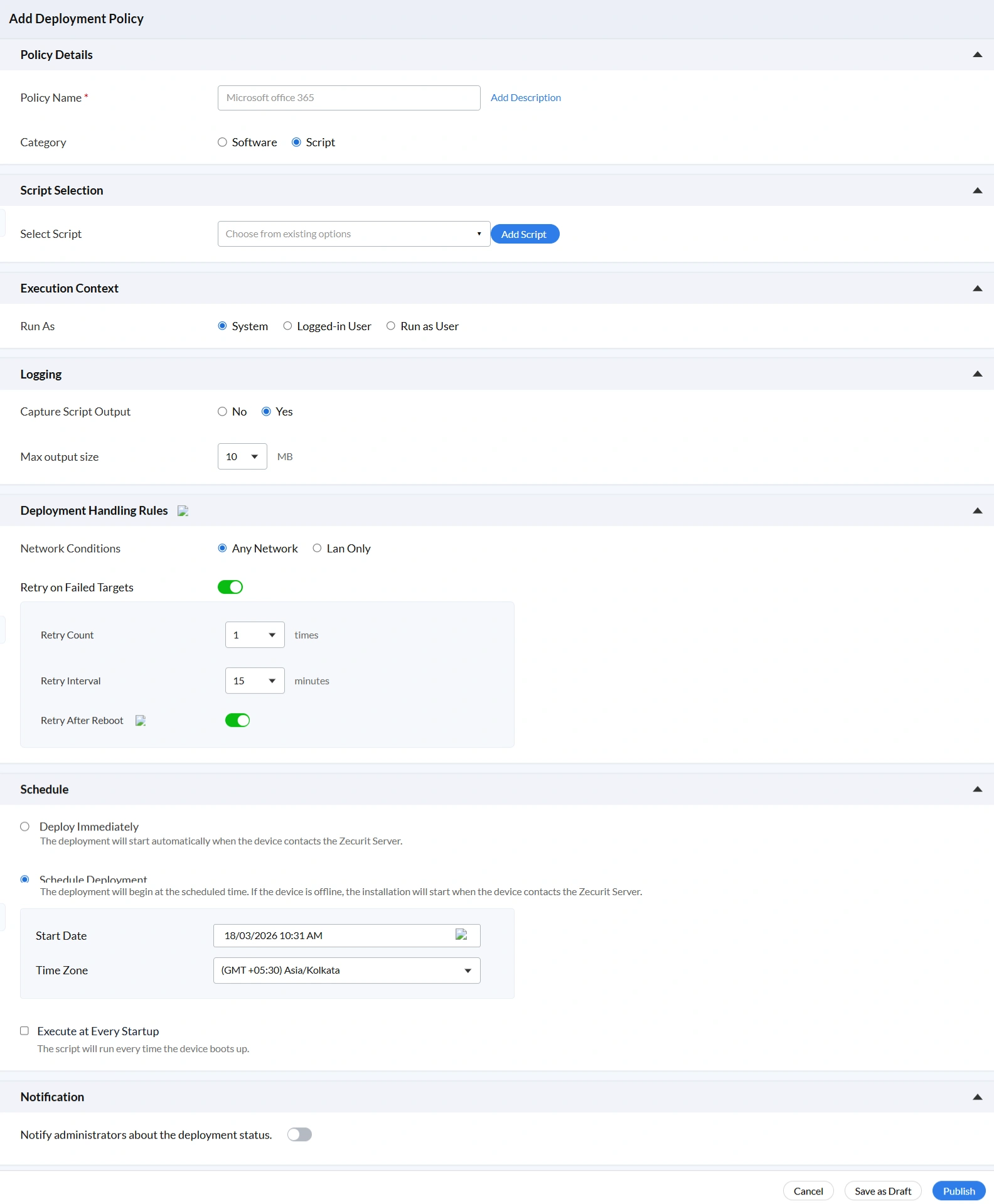
Clicking Add Deployment Policy opens a multi-section configuration form that gives you complete control over how, when, and where each IT automation script is deployed. The form is organized into clearly defined sections, each covering a specific aspect of the deployment configuration.
Policy Name: Enter a descriptive name for the deployment policy, for example: Microsoft Office 365 Setup, Windows Fleet. A clear naming convention makes it easy to track what each policy does when reviewing your deployment history.
Add Description: Optionally add a description explaining the purpose, scope, and expected outcome of this deployment.
Category: Select whether this policy deploys a Software package or a Script. Select Script to proceed with automation script deployment.
Select Script: Use the dropdown to choose from all available scripts in your My Scripts repository. This is the IT automation script that will be executed on target devices when the policy runs.
Add Script: If the script you need does not yet exist in your repository, the Add Script button launches the New Script form directly from within the policy creation workflow, keeping you in context without losing your configuration progress.
The Execution Context section determines the user account under which your IT automation script will run on target devices. This is a critical security and functionality consideration. Choosing the wrong execution context can cause scripts to fail silently or conversely grant unnecessary elevated privileges. For background on privilege management, see the guide on endpoint privilege management.
Available Execution Context options:
The script runs under the Local SYSTEM account, which has full administrative privileges on the local machine. Use this for any script that modifies system settings, installs software, changes security policies, or requires elevated permissions. Scripts like SetTimeZone.ps1, SetLocalAccountPolicy.bat, and SetPowerPlanHighPerformance.ps1 all require System level execution.
The script runs in the context of the user currently logged into the device. Use this when the script needs to interact with user-specific settings, user profile data, or applications running in the user's session, such as browser profile resets. The script will only execute if a user is actively logged in.
Specify a named user account under which the script should execute. This option is useful when scripts require specific domain credentials or when you need to run automation under a service account with particular access rights.
The Logging section controls whether the platform captures the output generated by your IT automation script during execution. Enabling output capture is strongly recommended for any script deployed in a production environment, as it is invaluable for troubleshooting, compliance auditing, and verifying that scripts executed as intended. This also feeds into endpoint monitoring and alerts and your reports and auditing workflows.
Script executes without capturing any stdout or stderr output. Use this only for simple, well-tested scripts in environments where audit logging is not required.
All output written to stdout and stderr by the script is captured and stored in the platform for review. This is the recommended setting for all production script deployments.
Set the maximum size of captured script output in MB. For scripts that generate verbose diagnostic output or write large result sets, increase this limit to ensure all output is retained. For lightweight configuration scripts, the default is more than sufficient.
In real world environments, not every script deployment succeeds on the first attempt. Devices may be offline, on slow connections, or temporarily unreachable. The Deployment Handling Rules section gives you granular control over how the platform responds to failed deployments, ensuring that your IT automation scripts eventually reach every target device even under challenging network conditions. This is especially important for organizations managing IT assets for a remote workforce.
The script deployment will proceed regardless of whether the target device is on a corporate LAN, a remote Wi-Fi network, or connected via VPN. This is the right choice for most automation scenarios, particularly in organizations with remote or hybrid workforces.
Restricts script deployment to devices that are physically on your local area network. Use this for large software packages or scripts that transfer significant data, where bandwidth consumption on remote connections is a concern.
Enable this to automatically retry script deployment on devices where the initial attempt failed. This is the most impactful single setting for improving deployment success rates across a distributed fleet.
Define how many additional attempts the platform should make after an initial failure, for example: 1, 2, or 3 times. For critical security scripts, setting a retry count of 3 ensures devices that are temporarily offline still receive the configuration once they reconnect.
Set the waiting period between retry attempts, in minutes, for example: 15 minutes. This prevents the platform from hammering an unreachable device repeatedly and allows adequate time for the device to come back online.
When enabled, the platform will attempt script re-execution after the target device reboots. This is particularly valuable for scripts that failed due to locked system resources or processes that release only after a restart. See also the automated system reboot script in the Script Hub for related automation.
Timing is everything in IT operations. The Schedule section gives you three distinct options for controlling exactly when your IT automation script runs on target devices, allowing you to balance urgency against the need to minimize user disruption and system impact.
The deployment starts automatically as soon as each target device checks in with the Zecurit Server. For devices that are currently online, execution begins within minutes of saving the policy. For offline devices, execution begins the next time they connect. Use this for urgent security fixes, critical configuration corrections, or time-sensitive automation.
The deployment begins at a specific date and time you define. If the target device is offline at the scheduled time, execution will begin automatically the next time the device contacts the server. This is the ideal option for planned maintenance activities, off-hours configuration pushes, and change-controlled deployments. Configure the Start Date and select the appropriate Time Zone, for example GMT +05:30 Asia/Kolkata, to ensure the schedule aligns with your local time rather than server time.
The script runs automatically every time the device boots up. This option is ideal for scripts that enforce persistent system states such as brightness settings, power plans, or security configurations that other processes might reset. Use it for hardening scripts that need to re-apply settings after every reboot to maintain compliance. The schedule PowerShell scripts with Task Scheduler guide covers related scheduling approaches for Windows environments.
The final section of the Add Deployment Policy form controls administrator notifications. The Notification setting determines whether the platform automatically alerts designated administrators about the deployment's progress and outcome, keeping your team informed without requiring manual monitoring.
Building a script library that stays reliable over time requires consistent practices from day one.
Test before deploying broadly. Always run new scripts on a small pilot group of devices before pushing them to your entire fleet. This catches permission issues, argument errors, and platform incompatibilities before they affect production endpoints.
Use descriptive file names. A script named "cleanup-temp-files-windows-weekly.ps1" is instantly understandable. A script named "script-v3-final.ps1" creates confusion six months later. Consistent naming conventions make repository management practical as your library grows.
Tag every script. Tags like "security," "maintenance," "compliance," and "onboarding" allow your team to find the right script quickly when building new deployment policies. Well-tagged scripts in a growing repository are the difference between an organized library and a searchable mess.
Set accurate exit codes. Every script should return meaningful exit codes that the deployment platform can use to confirm success or trigger retries. This turns script deployment from a fire-and-forget process into a fully accountable workflow.
Schedule during maintenance windows. Scripts that consume system resources should run during off-peak hours to avoid impacting user productivity. Define and enforce maintenance windows as part of your deployment policy configuration.
Review execution logs regularly. Periodic log reviews identify patterns in failures, flag devices with persistent issues, and surface opportunities to improve script reliability before small problems become large ones.
The 10 scripts in this guide cover the most common, high-impact automation tasks that sysadmins deal with every week. From disk cleanup and application deployment to security enforcement and audit logging, each script replaces hours of manual work with a single automated execution that runs consistently across every managed device.
The real force multiplier comes from storing these scripts in a centralized script repository and deploying them through structured policies with scheduling, retry logic, and execution logging. That is how individual scripts become a scalable, proactive IT automation operation.
Explore all 10 scripts and more in the Zecurit Script Hub and start building your automation library today.