
As an IT admin managing dozens or thousands of endpoints, running scripts manually on individual machines is simply not scalable. Remote script execution allows you to deploy and run PowerShell, Bash, and Python scripts across every managed device simultaneously from a single console, without physical access, without user involvement, and without the inconsistency that comes with manual processes. This guide covers everything you need to know, from how remote script execution works and which platforms it supports, to security best practices and how to build reliable deployment policies that scale with your organization.
Remote script execution is the backbone of scalable IT operations. It enables IT administrators to run automated scripts across multiple endpoints simultaneously without physical access, delivered through RMM or UEM platforms that maintain persistent connections to managed devices. Instead of logging into each machine manually, administrators deploy scripts once and execute them across hundreds of endpoints in minutes, ensuring consistent, error-free results every time.
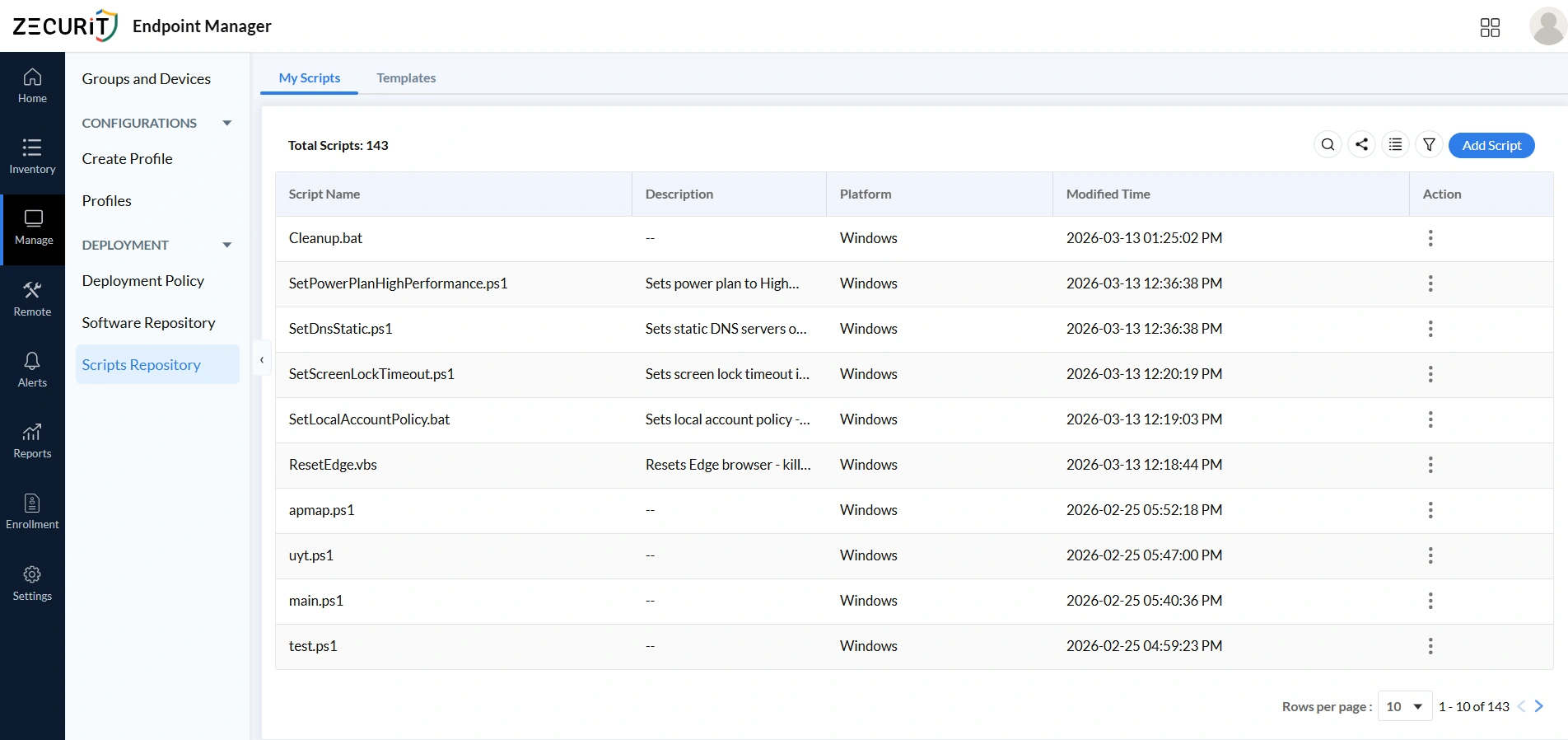
The Endpoint Manager dashboard displays a centralized script repository with a detailed list of automation scripts, including script names, descriptions, platform type, and modified time. This view allows IT administrators to easily organize, track, and update scripts while maintaining visibility over script versions. It simplifies remote script execution by enabling efficient control and management of scripts across multiple endpoints in a structured and scalable environment.
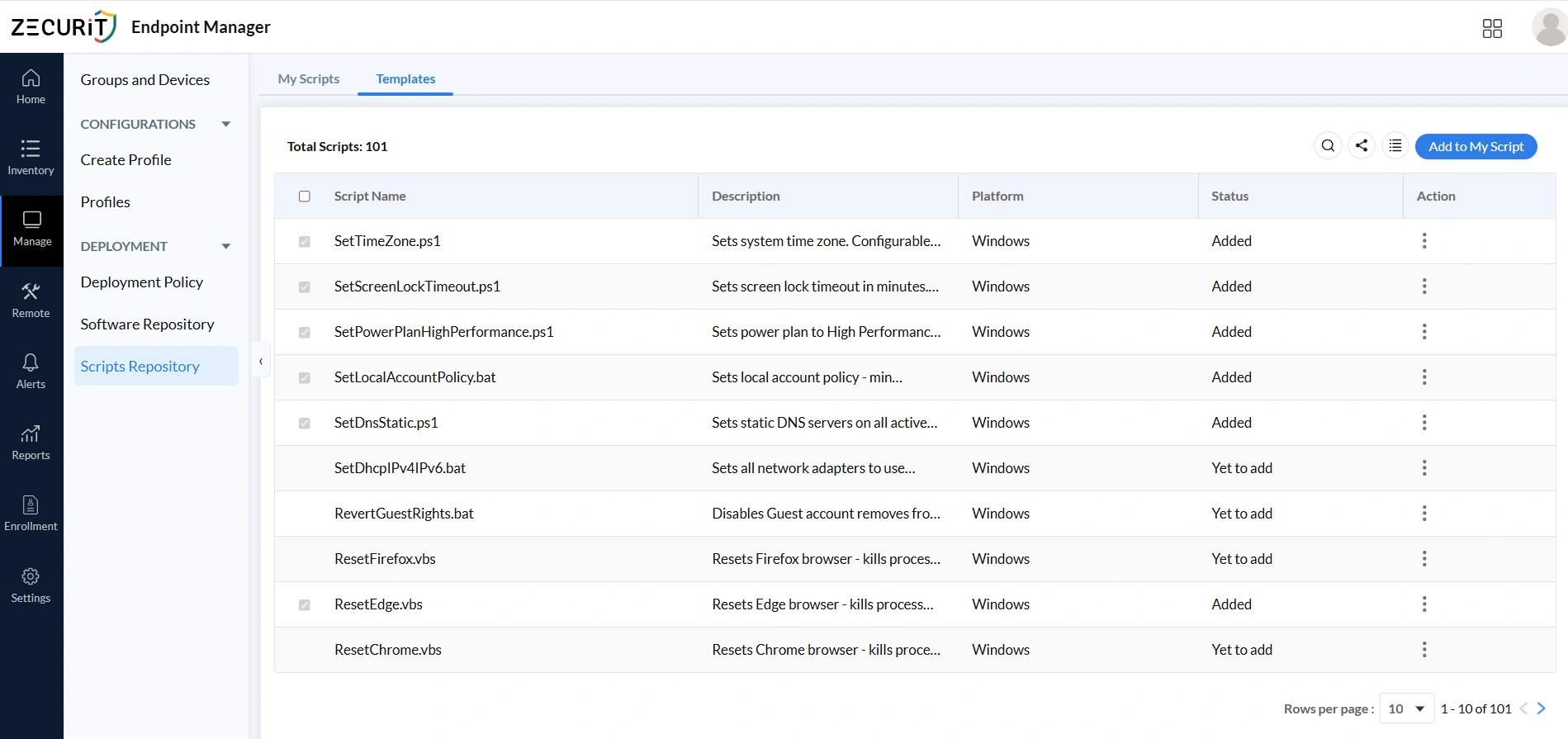
The Endpoint Manager Templates section provides a collection of pre-built automation scripts designed for common administrative tasks such as system configuration, DNS setup, and browser management. These templates help IT administrators quickly deploy standardized scripts without creating them from scratch. By using ready-made templates, teams can ensure consistency, reduce errors, and streamline bulk script deployment across thousands of endpoints efficiently.
The Add Deployment Policy feature allows administrators to define and configure automated deployment workflows for software or scripts across managed devices. A deployment policy brings together all the necessary settings, from script selection and execution context to scheduling and notifications, into a single, structured configuration. Once published, the policy ensures that automation tasks are carried out consistently and reliably across targeted endpoints.
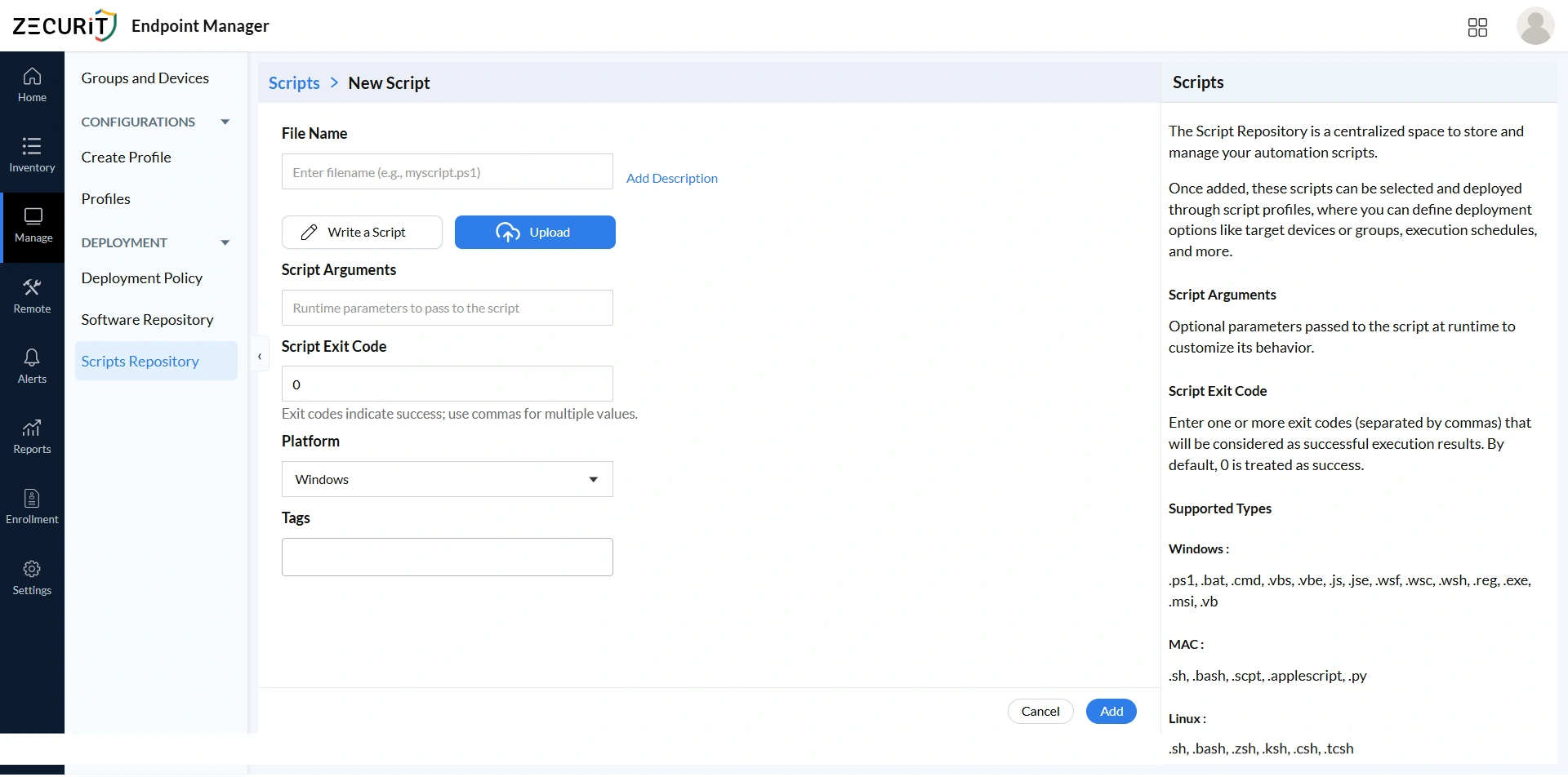
The File Name field defines how a script is stored and identified within the centralized script repository. A clear and descriptive file name helps administrators quickly understand the purpose of the script. Proper naming conventions are important when managing large automation libraries with many scripts. Clear file names also make it easier to search and locate scripts when creating deployment policies. Consistent naming prevents duplication and confusion between similar scripts. Following structured naming practices is considered an important script repository best practice for effective automation management.
The Write a Script option allows administrators to create automation scripts directly within the management console. This feature provides a built-in environment where scripts can be written, edited, and saved without using external tools. IT teams can use this option to create scripts for configuration management, troubleshooting tasks, or security updates. Writing scripts directly in the centralized script repository ensures that automation logic remains organized and accessible. It also improves collaboration among administrators who need to review or update scripts. This approach simplifies IT script library management and keeps automation resources centralized.
The Upload option allows administrators to import existing automation scripts into the centralized script repository. Many organizations already have scripts developed for system administration or software deployment tasks. Uploading these scripts ensures they become part of the shared automation library used by the IT team. Once uploaded, scripts can be reused in different deployment policies and automation workflows. Centralizing uploaded scripts prevents them from being scattered across multiple systems. This improves accessibility and supports better script repository best practices.
Script Arguments allow administrators to pass parameters to scripts during execution. These parameters enable scripts to perform different actions depending on the values provided at runtime. For example, arguments may define device names, configuration settings, or network parameters. Using arguments increases script flexibility because the same script can be reused for multiple scenarios. This reduces the need to create separate scripts for similar tasks. You can explore reusable script examples in the Zecurit Script Hub. Script arguments therefore improve automation efficiency and strengthen IT script library management.
The Script Exit Code defines the result returned by a script after execution. Typically an exit code of zero indicates successful execution while non-zero codes represent errors or failures. Monitoring exit codes allows administrators to quickly determine whether a script completed successfully. It also helps detect issues during automated deployments. For a deeper understanding of how exit codes work, see the guide on PowerShell exit codes and return codes. Administrators can also refer to how to return exit codes in batch files for scripting across different environments. Proper exit code management improves reliability and supports script repository best practices.
The Platform setting specifies the operating system environment where the script will run. Scripts may be designed specifically for Windows, macOS, or Linux devices depending on the administrative task. Selecting the correct platform ensures that scripts are executed only on compatible systems. For Windows-specific automation, refer to the guide on Windows endpoint management. Platform classification also helps administrators organize scripts within the centralized script repository. This improves overall script management and deployment accuracy.
Tags are used to categorize scripts within the centralized script repository based on their function or purpose. Administrators can assign tags such as security configuration, troubleshooting, networking, or compliance tasks. Tags improve searchability and help administrators locate scripts quickly when managing large automation libraries. They also help organize scripts by grouping related automation tasks together. Effective tagging simplifies script management and improves visibility within the repository. Using tags is considered an important script repository best practice aligned with IT asset management principles.
The Add Deployment Policy feature allows administrators to define and configure automated deployment workflows for software or scripts across managed devices. A deployment policy brings together all the necessary settings, from script selection and execution context to scheduling and notifications, into a single, structured configuration. Once published, the policy ensures that automation tasks are carried out consistently and reliably across targeted endpoints. Whether you are managing a large fleet of devices or deploying updates to a distributed workforce, deployment policies are a core part of effective Windows endpoint management.
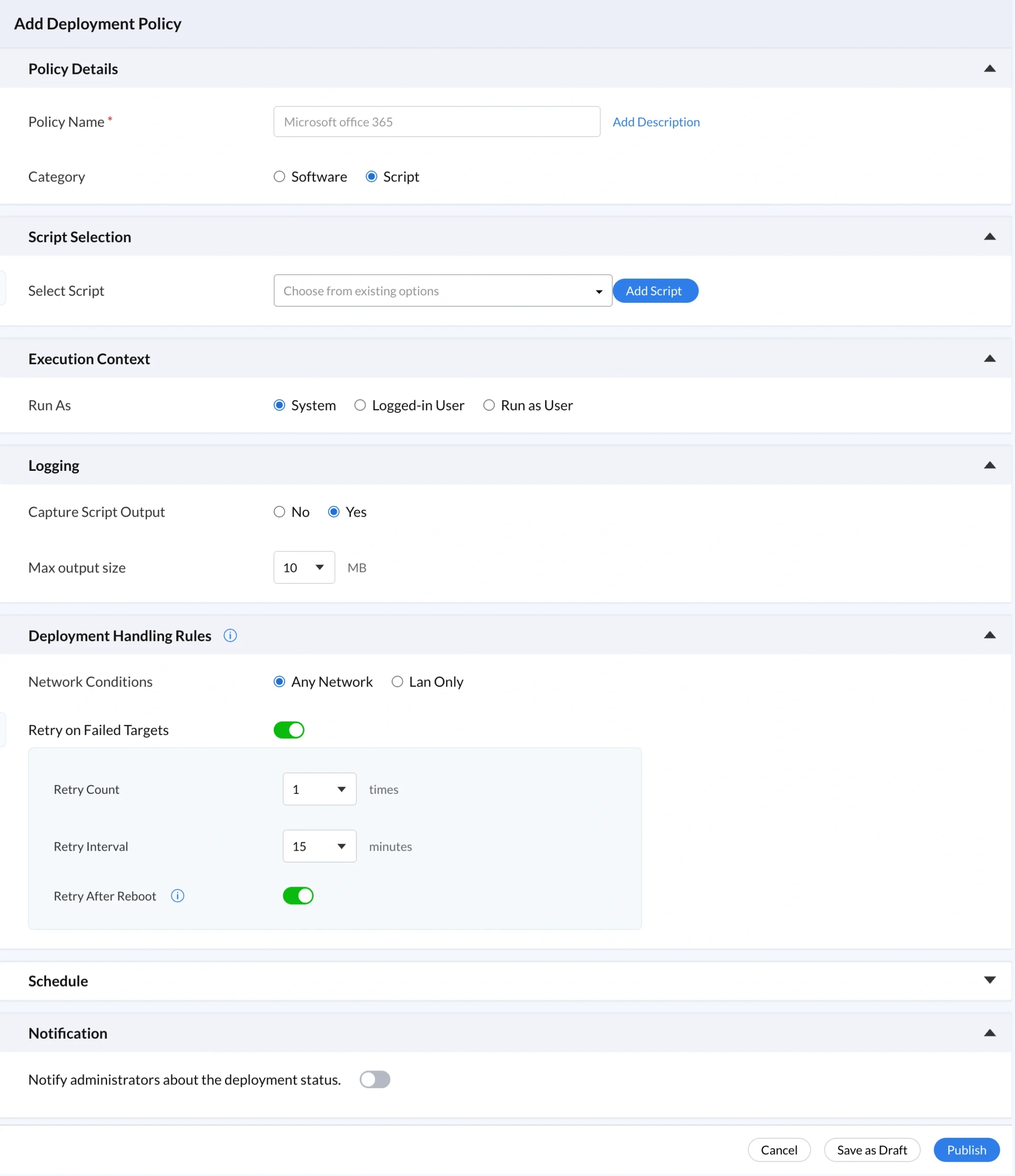
The Policy Details section defines the main configuration settings for creating a deployment policy used in remote script execution. Administrators use this section to specify the identity and purpose of the automation policy. Clear policy configuration ensures scripts are deployed correctly across managed devices. This structured approach helps IT teams maintain organized automation workflows. Properly defined policy details also make it easier to monitor automation activities. This improves overall IT script library management.
The Policy Name field allows administrators to assign a unique and descriptive name to a deployment policy. Clear policy names help administrators quickly understand the purpose of the automation task. For example a policy name may describe a browser reset or security configuration update. Proper naming conventions improve organization when multiple deployment policies exist. Administrators can easily locate policies when reviewing deployment history. Clear policy naming also supports script repository best practices.
The Category option determines whether the deployment policy is used for software installation or script execution. Selecting the appropriate category ensures the system processes the deployment correctly. Proper categorization helps maintain a structured automation environment. It also allows administrators to filter and manage policies more efficiently. Separating software deployment from script automation improves visibility within the system. This classification supports better IT script library management.
The Script Selection section allows administrators to choose the script that will be executed on target devices. Scripts are selected directly from the centralized script repository where they are stored and managed. Selecting scripts from a central library ensures that approved and documented scripts are used for deployments. This prevents duplication and promotes reuse of existing automation scripts. It also helps maintain consistency across automation workflows. Script selection strengthens script repository best practices.
Execution Context defines the permission level under which a script runs on endpoint devices. Some scripts require elevated privileges to modify system settings or manage services. Administrators can choose the appropriate permission level depending on the task. For related guidance, see the article on endpoint privilege management. Proper execution context ensures scripts run successfully without permission errors. It also helps maintain security controls during automation processes.
The Run As setting determines the user account that will execute the script. Administrators may run scripts using system privileges, the logged-in user account, or a specific administrative account. Selecting the correct account ensures scripts have the permissions required to perform their tasks. This also helps maintain security compliance within the organization. Running scripts with the correct account prevents permission conflicts. It is an important configuration for managing automation scripts.
Logging provides visibility into script execution by recording results and output information. When scripts run on endpoint devices, logs capture status messages and error details. These logs help administrators verify whether the script executed successfully. Logging also makes troubleshooting easier when automation tasks fail. Administrators can review logs to identify the cause of errors. Effective logging ties into broader endpoint monitoring and alerts, and is essential for monitoring automation performance.
Capture Script Output allows administrators to collect the output generated by scripts during execution. This output may include configuration results, system messages, or error information. Capturing script output helps administrators analyze script performance without accessing the device directly. It provides detailed insights into what occurred during execution. This information is valuable when troubleshooting automation failures. Capturing output improves monitoring and automation transparency, complementing the reports and auditing capabilities available in Endpoint Manager.
Max Output Size defines the maximum amount of script output that can be stored in logs. Limiting output size helps control log storage usage within the system. Administrators can still capture useful troubleshooting information without storing excessive data. Proper configuration of output size improves log management efficiency. It also ensures system resources are used effectively. Managing log output supports script repository best practices.
Deployment Handling Rules determine how scripts behave when network or device issues occur. Devices may sometimes be offline or temporarily unavailable during deployment. These rules ensure scripts are eventually executed when devices reconnect. Administrators can configure retry behavior to improve deployment success rates. Handling rules help maintain automation stability in large environments. They are essential for reliable remote script execution.
Network Conditions define when scripts are allowed to execute based on the device's network connection. Administrators may allow scripts to run on any network or restrict execution to trusted corporate networks. This control helps organizations maintain security policies for remote devices. Network conditions also help manage bandwidth usage during deployments. Proper network configuration ensures automation tasks run under appropriate conditions. This improves both security and efficiency, particularly for software deployment for remote workers.
Retry on Failed Targets enables the system to attempt script execution again if the initial deployment fails. Failures may occur due to network connectivity issues or device availability problems. Automatic retries ensure scripts eventually reach all targeted devices. This improves the reliability of remote script deployments. Administrators do not need to manually redeploy scripts. Retry mechanisms improve automation efficiency.
Retry Count specifies how many times the system should attempt to rerun the script after a failure. Administrators configure this value based on network reliability and task importance. Higher retry counts improve the chances of successful deployment. However administrators should balance retries to avoid unnecessary system load. Proper retry configuration helps maintain stable automation workflows. It also improves deployment reliability.
Retry Interval defines the waiting time between retry attempts. This interval allows devices time to reconnect to the network or resolve temporary issues. Setting an appropriate interval prevents repeated rapid deployment attempts. It ensures the system retries script execution at reasonable intervals. Proper retry timing improves automation stability. This helps scripts execute successfully across distributed devices.
Retry After Reboot ensures scripts execute again after a device restarts. If a script fails because the device was rebooting or unavailable, the system will attempt execution again once the device becomes active. This ensures important scripts are not missed due to temporary downtime. It improves reliability in environments where devices restart frequently. Administrators can reference the automated system reboot script for related scripting guidance. This feature strengthens remote automation processes.
The Schedule section allows administrators to define when scripts should run on endpoint devices. Scheduling automation tasks helps reduce disruption to users. Scripts can run during maintenance windows or outside business hours. Administrators can plan deployments in advance for better system management. Scheduled execution ensures automation occurs at the most appropriate time. This improves overall IT operations efficiency.
Deploy Immediately triggers script execution as soon as the device connects to the management system. This option is useful for urgent tasks such as security updates or emergency configuration changes. Administrators can quickly apply fixes across multiple devices. Immediate deployment reduces response time during critical incidents. It ensures automation scripts are executed without delay. This improves responsiveness in IT operations.
Schedule Deployment allows administrators to define a specific date and time for script execution. This option is commonly used for planned maintenance tasks. Running scripts during off hours reduces disruption to end users. Scheduling also allows administrators to coordinate automation with other IT activities. It improves control over deployment timing. Scheduled automation supports efficient patch management and IT management broadly.
Start Date specifies when the deployment policy becomes active. Administrators can schedule automation tasks in advance using this setting. Planning deployment start times helps align automation with maintenance schedules. It ensures scripts run at the correct time. Proper start date configuration improves operational planning. This helps maintain organized automation workflows.
Time Zone ensures scripts execute according to the correct regional time settings. This is important for organizations managing devices in multiple geographic locations. Proper time zone configuration prevents scheduling errors. It ensures deployments occur at the intended local time. Administrators can coordinate automation globally. This feature improves accuracy in scheduled deployments.
Execute at Every Startup allows scripts to run each time a device starts. This ensures important configuration settings are always applied. If system settings change or are reset, the script will automatically reapply them. This helps maintain consistent configurations across devices. Startup execution is useful for enforcing policies or security settings. It improves long term automation reliability. For reference, you can explore the scheduled PowerShell scripts with Task Scheduler guide for related automation approaches.
The Notification feature alerts administrators about the status of script deployments. Notifications may indicate successful execution, failures, or pending deployments. These alerts help administrators monitor automation activities without manual checks. Administrators can quickly respond to issues when problems occur. Notifications improve visibility and operational awareness. This feature supports effective endpoint monitoring and remote script management.
Remote script execution empowers IT admins to manage and automate tasks across multiple endpoints from a single platform. With centralized scripts, scheduling, logging, and retry mechanisms, organizations achieve consistency, security, and operational efficiency at scale.
Implementing these practices enables scalable automation and stronger IT control. To get started, explore Zecurit's Endpoint Management features or browse the Script Hub for ready-to-use automation scripts.