
Every unmanaged endpoint is an open door. For IT administrators and Managed Service Providers (MSPs) responsible for hundreds or thousands of Windows devices, an inconsistent firewall posture is not a minor gap. It is an active liability. A single misconfigured device on a public network, a remote worker's laptop with no outbound restrictions, or a server in a branch office running default settings can expose your entire organization to lateral movement, data exfiltration, and ransomware.
The traditional approach of manually configuring Windows Firewall through Group Policy Objects (GPOs) or local settings does not scale. GPO replication delays, domain dependency, and zero visibility into real-time firewall status make it unsuitable for modern distributed environments.
Centrally managing Windows Firewall rules across all endpoints solves this at scale. With a purpose-built endpoint management platform, you can create a single firewall policy profile, define precise inbound and outbound rules for Domain, Private, and Public networks, deploy those rules to remote computers instantly, and monitor compliance status across your entire fleet in real-time. This guide covers how it works, why it matters, and how to implement it without the operational overhead of legacy tools.
Windows Firewall is the first line of host-based defense on every Windows endpoint. When it is not consistently enforced, the results are predictable. According to Microsoft's Windows Firewall documentation, firewall rules that are not centrally managed tend to drift over time as users, applications, and local scripts modify settings. That drift creates compliance gaps and an attack surface you cannot see.
For organizations managing distributed environments, the core problems are:
No consistent enforcement. Rules configured locally can be changed or disabled by users with admin rights.
No visibility. Without centralized monitoring, you have no way to know which endpoints are compliant without running manual audits.
No scalability. Deploying a new firewall rule to 500 devices via manual GPO or scripts is time-consuming and error-prone.
Domain dependency. GPO-based firewall management only works for domain-joined machines. Remote workers, workgroup devices, and cloud-joined endpoints are left unprotected or require separate tooling.
Before deploying rules, you need to understand how Windows Firewall profiles work. Windows categorizes network connections into three profile types, each with independent inbound and outbound rule sets.
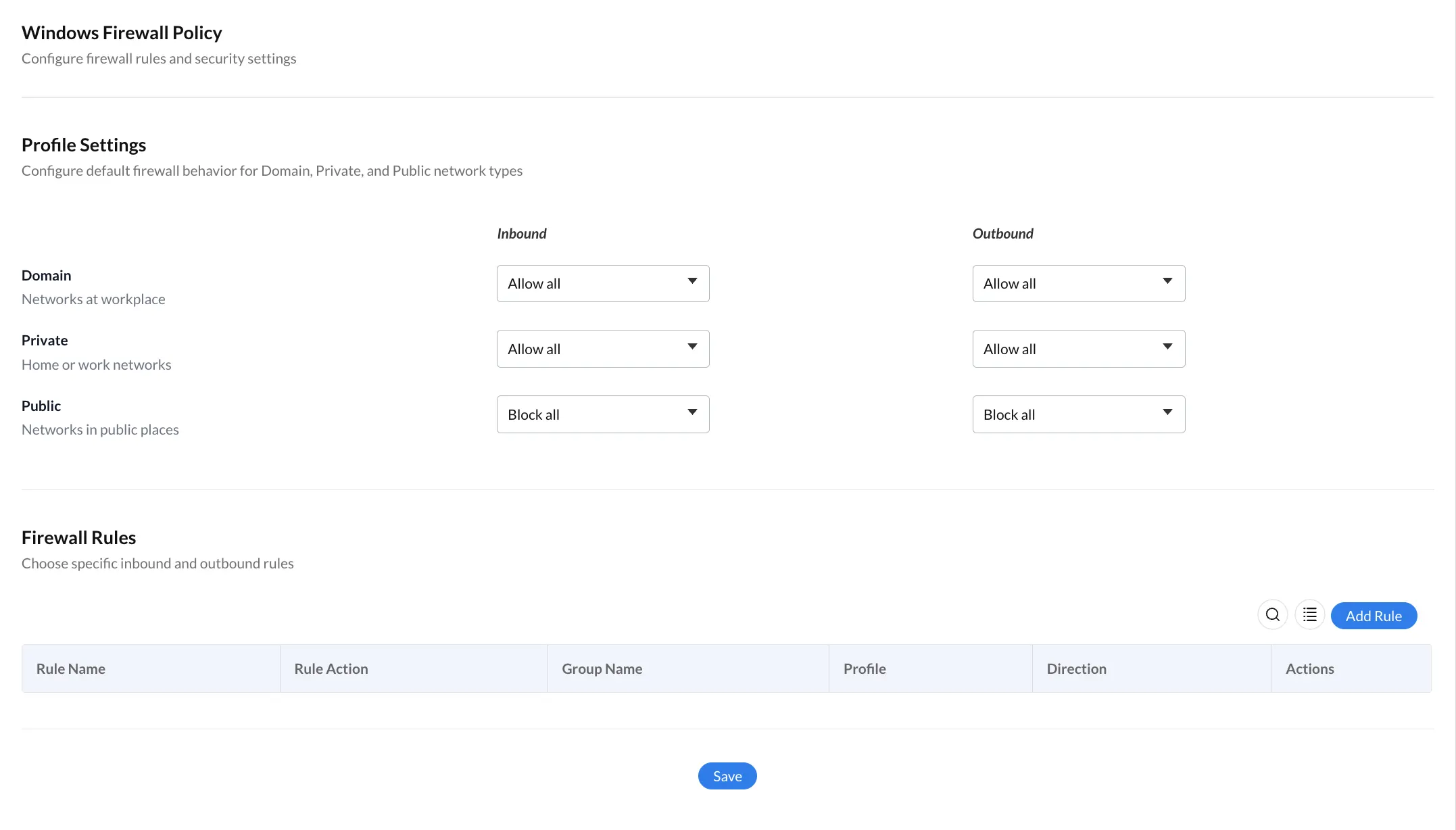
Domain Profile applies when a device is connected to a corporate network where the domain controller is reachable. This is the most trusted context. Allowing all inbound and outbound traffic on the Domain profile is standard for internal communication.
Private Profile applies to home or work networks that the user has marked as private. This should be moderately trusted. Allowing all traffic here is reasonable for remote workers connected to known networks.
Public Profile applies to networks in public places such as coffee shops, airports, and hotel Wi-Fi. This is the least trusted context and should have the most restrictive rules. Blocking all inbound traffic on the Public profile is a widely recommended security baseline.
In Zecurit Endpoint Manager's Windows Firewall Policy interface, each profile has independent dropdowns for Inbound and Outbound behavior. The default configuration in the tool reflects security best practice out of the box: Domain and Private networks allow all traffic, while Public networks block all inbound and outbound by default.
This three-profile architecture is the foundation that all custom firewall rules build on top of.
The first step in centralized firewall management is creating a named Configuration Profile. The profile creation workflow in Zecurit Endpoint Manager is straightforward: name the profile, optionally add a description, and click Continue. This profile acts as a container for all firewall settings, allowing you to version, duplicate, or modify it independently of the endpoints it is applied to.
Once created, the profile must be associated with specific device groups or individual devices. Policies are then automatically applied during the next device check-in, ensuring consistent enforcement without requiring manual intervention on each machine.
The Profile Settings section allows administrators to configure default firewall behavior independently for Domain, Private, and Public network types, with separate controls for Inbound and Outbound traffic. Options include "Allow all" and "Block all," with the ability to create granular exceptions through the Firewall Rules section.
This separation is critical. A blanket "Block all" on a Domain profile would break internal tools and services. A blanket "Allow all" on a Public profile defeats the purpose of having a firewall. The per-profile design gives you precision without complexity.
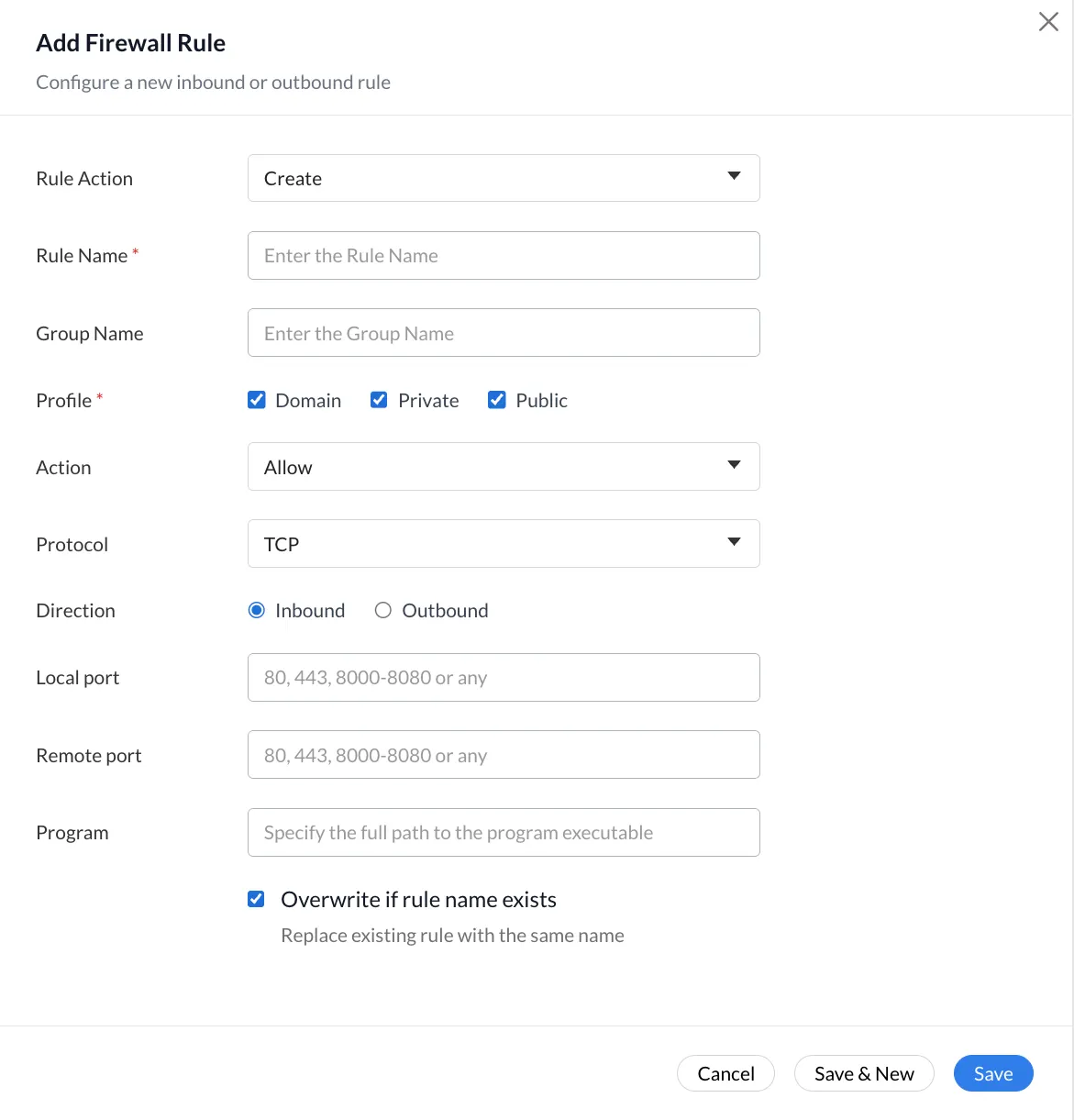
The Firewall Rules section allows administrators to define specific rules that override the default profile behavior. Each rule includes:
Rule Name: A descriptive identifier for the rule.
Rule Action: Allow or Block.
Group Name: Logical grouping for rule organization.
Profile: Which network profile the rule applies to (Domain, Private, Public, or all).
Direction: Inbound or Outbound.
Actions: Edit or delete the rule.
New rules are added via the Add Rule button, giving administrators precise control over individual ports, protocols, applications, or IP ranges without affecting the global profile behavior.
Once a profile is configured, it is associated with device groups or individual managed endpoints. This means you can maintain separate firewall policies for different organizational units such as servers, workstations, remote workers, and kiosk devices, without duplicating effort. Changes to the profile propagate automatically to all associated devices at the next check-in.
The Save as Draft and Publish options allow administrators to stage changes before pushing them to production. This is particularly valuable in MSP environments where a firewall rule change for one client should be tested and reviewed before a broad rollout.
Deploying custom firewall rules to remote computers through a centralized platform follows a clear, repeatable process.
Step 1: Create the Profile. Navigate to Configurations > Create Profile in Zecurit Endpoint Manager. Name the profile and click Continue. This generates a profile container ready for policy configuration.
Step 2: Select Windows Firewall Policy. Within the profile, add a Windows Firewall Policy component. This opens the firewall configuration screen.
Step 3: Configure Profile Settings. Set the default inbound and outbound behavior for Domain, Private, and Public networks based on your organization's security requirements. For most environments, the recommended baseline is Domain and Private set to "Allow all," with Public set to "Block all" on both inbound and outbound.
Step 4: Add Custom Rules. Use the Add Rule button to create specific rules that override the defaults. For example, you might allow inbound TCP on port 443 from a known IP range on the Public profile for a specific application, while keeping all other inbound Public traffic blocked.
Step 5: Save and Publish. Save as Draft for peer review, or Publish to immediately activate the policy. The Publish action makes the policy available for deployment to associated device groups.
Step 6: Associate with Device Groups. Link the published profile to the relevant device groups. All enrolled endpoints in those groups will receive the policy at their next check-in.
Deploying firewall rules is only half the problem. The other half is knowing whether those rules are actually active and compliant across every device. This is where real-time monitoring becomes essential.
An effective centralized firewall management platform provides the following capabilities.
Compliance status dashboards show, at a glance, which devices have received and applied the firewall policy and which have not. Devices that fail to check in or where policy application fails are flagged immediately.
Security alerts notify administrators when a device deviates from the expected firewall configuration. Endpoint Monitoring and Alerts feature supports this use case, allowing teams to configure alert policies that trigger when security settings fall outside defined thresholds. For advanced configurations, security alert policies provide granular control over threshold definitions and notification routing.
Audit trails record every policy change, every deployment event, and every device state transition. This is essential for compliance frameworks including SOC 2, ISO 27001, HIPAA, and CIS Controls. Zecurit's Reports and Auditing feature provides full audit log capabilities to support assessor and auditor requests on demand.
Fleet-wide visibility ensures that when a new device enrolls, you can immediately see its firewall compliance status and push the appropriate profile within minutes rather than days.
A 500-seat organization that previously relied on GPO-based firewall management and local policy audits can consolidate to a single policy definition per device class. The result is a measurable reduction in audit remediation time and a consistent security baseline across all endpoints regardless of network location.
Use case: An enterprise deploys a new Public profile rule that blocks all outbound traffic on port 23 (Telnet) across 800 endpoints simultaneously. What previously required a GPO change, replication wait time, and manual verification across sites is completed in a single publish action, with compliance confirmation visible in the dashboard.
MSPs managing multiple client environments benefit from multi-tenant policy management. Each client can have isolated firewall profiles with independent rules, deployed and monitored from a single platform. This eliminates per-client tooling overhead and makes it possible for a single administrator to maintain firewall compliance across thousands of devices across dozens of client organizations. For a broader view of how this fits into a complete toolset, see this comparison of top unified endpoint management tools.
Use case: An MSP onboards a new client with 150 Windows workstations. The team creates a standard baseline firewall profile, customizes it with client-specific application rules, and deploys it to all 150 devices within the first hour of onboarding, with full compliance visibility confirmed before the client kickoff call.
Remote workers connecting from home or public networks represent a persistent risk when firewall policies are not enforced independently of domain connectivity. A centralized endpoint management platform that communicates over the internet ensures that remote devices are held to the same firewall standards as office devices, regardless of where they connect from. Teams managing software deployment for remote workers can apply the same agent-based delivery model to firewall policy without additional infrastructure.
| Capability | GPO-Based Management | Centralized Endpoint Platform |
|---|---|---|
| Domain-joined devices only | Yes | No |
| Real-time compliance visibility | No | Yes |
| Rule deployment speed | Hours | Minutes |
| Remote/off-domain enforcement | No | Yes |
| Multi-tenant support (MSPs) | No | Yes |
| Draft and publish workflow | No | Yes |
| Audit trail for compliance | Limited | Full |
| Per-device group policies | Complex OUs required | Native group association |
GPO remains a valid tool for organizations with exclusively domain-joined, on-premises devices. For any environment with remote workers, cloud-joined devices, or MSP multi-tenancy requirements, a centralized endpoint management platform is the operationally superior choice.
1. Establish a baseline profile before adding exceptions. Start with a restrictive default (Block all on Public, Allow all on Domain and Private) and layer exceptions on top. This is easier to audit and harder to misconfigure than starting permissive and attempting to lock down incrementally.
2. Use device groups to segment policy scope. Apply different firewall profiles to servers, workstations, and remote devices. A profile designed for a file server should not be applied to a developer laptop. Segmentation reduces the blast radius if a rule is misconfigured.
3. Always save as Draft before publishing to production. The draft workflow allows a second administrator to review changes before they reach live devices. This is especially important for rules that affect outbound traffic, which can break application connectivity if misconfigured.
4. Document every custom rule with a clear name and group. The Firewall Rules table shows Rule Name, Group Name, and Direction. Rules named "Rule1" or "Test" create operational debt. Use naming conventions like "Block-Telnet-Outbound-All" or "Allow-HTTPS-Inbound-Public" for long-term clarity.
5. Monitor compliance status after every policy publish. After deploying a profile change, check the compliance dashboard to confirm that all target devices have received and applied the update. Devices that fail to apply should trigger an alert for immediate investigation.
6. Integrate firewall management with your broader security posture. Firewall policy is one layer. Pair it with patch management, BitLocker encryption management, and security alerting for a defense-in-depth approach.
7. Audit firewall rules quarterly. Rules added for temporary purposes such as testing, vendor access, or project-specific tools accumulate over time. Schedule regular reviews to remove stale rules and keep your policy surface minimal.
Mistake 1: Applying the same profile to all device types. A single firewall profile applied to servers, workstations, and kiosks creates either excessive restriction or excessive permissiveness. The fix is to create device-class-specific profiles and associate them with the correct groups.
Mistake 2: Publishing without testing. A blocking rule on the wrong profile can cut off application connectivity for an entire device group. Always use Save as Draft, test on a pilot group, and confirm application behavior before publishing broadly.
Mistake 3: Ignoring the Public profile. Organizations often configure Domain and Private profiles carefully and leave Public set to Allow all. Endpoints connecting from public Wi-Fi with no inbound restrictions are exposed to network-based attacks. Block all inbound on Public by default.
Mistake 4: No monitoring after deployment. Deploying a firewall policy and assuming it is applied is not the same as knowing it is applied. Without real-time monitoring, devices that fail to receive the policy remain non-compliant indefinitely. Integrate firewall deployment with your endpoint monitoring and alerting workflow.
Mistake 5: Relying on GPO for remote devices. GPO-based firewall management does not function reliably for off-domain or remote endpoints. If your workforce includes remote workers or BYOD devices, you need a management platform that enforces policy over the internet, independent of domain trust.
Centralized firewall management through a platform like Zecurit Endpoint Manager transforms Windows Firewall from a per-device maintenance burden into a scalable, policy-driven security control. By defining rules once and enforcing them consistently across the entire fleet, organizations eliminate configuration drift, reduce manual overhead, and gain the real-time visibility needed to meet modern compliance and security demands.