
Integrated diagnostic tools. Zero user interruption. AES-256 encrypted, MFA-gated background access to process, service, registry, event log, and file system on every managed endpoint.
For most of the previous decade, “remote support” meant one thing: taking over a user’s screen. A technician would connect, move the mouse, click through menus, and hope the user stayed patient while their work was interrupted. This model is no longer adequate for Level 2 and Level 3 support.
Modern remote troubleshooting software requires direct access to system sub-structures: the Windows Registry, the Service Control Manager, the Event Log, running processes, and the file system, not just a visual representation of the desktop. These operations must be performable in the background while the user continues to work.
According to Gartner’s Digital Employee Experience (DEX) research, the quality of IT support has a direct measurable impact on employee productivity. Interrupting a user for 20 minutes to fix a service crash is a DEX failure. Fixing it silently in the background is the 2026 standard.
Zecurit Remote Access delivers this with nine integrated diagnostic tools, all gated by mandatory MFA and AES-256 encryption, all accessible from the same console managing your entire fleet through the Unified Endpoint Manager.
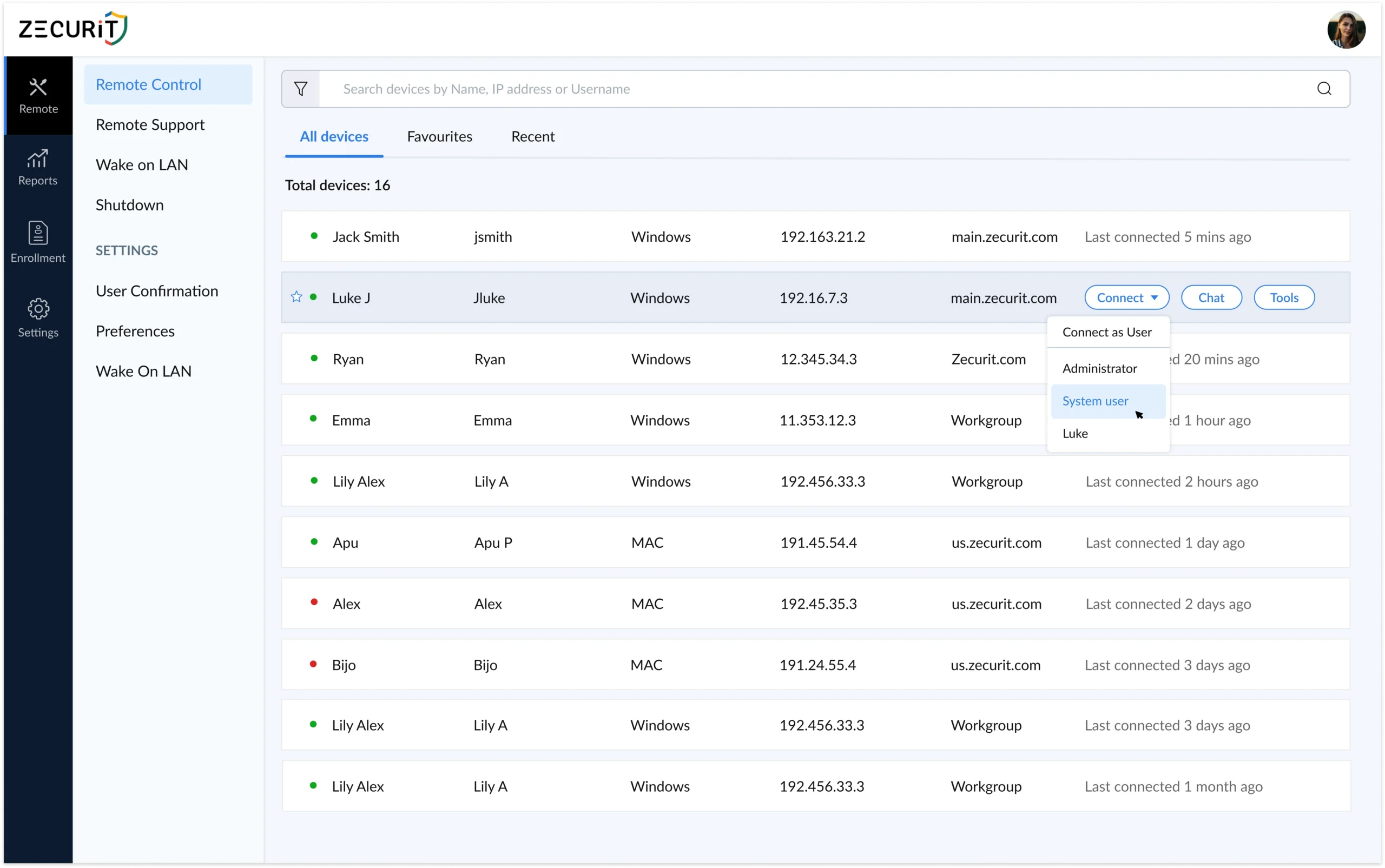
Every tool is accessible from the same console that manages your device fleet. No context switching. No separate products. One agent on each endpoint covers everything below.
High-speed, low-latency 4K desktop control with H.265 adaptive codec, multi-monitor support, and Black Screen Mode for privacy during sensitive maintenance sessions.
Instant attended support sessions via a secure Join Code. No pre-installed agent required on the user's machine. Fastest path from ticket to active session for unmanaged devices.
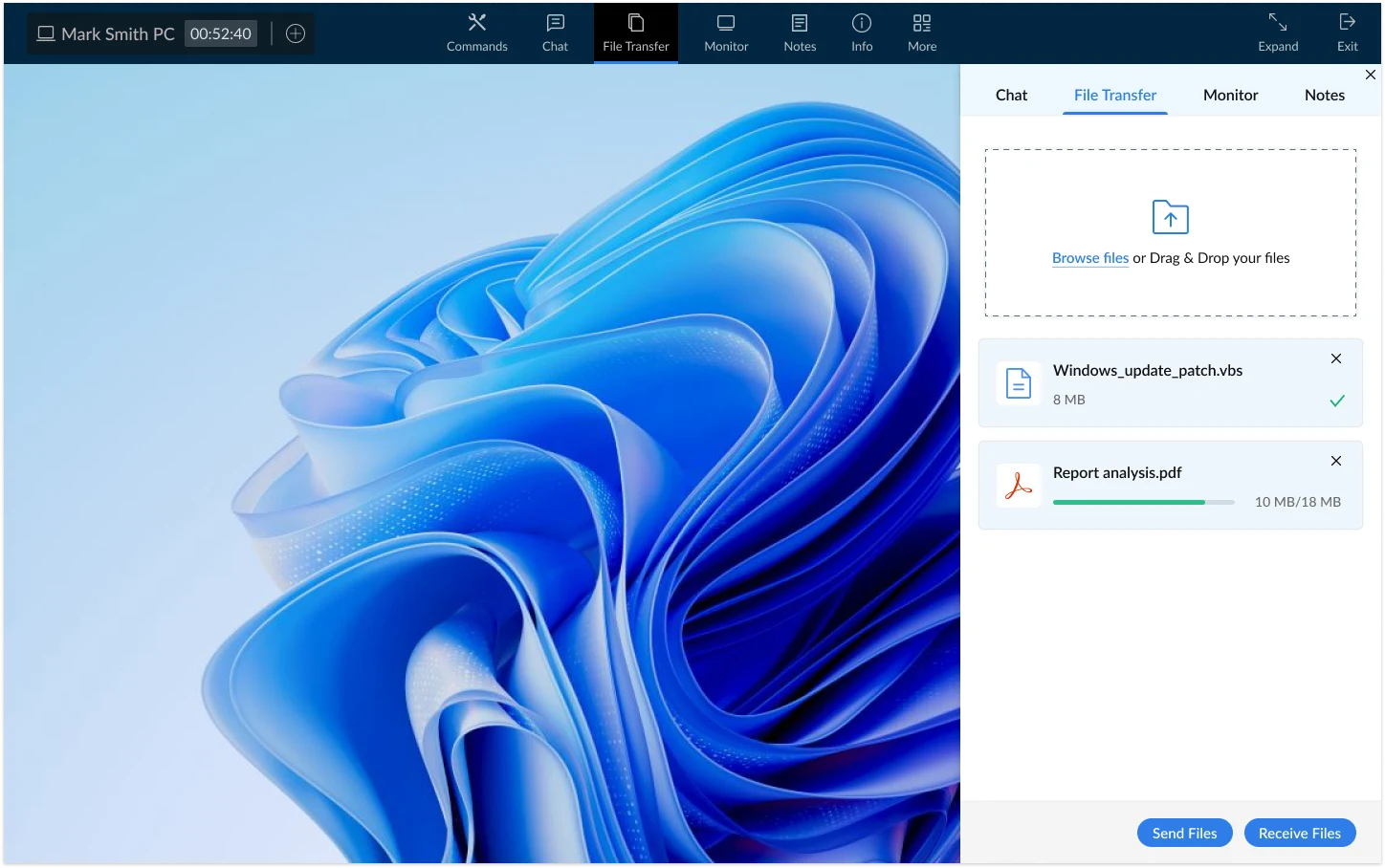
AES-256 encrypted delta transfer for pushing hotfixes, scripts, and configuration files to endpoints, or pulling crash dumps and diagnostic logs for offline analysis. No cloud intermediary.
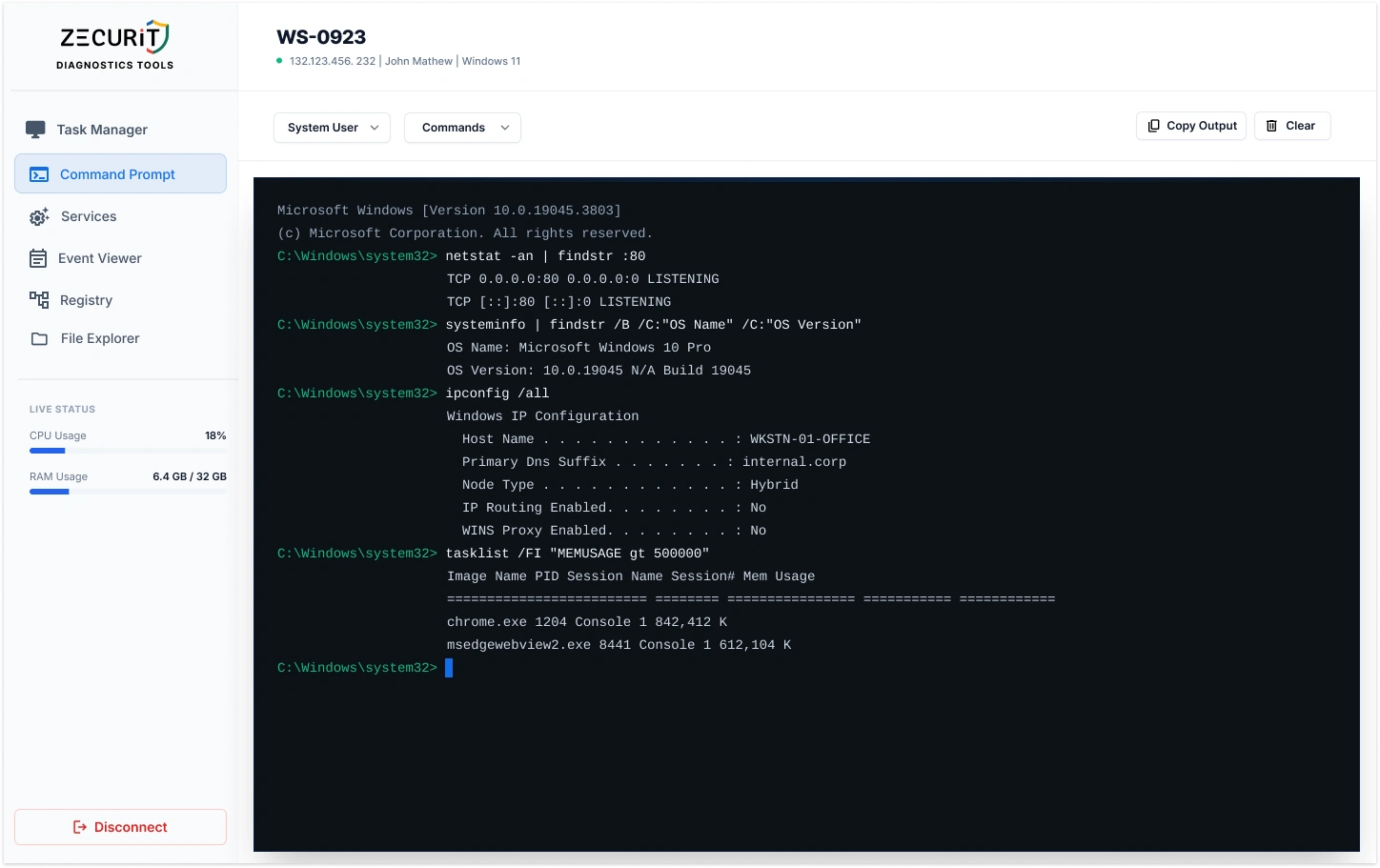
Full terminal access on any enrolled endpoint without opening a GUI session. Run PowerShell scripts, execute diagnostic commands, query system state, and automate fixes. Essential for headless server troubleshooting.
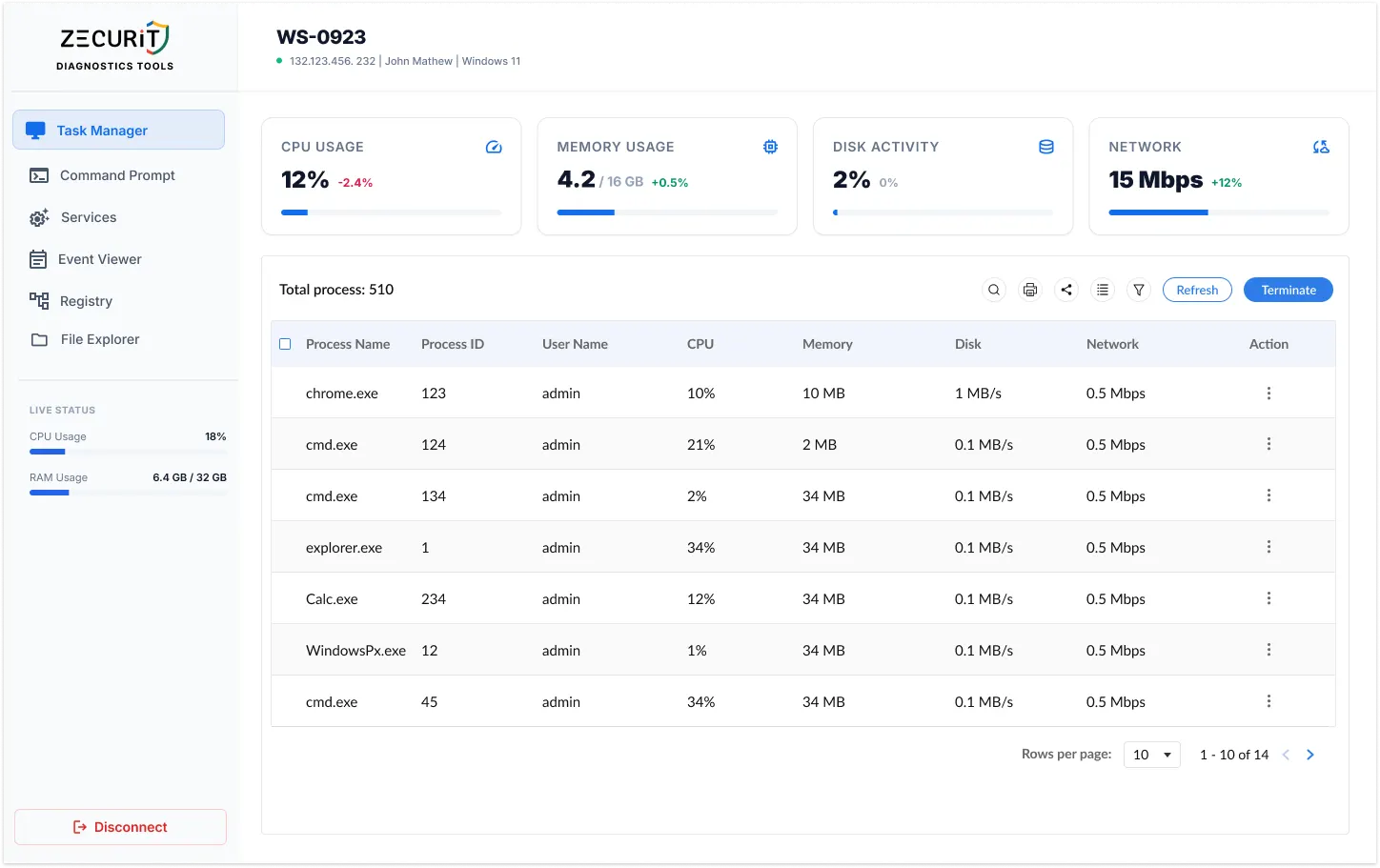
Real-time process list, CPU utilisation, memory consumption, and disk I/O on any enrolled endpoint. Identify runaway processes, kill unresponsive applications, and confirm resolution without disrupting the user's active session.
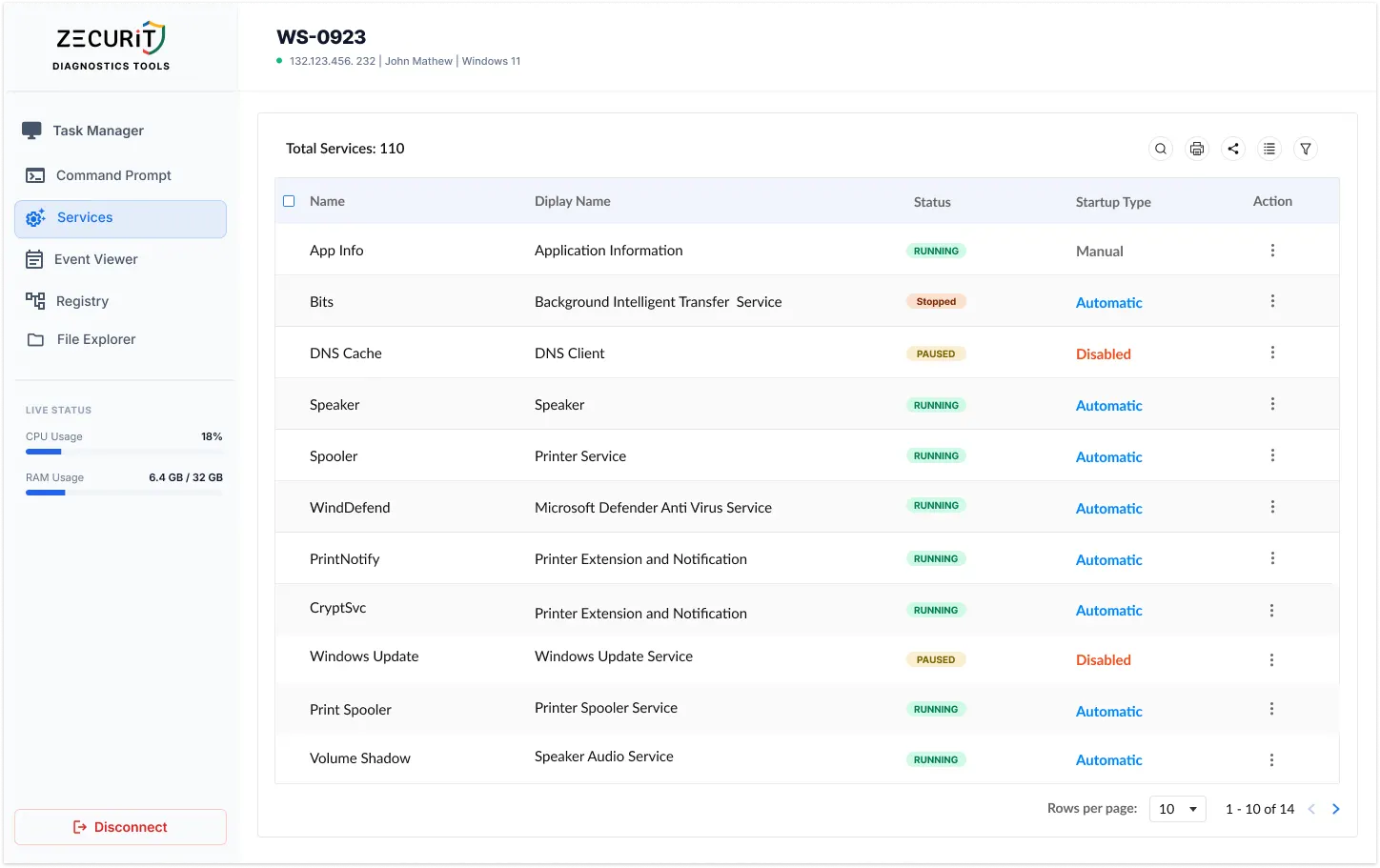
Start, stop, pause, resume, and change startup type for any Windows service on any enrolled endpoint without opening a remote desktop session. Critical for restarting crashed service-dependent applications and web servers.
Pull Application, System, Security, and custom log channels from any enrolled endpoint. Filter by Event ID, source, level, or time range. Root cause analysis for BSODs, app crashes, and failed updates without a full desktop session.
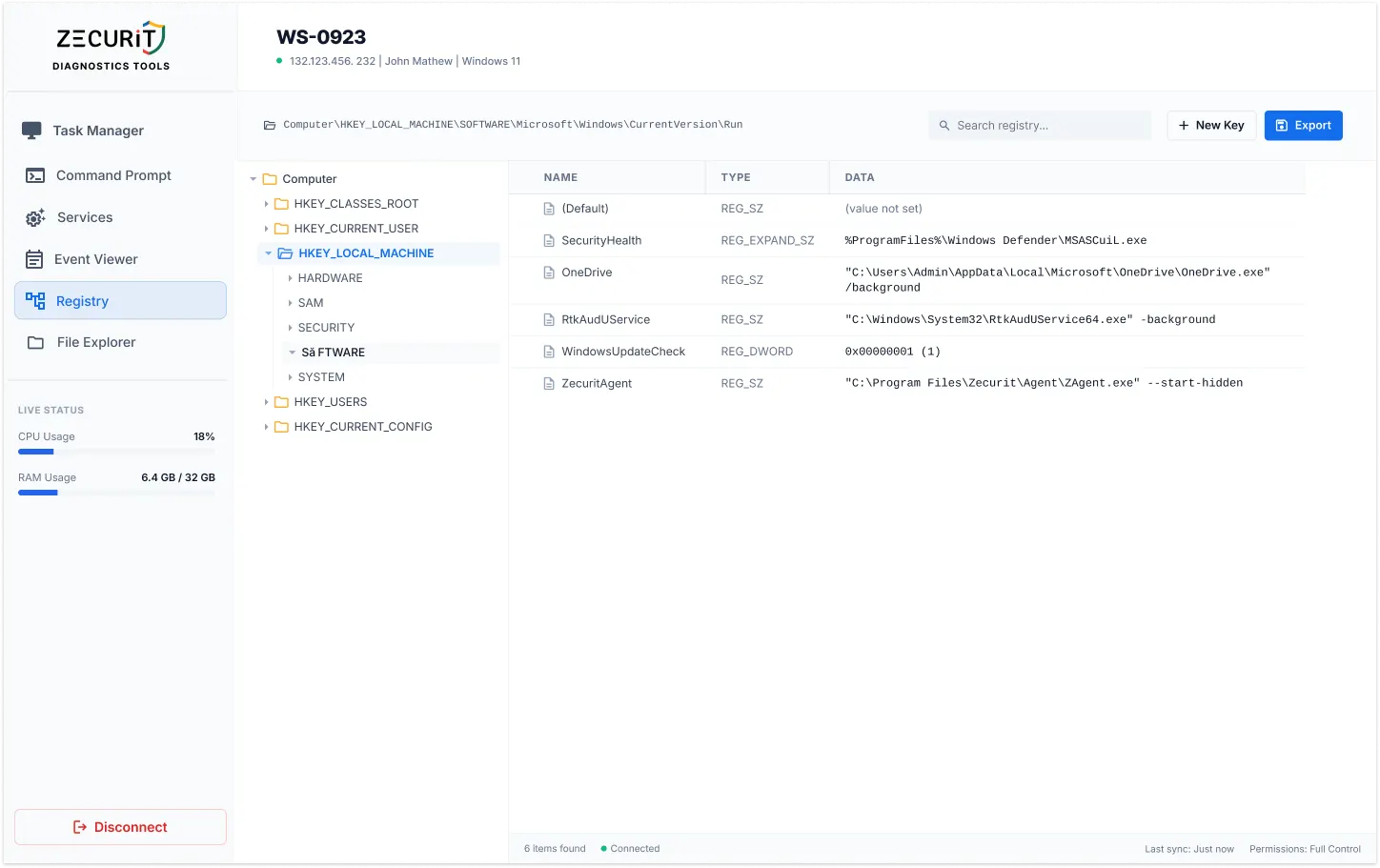
Live tree-view access to HKLM, HKCU, HKCR, and all standard Windows Registry hives on any enrolled endpoint. Create, modify, and delete keys and values for configuration fixes, policy corrections, and application workarounds.
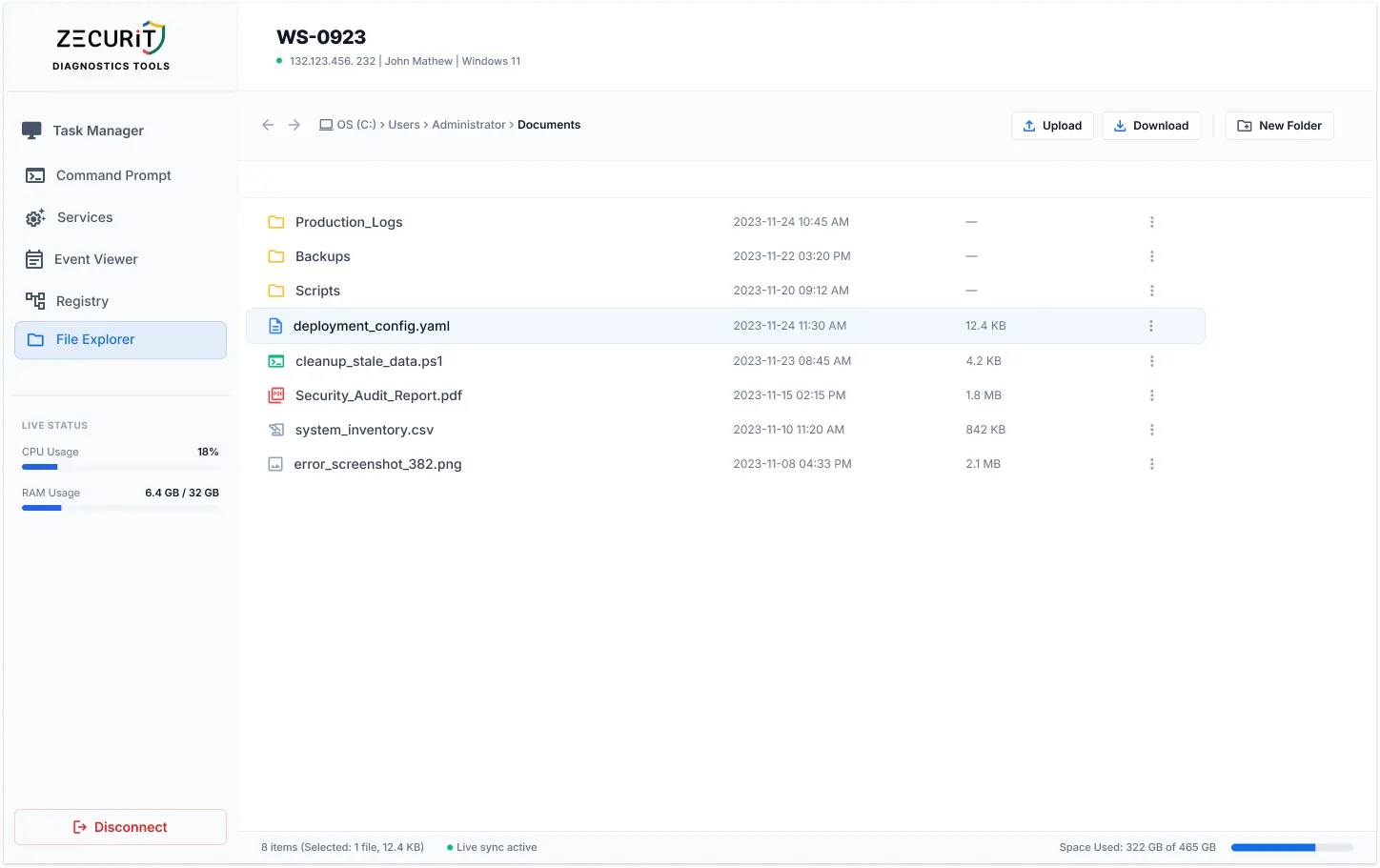
Side-by-side local and remote file system navigation with drag-and-drop transfers, rename, move, and delete operations. Browse directories, retrieve log files, and verify deployment paths without user navigation assistance.
A user submits a ticket at 10:14 AM: "My PC has been really slow for the past hour. Browser is taking forever to load pages." Here is the complete resolution workflow using the Zecurit Diagnostic Suite, with zero user session interruption.
A direct capability comparison for IT teams evaluating remote IT support tools for Level 2/3 helpdesk and SysAdmin use cases.
The Zecurit diagnostic suite is not a collection of open administrative channels. Every tool access point is protected by the same security layer as remote desktop sessions.
All data transmitted between the console and the managed endpoint is encrypted using AES-256. This includes Command Prompt output, Event Viewer log data, registry key values, and file transfer payloads.
Technician permissions are defined at the device group level. A junior helpdesk engineer can access Task Manager and File Manager while being restricted from Registry Editor and Command Prompt. Escalation is logged.
Every action is logged: tool access, commands executed, files transferred, registry modifications, and service changes. Logs satisfy HIPAA Audit Controls under 45 CFR §164.312(b) and SOC 2 Type II criteria.
Agents connect outbound only. No inbound firewall ports required. No publicly reachable administrative endpoint. Aligns with CISA Zero Trust Maturity Model for endpoint access control.
Remote troubleshooting software resolves issues that have already occurred. The highest-performing IT organisations pair reactive diagnostic capability with proactive Windows endpoint management to reduce the frequency of tickets that require manual intervention in the first place.
When an endpoint monitoring alert fires for a device reporting high disk utilisation, the technician is taken directly from the alert card to a live remote session. The Remote File Manager identifies large or unexpected files. The Event Viewer reveals whether disk writes are driven by a service, a user process, or a backup job. The Command Prompt runs a disk usage analysis script. The Service Manager pauses the responsible service while a permanent fix is planned.
Once the manual investigation identifies the root cause, software deployment pushes the fix as a silent policy to every affected device in the fleet. Remote script execution automates the remediation for future occurrences. The ticket becomes a platform improvement rather than a recurring cost. For server fleets, the same diagnostic tools operate identically through Windows server management.
Yes. All nine diagnostic tools work on Windows Server endpoints including Server Core installations without requiring a graphical desktop session or the Remote Desktop Services role. The Task Manager, Service Manager, Event Viewer, Registry Editor, Command Prompt, File Manager, and File Transfer all function independently of the RDP stack. For full server fleet management, see Windows server management software.
Forrester research links IT resolution speed and user session disruption directly to Digital Employee Experience scores. The zero‑interruption workflow enabled by Zecurit's background diagnostic tools addresses both dimensions simultaneously: issues are resolved faster because technicians have direct system access, and user disruption is eliminated because technicians no longer need to take over the active session. Organisations that transition from screen‑share‑only support to background diagnostic tooling typically report measurable improvements in helpdesk satisfaction scores within the first quarter of deployment.
No. All nine tools in the Zecurit diagnostic suite operate through the Zecurit agent running as a Windows system service. The agent does not depend on an active user session. A technician can access the Remote Task Manager, Service Manager, Event Viewer, Registry Editor, File Manager, Command Prompt, and File Transfer on any enrolled device regardless of whether a user is logged in. This makes the suite fully effective for headless server troubleshooting and for off‑hours maintenance on unattended workstations. See unattended remote access documentation for further detail.
Nine diagnostic tools. Zero user interruptions. One agent for your entire endpoint fleet. Start your free trial today with no credit card required.