

Remote desktop is a technology that lets you connect to and control a computer from another location as if you were sitting right in front of it. This remote desktop access lets you see the host computer’s screen, use its mouse and keyboard and run applications over a network connection, usually the internet. It’s a must have for modern work, for IT professionals, remote workers, students and home users.
At its core remote desktop technology is a client-server model. A “host” or “server” computer, the one you want to control, runs a remote desktop service. A “client” computer, the one you’re using, runs a remote desktop application to connect.
Here’s a step by step breakdown of the process:
Request: The client device sends a request to connect to the host computer’s IP address and port.
Authentication: The host computer verifies the client’s credentials (username and password).
Data Transmission: Once authenticated the host computer’s screen output (pixels, graphics) is compressed and sent to the client. The client’s keyboard and mouse inputs are captured and sent back to the host.
Display & Control: The client’s software decodes the incoming display data and shows it on your screen, the host computer receives and acts on your commands, effectively giving you remote control.
This happens in real time, creating the illusion of being right there. The speed and responsiveness depends on the network connection’s latency and bandwidth.
The functionality of remote desktop software is built on different protocols, which are sets of rules governing how data is transmitted. Understanding these is key to choosing the right tool.
Developed by Microsoft, RDP is the standard protocol for remote connections on Windows operating systems. It's known for its security and efficiency, especially in Microsoft environments. RDP is pre-installed on professional and enterprise versions of Windows, making it a very popular choice for remote connection.
VNC is a cross-platform protocol that works on Windows, macOS, and Linux. Unlike RDP, VNC sends the entire screen image as a series of pixel data, which can be less efficient and more bandwidth-intensive. It's highly flexible and often used in mixed-OS environments.
These solutions package a protocol with a user-friendly interface and additional features, making them ideal for everyday users.
TeamViewer: A market leader known for its ease of use and extensive features, including file transfer, chat, and support for multiple operating systems. TeamViewer is popular for personal and commercial use and IT support.
AnyDesk: A lightweight, high-performance alternative to TeamViewer. AnyDesk is praised for its low latency and smooth performance, even on slower connections.
Chrome Remote Desktop: A free, web-based tool that is simple to set up and use. It's an excellent option for quick, informal access.
| Software | Protocol | Key Features | Pricing Model | Platform Support |
|---|---|---|---|---|
| Microsoft RDP | RDP | Built-in to Windows, secure, efficient | Free (with Windows Pro) | Windows, macOS, Android, iOS |
| TeamViewer | Proprietary | File transfer, multi-session, chat, high security | Free (personal use), paid subscriptions | Windows, macOS, Linux, Mobile |
| AnyDesk | Proprietary | High-performance, low latency, lightweight | Free (personal use), paid subscriptions | Windows, macOS, Linux, Mobile |
The widespread adoption of remote desktop access is a direct result of its versatility and significant benefits.
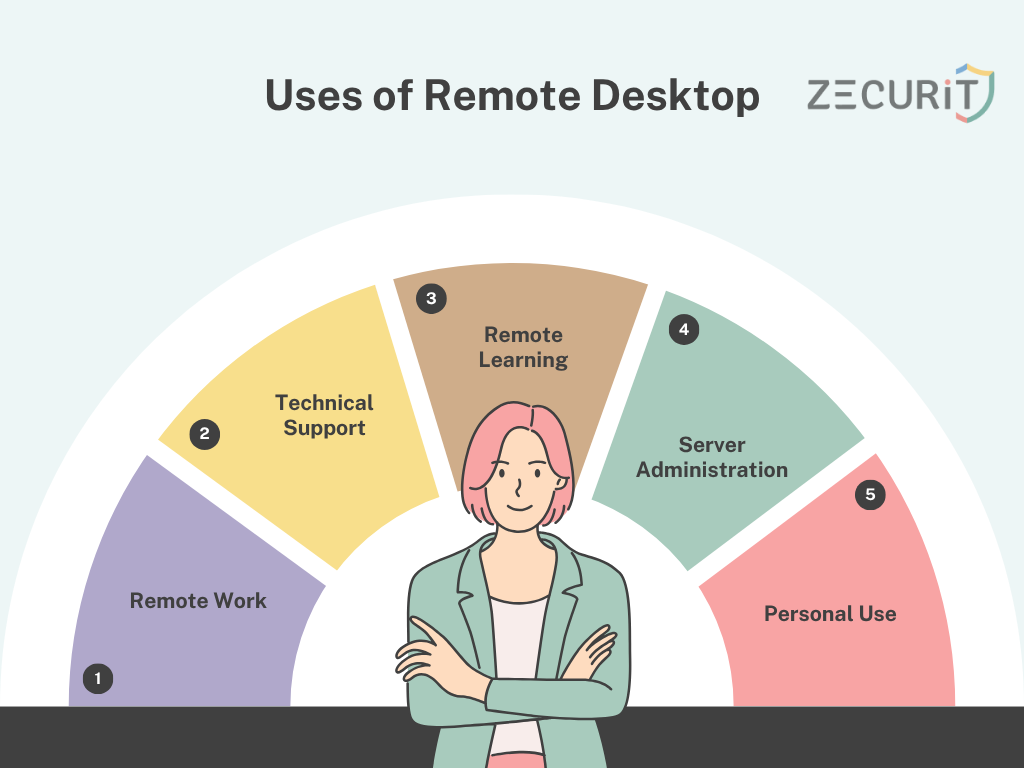
With the rise of hybrid and remote work models, remote desktop allows employees to access their office computer and all its applications and files from home, ensuring a seamless workflow. This is especially useful for resource-intensive tasks that require a powerful workstation.
IT teams and Managed Service Providers (MSPs) use remote desktop software to provide support, troubleshoot issues, install updates and perform maintenance on systems without being physically present. This drastically improves efficiency and response times. For system administrators, it’s indispensable for managing servers and network devices remotely, ensuring operational continuity.
Students can access school lab computers from home, while teachers can use remote desktop for screen sharing during lessons or to provide one-on-one help. It also facilitates collaboration, allowing multiple users to view and work on the same screen.
Despite its benefits, remote desktop has some limitations:
Bandwidth Dependency: A slow or unstable internet connection can lead to lag, making the experience frustrating.
Security Risks: If not configured properly, remote desktop can be a target for cyberattacks.
Lack of Physical Access: You cannot perform tasks that require physical interaction with the computer, such as restarting it after a power outage.
Using Windows as an example, setting up a remote desktop connection is easy.
Enable Remote Desktop: On the host computer, go to Settings > System > Remote Desktop and toggle the setting to "On."
Find PC Name: Note down the host computer’s name, which is listed on the same settings page.
On the Client Device: Open the "Remote Desktop Connection" application.
Connect: Enter the host PC’s name or IP address and click "Connect." You’ll be prompted to enter the host computer’s username and password.
The convenience of remote access comes with security risks. Without proper remote desktop security measures, your system could be vulnerable to unauthorized access.
Use Strong Passwords: This is the most important one. Use complex, unique passwords for all accounts that have remote access enabled.
Enable Two-Factor Authentication (2FA): Where available, use 2FA to require a second form of verification, such as a code from your phone, in addition to your password.
Change the Default Port: Hackers scan for the default RDP port (3389). Change this to a non-standard port to deter automated attacks.
Limit Access: Only enable remote access for the specific users and IP addresses that need it. Never leave your computer accessible to the public internet without proper security.
Use a Virtual Private Network (VPN): A VPN encrypts your entire connection, creating a secure tunnel for your remote desktop traffic. The Cybersecurity and Infrastructure Security Agency (CISA) recommends using a VPN to protect remote connections.
By following these best practices, you can minimize the security risks of remote desktop.
Remote desktop is a powerful tool for modern life and work, giving you the flexibility to work from anywhere. From IT support to remote collaboration, the uses are endless. While tools like RDP, TeamViewer, and AnyDesk have different features and use cases, they all have one common goal: to give you remote access. Remember, the key to a great experience is understanding the tech and most importantly, prioritizing remote desktop security to keep your data safe.