Overview
Software Metering helps IT administrators and Managed Service Providers (MSPs) track how software applications are being used across managed devices. It provides visibility into application usage patterns, helping organizations optimize software licensing costs, identify underutilized applications, improve compliance, and make data-driven software procurement decisions.
With Software Metering, you can:
- Monitor software usage duration and launch frequency
- Identify rarely used or unused applications
- Optimize software license allocation and renewal decisions
- Track application adoption across departments and users
- Analyze software utilization trends
- Generate detailed software usage reports for auditing and compliance
How Software Metering Works
Software Metering tracks executable files (.exe) running on managed endpoints.
When a software metering rule is configured:
- The Zecurit Agent monitors the specified executable file.
- Application launch events are recorded.
- Run time and run count statistics are collected.
- Usage data is periodically uploaded to the Zecurit server.
- Reports and dashboards are updated with usage information.
Examples:
| Software | Executable |
|---|---|
| Microsoft Word | WINWORD.EXE |
| Microsoft Excel | EXCEL.EXE |
| Google Chrome | CHROME.EXE |
| Adobe Acrobat | ACROBAT.EXE |
| AutoCAD | ACAD.EXE |
Benefits for IT Teams and MSPs
| Benefit | Description |
|---|---|
| License Optimization | Identify software licenses that are not actively used and reclaim them for other users. |
| Cost Reduction | Avoid renewing expensive licenses that have low utilization. |
| Compliance Audits | Provide evidence of software usage during internal or external audits. |
| Application Standardization | Identify redundant software performing similar functions. |
| User Adoption Tracking | Measure adoption of newly deployed applications. |
| Capacity Planning | Understand application demand before purchasing additional licenses. |
Prerequisites
Before using Software Metering, ensure that:
- Devices are enrolled in Zecurit Endpoint Manager or Zecurit Asset Manager Product.
- The Zecurit Agent is installed and online on target devices.
- Inventory scans are running regularly.
- Software inventory data is available (Software Metering rules are created against discovered software).
- You have the appropriate permissions to create and manage metering rules.
Accessing Software Metering
Navigate to:
Inventory → Software Metering
The Software Metering page (see screenshot below) displays a summary table with the following columns:
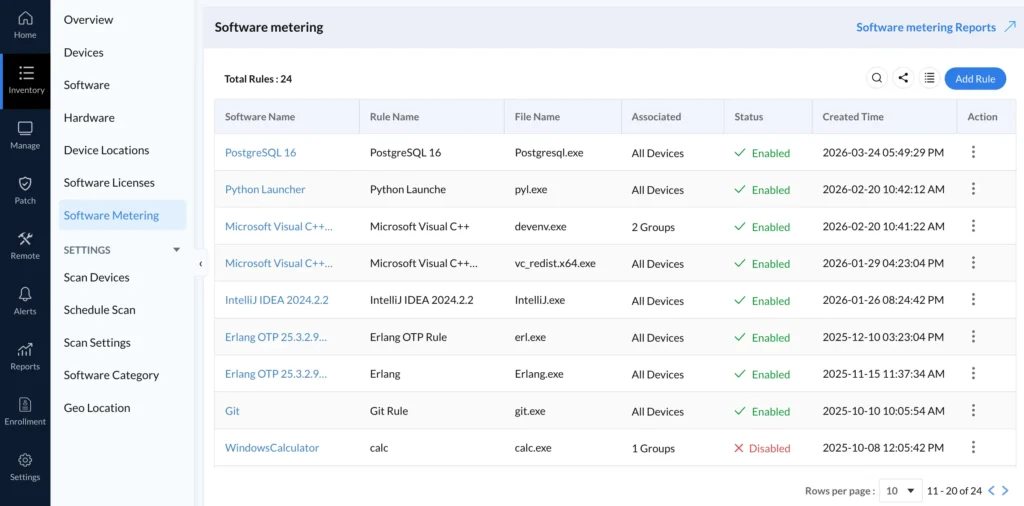
| Column | Description |
|---|---|
| Software Name | Name of the application being monitored |
| Rule Name | The custom name given to the metering rule |
| File Name | The executable file being tracked (e.g., chrome.exe) |
| Associated | Number of device groups associated with the rule (or “All Devices”) |
| Status | Enabled or Disabled |
| Created Time | Date and time the rule was created |
| Action | Edit, Disable/Enable, Delete |
The page header shows the Total Rules count, and provides a search icon, an export/share icon, a list-view toggle, and an Add Rule button to create a new rule. A Software Metering Reports shortcut link in the top-right corner takes you directly to the related reports.
Available Actions
Administrators can:
- Create new rules
- Edit existing rules
- Enable or disable rules
- Delete rules
- Associate rules with device groups
- View software usage reports
Creating a Software Metering Rule
Software Metering rules define what application usage should be monitored, and the rule creation form is organized into three sections: Software and File Details, User Categorization, and Scope of Tracking.
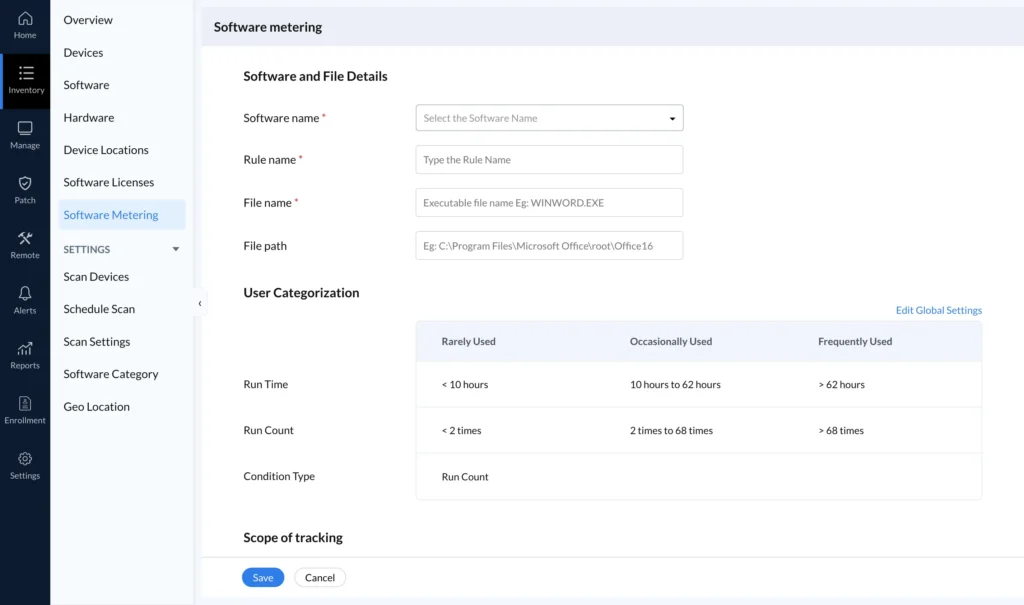
Step 1: Open Add Rule
Navigate to:
Inventory → Software Metering
Click Add Rule (top-right of the Software Metering page).
Step 2: Configure Software and File Details
Software Name (required)
Select the software from the discovered software inventory using the Select the Software Name dropdown.
Example:
- Microsoft Office Word
- Google Chrome
- Adobe Acrobat Reader
Rule Name (required)
Enter a meaningful name for the monitoring rule in the Type the Rule Name field.
Examples:
- Microsoft Word Usage Tracking
- Chrome Usage Monitoring
- AutoCAD License Monitoring
Best Practice: Use descriptive names that clearly indicate the purpose of the rule (e.g., department or use case), since rule names — not just software names — are shown in the rules list and reports.
File Name (required)
Specify the executable file name in the Executable file name field (placeholder example: WINWORD.EXE).
| Application | File Name |
|---|---|
| Word | WINWORD.EXE |
| Excel | EXCEL.EXE |
| Chrome | CHROME.EXE |
| Acrobat | ACROBAT.EXE |
| Teams | TEAMS.EXE |
Important: The executable name must exactly match the process running on the endpoint, including the
.exeextension. A mismatched or misspelled file name is the most common reason a rule fails to collect data.
File Path (optional)
Specify the application installation path (placeholder example: C:\Program Files\Microsoft Office\root\Office16).
Use the file path when multiple applications use similar executable names, or when more precise tracking is required (for example, distinguishing a 32-bit and 64-bit install of the same application).
Step 3: Configure User Categorization
User Categorization automatically classifies users based on application usage, and is configured directly below the file details on the same Add Rule form. This helps identify:
- Heavy users
- Occasional users
- Infrequent users
Usage Categories
| Category | Description |
|---|---|
| Rarely Used | Users who rarely launch or use the application |
| Occasionally Used | Users with moderate software usage |
| Frequently Used | Users who actively use the software |
Condition Type
The categorization can be based on either Run Time or Run Count. The Add Rule form displays default thresholds for both, and the Condition Type field shown on the rule itself indicates which one is actively applied to that rule.
Run Time : Classifies users based on total application usage duration.
| Category | Usage |
|---|---|
| Rarely Used | < 50 hours |
| Occasionally Used | 50–62 hours |
| Frequently Used | > 62 hours |
Run Count : Classifies users based on the number of application launches.
| Category | Usage |
|---|---|
| Rarely Used | < 54 launches |
| Occasionally Used | 54–68 launches |
| Frequently Used | > 68 launches |
Note: These thresholds are organization-wide defaults. Click Edit Global Settings (top-right of the User Categorization section) to modify them for all software metering rules, ensuring consistent reporting across the organization.
Step 4: Define Scope of Tracking
Scroll down to the Scope of tracking section to define which devices should be monitored under Associate Groups:
All Devices / Groups
Track software usage across all managed endpoints (selected by default).
Recommended for:
- Common business applications
- Organization-wide license monitoring
- Audit requirements
Custom Group
Track software usage only for selected device groups.
Examples:
- Finance Department
- Engineering Team
- Design Team
- Remote Workforce
Recommended for:
- Department-specific licensing
- Cost center allocation
- MSP customer-specific reporting
Step 5: Save the Rule
Once all sections are configured, click Save to activate the rule, or Cancel to discard your changes.
Managing Software Metering Rules
From the Software Metering list, use the Action menu (⋮) next to any rule to:
Edit Rule
Modify:
- Rule Name
- File Name
- File Path
- Categorization Settings
- Device Associations
Disable Rule
Temporarily stop tracking software usage without deleting historical data.
Recommended during:
- Application migration
- Software replacement projects
- Temporary monitoring suspension
Delete Rule
Permanently removes the rule.
Note: Historical usage data may remain available in reports depending on retention policies.
Software Metering Reports
Navigate to:
Reports → Software Metering
(You can also reach this directly from the Software Metering Reports link at the top of the Software Metering rules page.)
Software Metering Reports provide detailed insights into application utilization across your organization, and sit alongside related categories such as Software Reports and License Reports in the Reports section.
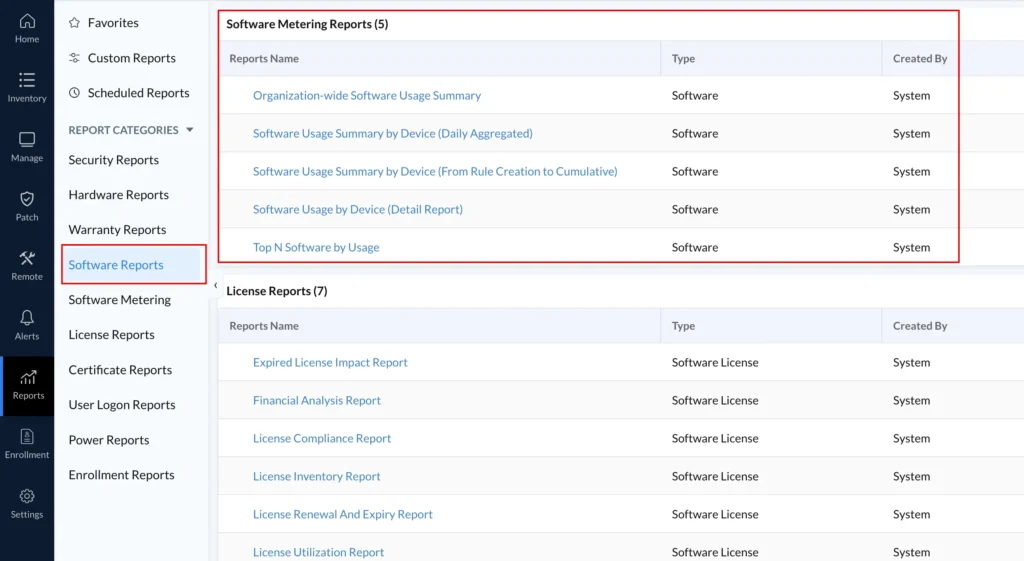
Available Software Metering Reports
1. Organization-wide Software Usage Summary
Purpose: Provides a consolidated view of software usage across all managed devices.
Information Included:
- Software Name
- Number of Users
- Number of Devices
- Total Run Time
- Total Run Count
- Utilization Trends
Use Cases:
- License planning
- Executive reporting
- Software budgeting
- Procurement decisions
2. Software Usage Summary by Device (Daily Aggregated)
Purpose: Displays daily software usage statistics aggregated by device.
Information Included:
- Device Name
- User
- Software Name
- File Name
- Rule Name
- Daily Run Time (Duration)
- Daily Launch Count
Use Cases:
- Daily utilization monitoring
- Employee productivity analysis
- Department usage reviews
3. Software Usage Summary by Device (From Rule Creation to Cumulative)
Purpose: Shows cumulative software usage from the date the metering rule was created.
Information Included:
- Device Name
- Software Name
- File Name
- Rule Period
- Rule Name
- Usage Category (Rare, Frequent, Occasional)
- Total Run Time
- Total Run Count
- Usage Category
Use Cases:
- Long-term utilization analysis
- License optimization projects
- Renewal planning
4. Software Usage by Device (Detail Report)
Purpose: Provides granular software usage details for each endpoint.
Information Included:
- Device Name
- User Name
- Software Name
- Start Time
- End Time
- Active Duration
Use Cases:
- Audit investigations
- Detailed software analysis
- Troubleshooting licensing issues
5. Top N Software by Usage
Purpose: Identifies the most actively used software applications.
Information Included:
- Top Applications
- Total Users
- Total Run Count
- Total Active Duration
- Avg Run Duration Per Device
Use Cases:
- Software standardization
- Budget planning
- License allocation
- User adoption measurement
Software Metering Best Practices
Monitor High-Cost Software
Track expensive software such as:
- AutoCAD
- Adobe Creative Cloud
- Microsoft Project
- Microsoft Visio
- SAP Clients
- Engineering Applications
Review Reports Monthly
Review software utilization before:
- License renewals
- Procurement cycles
- Budget approvals
Use Department-Based Rules
Create separate rules for:
- Finance
- HR
- Engineering
- Sales
This improves reporting accuracy and cost allocation.
Reclaim Unused Licenses
Identify users classified as:
- Rarely Used
- Inactive
- Zero Usage
Reassign licenses where appropriate.
MSP Recommendation
For MSP environments:
- Create customer-specific metering rules.
- Associate rules with customer device groups.
- Schedule monthly usage reports.
- Provide utilization reports during customer review meetings.
- Use software metering data to recommend license optimization services.
Troubleshooting
Software Not Appearing in Reports
Possible causes:
- Metering rule not created.
- Incorrect executable name (verify it matches the process name exactly, including the
.exeextension). - Device has not synchronized recently.
- Application has not been launched since the rule was created.
Run Time Showing Zero
Possible causes:
- Application was not used.
- Agent communication issue.
- Rule recently created (no usage cycles have completed yet).
Verify device connectivity and agent status.
Usage Data Delayed
Usage information is uploaded during agent synchronization cycles. Allow sufficient time for data collection and report generation before assuming a rule has failed.
Rule Shows “Disabled” Unexpectedly
Check the Status column on the Software Metering list. If a rule was intentionally disabled (for example, during an application migration), re-enable it via the Action menu once the migration is complete.