Overview
Scan Devices is the starting point for patch management. First, scan the device to identify any missing patches. Once the missing patches are detected, they can be installed. The results of that scan are what populate Missing Patches, Installed Patches, and the severity breakdown used across the rest of the Patch Management pages.
What is Scan Devices?
Scan Devices, found under Secure → Devices Tab, checks each enrolled endpoint against the current patch catalog to identify missing updates. It is the first step in the patch management process. A device must be scanned at least once before it can show current information in Missing Patches, Installed Patches, or All Patches.
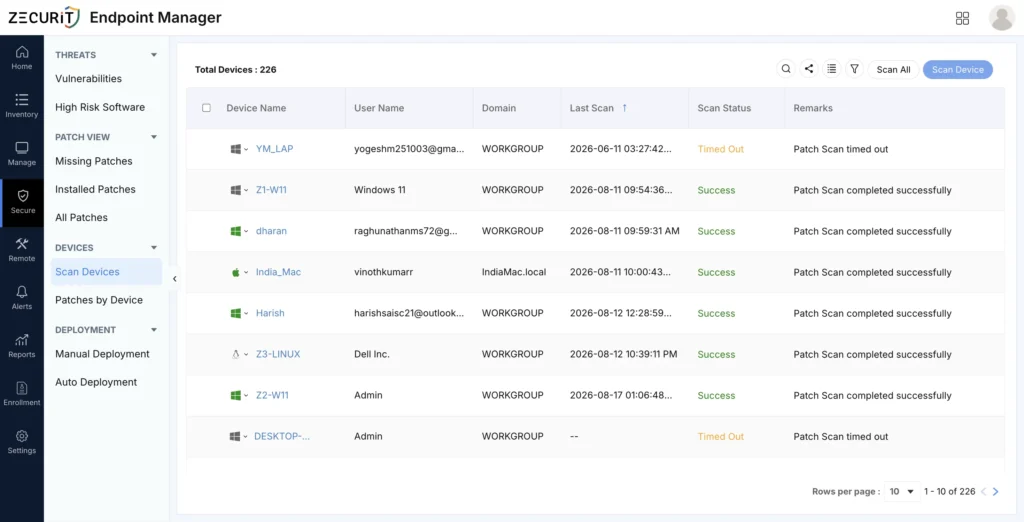
Step 1 : Navigate to Scan Devices
- Log in to the Zecurit portal.
- Go to Endpoint Manager → Secure → Devices.
- Click Scan Devices.
Step 2 : Select Devices to Scan
Find the device you want to scan, or select multiple devices using the checkboxes.
Step 3 : Run the Scan
Click Scan Device to scan the selected devices, or Scan All to scan all devices in the list.
Step 4 : Monitor Scan Progress
Check the Scan Status column to monitor the scan progress.
Understanding the Devices List
| Column | Description |
|---|---|
| Device Name | The enrolled endpoint being scanned. |
| User Name | The primary user account associated with the device. |
| Domain | The domain or workgroup the device belongs to. |
| Last Scan | Shows the date and time of the last completed scan |
| Scan Status | The current state of the scan for that device. |
| Remarks | Additional detail about the current status, such as the reason a scan did not complete. |
Scan Status Values
Each device shows one of the following statuses:
| Status | Meaning |
|---|---|
| Scan not initiated | A scan has been requested but has not started yet. |
| In progress | The scan is currently in progress on that device. |
| Successful | The scan finished successfully; results are available in Missing Patches and All Patches. |
| Timed Out | The device did not respond in time, and no results were returned. See Remarks for detail. |
| Failed | The scan started but could not finish, typically due to a connectivity or agent issue on the device. |
Best Practices
- Scan devices on a regular schedule so Missing Patches always reflects current data.
- Investigate any device stuck on Timed Out or Failed before assuming it has no missing patches.
- Use Scan Device for a small, targeted group instead of Scan All when you only need to check specific machines.
- Check Last Scan before reviewing severity data, to confirm the results aren’t outdated.
Troubleshooting Tips
| Issue | Resolution |
|---|---|
| Scan Status stuck on Scan not initiated | Confirm the device is online and the endpoint agent is running. |
| Scan Status shows Timed Out | Check the device’s network connectivity, then re-run the scan for that device. |
| Last Scan shows “Date and Time” | The device has not completed a scan yet; run Scan Device or Scan All to generate results. |