Overview
Patch View provides a central place to review patch compliance across your environment. It organizes patch information by patch, making it easy to identify Missing Patches, verify Installed Patches, review All Patches, and view Patches by Device. These four views help administrators quickly understand patch status and take action when needed.
All information in Patch View is based on the results of the most recent device scan. Therefore, patch counts and compliance status are updated based on the latest successful scan of each device.
Navigation: Endpoint Manager → Secure → Patch View
1. Missing Patches
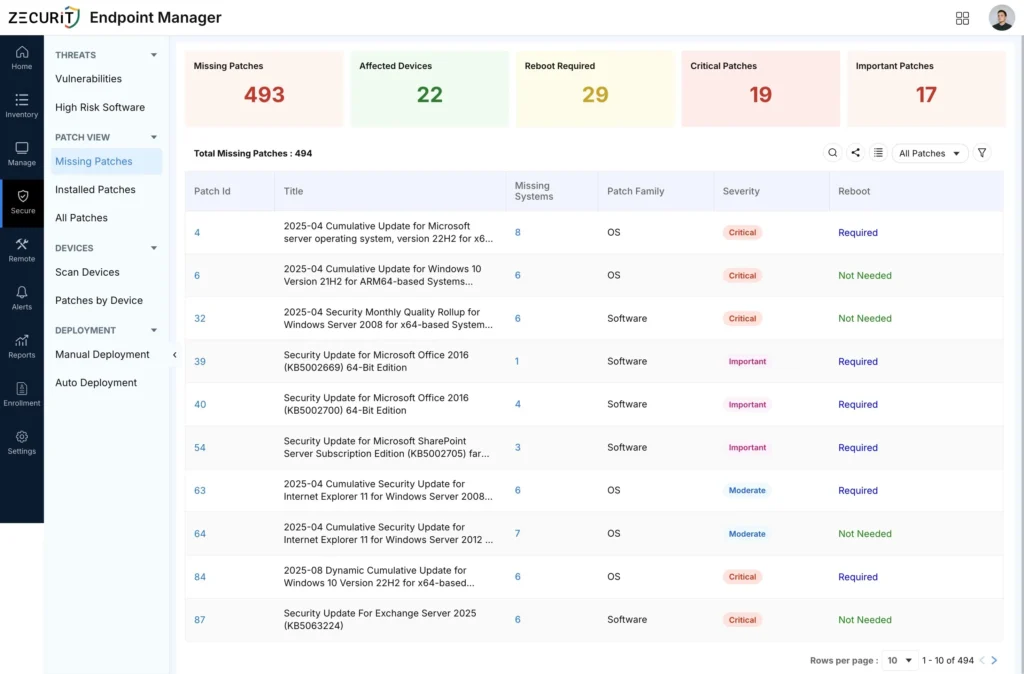
Missing Patches shows the patches that are not installed on your devices. You can see how many devices are affected, view the affected devices, and deploy the patches when needed.
Steps
- Go to Patch View → Missing Patches.
- Review the list of missing patches and how many devices are affected by each.
- Click a patch to see which devices are missing it.
- Select devices and deploy, or move to Manual Deployment for a controlled rollout.
2. Installed Patches
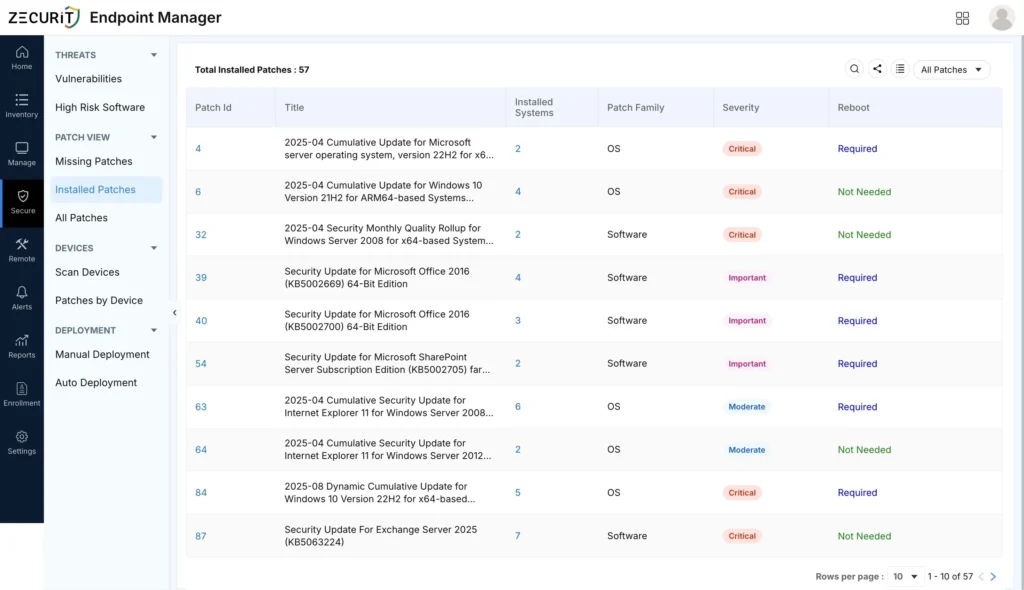
Installed Patches shows the patches that are already installed on your devices. You can see how many devices have each patch and quickly review its details.
Steps
- Go to Patch View → Installed Patches.
- Review the total count and the list of installed patches.
- Use Search to find a specific patch, or Filter to narrow the list.
- Click the Installed Systems count to see which devices have it.
- Select devices and click Uninstall if removal is needed.
Key columns: Patch Id, Title, Installed Systems, Patch Family, Severity, Reboot (Required / Not Needed).
Use case: Severity shows “Not Available” when no rating has been assigned, not that the patch is low risk.
3. All Patches
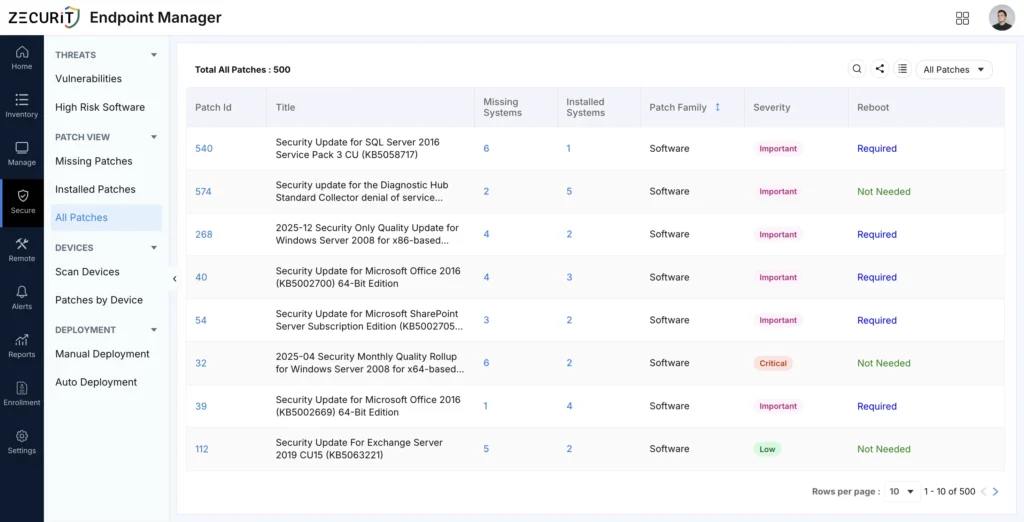
All Patches shows both missing and installed patches in one list. It displays the number of devices where each patch is missing or installed, making it easy to understand the overall patch status in one place.
Steps
- Go to Patch View → All Patches.
- Review the Total All Patches count at the top.
- Use the All Patches dropdown to filter by family or status.
- Click a Patch ID, or the number under Missing Systems / Installed Systems, to see the devices behind it.
Reading the numbers: High Missing / low Installed = early rollout. Low Missing / high Installed = nearly complete.
Patch by Device
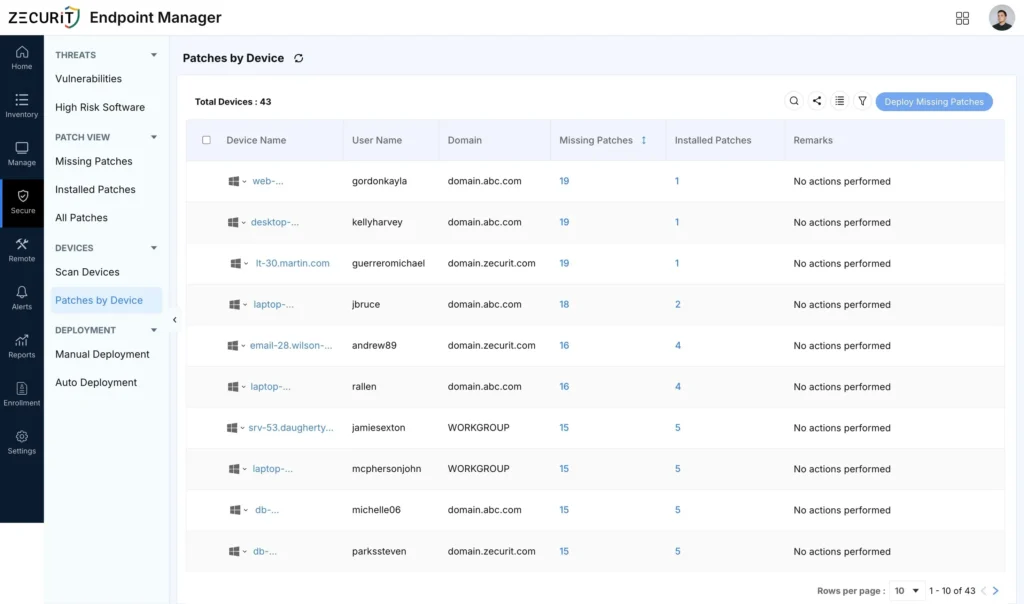
Patches by Device shows the missing and installed patches for each device and lets you install or uninstall patches directly from the list.
Steps
- Log in to the Zecurit portal.
- Go to Endpoint Manager → Secure → Devices.
- Select Patches by Device.
- Review the Missing Patches and Installed Patches counts for each device.
- Click the Installed Patches count to view the list of patches installed on the selected device.
- Review the total number of installed patches and select a patch if you need to uninstall it.
- Click the Missing Patches count to view the list of patches missing from the selected device.
- Review the total number of missing patches and select a patch if you need to install it.
Severity guide
| Severity | Recommended Action |
|---|---|
| Critical | Remediate within 24–48 hours |
| Important | Remediate within 7–14 days |
| Moderate | Include in next maintenance window |
| Low | Patch at next scheduled opportunity |
Best Practices
- Start with Missing Patches for a quick read; use Missing Patch Detection when you need to filter, remediate, or report.
- Use All Patches for comparison across the catalog, not focused triage.
- Use Installed Patches to confirm rollout after any deployment.
- Re-scan devices regularly, every view depends on the latest scan.
- Cross-check Severity across all four views to prioritize Critical and Important patches first.
Troubleshooting Tips
| Issue | Resolution |
|---|---|
| Patch counts look outdated | Re-scan the affected devices from Scan Devices. |
| Not sure which view to use | Missing Patches for a quick list, Installed Patches to confirm rollout, All Patches to compare both, Missing Patch Detection to filter and remediate. |
| A patch shows in one view but not another | Check that filters, device group, or severity scope match across views. |
| Deployed patch still shows as missing | Allow time for install and check-in, then re-scan and refresh. |