An Application Group is a collection of applications that you want Application Control to manage. You can create a group using the product name, vendor, executable file, file hash, or folder path. After creating the group, assign it to a Deployment Policy to allow or block the selected applications.At least one Application Group must exist before you can create a Deployment Policy.
What is an Application Group?
An Application Group defines the applications that Application Control identifies on a device. The action taken for those applications, such as Block or Allow, is configured in the Deployment Policy. The same Application Group can be used with different policies for different devices based on the required action.
Create Application Group
- Log in to the Zecurit portal.
- Go to Endpoint Manager → Application Control.
- On the Application Control page, select the Application Group tab.
- Click Create Application Group
- Select the required Platform, such as Windows, Linux, or macOS.
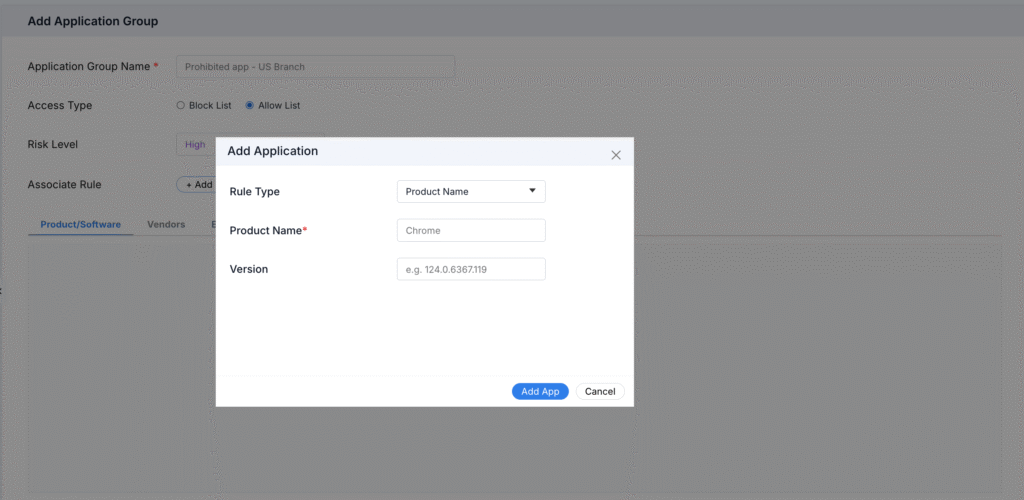
- Click + Add Application Group to open the application group configuration.
- Enter the required group details and configure the application rules.
- Click Add App List to save the application group.
Saved groups become available for selection when building a Deployment Policy.
Configuring Group Details
| Field | Required | Description |
|---|---|---|
| Application Group Name | Yes | A descriptive, unique name (e.g., “Prohibited app – US Branch”). Use naming conventions that indicate scope or purpose, since this name appears later in policy and violation records. |
| Access Type | Yes | Determines whether listed applications are blocked or the only ones permitted. |
| Risk Level | No | Classifies the group’s severity for reporting and prioritization. |
| Associate Rule | Yes | The actual application matching rules that define group membership. |
Access Type: Block List vs. Allow List
| Access Type | Behavior | Typical Use Case |
|---|---|---|
| Block List | Applications matching the group’s rules are denied; everything else is permitted | Blocking known risky, unlicensed, or non-business software (e.g., torrent clients, unauthorized browsers) |
| Allow List | Only applications matching the group’s rules are permitted; everything else is denied | Locking down highly regulated or kiosk-style devices to a fixed software set |
Block List is selected by default and suits most general-purpose enforcement. Allow List is more restrictive and is typically reserved for high-security environments, since any application not explicitly listed will be prevented from running.
Risk Level
Risk Level is a classification tag (Low, Medium, High) rather than an enforcement setting. It doesn’t change how the group is enforced, but it does:
- Appear in reports and dashboards to help prioritize review.
- Help other admins quickly gauge the sensitivity of a group without opening its rule list.
- Support filtering when auditing large numbers of application groups over time.
As a general guideline:
| Risk Level | Example Scenarios |
|---|---|
| High | Malware-adjacent tools, unauthorized remote access software, unlicensed P2P/torrent clients |
| Medium | Consumer cloud storage apps, unsanctioned browsers, unmanaged VPN clients |
| Low | Legacy internal tools being phased out, low-impact utilities under review |
Associating Rules
Rules define exactly which applications belong to the group. You can build rules three ways:
- + Add New: manually create a rule using one of the match types below.
- Select from existing: reuse a rule already defined elsewhere in your organization, keeping definitions consistent across groups.
- Import CSV: bulk upload a list of applications, useful when migrating an existing block/allow list from another tool or spreadsheet.
If no rules have been added yet, the group will show “No rules added yet” until at least one is created. A group with no rules has nothing to enforce.
Match Types Explained
Rules can identify applications using any of five match types, available as tabs when adding a rule:
| Match Type | Matches On | When to Use |
|---|---|---|
| Product/Software | The application or product name | Broadest match; blocks/allows an app regardless of publisher-signed executable name or install location |
| Vendors | The software publisher | Useful for blocking or allowing everything from a specific vendor at once |
| Executable | The executable file name (e.g., chrome.exe) | More precise than product name; useful when the product name is inconsistent across versions |
| File Hash | A specific file’s cryptographic hash | Most precise; targets an exact file/version, ignoring renamed copies with different hashes |
| Folder Path | The install or execution directory | Useful for blocking anything launched from a specific location, such as a USB drive or temp folder |
Tip: Combine match types within a single group when needed. For example, match by Vendor to catch most releases, plus File Hash entries for specific flagged builds.
Example Application Groups
| Group Name | Access Type | Risk Level | Match Type Used |
|---|---|---|---|
| Prohibited app – US Branch | Block List | High | Product/Software |
| Approved Browsers – Kiosk Devices | Allow List | Low | Executable |
| Unauthorized Remote Access Tools | Block List | High | Vendors |
| Flagged Build – CVE Review | Block List | Medium | File Hash |
Best Practices
- Keep group names specific and self-explanatory, since they surface later in the Violations log.
- Start new block rules with Notify Only enforcement (configured at the policy level) before switching to Block Execution, to avoid disrupting legitimate workflows.
- Use File Hash matching for time-sensitive security responses (e.g., a newly identified malicious binary) rather than waiting to identify a stable product name.
- Periodically review Risk Level tags to ensure they still reflect current threat priorities.
Troubleshooting Tips
| Issue | Resolution |
|---|---|
| “No rules added yet” won’t clear | Add at least one rule via + Add New, Select from existing, or Import CSV before saving |
| CSV import fails | Confirm the file matches the expected column format; check for missing required fields or malformed entries |
| Group not appearing in Deployment Policy selector | Confirm the group was saved successfully with Add App List, not left in an unsaved draft state |
| Wrong applications being matched | Review the match type used; Product/Software matches are broader than Executable or File Hash |