A deployment policy is what actually enforces an application group on real devices. It ties one or more application groups to an enforcement action, defines what end users see when something is blocked, and scopes the policy to specific device groups, with the option to exclude individual exceptions.
What is a Deployment Policy?
While an application group defines what to look for, a deployment policy defines how and where it’s enforced. The same application group can be attached to multiple policies. For example, one policy could silently audit a group across the whole organization, while a second, stricter policy actively blocks the same group on a smaller, high-risk device population.
Create Deployment Policy
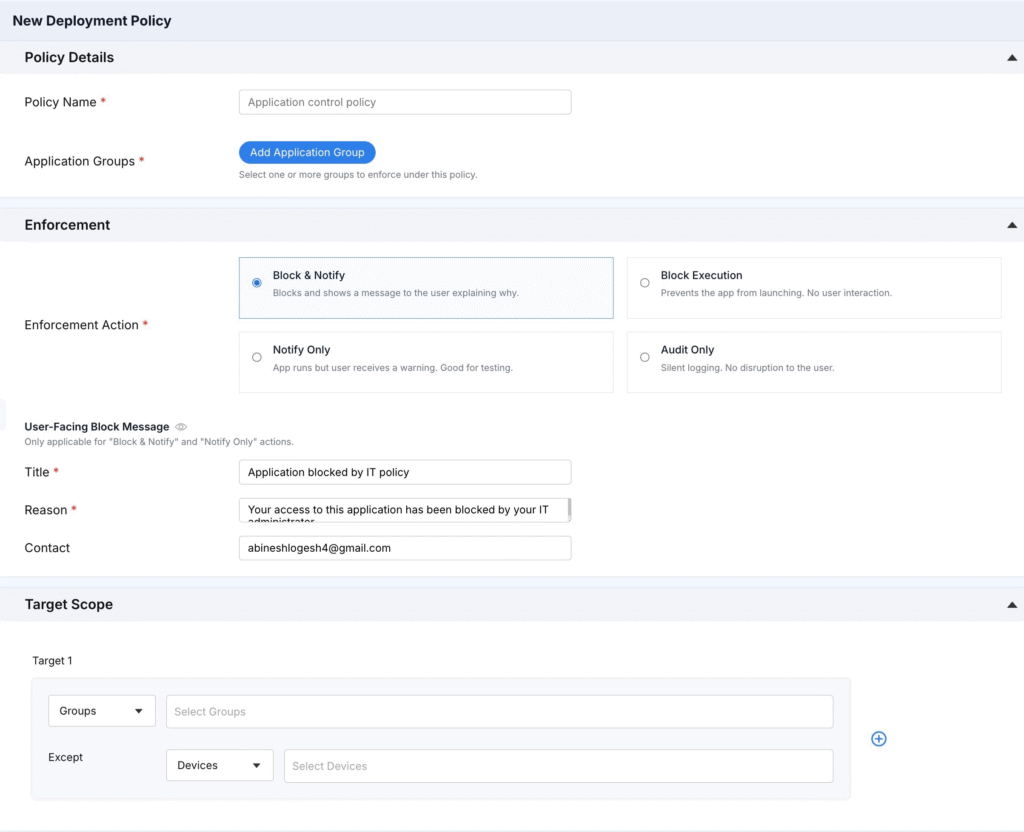
To create a deployment policy:
- Log in to the Zecurit portal.
- Go to Endpoint Manager → Application Control.
- Select the Deployment tab.
- Click Create Deployment Policy.
- Select the required Platform, such as Windows, Linux, or macOS.
- Click New Deployment Policy.
- Configure the Policy Details, Enforcement, and Target Scope sections as required.
- Click Publish to activate the policy immediately, or select Save as Draft to complete it later..
Note: At least one application group must exist before a policy can be created. See Creating an Application Group.
Policy Details
| Field | Required | Description |
|---|---|---|
| Policy Name | Yes | A descriptive name for the policy (e.g., “Application control policy”). Shown in the Violations log to identify which policy triggered an action. |
| Application Groups | Yes | One or more application groups to enforce, attached via Add Application Group. A policy can enforce multiple groups at once. |
Note: A single policy can combine groups with different access types (Block List and Allow List) if your enforcement strategy requires layered rules, though most organizations keep one access type per policy for clarity.
Enforcement Actions
The Enforcement Action determines what happens when a matched application is detected. Choose exactly one per policy:
| Action | User Sees a Message? | Application Runs? | Best For |
|---|---|---|---|
| Block & Notify | Yes | No | Standard enforcement where users should understand why access was denied |
| Block Execution | No | No | Silent, hard enforcement with no user interaction; appropriate for high risk applications |
| Notify Only | Yes (warning) | Yes | Testing a new policy before fully enforcing it, or discouraging use without hard blocking |
| Audit Only | No | Yes | Silent logging to understand application usage before deciding on an enforcement action |
A typical rollout pattern is to start a new policy on Audit Only, review the resulting Violations data, move to Notify Only if user awareness is needed, and finally switch to Block & Notify or Block Execution once confident the rule is accurate.
Figure 1: Example End-User Block Notification
This is what an end user sees when Block & Notify or Notify Only is configured the Title, Reason, and Contact fields from the Policy Details render directly in the alert dialog on the device.
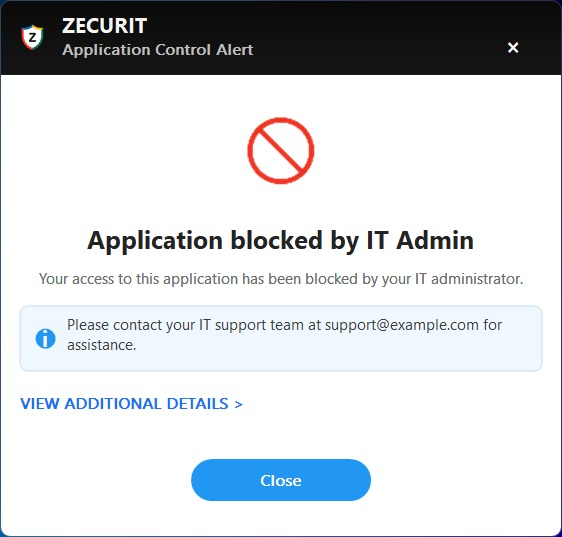
End-user “Application blocked by IT Admin” dialog, showing the Reason text and IT support contact configured in the policy’s block message.
Figure 2: Application Details View for a Blocked Application
When an application is matched and blocked, administrators can drill into the specific detection from the Violations log to see the vendor, product name, verification status, file path, and file hash useful for confirming that the correct binary triggered the policy.
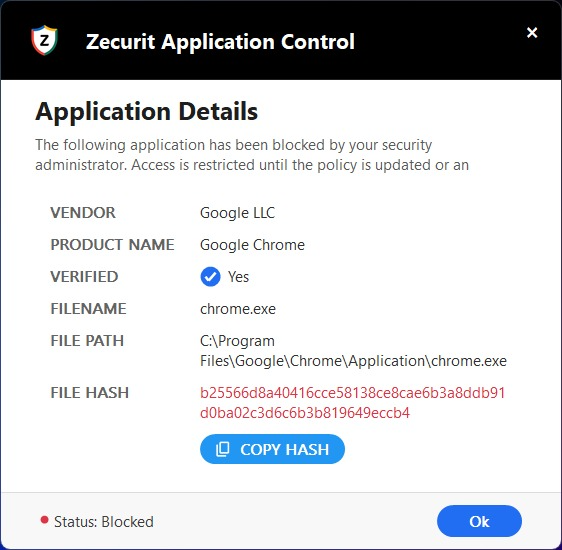
Application Details panel showing a blocked instance of Google Chrome (chrome.exe), including vendor, verification status, file path, and file hash.
User-Facing Block Message
Available only when the Enforcement Action is Block & Notify or Notify Only, since Block Execution and Audit Only never surface a message to the user.
| Field | Description | Example |
|---|---|---|
| Title | Short heading shown in the block dialog | “Application blocked by IT policy” |
| Reason | Explanation shown to the user | “Your access to this application has been blocked by your IT administrator.” |
| Contact | An email address users can reach out to for help or an exception request | [email protected] |
Keeping this message clear and including a real contact address reduces help desk confusion and repeat tickets from users who don’t understand why an application won’t open.
Target Scope and Exceptions
Target Scope controls which devices the policy applies to:
- Choose a target type from the dropdown (e.g., Groups) and select the relevant device groups under Select Groups.
- Optionally add an Except rule; choose a type (e.g., Devices) and select specific endpoints to exempt from this policy, even if they belong to a targeted group.
- Click the + icon next to a target to add additional target/exception pairs, allowing multiple scoping rules within a single policy.
| Scenario | Recommended Scope Setup |
|---|---|
| Enforce company wide | Target: Groups → All Devices; no exceptions needed |
| Enforce on one department only | Target: Groups → select that department’s device group |
| Enforce broadly but exempt IT admin machines | Target: Groups → All Devices; Except: Devices → select admin machines |
| Pilot on a small test group first | Target: Groups → select pilot group only |
Publishing vs. Saving as Draft
| Option | Effect |
|---|---|
| Publish | Activates the policy immediately; enforcement begins on all in-scope devices |
| Save as draft | Stores the policy configuration without activating it, so it can be reviewed or completed later |
| Cancel | Discards changes and exits without saving |
Example Deployment Policies
| Policy Name | Application Groups | Enforcement Action | Target Scope |
|---|---|---|---|
| Block Unauthorized Browsers | Approved Browsers – Kiosk Devices | Block Execution | Kiosk Devices group |
| Remote Access Tool Audit | Unauthorized Remote Access Tools | Audit Only | All Devices |
| US Branch Prohibited Apps | Prohibited app – US Branch | Block & Notify | US Branch group, except IT Admins |
Best Practices
- Name policies clearly enough that they’re identifiable later in the Violations log without opening them.
- Roll out new policies with Audit Only first to avoid disrupting legitimate business workflows.
- Use Target Scope exceptions rather than creating a separate application group just to carve out a few devices.
- Review published policies periodically, since application usage and risk levels change over time.
Troubleshooting Tips
| Issue | Resolution |
|---|---|
| Publish button is disabled | Confirm a Policy Name is entered and at least one Application Group is attached |
| Policy enforced on wrong devices | Review Target Scope; confirm the correct Groups/Devices were selected and exceptions are correctly configured |
| Users report no block message shown | Confirm Enforcement Action is Block & Notify, not Block Execution or Audit Only |
| Draft policy not enforcing | Draft policies are inactive by design; open the policy and click Publish to activate it |