A Device Access Control policy is what actually enforces peripheral restrictions on real devices. It sets an action Allow, Block, or Not Configured for each USB and peripheral device type, and applies that setting to every endpoint the profile is assigned to.
What is a Device Access Control Policy?
A Device Access Control policy is a profile setting that governs which USB and peripheral device types can be used on managed endpoints. Each device type such as Removable Storage Devices or Bluetooth Adapters is set to Allow, Block, or Not Configured. The same profile can combine strict settings for high-risk devices with permissive settings for everyday peripherals like mice and keyboards.
The same device type can be treated differently across profiles. For example, one profile could block Removable Storage Devices organization-wide, while a separate, narrower profile allows it only for a specific IT support group.
Create Policy
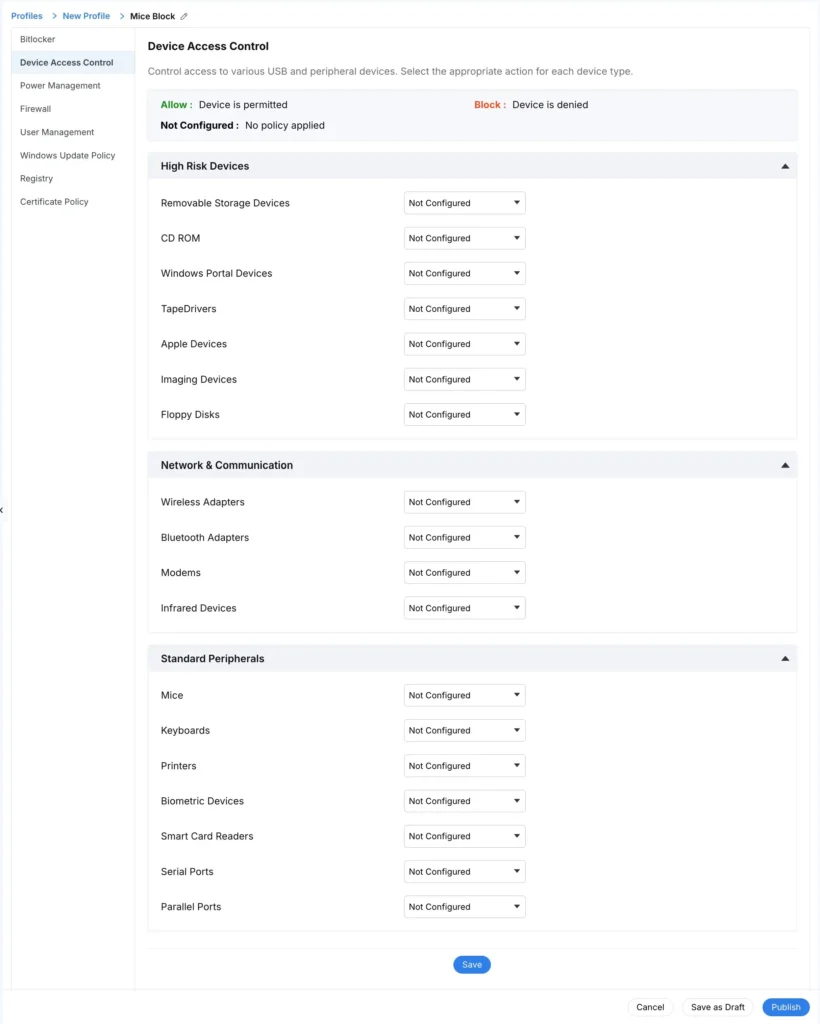
- Log in to the Zecurit portal.
- Go to Endpoint Manager → Manage → Profiles.
- Click Create Profile.
- Select Device Access Control from the configuration list.
- Configure an action (Allow, Block, or Not Configured) for each device type under High Risk Devices, Network & Communication, and Standard Peripherals.
- Click Save, then click Publish to activate the profile. Or click Save as Draft to finish it later.
At least one device type must be set to Allow or Block for the policy to take effect. Device types left on Not Configured are not enforced by this profile.
Policy Details
| Field | Required | Description |
|---|---|---|
| Profile Name | Yes | A descriptive name for the profile (e.g., “Standard Endpoint Security”). Shown in Inventory to identify which profile is applied to a device. |
| Device Type Actions | Yes | The Allow / Block / Not Configured setting chosen for each device type listed under the profile’s categories. |
A single profile can set Block on some device types and Allow on others. There is no requirement to apply the same action across an entire category.
Device Categories and Actions
Each device type uses one of three actions:
| Action | Effect | Best For |
|---|---|---|
| Allow | The device is permitted and functions normally. | Everyday peripherals required for business use, such as mice, keyboards, and printers. |
| Block | The device is denied; Windows prevents it from installing or being used. | High-risk device types where there is no legitimate business need, such as removable storage or optical media. |
| Not Configured | No rule is applied by this profile; the device follows local settings or another assigned profile. | Device types intentionally left to a different, more specific profile or to local policy. |
Device types are grouped into three categories to make large policies easier to review:
| Category | Includes |
|---|---|
| High Risk Devices | Removable Storage Devices, CD ROM, Windows Portal Devices, TapeDrivers, Apple Devices, Imaging Devices, Floppy Disks |
| Network & Communication | Wireless Adapters, Bluetooth Adapters, Modems, Infrared Devices |
| Standard Peripherals | Mice, Keyboards, Printers, Biometric Devices, Smart Card Readers, Serial Ports, Parallel Ports |
A typical rollout pattern is to leave a new device type on Not Configured while confirming which endpoints actually use it, then move to Block once you’ve confirmed it has no legitimate business use in your environment.
Publishing vs. Saving as Draft
| Option | Effect |
|---|---|
Save | Saves the profile configuration. You can publish it later. |
| Publish | Activates the policy immediately; enforcement begins on all endpoints the profile is assigned to. |
| Save as Draft | Stores the profile configuration without activating it, so it can be reviewed or completed later. |
| Cancel | Discards changes and exits without saving. |
Example Policies
| Profile Name | Category Focus | Action | Notes |
|---|---|---|---|
| Standard Endpoint Security | High Risk Devices | Block | Applied to all corporate laptops and desktops. |
| Kiosk Lockdown | High Risk + Network & Communication | Block | Applied to shared/kiosk device group only. |
| IT Support Exception | High Risk Devices | Allow | Scoped to the IT support device group only. |
Best Practices
- Name profiles clearly enough that they’re identifiable later in Inventory without opening them.
- Set high-risk device types (removable storage, optical media, portable devices) to Block by default.
- Keep everyday peripherals mice, keyboards, printers, biometric devices on Allow.
- Use a separate, narrowly scoped profile for exceptions rather than loosening the base policy.
- Review published profiles periodically, since device usage and risk levels change over time.
Troubleshooting Tips
| Issue | Resolution |
|---|---|
| Publish button is disabled | Confirm a Profile Name is entered and at least one device type has an action set. |
| Device blocked unexpectedly | Check whether another assigned profile also sets a policy for that device type; Block generally takes precedence over Allow. |
| User reports device still works after Block | Confirm the profile was Published, not left as a draft, and that the device has synced with the endpoint. |
| Draft profile not enforcing | Draft profiles are inactive by design; open the profile and click Publish to activate it. |