Publishing a profile saves it in Endpoint Manager but does not apply it to any devices or groups. To apply the profile, you must associate it with one or more devices or groups from the Groups and Devices list. You can assign a profile to a single device, multiple devices, or an entire group..
What is Profile Association?
Profile association links a published Configuration Profile to specific devices. In Groups and Devices, the Devices list shows the number of profiles and deployment policies assigned to each device. These counts increase when a profile or deployment policy is associated with the device.A device can have multiple profiles, and the same profile can be assigned to multiple devices.
Where to Begin
- Log in to the Zecurit portal.
- Go to Endpoint Manager → Manage → Groups and Devices.
- Select the Devices or Groups tab.
- Locate the device or groups you want to update using the Search icon or the selection checkboxes.
- Click the three-dot Actions icon for a single device, or click Actions at the top when multiple devices are selected.
- Select Configuration Profile from the menu.
- Select the Configuration Profile you want to associate with the selected device or groups.
Only Published profiles are eligible for association. Draft profiles do not appear in the profile list.
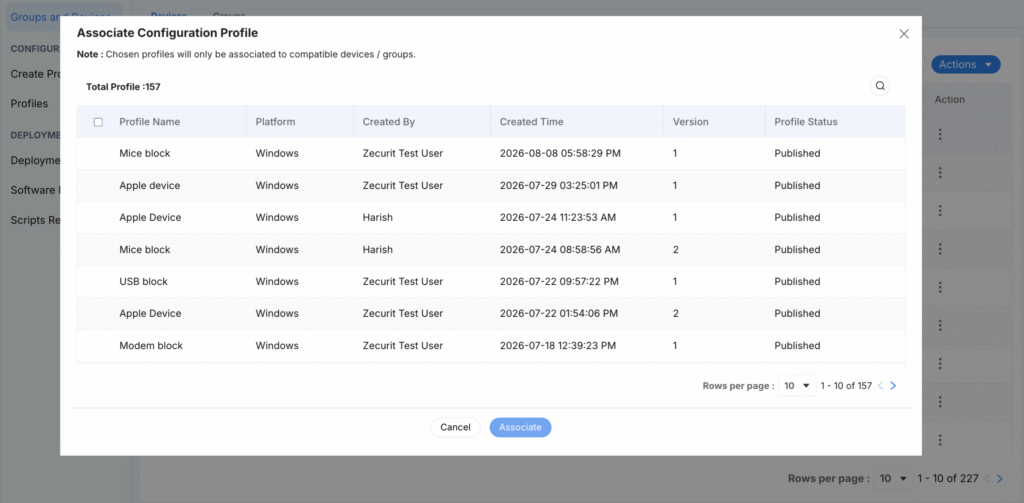
The Associate Configuration Profile Window
Selecting Configuration Profile opens a window listing every profile available for the device’s platform. Each row shows:
| Column | Description |
|---|---|
| Profile Name | The name given to the profile when it was created. |
| Platform | The operating system the profile applies to (e.g., Windows). |
| Created By | The user who created the profile. |
| Created Time | The date and time the profile was created. |
| Version | The current version number of the profile. |
| Devices | How many devices the profile is already associated with. |
| Associated Groups | How many device groups the profile is already associated with. |
| Profile Status | Whether the profile is Published and available to associate. |
Select the checkbox next to the profile you want, then click Associate. Click Cancel to close the window without making changes.
Applying to a Single Device vs. Multiple Devices
| Scenario | How To |
|---|---|
| Single device | Click the three-dot icon on that device’s row → Configuration Profile → select the profile → Associate. |
| Multiple devices | Select the checkboxes next to each device → click Actions at the top of the list → Configuration Profile → select the profile → Associate. |
The chosen profile is applied to every selected device in the same action; you do not need to repeat the steps per device.
Confirming the Association
After clicking Associate, return to the Devices tab. The Profile column for that device increases by one for each profile now associated with it. Opening the Profile count also shows which specific profiles are applied.
Example Scenarios
| Goal | Selection | Action |
|---|---|---|
| Apply a new security profile to one laptop | Select the single device row | Configuration Profile → select profile → Associate |
| Roll a profile out to an entire department | Select all devices in that group using checkboxes | Actions → Configuration Profile → select profile → Associate |
| Check what’s already applied to a device | Open the device row | View the Profile column count |
Best Practices
- Confirm a profile is Published before trying to associate it — draft profiles won’t appear in the list.
- Use the multi-select checkboxes for group rollouts instead of repeating the process device by device.
- Check the Profile Status column in the association window to avoid selecting an outdated or unpublished version.
- After associating a profile, confirm the Profile count increased before considering the task complete.
Troubleshooting Tips
| Issue | Resolution |
|---|---|
| Profile doesn’t appear in the list | Confirm the profile is Published and matches the device’s platform (e.g., Windows). |
| Associate button has no effect | Confirm a profile checkbox is selected before clicking Associate. |
| Profile count didn’t increase | Refresh the Devices tab; if it still shows 0, repeat the association steps. |
| Wrong devices received the profile | Review which checkboxes were selected before Actions → Configuration Profile was clicked. |