Set Up and Use Authenticator App
Multi-Factor Authentication (MFA) adds an extra layer of security to your Zecurit Endpoint Manager account. In addition to your username and password, MFA requires an additional verification step when you sign in.
The Authenticator App generates a 6-digit verification code using a supported authenticator application.
Set Up the Authenticator App
Step 1: Open MFA Settings
- Sign in to the Zecurit Endpoint Manager portal.
- Go to Settings → Security → MFA.
Expected outcome: The MFA configuration page opens and displays the available authentication methods.
Step 2: Start Authenticator Setup
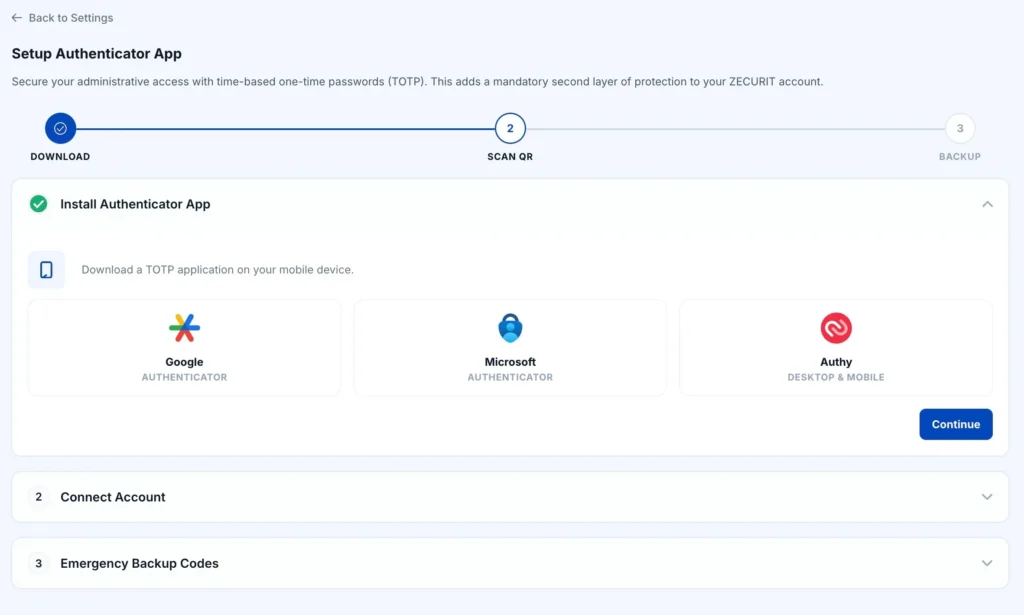
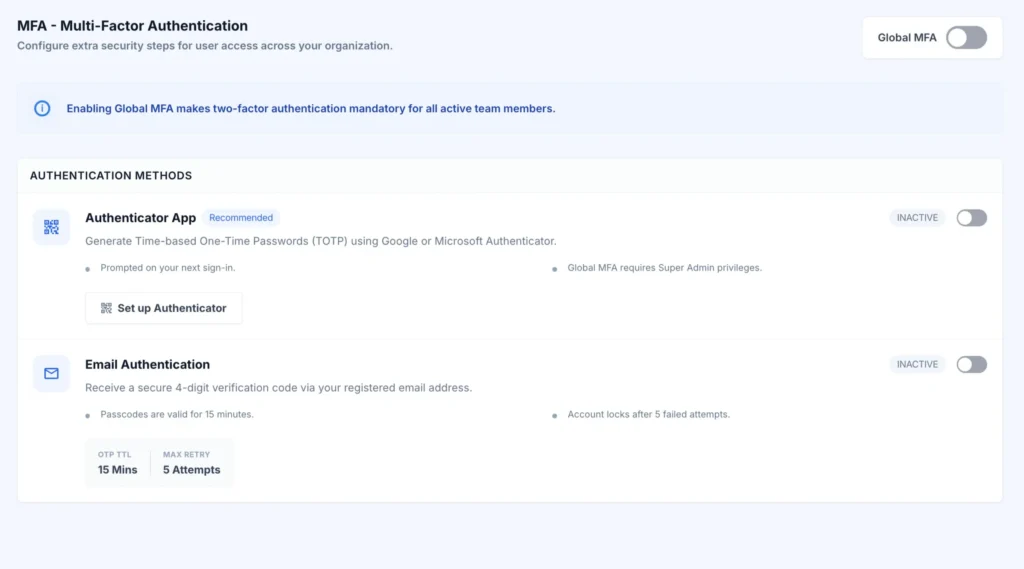
- Under Authentication Methods, locate Authenticator App.
- Select Set up Authenticator.
Expected outcome: A QR code is displayed.
Step 3: Add Your Account
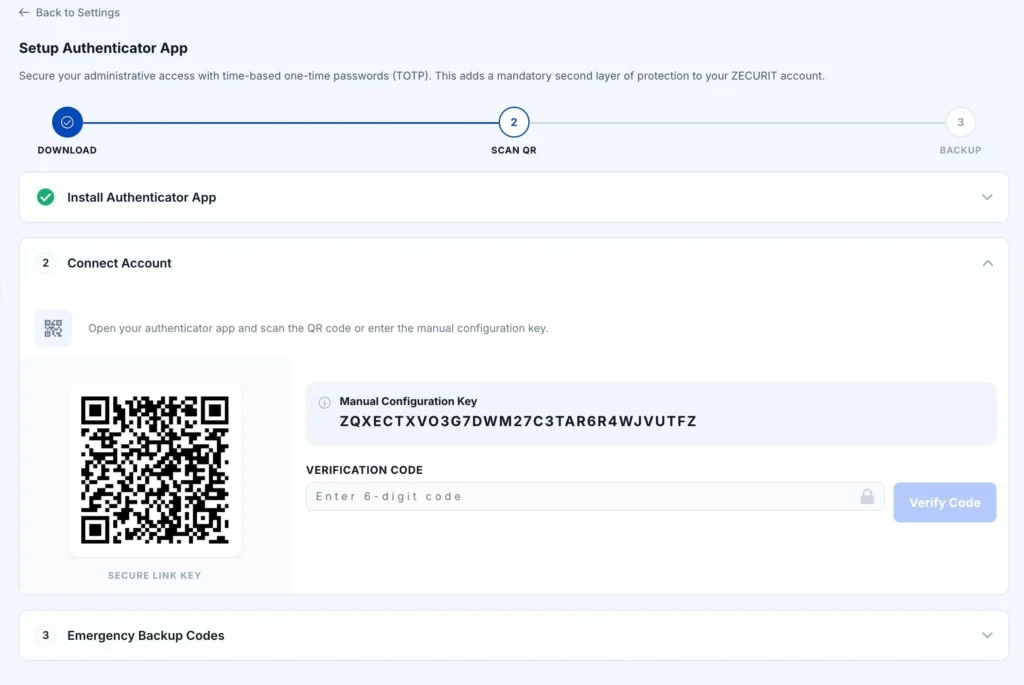
- Open your supported authenticator application.
- Select the option to add a new account.
- Scan the QR code displayed in Zecurit Endpoint Manager.
Expected outcome: Your account is added to the authenticator application, and a 6-digit verification code is generated.
If You Cannot Scan the QR Code
- Select Enter Code Manually or Can’t Scan QR Code?.
- Copy the setup code displayed on the screen.
- Open your authenticator application.
- Select the option to add an account manually.
- Enter the setup code.
- Save the account.
Expected outcome: Your account is added to the authenticator application, and a 6-digit verification code is generated.
Step 4: Verify the Authenticator
- Enter the current 6-digit verification code.
- Select Verify.
Expected outcome: The authenticator setup is successfully verified.
Note: The Authenticator App is not active yet.
Step 5: Download the Recovery Code
- After the authenticator is successfully verified, download the recovery code when prompted.
- Save the recovery code in a secure location.
- Complete the recovery-code step.
Expected outcome: The recovery code is successfully downloaded.
Important: The Authenticator App becomes Active only after the recovery code has been downloaded.
Step 6: Confirm Activation
- Return to Settings → Security → MFA.
- Locate Authenticator App.
- Check the status.
Expected outcome: The Authenticator App shows Active.
Sign In Using the Authenticator App
- Sign in to Zecurit Endpoint Manager using your username and password.
- On the Two Factor Authentication screen, open your authenticator application.
- Enter the current 6-digit verification code.
- Select Verify.
Expected outcome: You are successfully signed in.
Sign in Using a Recovery Code
If you cannot access your authenticator application:
- On the Two Factor Authentication screen, select Use a recovery code instead.
- Enter your saved recovery code.
- Select Verify.
Expected outcome: You can complete authentication without accessing your authenticator application.
Set Up and Use Email Authentication
Email Authentication sends a 4-digit verification code to your registered email address.
Enable Email Authentication
- Sign in to the Zecurit Endpoint Manager portal.
- Go to Settings → Security → MFA.
- Under Authentication Methods, locate Email Authentication.
- Enable the authentication method.
Expected outcome: Email Authentication is enabled.
Sign in Using Email Authentication
- Sign in to Zecurit Endpoint Manager using your username and password.
- Check your registered email address for the verification code.
- Enter the 4-digit verification code.
- Select Verify.
Expected outcome: Email verification is successfully completed and you are signed in.
Note: Email verification codes are valid for 15 minutes. The account locks after 5 failed attempts.
Enable Global MFA
Global MFA makes MFA mandatory for all active team members.
- Go to Settings → Security → MFA.
- Locate Global MFA.
- Turn on the Global MFA switch.
- Confirm the action if prompted.
Expected outcome: MFA becomes mandatory for all active team members.
Note: You must have Super Admin privileges to enable Global MFA.
Troubleshooting
| Issue | Symptoms | Resolution |
|---|---|---|
| QR code cannot be scanned | The authenticator application cannot scan the QR code. | Select Enter Code Manually or Can’t Scan QR Code?. Copy the setup code and enter it in the authenticator application. |
| Authenticator App remains Inactive | The setup appears complete, but the status remains Inactive. | Go to Settings → Security → MFA. Confirm that the 6-digit code was verified and the recovery code was downloaded. |
| Authenticator code is rejected | The 6-digit verification code is not accepted. | Wait for the authenticator code to refresh and enter the latest code. Make sure your device’s date and time are synchronized automatically. |
| Authenticator app is unavailable | You cannot access the authenticator application or generate a verification code. | On the Two Factor Authentication screen, select Use a recovery code instead and enter your saved recovery code. |